Cyber Forensics Investigation
By Himanshu Shekhar | 09 Jan 2022 | (0 Reviews)
Suggest Improvement on Cyber Forensics Investigation — Click here
Introduction to Cyber Forensics
Cyber Forensics (also known as Digital Forensics) is the discipline of identifying, preserving, analyzing, and presenting digital evidence in a legally acceptable manner. This comprehensive module provides an in-depth foundation for understanding the field, its importance, methodologies, challenges, and career opportunities.
Cyber forensics is used in every cybercrime investigation, data breach response, and insider threat case worldwide. This module prepares you for real-world scenarios.
0.1 What is Cyber Forensics?
The Science of Digital Evidence
Cyber Forensics (also referred to as Digital Forensics, Computer Forensics, or Forensic Computing) is the scientific discipline that involves the identification, collection, preservation, analysis, and presentation of digital evidence in a manner that is legally admissible in a court of law.
"Finding, protecting, and explaining digital evidence so it can be used in court."
🔍 Defining Cyber Forensics in Detail
Cyber Forensics applies established scientific methods and investigative techniques to examine digital devices, networks, and storage media to uncover evidence related to cybercrimes, security incidents, policy violations, or civil disputes. It is essentially the application of computer science and investigative procedures to legal matters involving digital evidence.
The term "forensic" comes from the Latin word "forensis", meaning "of or before the forum" — referring to the Roman courts where legal proceedings took place.
Where does "Forensic" come from?
The term comes from the Latin word "forensis" — meaning "of or before the forum" — referring to Roman courts where legal proceedings took place. Thus, cyber forensics is essentially the application of computer science and investigative procedures to legal matters involving digital evidence.
Why is it important?
Almost 90% of crimes today involve digital evidence — from hacking and fraud to homicide investigations. Without cyber forensics, criminals would operate with impunity in the digital world.
🎯 The 4 Core Principles of Cyber Forensics
Every forensic investigation is guided by four fundamental principles that ensure the integrity and admissibility of digital evidence:
Preservation of Evidence Integrity
The most critical principle in cyber forensics is that digital evidence must never be altered. Unlike physical evidence, digital data is extremely fragile and can be modified accidentally or intentionally. Even simply viewing a file can change its last accessed timestamp.
Chain of Custody
The chain of custody is a documented chronological record showing the seizure, custody, control, transfer, analysis, and disposition of evidence. Every person who handles the evidence must be documented, along with the date, time, purpose, and location of access.
Scientific Methodology
Cyber forensics follows the same scientific method as other forensic sciences: hypothesis formation, testing, validation, and peer review. Investigators must use validated tools and techniques that produce repeatable, verifiable results.
Legal Admissibility
Digital evidence is only useful if it can be admitted in court. The Daubert Standard governs admissibility, considering whether methodology has been tested, peer-reviewed, has a known error rate, and is generally accepted in the scientific community.
🔍 Real-World Example: Phishing Attack Investigation
If an investigator hypothesizes that an attacker gained access through a phishing email, they would predict finding:
- A malicious email in the user's mailbox
- The attachment being downloaded
- A malicious process executing
- Network connections to an external IP address
- Data being exfiltrated
Result: Each piece of evidence confirms or disproves the hypothesis.
📊 The 6 Key Components of Cyber Forensics
Every forensic investigation follows these six phases to ensure thorough, defensible results:
Identification
Phase 1Recognizing potential sources of digital evidence and defining the scope of the investigation.
Includes identifying which devices, systems, networks, and accounts may contain relevant evidence. Investigators must also identify potential witnesses, document the scene, and determine legal authority.
Preservation
Phase 2Securing evidence to prevent alteration or loss.
Includes isolating affected systems, capturing volatile data before powering off, creating forensic images, securing evidence in controlled environments, and maintaining chain of custody.
Collection
Phase 3Gathering digital evidence in a forensically sound manner.
Includes hard drives and SSDs (full disk images), RAM dumps, network traffic captures (PCAP files), log files, mobile devices, and cloud accounts.
Examination
Phase 4Processing and extracting data using forensic tools.
Includes file system parsing, deleted file carving, registry parsing, log parsing, indexing, keyword searching, and hash filtering.
Analysis
Phase 5Interpreting evidence to answer investigative questions.
Includes timeline reconstruction, evidence correlation, attack vector identification, lateral movement mapping, data impact assessment, attacker attribution, and root cause analysis.
Presentation
Phase 6Reporting findings clearly for different audiences.
Includes report writing for different audiences (executive, technical, legal), exhibit preparation, peer review, legal review, expert testimony, and remediation recommendations.
🌍 Real-World Applications of Cyber Forensics
Cyber forensics is used across multiple sectors to investigate crimes, resolve disputes, and protect organizations:
Criminal Investigations
Law EnforcementLaw enforcement agencies use cyber forensics to investigate a wide range of crimes:
- Cybercrime: Hacking, malware, DDoS, ransomware
- Financial Fraud: Identity theft, credit card fraud
- Child Exploitation: CSAM possession/distribution
- Terrorism: Communication and planning evidence
- Homicide: Digital evidence linking suspects
- Drug Trafficking: Communication and financial records
Corporate Investigations
Private SectorOrganizations employ forensic investigators to handle internal matters:
- Insider Threats: IP theft, data exfiltration
- Data Breaches: Scope and source of incidents
- Policy Violations: Harassment, misuse of resources
- Litigation Support: eDiscovery for lawsuits
- Mergers & Acquisitions: Due diligence investigations
- Compliance Audits: Regulatory violation detection
Civil Litigation
Legal SectorAttorneys use digital forensics in civil cases to uncover truth and support claims:
- Divorce: Hidden assets, infidelity evidence
- IP Disputes: Trade secret theft, copyright infringement
- Employment: Wrongful termination, discrimination
- Insurance: Fraud investigation, claim verification
- Contract Disputes: Email and document evidence
- Personal Injury: Digital evidence of negligence
📂 Common Types of Digital Evidence
| Evidence Type | Examples | Where to Find |
|---|---|---|
| 📧 Emails | Headers, attachments, content, metadata | Email servers, Outlook PST files, webmail |
| 🌐 Browser Artifacts | History, cookies, cache, downloads, saved passwords | Chrome/Firefox/Edge profile folders |
| 📁 Deleted Files | Documents, photos, videos, databases | Unallocated space, slack space |
| 📜 Log Files | Authentication, system, application, security | Windows Event Logs, /var/log/ |
| 🔑 Registry | USB history, program execution, user activity | Windows Registry (SAM, SYSTEM, NTUSER.DAT) |
| 🌐 Network Traffic | PCAP files, NetFlow, firewall logs | Network captures, SIEM |
Key Takeaway
Cyber forensics is both a technical science (how to find and analyze evidence) and a legal discipline (how to make evidence admissible in court). Mastering both aspects is essential for success in this field. Digital evidence is only valuable if it can be properly collected, preserved, analyzed, and presented in a legally acceptable manner.
✅ Check Your Understanding
Answer: "Of or before the forum" (Roman courts)
Answer: Preserving evidence integrity (never alter original evidence)
Answer: Proves evidence wasn't tampered with; required for court admissibility
Answer: Always on forensic copies (images), never originals
Answer: Preservation, Chain of Custody, Scientific Method, Legal Admissibility
Answer: Approximately 90%
0.2 Need for Cyber Forensics
Why Organizations and Society Require Digital Investigation
In today's digital age, almost every aspect of our lives—personal, professional, and social—leaves a digital footprint. With the exponential growth of cybercrime and increasing reliance on technology, cyber forensics has become an essential discipline for organizations, law enforcement, legal professionals, and society as a whole.
$10.5T
Global cybercrime damages by 2025
More profitable than all illegal drugs combined
72 Hours
GDPR breach notification deadline
Fines up to €20M or 4% of global revenue
$2.66M
Average savings with incident response teams
Per data breach (IBM Report)
90%
of crimes involve digital evidence
From hacking to homicide investigations
🔐 1. Increasing Cybercrime Rates
Cybercrime has grown exponentially over the past decade, with no signs of slowing down. According to Cybersecurity Ventures, global cybercrime damages are projected to reach $10.5 trillion annually by 2025, making cybercrime more profitable than the global trade of all major illegal drugs combined.
Ransomware Attacks
Criminals encrypt data and demand payment. Forensics identifies entry vector, tracks ransom payment, and often recovers decryption keys from memory.
Phishing & BEC
Attackers trick employees into transferring funds or revealing credentials. Email forensics traces source and identifies compromised accounts.
Data Breaches
Sensitive customer or corporate data is stolen. Forensics determines what was taken, how attackers gained access, and provides evidence for legal action.
Insider Threats
Current or former employees steal data or sabotage systems. Forensics uncovers unauthorized access, data transfers, and policy violations.
⚖️ 2. Legal and Regulatory Compliance
Governments and regulatory bodies worldwide have enacted laws that mandate the preservation and reporting of digital evidence. Organizations that fail to comply face severe penalties, including fines, lawsuits, and reputational damage.
| Regulation | Requirement | Penalty for Non-Compliance |
|---|---|---|
| GDPR (EU) | Report data breaches within 72 hours, protect personal data | Fines up to €20M or 4% of global annual revenue |
| HIPAA (US) | Protect patient health information, breach notification | Fines up to $1.5M per violation category per year |
| PCI-DSS (Global) | Maintain security controls for credit card data | Fines up to $100K/month, loss of processing privileges |
| SOX (US) | Maintain accurate financial records, report security incidents | Fines up to $5M, imprisonment up to 20 years |
| FISMA (US) | Federal agencies must implement security controls | Loss of funding, public scrutiny |
🏢 3. Corporate Governance and Risk Management
Corporate boards and executives have a fiduciary duty to protect shareholder value. Cyber forensics supports good governance by investigating insider threats, enforcing acceptable use policies, supporting HR investigations, and reducing legal liability.
Insider Threat Detection
Identify unauthorized access and data exfiltrationPolicy Enforcement
Investigate policy violations and misuseHR Support
Confirm or refute misconduct claimsLiability Reduction
Limit legal exposure with proper documentation🛡️ 4. Incident Response and Business Continuity
When a security incident occurs, time is critical. Every hour of downtime can cost organizations hundreds of thousands of dollars. Cyber forensics is an essential component of incident response.
Rapid Triage
Determine scope & severityContainment
Isolate compromised systemsEradication
Remove malware & backdoorsRecovery
Restore normal operationsLessons Learned
Prevent future incidents💰 5. Financial Fraud Investigation
Financial fraud costs the global economy trillions of dollars annually. Cyber forensics is essential for investigating embezzlement, money laundering, accounting fraud, insurance fraud, and tax evasion.
Embezzlement
Tracing digital transactions to identify stolen fundsMoney Laundering
Following the digital trail of illicit proceedsAccounting Fraud
Examining digital records to identify falsified entries👥 6. Employee Misconduct and HR Investigations
Digital evidence plays a crucial role in workplace investigations, including harassment and discrimination, theft of time, non-competition violations, and confidentiality breaches.
⚔️ 7. National Security and Law Enforcement
Government agencies and law enforcement rely on cyber forensics to protect national security and prosecute criminals:
- Terrorism Investigations: Communication and planning evidence
- Child Exploitation: Identifying victims and tracking perpetrators
- Drug Trafficking: Communication and financial records
- Cyber Espionage: Identifying nation-state actors
Key Takeaway
Cyber forensics is not optional—it is essential. Organizations that lack forensic capabilities are vulnerable to undetected breaches, unable to respond effectively to incidents, and at risk of legal penalties. The cost of implementing forensics is far less than the cost of a major breach.
✅ Check Your Understanding
Answer: $10.5 trillion annually
Answer: 72 hours
Answer: $2.66 million on average
Answer: Approximately 90%
Answer: GDPR, HIPAA, PCI-DSS, SOX, FISMA
Answer: $500 million
0.3 Cyber Forensics vs Digital Forensics
The terms Cyber Forensics and Digital Forensics are often used interchangeably, but there are important distinctions. Understanding these differences is crucial for professionals choosing career paths, organizations building capabilities, and students planning their education.
📊 Understanding the Terminology
Digital Forensics is the broader discipline that encompasses the investigation of any digital device or electronic data. It applies to any situation where digital evidence may exist, regardless of whether a cybercrime occurred.
📱 Devices Examined:
- Computers and Laptops
- Mobile Devices (phones, tablets)
- Storage Media (USB drives)
- IoT Devices (smart home)
- Vehicle Systems (black boxes)
- Gaming Consoles
- Cameras and Drones
- Printers and Copiers
Cyber Forensics is a specialized subset of digital forensics that focuses specifically on cybercrimes—illegal activities conducted using computers, networks, or the internet as tools, targets, or both.
🎯 Key Focus Areas:
- Network Forensics: Packet captures, firewall logs, IDS alerts
- Malware Analysis: Static and dynamic malware examination
- Memory Forensics: RAM analysis, fileless malware detection
- Incident Response: Breach investigation and containment
- Attack Attribution: Tracing attacks to specific actors
📋 Detailed Comparison: Cyber Forensics vs Digital Forensics
| Aspect | Digital Forensics | Cyber Forensics |
|---|---|---|
| Scope | Broader - includes any digital device (phones, tablets, IoT, cameras, vehicles, gaming consoles) | Narrower - focuses on cybercrimes, networks, computers, and internet-related incidents |
| Primary Focus | Data extraction, recovery, and analysis from any digital source | Attack investigation, network traffic analysis, malware analysis, incident response |
| Typical Cases | Civil litigation, divorce, IP theft, employee misconduct, policy violations | Hacking, malware, ransomware, data breaches, cyber espionage, DDoS attacks |
| Typical Clients | Law firms, corporate legal departments, HR, private investigators, individuals | Law enforcement (FBI, Secret Service), cybersecurity teams, incident responders, government agencies |
| Key Skills | File system analysis, data recovery, eDiscovery, report writing, chain of custody | Network analysis, memory forensics, malware analysis, threat hunting, intrusion detection |
| Common Tools | FTK, EnCase, Autopsy, X-Ways, Cellebrite, Oxygen | Wireshark, tcpdump, Volatility, Snort, Suricata, SecurityOnion, IDA Pro |
| Evidence Types | Files, emails, photos, documents, chat logs, browser history, deleted data | Network packets, firewall logs, IDS alerts, memory dumps, malware binaries, C2 traffic |
| Legal Context | Often civil litigation, internal investigations, regulatory compliance | Often criminal prosecution, national security, major incident response |
🔄 Overlap and Intersection
While there are distinctions, the two disciplines overlap significantly. Many investigations require both digital and cyber forensics skills. For example:
📊 Data Breach Investigation
Requires digital forensics (analyzing affected systems, recovering logs) AND cyber forensics (analyzing network traffic, identifying attack vectors).
🦠 Ransomware Attack
Requires cyber forensics (analyzing malware, tracing C2 communication) AND digital forensics (recovering encrypted files, examining system artifacts).
👤 Insider Threat Case
May involve digital forensics (reviewing files accessed) AND cyber forensics (analyzing network transfers, identifying data exfiltration).
🎓 Career Implications
- eDiscovery Specialist
- Forensic Analyst (corporate/law firm)
- Computer Forensic Examiner (law enforcement)
- Litigation Support Specialist
- Incident Responder
- Threat Hunter
- Malware Analyst
- Network Forensic Analyst
- Cybercrime Investigator (FBI/SS)
- DFIR Analyst (Digital Forensics & Incident Response)
- Forensic Consultant
- SOC Analyst with Forensic Capabilities
📐 Relationship Between Disciplines
├── Computer Forensics
├── Mobile Forensics
├── Database Forensics
├── IoT Forensics
├── Cloud Forensics
├── Email Forensics
└── ▶ Cyber Forensics (Specialized Subset)
Key Takeaway
Digital forensics is the broader umbrella that includes cyber forensics. Cyber forensics focuses specifically on crimes involving computers, networks, and the internet. Professionals often benefit from skills in both areas, as many investigations require both disciplines.
✅ Check Your Understanding
Answer: Digital Forensics
Answer: Hacking, ransomware, data breaches, cyber espionage
Answer: Wireshark, Volatility, Snort, IDA Pro
Answer: Civil litigation, divorce, IP theft, employee misconduct
Answer: FTK, EnCase, Autopsy, Cellebrite
Answer: Digital Forensics and Incident Response Analyst (hybrid role)
0.4 Goals and Objectives of Cyber Forensics
Cyber forensics serves multiple critical goals that extend beyond simply finding evidence. Understanding these goals helps investigators focus their efforts and prioritize actions.
🎯 Primary Goals of Cyber Forensics
Preserve Evidence Integrity
The most fundamental goal is to preserve the integrity of digital evidence from collection through presentation. Digital evidence is extremely fragile and can be altered accidentally or intentionally.
Identify Attack Vectors
Understanding how an attacker gained access is crucial for both investigation and preventing future incidents. Attack vectors are the paths attackers use to compromise systems.
Reconstruct Timelines
Timeline reconstruction involves creating a chronological sequence of events to understand exactly what happened, when it happened, and in what order.
Support Legal Proceedings
Digital evidence is only useful if it can be admitted in court. The goal is to produce evidence that meets legal standards for admissibility.
Attribute Actions to Users
Attribution involves linking specific actions to specific users or systems. This is challenging where accounts can be shared, compromised, or spoofed.
Quantify Impact & Scope
Organizations need to understand the full impact of a security incident to make informed decisions about response, remediation, and communication.
Prevent Future Incidents
The ultimate goal of cyber forensics is not just to investigate past incidents but to prevent future ones. Findings from forensic investigations should drive security improvements.
Patch Vulnerabilities
Update software to fix exploited vulnerabilitiesImprove Configurations
Strengthen security settings based on attacker methodsEnhance Monitoring
Add logging and alerting for attacker activities observedUpdate Policies
Revise acceptable use, access control, or incident response policiesProvide Training
Educate employees on phishing, social engineering, and security best practicesImplement Controls
Multi-factor authentication, network segmentation, endpoint detectionReal-World Example: Complete Investigation
A company discovers a data breach. The forensic investigator:
- Preserves evidence by imaging all affected systems
- Identifies the attack vector (phishing email with malicious attachment)
- Reconstructs the timeline from initial access to data exfiltration
- Supports legal proceedings with admissible evidence
- Attributes actions to specific user accounts and IP addresses
- Quantifies the impact (50,000 customer records stolen)
- Prevents future incidents by recommending security improvements
📊 Timeline Reconstruction Sources
File System
MACB TimestampsEvent Logs
Windows, SyslogNetwork Logs
Firewall, IDS, PCAPRegistry
USB History, ExecutionsComplete Timeline
Attack ReconstructionKey Takeaway
The goals of cyber forensics extend far beyond finding evidence. Investigators must preserve integrity, identify attack vectors, reconstruct timelines, support legal proceedings, attribute actions, quantify impact, and prevent future incidents. Mastering all these objectives requires both technical expertise and investigative judgment.
✅ Check Your Understanding
Answer: Preserving evidence integrity
Answer: What happened, when it happened, and in what order
Answer: Write blockers, forensic imaging, hashing
Answer: Linking specific actions to specific users or systems
Answer: Preventing future incidents
Answer: Phishing emails, exploited vulnerabilities, weak credentials
0.5 Types of Cyber Forensics
Cyber forensics encompasses several specialized sub-disciplines, each with its own tools, techniques, and evidence types. Understanding these branches helps investigators know when to apply specific methodologies and which experts to involve.
Computer Forensics
The most established branch, focusing on the analysis of computers, storage devices, and file systems. Examines hard drives, SSDs, USB drives, and other storage media to recover and analyze digital evidence.
Network Forensics
Involves monitoring, capturing, and analyzing network traffic to investigate security incidents, identify malicious activity, and reconstruct network sessions.
Mobile Device Forensics
Focuses on extracting and analyzing data from smartphones, tablets, and wearables. Mobile devices often contain more personal and behavioral data than computers.
Memory Forensics
Also called RAM forensics. Analyzes volatile memory dumps to detect malware, rootkits, and in-memory artifacts that never touch the hard drive.
Cloud Forensics
Applies forensic principles to cloud computing environments (IaaS, PaaS, SaaS), where data may be distributed across multiple servers, jurisdictions, and service providers.
Malware Forensics
Also called Malware Analysis. Examines malicious software to understand its capabilities, origin, and impact. Essential for incident response and threat intelligence.
Database Forensics
Focuses on examining database systems (MySQL, PostgreSQL, SQL Server, Oracle) for evidence of data theft, manipulation, or unauthorized access.
Key Takeaway
Cyber forensics is not a single discipline but a collection of specialized branches. Each branch requires specific knowledge, tools, and techniques. Many investigators specialize in one or two branches while maintaining foundational knowledge of others.
✅ Check Your Understanding
Answer: Memory Forensics
Answer: Packet captures, firewall logs, IDS alerts, network traffic
Answer: FTK Imager, Autopsy, EnCase
Answer: Mobile Device Forensics
Answer: Volatility Framework
Answer: Seven (7) major branches
0.6 Cyber Forensics Lifecycle (6 Phases)
The cyber forensics lifecycle is a systematic, repeatable process that ensures evidence integrity, legal admissibility, and thorough investigation. Following a standardized process is essential for producing defensible results.
🔄 The Complete Forensic Investigation Process
Identification
Define scope & detectPreservation
Secure & isolateCollection
Gather evidenceExamination
Process dataAnalysis
Interpret findingsPresentation
Report & testifyPurpose: Recognize that an incident has occurred and define the scope of the investigation.
📋 Key Activities:
- Incident detection: Identifying potential security incidents through alerts, user reports, system anomalies, or third-party notifications
- Scope definition: Determining which systems, networks, time periods, and data sources are relevant
- Evidence source identification: Identifying computers, servers, mobile devices, cloud accounts, logs
- Legal authority verification: Confirming search warrant, subpoena, or written consent
- Team assembly: Assigning investigators with appropriate skills
Purpose: Secure and isolate evidence to prevent alteration, loss, or contamination.
📋 Key Activities:
- Scene documentation: Photographing the physical scene, documenting device locations, recording system status
- Volatile data capture: Collecting RAM, running processes, network connections BEFORE powering off
- Network isolation: Disconnecting affected systems to prevent remote tampering
- Forensic imaging: Creating bit-for-bit copies using write blockers
- Chain of custody initiation: Beginning documentation of evidence handling
- Secure storage: Placing evidence in controlled environments with access logs
Purpose: Gather digital evidence from all identified sources in a forensically sound manner.
📋 Key Activities:
- Disk image collection: Acquiring forensic images from hard drives, SSDs, USB drives
- Memory image collection: Capturing RAM dumps from live systems
- Network evidence collection: Exporting firewall logs, IDS alerts, proxy logs, PCAP files
- Log collection: Gathering system logs, application logs, authentication logs
- Cloud evidence collection: Using APIs to collect logs from AWS, Azure, GCP
- Mobile device collection: Performing logical, file system, or physical extraction
- Witness interviews: Interviewing relevant individuals for context
Purpose: Process and extract relevant data from collected evidence using forensic tools.
📋 Key Activities:
- Image processing: Loading forensic images into analysis tools (FTK, EnCase, Autopsy)
- File system parsing: Reconstructing file systems to view files, directories, metadata
- Deleted file carving: Recovering files from unallocated space and slack space
- Registry parsing: Extracting Windows Registry data (user accounts, USB history, program execution)
- Log parsing: Converting raw log files into structured formats
- Indexing: Creating searchable indexes of file content and metadata
- Keyword searching: Searching for relevant terms (usernames, IPs, file names)
- Hash filtering: Excluding known good files using NSRL
Purpose: Interpret examined data to answer investigative questions and draw conclusions.
📋 Key Activities:
- Timeline reconstruction: Correlating timestamps to create chronological sequence of events
- Evidence correlation: Linking evidence across different sources
- Attack vector identification: Determining how attacker gained initial access
- Lateral movement mapping: Tracing attacker movement through the network
- Data impact assessment: Identifying what data was accessed, copied, modified, or stolen
- Attacker attribution: Linking actions to specific user accounts, IP addresses, or threat actor groups
- Root cause analysis: Identifying vulnerabilities that enabled the incident
- Hypothesis testing: Formulating and testing theories about what occurred
Purpose: Present findings in a clear, understandable, and legally defensible manner.
📋 Key Activities:
- Report writing: Creating structured reports for different audiences (executive, technical, legal)
- Exhibit preparation: Preparing evidence exhibits for court or client presentations
- Peer review: Having another qualified examiner review findings for accuracy
- Legal review: Having legal counsel review reports for admissibility
- Expert testimony: Testifying in court as an expert witness
- Recommendations: Providing actionable recommendations to prevent future incidents
📊 Timeline Reconstruction Sources
File System
MACB TimestampsEvent Logs
Windows, SyslogNetwork Logs
Firewall, IDS, PCAPRegistry
USB History, ExecutionsComplete Timeline
Attack ReconstructionKey Takeaway
The forensic lifecycle is not always linear—investigators may need to return to earlier phases as new evidence is discovered. However, following a structured process ensures thoroughness, repeatability, and legal defensibility.
✅ Check Your Understanding
Answer: Identification
Answer: Volatile data (RAM, processes, network connections)
Answer: Process and extract relevant data using forensic tools
Answer: Findings document, event timeline, impact assessment
Answer: Final forensic report, evidence exhibits, remediation recommendations
Answer: Identification, Preservation, Collection, Examination, Analysis, Presentation
0.7 Challenges in Cyber Forensics
Cyber forensics professionals face numerous technical, legal, and operational challenges. Understanding these challenges helps investigators prepare for difficult situations and develop strategies to overcome them.
1. Encryption
Challenge: Full-disk encryption (BitLocker, FileVault, LUKS, VeraCrypt) prevents access to data without the decryption key. Attackers increasingly use encryption to protect their data, and legitimate users may refuse to provide passwords.
📌 Impact:
Encrypted drives may be unreadable, potentially losing critical evidence. Legal processes to compel password disclosure can take weeks or months.
2. Anti-Forensics
Challenge: Attackers actively use anti-forensic techniques to evade detection, destroy evidence, and complicate investigations.
📌 Common Methods:
Data wiping, log tampering, timestamp manipulation (timestomping), steganography, encryption, obfuscation, fileless malware
3. Volume of Data (Big Data)
Challenge: Modern storage capacities are enormous. A single enterprise server can contain 10+ terabytes of data. Analyzing that much data manually is impossible.
📌 Impact:
Investigations take longer, require more storage, and need specialized tools and infrastructure. Keyword searches across terabytes can take days.
4. Cloud & Jurisdictional Issues
Challenge: Data stored in the cloud may be distributed across multiple servers, data centers, and countries with different data protection laws.
📌 Impact:
Evidence may be subject to different legal standards, difficult to obtain without provider cooperation, and may be deleted if not preserved quickly.
5. Rapidly Evolving Technology
Challenge: New operating systems, applications, devices, and technologies emerge constantly. Forensic tools may not support the latest versions.
📌 Impact:
Investigators may be unable to examine newer devices or may miss evidence stored in new artifact locations. Tool vendors may take months to add support.
6. Chain of Custody Integrity
Challenge: Any break in the chain of custody documentation can render evidence inadmissible. Maintaining perfect documentation across multiple handlers is difficult.
📌 Impact:
Even if evidence is perfectly preserved, poor documentation can cause it to be rejected in court. Defense attorneys will aggressively challenge chain of custody.
7. Timeliness & Volatile Data Loss
Challenge: Volatile data (RAM, running processes, network connections) disappears immediately when a system is powered off. Investigators must act quickly.
📌 Impact:
If volatile data is not captured before power-off, critical evidence may be lost forever (encryption keys, fileless malware, active network connections).
8. Legal & Privacy Constraints
Challenge: Forensic investigators must operate within legal boundaries. Privacy laws, data protection regulations, and jurisdictional limitations restrict evidence collection.
📌 Impact:
Improper evidence collection can violate privacy laws, result in evidence suppression, or lead to civil liability for the investigator or client.
9. Tool Validation & Reliability
Challenge: Forensic tools must be validated to produce accurate, repeatable results. Defense attorneys may challenge findings if tools are not properly validated.
📌 Impact:
Unvalidated tool results may be excluded from court. Investigators may need to spend significant time defending tool reliability during testimony.
10. Resource & Budget Constraints
Challenge: Forensic investigations require significant resources: skilled personnel, specialized tools, storage capacity, and processing power. Many organizations lack adequate resources.
📌 Impact:
Under-resourced investigations may miss critical evidence, take too long, or produce incomplete results. Backlogs of pending cases are common in underfunded labs.
📊 Order of Volatility (RFC 3227)
CPU/Cache
Most VolatileRAM
MemoryNetwork
ConnectionsLogs
System LogsDisk
StorageBackups
Least VolatileKey Takeaway
Cyber forensics professionals must navigate numerous technical and legal challenges. Success requires continuous learning, careful documentation, legal awareness, and creative problem-solving. The best investigators anticipate challenges and develop mitigation strategies before they encounter problems.
✅ Check Your Understanding
Answer: Full-disk encryption preventing data access without decryption key
Answer: Data wiping, log tampering, timestamp manipulation, steganography
Answer: Priority order for collecting evidence from most to least volatile (RFC 3227)
Answer: Any break can render evidence inadmissible in court
Answer: Jurisdictional issues and cross-border data laws
Answer: Use court-accepted tools, verify with multiple tools, document everything
0.8 Career Paths in Cyber Forensics
Cyber forensics offers diverse and rewarding career paths in law enforcement, corporate security, consulting, government, and private practice. The demand for qualified forensic investigators continues to grow as cybercrime increases and organizations recognize the need for forensic capabilities.
📊 Career Paths and Roles
Digital Forensics Analyst
Description: Examines digital evidence from computers, mobile devices, and storage media to support criminal investigations, civil litigation, or internal corporate investigations.
Incident Responder
Description: Responds to security incidents in real-time, containing breaches, eradicating threats, and recovering systems. Combines forensic analysis with live response techniques.
Malware Analyst
Description: Examines malicious software to understand its capabilities, origin, and impact. Provides intelligence for incident response and threat detection.
Forensic Consultant
Description: Provides expert forensic services to multiple clients on a contract basis. May specialize in mobile forensics, cloud forensics, or eDiscovery.
eDiscovery Specialist
Description: Manages the identification, preservation, collection, processing, and production of electronically stored information (ESI) for litigation.
Law Enforcement Forensic Examiner
Description: Works within law enforcement agencies to examine digital evidence for criminal investigations. Often testifies as an expert witness in court.
Cloud Forensics Specialist
Description: Specializes in collecting and analyzing evidence from cloud environments (AWS, Azure, GCP, SaaS). Navigates unique challenges of multi-tenancy and API-based evidence collection.
📜 Recommended Certifications
| Certification | Issuing Body | Focus Area | Experience Required |
|---|---|---|---|
| CHFI (Computer Hacking Forensic Investigator) | EC-Council | Comprehensive computer forensics | 2 years recommended |
| GCFE (GIAC Certified Forensic Examiner) | SANS Institute | Windows forensics | None (training required) |
| GCFA (GIAC Certified Forensic Analyst) | SANS Institute | Advanced incident response & threat hunting | Experience recommended |
| EnCE (EnCase Certified Examiner) | OpenText | EnCase forensic software | Training + exam |
| CCFE (Certified Computer Forensic Examiner) | ISFCE | General computer forensics | None |
| Cellebrite CCE (Certified Examiner) | Cellebrite | Mobile device forensics | Training + exam |
| CCFP (Certified Cyber Forensics Professional) | (ISC)² | Advanced cyber forensics | 5 years experience |
🎓 Educational Pathways
Bachelor's Degree
Computer Science, Cybersecurity, Digital Forensics, Criminal Justice with digital focusMaster's Degree
Digital Forensics, Cybersecurity, Information Security (advantageous for senior roles)Alternative Paths
Military training, law enforcement academy, intensive certification programs📈 Job Outlook and Growth
Projected Growth
2023-2033 (BLS)Drivers
Increasing cybercrime, regulatory requirements, corporate security awarenessHot Markets
Washington DC, New York, San Francisco, London, Singapore🛠️ Essential Skills for Success
- Operating systems (Windows, Linux, macOS)
- File systems (NTFS, FAT, EXT, APFS)
- Forensic tools (FTK, EnCase, Autopsy, X-Ways)
- Memory forensics (Volatility)
- Network analysis (Wireshark, tcpdump)
- Mobile forensics (Cellebrite, Oxygen)
- Scripting (Python, PowerShell)
- Attention to detail
- Critical thinking and problem-solving
- Written and verbal communication
- Courtroom testimony and presentation
- Ethical judgment and integrity
- Project management
- Continuous learning mindset
🚀 How to Get Started Today
- Learn the Basics (0-3 months):
- Understand computer hardware, operating systems, and networking
- Complete free online courses (Cybrary, YouTube, Coursera)
- Read "Digital Forensics and Incident Response" by Gerard Johansen
- Get Hands-On (3-6 months):
- Download and practice with FTK Imager (free)
- Install Autopsy and analyze sample images from DigitalCorp
- Set up a virtual lab using VirtualBox or VMware
- Complete CTF challenges (CyberDefenders, Blue Team Labs Online)
- Get Certified (6-12 months):
- Start with entry-level: CHFI or CCFE
- Progress to advanced: GCFE or GCFA (requires SANS training)
- Consider vendor-specific: EnCE or Cellebrite CCE
- Gain Experience (12-24 months):
- Apply for junior forensic analyst positions
- Seek internships with law enforcement or consulting firms
- Volunteer for digital forensic organizations
- Build a portfolio of case studies and report samples
- Network and Grow:
- Join professional organizations (IACIS, HTCIA, ISFCE)
- Attend conferences (SANS DFIR Summit, Forensic 4:Cast)
- Participate in online communities (r/computerforensics, DFIR Discord)
- Follow industry experts on LinkedIn and Twitter/X
Final Thought
Cyber forensics is a challenging but immensely rewarding career. Every investigation helps uncover the truth, bring criminals to justice, protect organizations, and make the digital world safer. With the right skills, certifications, and dedication, you can build a successful career in this growing field.
✅ Check Your Understanding
Answer: 32%
Answer: Digital Forensics Analyst, Incident Responder, Malware Analyst
Answer: $90,000 - $180,000
Answer: GCFE (GIAC Certified Forensic Examiner)
Answer: OS knowledge, file systems, forensic tools, memory forensics, network analysis
Answer: Learn the basics (computer hardware, OS, networking)
🎓 Module 00 : Introduction to Cyber Forensics Successfully Completed
You have successfully completed this module of Cyber Forensics Investigation.
Keep building your expertise step by step — Learn Next Module →
Forensics Readiness & Investigation Framework
This module covers the foundational framework for digital forensic investigations, including forensic readiness, lab setup, incident response integration, investigator roles, and professional ethics. Understanding these concepts is essential for establishing a robust forensic capability within any organization.
Forensic readiness is not about responding to incidents — it's about being prepared before incidents occur.
00A.1 What is Forensic Readiness?
📋 Definition of Forensic Readiness
Forensic Readiness is defined as: "The achievement of an appropriate level of capability by an organization in order for it to be able to collect, preserve, protect and analyse digital evidence so that this evidence can be effectively used in any legal matters, in disciplinary matters or in court of law."
Forensic readiness refers to an organization's ability to make optimal use of digital evidence in a limited period of time and with minimal investigation costs.
00A.2 Benefits of Forensic Readiness
Fast & Efficient Investigation
Minimal breakdown to the business during investigations.
Security from Cybercrimes
Protection against IP theft, fraud, and extortion.
Reduced Investigation Costs
Structured storage reduces expense and time.
Improved Law Enforcement Interface
Better collaboration with law enforcement agencies.
Easy Evidence Identification
Quick identification of evidence related to potential crimes.
Positive Legal Outcomes
Proper usage of evidence for positive legal outcomes.
Organizational Defense
Helps the organization use digital evidence in its own defense.
Blocks Attackers
Prevents attackers from covering their tracks.
Regulatory Compliance
Limits costs of regulatory or legal requirements for data disclosure.
Future Attack Prevention
Helps avoid similar attacks in the future.
00A.3 Forensic Readiness Planning
Forensic readiness planning refers to a set of processes required to achieve and maintain forensic readiness.
📋 Key Planning Components
Identify potential evidence required for an incident
Determine the source of the evidence
Define a policy for legally extracting electronic evidence with minimal disruption
Policy for securely handling and storing collected evidence
Identify if the incident requires full or formal investigation
Train staff to handle incidents and preserve evidence
Create a special process for documenting procedures
Establish a legal advisory board to guide the investigation process
00A.4 Setting Up a Computer Forensics Lab
🏢 What is a Computer Forensics Lab (CFL)?
A Computer Forensics Lab is a location designated for conducting computer-based investigations with regard to collected evidence. The lab houses instruments, software and hardware tools, suspect media, and forensic workstations required to conduct the investigation.
🎯 Purpose of a CFL
- Secure evidence handling
- Specialized analysis environment
- Controlled access and chain of custody
- Legal and procedural compliance
00A.5 Steps to Setting Up a Forensics Lab
Planning & Budgeting
Define scope, resources, and budgetPhysical Location & Design
Site selection and structural planningWork Area Consideration
Workstation setup and workspace layoutPhysical Security
Access control, CCTV, secure storageHuman Resources
Staffing, training, and certificationLab Licensing
Legal certification and accreditation00A.6 Lab Planning & Budgeting Considerations
- 📊 Types of investigation to be conducted
- 📈 Number of cases expected
- 👥 Number of investigators/examiners required
- 🖥️ Forensic and non-forensic workstation requirements
- 🏢 Space occupied and equipment required
- 💻 Necessary software and hardware
- 📚 Reference materials
- 🔒 Safe locker for original evidence
- 🌐 LAN and Internet connectivity
- 📦 Storage shelves for unused equipment
00A.7 Physical Location & Structural Design
- Site of the lab
- Access to emergency services
- Physical milieu of the lab
- Design of parking facility
- Dedicated Internet and communication lines
- Multiple backups for communication lines
- A dedicated network
- Appropriate room size
- Good ventilation & air-conditioning
- Good electricity supply
- Emergency power & lighting systems
- UPS backup systems
00A.8 Work Area Considerations
- Ideal lab consists of two forensic workstations & one ordinary workstation with Internet connectivity
- Forensics workstations vary according to case types & processes
- Ample space for case discussions among investigators
- Comfortable environment for long working hours
- Ceiling height, walls, flooring contribute to ambience
- Lighting, room temperature & communication are important factors
00A.9 Computer Forensics as Part of Incident Response Plan
🚨 What is Incident Response?
Incident response is a process of responding to incidents that may have occurred due to security breach in the system or network.
📌 Key Objectives
- Minimizes damage and reduces recovery time and costs
- Identifies how breach occurred
- Locates the method of breach
- Reduces the impact of breach
⚖️ Forensic Role in IR
- Finding & analyzing evidence to determine the culprit
- Legally sound evidence collection
- Tracking and prosecuting perpetrators
- Organizations include IR plan for legal prosecution
00A.10 Need for a Forensic Investigator
Cyber Crime Investigation
Helps organizations and law enforcement investigate and prosecute cyber crime perpetrators
Sound Evidence Handling
Inexperienced handling can render evidence inadmissible in court
Incident Handling & Response
Helps maintain forensic readiness and implement effective IR teams
00A.11 Roles and Responsibilities of a Forensic Investigator
- 1️⃣ Determines damage during the crime
- 2️⃣ Recovers data of investigative value from computers
- 3️⃣ Gathers evidence in a forensically sound manner
- 4️⃣ Ensures evidence is not damaged
- 5️⃣ Creates images of original evidence without tampering
- 6️⃣ Submits evidence describing discovery procedure
- 7️⃣ Reconstructs damaged disks and uncovers hidden information
- 8️⃣ Analyzes evidence and finds relevant data
- 9️⃣ Prepares proper analysis reports
- 🔟 Updates organization about attack methods and recovery techniques
- 1️⃣1️⃣ Addresses issues in court as testifying witness
- 1️⃣2️⃣ Works to win cases through expert testimony
00A.12 What Makes a Good Computer Forensics Investigator?
- Better interviewing skills
- Researching skills
- Patience and willingness to work long hours
- Excellent writing skills
- Strong analytical skills
- Excellent communication skills
- Up-to-date with new methodologies
- Well versed in multiple platforms (Windows, Mac, Linux)
- Knowledge of hardware & software
- Multi-discipline expertise
- Knowledge of laws surrounding the case
- Perfect accuracy in tests & records
- Ability to control emotions
- Honest, ethical, and law-abiding
- Develops professional contacts
00A.13 Computer Forensics Issues
- Digital evidence is critical and susceptible to changes
- Legal systems differ across jurisdictions
- Different rules for acquiring, preserving & presenting evidence
- Different approaches to authenticity, reliability & completeness
- Legal systems may not address technological advances
- Must be cautious to avoid unlawful search & seizure
- Fourth Amendment: Government agents may not search without warrant
- Private intrusions are exempted from Fourth Amendment
- Must protect other users' anonymity while investigating illegal activities
00A.14 Code of Ethics for Forensic Investigators
- Perform investigations based on well-known standard procedures
- Perform assigned tasks with high commitment and diligence
- Act with ethical and moral principles
- Examine evidence carefully within the scope of the agreement
- Ensure integrity of evidence throughout the investigation
- Act in accordance with federal statutes, state statutes, and local laws
- Testify honestly before any board, court or trial proceedings
- Refuse any evidence that may cause failure in the case
- Expose confidential matters without authorized permission
- Exceed assignments beyond his/her skills
- Perform actions leading to conflict of interest
- Present training, credentials, or membership in a wrong way
- Provide personal or prejudiced opinions
- Reserve any evidence relevant to the case
What is Computer Forensics?
This module introduces the fundamentals of Computer Forensics, a critical discipline within cybersecurity and cybercrime investigations. Computer forensics focuses on the identification, preservation, analysis, and presentation of digital evidence in a legally acceptable manner. By understanding these basics, learners build a strong foundation for digital investigations, incident response, and cyber law enforcement.
Computer forensics = finding, protecting, and explaining digital evidence so it can be used in court.
1.1 Introduction to Computer Forensics
🔍 What is Computer Forensics?
Computer Forensics is the scientific discipline that involves the identification, collection, preservation, analysis, and presentation of digital evidence in a manner that is legally admissible in a court of law.
🎯 Objectives of Computer Forensics
Identify
Recognize digital evidence sourcesPreserve
Maintain evidence integrityAnalyze
Interpret digital evidencePresent
Court-ready documentationReconstruct
Build event timelinesSupport Legal
Admissible evidence📌 Real-World Applications
🚨 Law Enforcement
- Cybercrime investigations (hacking, malware, DDoS)
- Child exploitation cases
- Terrorism and national security
- Homicide and violent crime evidence
🏢 Corporate Investigations
- Insider threat detection (IP theft, data exfiltration)
- Data breach investigations
- Policy violations and HR matters
- Litigation support and eDiscovery
💰 Financial Crimes
- Fraud detection and investigation
- Money laundering tracing
- Embezzlement evidence gathering
- Accounting fraud analysis
🛡️ Incident Response
- Ransomware attack analysis
- Breach containment and eradication
- Root cause identification
- Security improvement recommendations
1.2 History & Evolution of Digital Forensics
🕰️ The Evolution of Digital Forensics
Digital forensics has evolved from simple manual file searches in the 1980s to sophisticated AI-assisted analysis of petabytes of data across cloud, mobile, and IoT devices.
📅 Timeline of Digital Forensics Development
| Era | Key Developments | Notable Tools/Cases |
|---|---|---|
| 1980s (Pioneering Era) |
|
FBI training programs, basic DOS tools |
| 1990s (Formative Era) |
|
SafeBack, DIBS, Expert Witness (EnCase) |
| 2000s (Standardization Era) |
|
FTK, EnCase, Cellebrite, X-Ways |
| 2010s (Expansion Era) |
|
Volatility, Autopsy, Rekall, Oxygen |
| 2020s (AI & Automation Era) |
|
AI-based triage, Automated carving |
🏆 Key Technical Milestones
| Milestone | Description | Impact |
|---|---|---|
| Write Blockers | Development of hardware and software write blockers | Enabled forensic imaging without altering evidence |
| Forensic Image Formats (E01) | Creation of compressed, metadata-rich forensic image formats | Reduced storage requirements while preserving evidence integrity |
| File Carving | Techniques to recover files without metadata | Recovered evidence from formatted or damaged drives |
| Memory Forensics | Analysis of volatile RAM data | Enabled detection of fileless malware and encryption keys |
| Cloud Forensics | Techniques for evidence collection from cloud providers | Addressed challenges of distributed, multi-tenant environments |
1.3 Cyber Crime Categories
🚨 What is Cyber Crime?
Cyber Crime refers to illegal activities conducted using computers, networks, or digital devices as tools, targets, or both. These crimes can affect individuals, organizations, governments, and critical infrastructure.
🗂️ Major Categories of Cyber Crimes
- Identity Theft: Stealing personal information to impersonate someone
- Cyber Stalking: Harassing or threatening individuals online
- Phishing: Tricking users into revealing sensitive information
- Online Scams: Fraudulent schemes targeting victims
- Cyber Bullying: Harassment through digital platforms
- Doxxing: Publishing private information without consent
- Data Breaches: Unauthorized access to sensitive data
- Ransomware: Encrypting data and demanding payment
- Insider Threats: Malicious actions by employees
- Intellectual Property Theft: Stealing trade secrets and patents
- Business Email Compromise (BEC): Fraudulent wire transfers
- DDoS Attacks: Disrupting business operations
- Financial Fraud: Credit card fraud, online banking theft
- Cryptocurrency Theft: Stealing digital currencies
- Copyright Infringement: Unauthorized sharing of copyrighted material
- Software Piracy: Illegal copying and distribution of software
- Digital Vandalism: Defacing websites or destroying data
- Cyber Espionage: Stealing classified information
- Cyber Terrorism: Attacks targeting critical infrastructure
- Election Interference: Manipulating voting systems or public opinion
- Critical Infrastructure Attacks: Power grids, water systems, transportation
📌 Evidence Commonly Found in Cyber Crime Investigations
| Evidence Type | Examples | Where to Find |
|---|---|---|
| 📧 Emails | Headers, attachments, content, metadata | Email servers, Outlook PST files, webmail |
| 🌐 Browser Artifacts | History, cookies, cache, downloads, saved passwords | Chrome/Firefox/Edge profile folders |
| 📁 Deleted Files | Documents, photos, videos, databases | Unallocated space, slack space |
| 📜 Log Files | Authentication, system, application, security | Windows Event Logs, /var/log/ |
| 🔑 Registry | USB history, program execution, user activity | Windows Registry (SAM, SYSTEM, NTUSER.DAT) |
1.4 Role of a Forensic Investigator
🕵️ Who is a Forensic Investigator?
A Forensic Investigator is a trained professional responsible for handling digital evidence during an investigation while ensuring compliance with legal and ethical standards.
🛠️ Key Responsibilities
🔐 Evidence Handling
- Secure and isolate digital devices
- Collect and preserve evidence forensically
- Maintain chain of custody documentation
- Use write blockers and forensic tools
🔍 Analysis & Examination
- Perform forensic analysis on images
- Recover deleted files and artifacts
- Reconstruct timelines of events
- Correlate evidence across sources
📄 Documentation & Reporting
- Document all actions and findings
- Prepare court-ready forensic reports
- Create evidence exhibits
- Peer review findings
⚖️ Legal Support
- Present evidence in court as expert witness
- Explain technical concepts to juries
- Defend methodology and tool selection
- Maintain neutrality and professionalism
🎓 Required Skills & Competencies
- Operating systems (Windows, Linux, macOS)
- File systems (NTFS, FAT, EXT, APFS)
- Forensic tools (FTK, EnCase, Autopsy)
- Memory forensics (Volatility)
- Network analysis (Wireshark)
- Mobile forensics (Cellebrite, Oxygen)
- Scripting (Python, PowerShell)
- Attention to detail
- Critical thinking and problem-solving
- Written and verbal communication
- Courtroom testimony and presentation
- Ethical judgment and integrity
- Project management
- Continuous learning mindset
- CHFI (EC-Council)
- GCFE / GCFA (SANS)
- EnCE (OpenText)
- CCFE (ISFCE)
- Cellebrite CCE
- CCFP (ISC)²
1.5 Legal Importance of Digital Evidence
⚖️ Why Legal Compliance Matters
Digital evidence must be handled carefully to ensure it remains admissible in court. Improper handling can result in evidence being rejected, potentially destroying an entire investigation.
📜 Legal Principles in Digital Forensics
Integrity
Evidence must not be alteredAuthenticity
Proof of originalityChain of Custody
Complete documentationRepeatability
Results must be reproducible📂 Chain of Custody - Complete Example
| Stage | Action | Documentation Required |
|---|---|---|
| Collection | Device seized and documented | Evidence ID, location, time, collector name |
| Transport | Evidence transferred to lab | Transfer logs, signatures, timestamps |
| Storage | Secured in evidence locker | Access logs, locker number, seal status |
| Analysis | Forensic examination performed | Examiner name, date, tools used, hash values |
| Return/Presentation | Evidence returned or presented in court | Final disposition, court exhibit logs |
⚖️ Admissibility Standards (Daubert vs Frye)
Judge acts as gatekeeper; considers:
- Methodology has been tested
- Peer-reviewed and published
- Known or potential error rate
- Generally accepted in scientific community
Evidence must be:
- "Generally accepted" in the relevant scientific community
- Less rigorous than Daubert
- Still used in California, New York, and other states
Digital forensics is not just technical — it is legal science. Every action must be documented, repeatable, and defensible in court.
🎓 Module 01 : What is Computer Forensics Successfully Completed
You have successfully completed this module of Cyber Forensics Investigation.
Keep building your expertise step by step — Learn Next Module →
Methods by which a Computer Gets Hacked
This module explains the common techniques attackers use to compromise computers. Understanding how systems are hacked is essential for computer forensics professionals, as it helps identify attack traces, evidence artifacts, and indicators of compromise (IoCs). By the end of this module, you will be able to recognize attack patterns, understand attacker behavior, and support forensic investigations effectively.
To investigate an attack, you must first understand how the attack happens.
2.1 Malware-Based Attacks
🦠 What is Malware?
Malware (Malicious Software) is any program intentionally designed to damage, disrupt, spy on, or gain unauthorized access to a computer system. Malware is one of the most common ways computers get hacked.
🧬 Types of Malware
- Virus – Attaches to files and spreads when executed
- Worm – Self-replicates across networks
- Trojan Horse – Disguised as legitimate software
- Ransomware – Encrypts data and demands payment
- Spyware – Secretly monitors user activity
- Keylogger – Records keystrokes
🔍 How Malware Enters a System
- Malicious email attachments
- Cracked or pirated software
- Infected USB drives
- Malicious websites
2.2 Network-Based Intrusions
🌐 What is a Network Intrusion?
A network-based intrusion occurs when an attacker gains access to a computer by exploiting network vulnerabilities such as open ports, weak services, or misconfigured devices.
📡 Common Network Attack Methods
- Exploiting open ports
- Weak or default credentials
- Unpatched services
- Man-in-the-Middle (MITM) attacks
- Remote service abuse (RDP, SSH)
📂 Forensic Evidence in Network Attacks
- Firewall logs
- Authentication logs
- Unusual login times
- Unknown remote connections
2.3 Phishing & Social Engineering
🎣 What is Phishing?
Phishing is a social engineering attack where attackers trick users into revealing sensitive information such as passwords, banking details, or login credentials.
🧠 Why Social Engineering Works
- Human trust
- Fear and urgency
- Authority impersonation
- Lack of security awareness
📨 Common Phishing Techniques
- Email phishing
- SMS phishing (Smishing)
- Voice phishing (Vishing)
- Fake login pages
2.4 Insider Threats
👤 What is an Insider Threat?
An insider threat occurs when a trusted individual (employee, contractor, or partner) misuses their authorized access to harm an organization.
📌 Types of Insider Threats
- Malicious insiders
- Negligent insiders
- Compromised insiders
🔍 Insider Attack Indicators
- Unusual file access
- Large data transfers
- Access outside work hours
- Use of unauthorized devices
2.5 Indicators of Compromise (IoCs)
🚩 What are Indicators of Compromise?
Indicators of Compromise (IoCs) are digital signs that indicate a system may have been hacked or compromised.
📊 Common IoCs
| Category | Examples |
|---|---|
| File-Based | Unknown executables, modified system files |
| Network-Based | Suspicious IP connections, unusual traffic |
| Log-Based | Repeated failed logins, privilege escalation |
| User Behavior | Unexpected account activity |
🧠 Why IoCs Matter in Forensics
- Help confirm a security breach
- Assist in timeline reconstruction
- Support incident response decisions
- Provide court-admissible evidence
Understanding attack methods helps forensic investigators identify evidence faster and more accurately.
2.6 HTTP protocol overview (attack surface)
🌐 What is HTTP?
The Hypertext Transfer Protocol (HTTP) is a set of rules that defines how data is exchanged between a client (such as a web browser or mobile app) and a server (such as a website or web application). Every time a user opens a website, submits a form, or logs into an application, HTTP is used to send and receive information.
HTTP works on a request–response model:
- The client sends an HTTP request to the server
- The server processes the request
- The server sends back an HTTP response
Almost all modern web-based attacks exploit HTTP behavior, misconfiguration, or incorrect trust assumptions, which is why HTTP is critical for forensic investigators to understand.
📨 HTTP Request Methods (HTTP Verbs)
HTTP defines a set of request methods (also called HTTP verbs) that describe what action the client wants the server to perform. Each method has a specific meaning and expected behavior.
| Method | Purpose (Simple Meaning) | Forensic / Security Relevance |
|---|---|---|
| GET | Request data from the server | Reconnaissance, data harvesting |
| HEAD | Request headers only (no content) | Service probing, resource discovery |
| POST | Send data to the server | Credential submission, injections |
| PUT | Replace an existing resource | Unauthorized file or data overwrite |
| DELETE | Remove a resource | Data deletion attempts |
| PATCH | Modify part of a resource | Unauthorized changes |
| OPTIONS | Ask server what methods are allowed | Method enumeration |
| TRACE | Echo request for testing | Information disclosure risk |
| CONNECT | Create a tunnel (usually HTTPS) | Proxy and tunneling abuse |
🧠 Safe, Idempotent & Cacheable Methods (Easy Explanation)
HTTP methods are categorized based on how they behave. These properties are extremely important in both security monitoring and forensic investigations.
🟢 Safe Methods
Safe methods are intended to only retrieve data and should not change anything on the server.
- GET
- HEAD
- OPTIONS
- TRACE
🔁 Idempotent Methods
A method is idempotent if sending the same request multiple times results in the same outcome.
- GET
- HEAD
- OPTIONS
- TRACE
- PUT
- DELETE
📦 Cacheable Methods
Cacheable methods allow responses to be stored and reused to improve performance.
- GET
- HEAD
- POST / PATCH (only under specific conditions)
🧠 Why HTTP is a Major Attack Surface
- HTTP is publicly accessible over the internet
- User input is directly sent in requests
- HTTP is stateless, relying on sessions and cookies
- Improper validation leads to misuse and abuse
- Misused methods can change or destroy data
| Method | Desktop Browsers | Mobile / Embedded | ||||||||||
|---|---|---|---|---|---|---|---|---|---|---|---|---|
| Chrome | Edge | Firefox | Opera | Safari | Chrome Android |
Firefox Android |
Opera Android |
Safari iOS |
Samsung Internet |
WebView Android |
WebView iOS |
|
| CONNECT | ✔1 | ✔12 | ✔1 | ✔15 | ✔1 | ✔18 | ✔4 | ✔14 | ✔1 | ✔1 | ✔4.4 | ✔1 |
| DELETE | ✔1 | ✔12 | ✔1 | ✔15 | ✔1 | ✔18 | ✔4 | ✔14 | ✔1 | ✔1 | ✔4.4 | ✔1 |
| GET | ✔1 | ✔12 | ✔1 | ✔2 | ✔1 | ✔18 | ✔4 | ✔10.1 | ✔1 | ✔1 | ✔1 | ✔1 |
| HEAD | ✔1 | ✔12 | ✔1 | ✔15 | ✔1 | ✔18 | ✔4 | ✔14 | ✔1 | ✔1 | ✔4.4 | ✔1 |
| OPTIONS | ✔1 | ✔12 | ✔1 | ✔15 | ✔1 | ✔18 | ✔4 | ✔14 | ✔1 | ✔1 | ✔4.4 | ✔1 |
| POST | ✔1 | ✔12 | ✔1 | ✔15 | ✔1 | ✔18 | ✔4 | ✔14 | ✔1 | ✔1 | ✔4.4 | ✔1 |
| PUT | ✔1 | ✔12 | ✔1 | ✔15 | ✔1 | ✔18 | ✔4 | ✔14 | ✔1 | ✔1 | ✔4.4 | ✔1 |
Every HTTP request produces evidence such as:
- Request method
- Headers
- IP address
- Timestamps
- Status codes
2.7 HTTP Request Methods & Misuse
📨 Understanding HTTP Request Methods
HTTP request methods (also called HTTP verbs) define what action a client wants the server to perform. Each method has a specific purpose and expected behavior. When methods are used outside their intended purpose, they can become powerful attack vectors.
From a forensic perspective, the method used in a request is often the first indicator of attacker intent.
📋 Common HTTP Methods & Intended Use
| Method | Intended Function | Normal Usage Example |
|---|---|---|
| GET | Retrieve data | Viewing a webpage |
| HEAD | Retrieve headers only | Checking resource existence |
| POST | Submit data | Login forms, uploads |
| PUT | Replace a resource | Updating stored data |
| PATCH | Modify part of a resource | Profile updates |
| DELETE | Remove a resource | Deleting records |
| OPTIONS | Query allowed methods | Preflight checks |
| TRACE | Loop-back testing | Debugging |
| CONNECT | Create a tunnel | HTTPS via proxy |
🚩 How HTTP Methods Are Misused
Attackers often misuse HTTP methods by invoking them in contexts where they should not be allowed. This misuse does not require breaking encryption— it relies on server-side trust failures.
- Using GET to send sensitive data via URL parameters
- Abusing POST to submit manipulated input
- Invoking PUT or DELETE without authorization
- Using OPTIONS to discover enabled methods
- Triggering TRACE to expose request data
- Misusing CONNECT for tunneling traffic
Most method misuse occurs due to improper access control, not because the method itself is insecure.
🔍 Forensic Indicators of Method Misuse
During investigations, method misuse is detected by analyzing patterns in logs rather than single requests.
- Presence of rarely used methods (PUT, DELETE, TRACE)
- Unsafe methods used by unauthenticated users
- Methods used at unusual times
- Repeated method attempts on multiple resources
- Method–response mismatches (e.g., DELETE + 200)
🧠 Why Method Misuse Matters in Forensics
- Helps identify attacker intent
- Distinguishes probing from exploitation
- Supports timeline reconstruction
- Links actions to user accounts or IP addresses
- Strengthens courtroom explanations
HTTP methods, when correlated with timestamps, authentication state, and response codes, form a reliable narrative of attacker behavior.
2.8 Safe vs Unsafe HTTP Methods
⚖️ What Does “Safe” and “Unsafe” Mean in HTTP?
In HTTP terminology, the words safe and unsafe do not describe whether a method is secure or insecure. Instead, they describe whether a request is expected to change server-side data or system state.
This distinction is critical in both security design and forensic investigations, because unsafe methods directly modify data and therefore leave stronger and more legally significant evidence.
🟢 Safe HTTP Methods
Safe methods are intended only to retrieve information. They should not create, modify, or delete data on the server.
| Method | Expected Behavior | Typical Usage | Forensic Relevance |
|---|---|---|---|
| GET | Read-only data access | Viewing pages, fetching resources | Reconnaissance, data exposure checks |
| HEAD | Metadata retrieval only | Checking file existence | Resource enumeration |
| OPTIONS | Query allowed methods | CORS preflight | Method discovery |
| TRACE | Echo request back | Diagnostics | Header leakage detection |
Safe methods can still be abused if they expose sensitive data, but they are not intended to change server state.
🔴 Unsafe HTTP Methods
Unsafe methods are designed to change server-side data or system state. These methods are high-risk and must always be protected by authentication and authorization controls.
| Method | Expected Action | Normal Use Case | Attack Risk |
|---|---|---|---|
| POST | Create or process data | Logins, form submissions | Injection, credential abuse |
| PUT | Replace a resource | Updating stored objects | Unauthorized overwrites |
| PATCH | Partial modification | Profile updates | Privilege escalation |
| DELETE | Remove data | Record deletion | Data destruction |
| CONNECT | Create network tunnel | HTTPS via proxy | Tunneling & C2 traffic |
Unsafe methods must never be accessible without proper authorization checks. Most real-world breaches occur when these checks are missing or flawed.
🚨 Common Abuse Scenarios (Attack Perspective)
- DELETE requests issued by non-admin users
- PUT requests overwriting application files
- POST requests injecting malicious payloads
- CONNECT requests creating hidden tunnels
- PATCH requests modifying restricted attributes
🔍 Forensic Indicators of Unsafe Method Abuse
Investigators look for patterns that indicate unsafe methods are being abused rather than legitimately used.
- Unsafe methods from unauthenticated sessions
- DELETE or PUT requests outside business hours
- Repeated POST requests with abnormal payload sizes
- CONNECT requests from web applications (unusual)
- Mismatch between user role and method used
🧠 Why Safe vs Unsafe Matters in Court
- Unsafe methods demonstrate intent to modify or destroy
- They help prove impact and damage
- They support differentiation between browsing and exploitation
- They strengthen attribution of malicious activity
Safe methods show what an attacker looked at. Unsafe methods show what an attacker did. This distinction is crucial for forensic reconstruction and legal accountability.
2.9 Idempotent HTTP Methods & Replay Risks
🔁 What Does “Idempotent” Mean in HTTP?
In HTTP, a request method is called idempotent if performing the same request multiple times results in the same final state on the server.
In simple terms:
- Sending the request once or ten times has the same effect
- No additional damage or change should occur
Idempotent does not mean safe. It only describes how repeated requests behave.
📋 Idempotent vs Non-Idempotent Methods
| Method | Idempotent? | Reason | Forensic Meaning |
|---|---|---|---|
| GET | Yes | Read-only retrieval | Repeated access attempts |
| HEAD | Yes | No data modification | Probing without content |
| OPTIONS | Yes | Query-only operation | Method discovery patterns |
| TRACE | Yes | Diagnostic echo | Information exposure attempts |
| PUT | Yes | Replaces resource fully | Overwrite attempts |
| DELETE | Yes | Deletes once, stays deleted | Data destruction evidence |
| POST | No | Creates new state each time | Replay-sensitive actions |
| PATCH | No | Partial unpredictable updates | Incremental abuse |
| CONNECT | No | Creates new tunnel | Repeated tunneling |
🔄 What Is an HTTP Replay Attack?
A replay attack occurs when an attacker captures a legitimate HTTP request and re-sends it multiple times to cause unauthorized or repeated effects.
Replay attacks are especially dangerous when:
- Requests lack timestamps or nonces
- Authentication tokens remain valid
- Requests trigger financial or state-changing actions
Even perfectly valid requests can become malicious when replayed out of context.
🚨 Replay Risks by HTTP Method
| Method | Replay Impact | Example Risk |
|---|---|---|
| GET | Low | Repeated data harvesting |
| PUT | Medium | Repeated overwrites | DELETE | Medium | Confirmation of deletion |
| POST | High | Duplicate transactions |
| PATCH | High | Multiple incremental changes |
| CONNECT | High | Multiple covert tunnels |
🔍 Forensic Indicators of Replay Attacks
Replay attacks are identified by patterns over time, not by a single request.
- Identical requests repeated with same parameters
- Same authentication token reused
- Repeated requests within abnormal time intervals
- Multiple identical responses with same status code
- Duplicate actions in application logs
🧠 Why Idempotency Matters in Forensics
- Helps distinguish accidental retries from attacks
- Explains repeated effects in system timelines
- Supports intent analysis
- Clarifies impact magnitude
- Strengthens expert testimony
Idempotent methods define how systems should behave. Replay attacks reveal how systems actually behave under abuse. Understanding both is essential for accurate forensic reconstruction.
2.10 HTTP Response Status Codes & Attack Indicators
📬 What Are HTTP Response Status Codes?
HTTP response status codes are three-digit numbers sent by the server to indicate the outcome of a client’s request. They communicate whether a request was successful, failed, redirected, or blocked.
For forensic investigators, status codes are not just technical responses — they are behavioral signals that reveal how an application reacted to each action.
The same request with different status codes often indicates probing, privilege escalation attempts, or security controls in action.
📊 HTTP Status Code Categories
| Category | Range | Meaning | Forensic Significance |
|---|---|---|---|
| 1xx | 100–199 | Informational | Rare in attacks, protocol-level behavior |
| 2xx | 200–299 | Success | Confirmed action execution |
| 3xx | 300–399 | Redirection | Authentication flow tracing |
| 4xx | 400–499 | Client error | Attack attempts & probing |
| 5xx | 500–599 | Server error | Exploitation impact evidence |
🟢 2xx – Success Codes (Action Confirmed)
2xx status codes indicate that the server accepted and processed the request successfully. In forensic investigations, this often confirms that an action actually occurred.
| Code | Meaning | Attack Indicator |
|---|---|---|
| 200 OK | Request succeeded | Successful exploitation |
| 201 Created | Resource created | Unauthorized object creation |
| 204 No Content | Success without response body | Silent data modification |
A 2xx response after an unsafe method is often direct proof of impact.
🔁 3xx – Redirection Codes (Flow Analysis)
3xx responses instruct the client to take another action, usually by redirecting to a different URL. These are critical for tracing authentication and session workflows.
| Code | Meaning | Forensic Use |
|---|---|---|
| 301 | Moved permanently | Legacy endpoint mapping |
| 302 | Temporary redirect | Login flow tracking |
| 307 | Temporary redirect (method preserved) | Method replay tracing |
🚫 4xx – Client Error Codes (Attack Attempts)
4xx status codes occur when the client sends a request that the server cannot or will not process. In attack scenarios, these codes often appear during probing.
| Code | Meaning | Attack Indicator |
|---|---|---|
| 400 | Bad Request | Malformed payloads |
| 401 | Unauthorized | Credential guessing |
| 403 | Forbidden | Privilege escalation attempt |
| 404 | Not Found | Resource enumeration |
| 429 | Too Many Requests | Brute-force activity |
Repeated 4xx responses followed by a 2xx often indicate a successful attack sequence.
🔥 5xx – Server Error Codes (Exploitation Evidence)
5xx errors indicate that the server failed while processing a request. These are strong indicators of vulnerability exploitation attempts.
| Code | Meaning | Forensic Interpretation |
|---|---|---|
| 500 | Internal Server Error | Unhandled input or crash |
| 502 | Bad Gateway | Backend service failure |
| 503 | Service Unavailable | Denial-of-service indicator |
🔍 Correlating Status Codes for Attack Detection
- 401 → 403 → 200 : privilege escalation
- 404 scanning followed by 200 : resource discovery
- Multiple 500 errors : exploitation testing
- 429 responses : automated attack detection
- Repeated 3xx loops : authentication bypass attempts
🧠 Why Status Codes Matter in Court
- They objectively prove request outcomes
- They show server-side decisions
- They help demonstrate attacker intent
- They support timeline reconstruction
- They strengthen expert testimony
HTTP status codes are the language servers use to describe events. Investigators who understand this language can reconstruct attacks with accuracy and confidence.
2.11 HTTP Headers Abuse & Manipulation
📦 What Are HTTP Headers?
HTTP headers are key–value pairs sent along with HTTP requests and responses. They provide metadata about the request, the client, the server, and the data being exchanged.
Headers are trusted by many applications to make decisions about authentication, routing, content handling, and security controls — which makes them a high-value attack surface.
Headers often reveal who sent the request, how it was sent, and what the attacker tried to influence.
📋 Common HTTP Headers & Their Purpose
| Header | Normal Purpose | Why It Matters |
|---|---|---|
| Host | Target domain name | Routing & virtual hosting |
| User-Agent | Client identification | Device & tool fingerprinting |
| Referer | Previous page | Navigation flow tracking |
| Authorization | Authentication credentials | Access control enforcement |
| Cookie | Session state | User identity & persistence |
| X-Forwarded-For | Original client IP | IP trust decisions |
| Content-Type | Payload format | Input parsing logic |
🚨 Why HTTP Headers Are Frequently Abused
- Headers are client-controlled
- Applications often trust headers blindly
- Security decisions rely on header values
- Headers are rarely validated properly
- Manipulation does not break encryption
Any header sent by a client should be considered untrusted input.
🧪 Common Header Abuse Techniques
| Header | Abuse Pattern | Attack Objective |
|---|---|---|
| Host | Fake domain injection | Cache poisoning, routing abuse |
| User-Agent | Spoofing browser identity | Bypass filters, evade detection |
| Referer | Forged navigation source | CSRF bypass, logic abuse |
| X-Forwarded-For | Forged internal IP | IP-based trust bypass |
| Authorization | Token reuse or manipulation | Privilege escalation |
| Content-Type | Mismatched format | Parser confusion |
🔍 Forensic Indicators of Header Manipulation
Header abuse is rarely visible in a single request. Investigators identify it through pattern analysis.
- User-Agent strings inconsistent with browser behavior
- X-Forwarded-For showing private or internal IP ranges
- Host headers not matching requested domain
- Authorization headers reused across IPs
- Referer values that break navigation logic
🧠 Header Manipulation in Attack Timelines
- Initial probing uses altered User-Agent
- Enumeration uses manipulated Host headers
- Exploitation uses forged Authorization or cookies
- Persistence uses consistent spoofed headers
⚖️ Legal & Evidentiary Importance
- Headers prove request origin claims
- They link activity across sessions
- They expose intent to bypass controls
- They help attribute automated tools
- They are court-admissible log evidence
HTTP headers are the fingerprints of web requests. When attackers manipulate headers, they leave behind patterns that forensic investigators can reliably trace and explain in court.
2.12 Authentication, Sessions & Cookies
🔐 What Is Authentication?
Authentication is the process of verifying who a user is. In web applications, authentication is typically performed using credentials such as usernames, passwords, tokens, or certificates.
Once authentication succeeds, the server must remember the user — this is where sessions and cookies come into play.
Authentication events are among the most legally significant artifacts because they directly associate actions with identities.
🧩 Authentication Methods Used on the Web
| Method | Description | Forensic Relevance |
|---|---|---|
| Username & Password | Traditional credential-based login | Password guessing & credential reuse |
| Session Cookies | Server-issued session identifier | Session hijacking evidence |
| Token-Based (JWT, API keys) | Stateless authentication tokens | Token theft & replay analysis |
| Multi-Factor Authentication | Additional verification factor | Bypass attempt detection |
🧠 What Is a Session?
HTTP is stateless, meaning it does not remember previous requests. A session is a mechanism that allows a server to associate multiple requests with the same authenticated user.
Sessions are usually identified by a unique session ID, which is stored on the client side and sent with each request.
- Session ID is generated after login
- Stored in a cookie or token
- Sent automatically with each request
🍪 What Are Cookies?
Cookies are small pieces of data stored in the client’s browser and sent back to the server with each HTTP request.
Cookies are commonly used to store:
- Session identifiers
- Authentication state
- User preferences
- Tracking information
| Cookie Attribute | Purpose | Security Impact |
|---|---|---|
| Secure | Send cookie only over HTTPS | Prevents network sniffing |
| HttpOnly | Block JavaScript access | Reduces XSS impact |
| SameSite | Restrict cross-site sending | CSRF protection |
| Expiration | Session lifetime | Persistence control |
🚨 Common Attacks Against Authentication & Sessions
- Credential stuffing
- Password brute force
- Session hijacking
- Session fixation
- Token replay attacks
- Cookie theft via XSS
Most successful web attacks do not break encryption — they steal or reuse valid authentication artifacts.
🔍 Forensic Indicators of Authentication Abuse
Authentication abuse is detected by correlating logs across multiple layers.
- Multiple login attempts followed by success
- Same session ID used from different IPs
- Token reuse across devices
- Access without login event
- Session activity outside normal time windows
🧠 Sessions & Cookies in Attack Timelines
- Initial access through stolen credentials
- Session established and reused
- Privilege escalation using same session
- Lateral movement using persistent cookies
- Cleanup or logout to hide activity
⚖️ Legal & Evidentiary Importance
- Links actions to authenticated identities
- Demonstrates unauthorized access
- Supports intent and persistence
- Correlates user behavior across time
- Provides strong courtroom evidence
Authentication proves who accessed the system. Sessions show how long they stayed. Cookies reveal how access was maintained. Together, they form the backbone of web forensic investigations.
2.13 Web Logs & Forensic Evidence
📄 What Are Web Logs?
Web logs are structured records automatically generated by web servers, applications, proxies, and security devices. They document every request, response, and system interaction that occurs during web communication.
From a forensic perspective, web logs form the primary source of truth for reconstructing web-based attacks.
Unlike volatile memory, logs persist over time and provide a chronological narrative of attacker behavior.
📂 Types of Web Logs
| Log Type | Description | Forensic Value |
|---|---|---|
| Access Logs | Record incoming HTTP requests | Tracks attacker actions |
| Error Logs | Application and server failures | Evidence of exploitation |
| Application Logs | Business logic events | User activity correlation |
| Authentication Logs | Login and logout events | Identity attribution |
| Proxy / WAF Logs | Traffic inspection data | Attack detection confirmation |
🧩 Key Data Elements in Web Logs
Effective forensic analysis depends on identifying and correlating specific log fields.
| Log Field | Description | Why It Matters |
|---|---|---|
| Timestamp | Date & time of request | Timeline reconstruction |
| Client IP | Source address | Attribution & geolocation |
| HTTP Method | Action requested | Intent identification |
| URL / Endpoint | Targeted resource | Attack surface mapping |
| Status Code | Server response | Outcome validation |
| User-Agent | Client identity | Tool fingerprinting |
| Session ID / Cookie | User continuity | Session hijacking detection |
🔗 Correlating Logs Across Systems
A single log source rarely tells the full story. Investigators must correlate multiple log types to build a complete attack narrative.
- Web server logs show raw HTTP activity
- Application logs explain business logic impact
- Authentication logs confirm identity usage
- WAF logs show blocked or flagged requests
- Network logs confirm traffic flow
🚨 Common Attack Patterns Found in Logs
| Pattern | Log Behavior | Interpretation |
|---|---|---|
| Scanning | Many 404s across URLs | Reconnaissance |
| Brute Force | Repeated 401/403 | Credential attack |
| Exploitation | 500 errors followed by 200 | Successful exploit |
| Session Hijack | Same session ID, different IPs | Cookie theft |
| Automation | Uniform User-Agent | Scripted attack |
🧠 Building an Attack Timeline
- Initial access (probing & scanning)
- Authentication attempts
- Successful session establishment
- Privilege escalation or data access
- Persistence and lateral movement
- Cleanup or log tampering attempts
⚖️ Legal & Evidentiary Considerations
- Logs must maintain integrity
- Time synchronization is critical
- Chain of custody applies to logs
- Original logs are preferred over exports
- Correlation methodology must be explainable
Missing logs do not mean no attack — they may indicate deliberate log deletion or evasion.
🧠 Why Web Logs Are Powerful Evidence
- They objectively record events
- They demonstrate intent and impact
- They link actions across systems
- They support expert testimony
- They withstand legal scrutiny
Web logs transform isolated HTTP requests into a coherent, provable attack narrative. Mastery of log analysis is essential for professional computer forensic investigations.
2.14 DNS Fundamentals & Attack Surface
🌐 What Is DNS?
The Domain Name System (DNS) is a hierarchical
naming system that translates
human-readable domain names
(such as example.com)
into machine-readable IP addresses.
DNS acts as the internet’s phonebook. Without DNS, users would need to remember IP addresses instead of domain names.
Almost every web, email, malware, and phishing activity begins with a DNS query. DNS evidence often appears before HTTP or TLS evidence.
🔁 How DNS Resolution Works (Step-by-Step)
DNS resolution follows a predictable sequence, which is essential for forensic reconstruction.
- User enters a domain name in a browser or application
- Local cache is checked (browser / OS)
- Request sent to a recursive DNS resolver
- Resolver queries root DNS servers
- Root points to TLD servers (e.g., .com, .org)
- TLD points to authoritative name server
- Authoritative server returns the IP address
Each step leaves potential forensic artifacts in system logs, network logs, or DNS resolver logs.
🏗️ DNS Architecture Components
| Component | Role | Forensic Importance |
|---|---|---|
| DNS Client | Initiates DNS query | User activity attribution |
| Recursive Resolver | Performs lookup on behalf of client | Centralized query logging |
| Root Servers | Direct to TLD servers | Global resolution flow |
| TLD Servers | Manage top-level domains | Domain ownership context |
| Authoritative Server | Provides final DNS answer | Direct attacker infrastructure evidence |
🎯 Why DNS Is a Major Attack Surface
- DNS is unauthenticated by default
- Queries are often unencrypted
- Applications blindly trust DNS responses
- DNS controls traffic direction
- Malware relies heavily on DNS
If an attacker controls DNS, they effectively control where users and systems connect.
🚨 Common DNS-Based Attack Techniques
| Attack Type | Description | Forensic Indicator |
|---|---|---|
| DNS Spoofing | Fake DNS responses | Unexpected IP resolution |
| DNS Poisoning | Cache manipulation | Multiple users affected |
| Phishing Domains | Malicious look-alike domains | Recently registered domains |
| Fast Flux | Rapid IP changes | Short TTL values |
| DNS Tunneling | Data exfiltration via DNS | Unusually long domain queries |
🔍 Forensic Indicators in DNS Logs
- High volume of failed DNS queries
- Queries to newly registered domains
- Frequent subdomain lookups
- Suspicious top-level domains
- DNS activity outside business hours
🧠 DNS in Attack Timelines
- Reconnaissance via domain discovery
- Initial access through malicious domains
- Command-and-control resolution
- Data exfiltration via DNS tunneling
- Persistence using rotating domains
⚖️ Legal & Evidentiary Importance of DNS
- Links malware to infrastructure
- Establishes attacker control
- Supports attribution analysis
- Correlates network and application logs
- Often admissible as objective evidence
DNS is the invisible foundation of cyber attacks. Forensic investigators who understand DNS can trace attacks back to their infrastructure, even when higher-layer evidence is missing.
2.15 Domain & Subdomain Enumeration
🌍 What Is a Domain?
A domain name is a human-readable identifier
that represents an internet resource, such as a website,
mail server, or application endpoint.
Examples include example.com or bank.gov.
Domains form the identity layer of the internet, mapping services, ownership, and infrastructure to names.
Domains often reveal ownership, hosting providers, geographic regions, and attacker infrastructure relationships.
🌐 What Is a Subdomain?
A subdomain is a child domain that exists under a primary domain. For example:
www.example.commail.example.comadmin.example.com
Each subdomain may point to a different server, application, or service.
Subdomains are frequently forgotten, misconfigured, or poorly monitored — making them prime attack targets.
🔎 What Is Domain & Subdomain Enumeration?
Domain and subdomain enumeration is the process of identifying all domains and subdomains associated with an organization or attacker-controlled infrastructure.
In forensics, enumeration is used to:
- Define the scope of compromise
- Discover hidden or legacy services
- Identify attacker command-and-control endpoints
- Link multiple incidents to the same infrastructure
🏗️ Why Enumeration Is a Major Attack Surface
- Every subdomain expands the attack surface
- Old subdomains may point to abandoned services
- Misconfigured DNS records expose internal systems
- Attackers reuse domains across campaigns
- Certificate transparency leaks subdomain data
A single forgotten subdomain can undermine the security of an entire organization.
🚨 Common Enumeration Abuse Scenarios
| Scenario | Description | Forensic Indicator |
|---|---|---|
| Shadow IT | Unknown subdomains hosting services | No logging or monitoring |
| Phishing Infrastructure | Look-alike subdomains | Recently registered domains |
| Abandoned Services | Old subdomains still resolving | Unmaintained IP addresses |
| C2 Endpoints | Subdomains for malware control | Irregular DNS patterns |
🔍 Forensic Indicators from Domains & Subdomains
- Domains registered shortly before an incident
- High number of dynamically generated subdomains
- Domains with short registration periods
- Subdomains pointing to multiple IPs
- Reuse of domains across multiple attacks
🧠 Domain & Subdomain Enumeration in Attack Timelines
- Reconnaissance through domain discovery
- Infrastructure setup using new subdomains
- Initial access via malicious domains
- Persistence through rotating subdomains
- Cleanup by abandoning domains
⚖️ Legal & Evidentiary Importance
- Helps attribute attacks to infrastructure owners
- Establishes scope of affected assets
- Links multiple incidents together
- Supports expert testimony on attacker behavior
- Provides objective, verifiable evidence
Domains define identity. Subdomains define scope. Enumeration allows forensic investigators to map attacker infrastructure and uncover hidden attack paths.
2.16 DNS Records & Forensic Relevance
📘 What Are DNS Records?
DNS records are structured entries stored on DNS servers that define how a domain behaves and where its services are located. They act as the instruction set of the internet, translating domain names into technical destinations.
Every website visit, email delivery, or API call depends on DNS records to function correctly.
DNS records persist longer than application logs and often reveal attacker infrastructure even after cleanup.
🧩 Why DNS Records Matter in Cyber Attacks
- Attackers must register and configure DNS to operate
- Malware relies on DNS for command-and-control
- Phishing depends on DNS resolution
- DNS records expose hosting relationships
- Changes in DNS often precede attacks
📂 Common DNS Record Types (With Forensic Meaning)
| Record Type | Purpose | Forensic Relevance |
|---|---|---|
| A | Maps domain to IPv4 address | Identifies hosting servers |
| AAAA | Maps domain to IPv6 address | Hidden infrastructure paths |
| CNAME | Alias to another domain | Infrastructure chaining |
| MX | Mail server routing | Email phishing infrastructure |
| TXT | Text-based metadata | SPF, DKIM, attacker notes |
| NS | Authoritative name servers | Control & ownership evidence |
| SOA | Zone authority info | Change timelines |
🧪 Deep Dive: Forensic Value of Key DNS Records
📌 A & AAAA Records
- Reveal hosting IP addresses
- Expose cloud provider usage
- Enable correlation across domains
- Show infrastructure reuse
📌 CNAME Records
- Chain attacker infrastructure
- Hide true hosting locations
- Reveal redirection techniques
- Expose shared backend services
📌 MX Records
- Identify phishing mail servers
- Trace spam campaigns
- Link email attacks to domains
- Expose spoofing weaknesses
📌 TXT Records
- SPF misconfigurations
- DKIM verification failures
- Attacker operational notes
- Malware configuration storage
🚨 DNS Abuse Patterns Seen in Attacks
- Fast Flux DNS (rapid IP rotation)
- Domain Generation Algorithms (DGA)
- Short-lived DNS records
- Suspicious TTL values
- DNS tunneling via TXT queries
🕒 DNS Records in Timeline Reconstruction
- Domain registration time
- DNS record creation timestamps
- IP changes during attack phases
- Infrastructure migration evidence
- Post-incident abandonment patterns
🔍 DNS Logs as Forensic Evidence
- Query logs from resolvers
- Passive DNS databases
- ISP DNS telemetry
- Enterprise DNS security tools
⚖️ Legal & Investigative Importance
- Supports attribution claims
- Links multiple incidents
- Correlates attacker infrastructure
- Provides objective, third-party evidence
- Accepted in court as technical proof
DNS records are the backbone of attacker infrastructure. Understanding them allows forensic investigators to uncover hidden relationships, reconstruct attack timelines, and attribute malicious activity with confidence.
2.17 SSL / TLS Fundamentals
🔐 What Are SSL and TLS?
SSL (Secure Sockets Layer) and its successor TLS (Transport Layer Security) are cryptographic protocols designed to provide secure communication over insecure networks.
Today, TLS is used in nearly all secure internet communications, including HTTPS, secure email, APIs, VPNs, and cloud services.
📜 Why SSL Was Replaced by TLS
- SSL contained cryptographic weaknesses
- TLS introduced stronger algorithms
- Improved handshake security
- Better resistance to downgrade attacks
- Wider support for modern cryptography
🔄 How TLS Works (High-Level Flow)
- Client initiates a secure connection
- Server presents a digital certificate
- Certificate authenticity is verified
- Encryption parameters are negotiated
- Secure, encrypted data exchange begins
🧩 Core TLS Components
| Component | Purpose | Forensic Relevance |
|---|---|---|
| Certificates | Identity verification | Domain attribution |
| Public/Private Keys | Encryption & key exchange | Key misuse detection |
| Cipher Suites | Encryption algorithms | Weak crypto detection |
| Handshake | Secure setup | Metadata extraction |
📜 TLS Versions & Security Status
| Version | Status | Forensic Implication |
|---|---|---|
| SSLv2 / SSLv3 | Insecure | Misconfiguration evidence |
| TLS 1.0 | Deprecated | Legacy system exposure |
| TLS 1.1 | Deprecated | Weak compliance |
| TLS 1.2 | Secure | Standard enterprise usage |
| TLS 1.3 | Highly Secure | Reduced metadata visibility |
🚨 TLS as an Attack Surface
- Downgrade attacks
- Weak cipher exploitation
- Expired or fake certificates
- Misconfigured trust chains
- Encrypted malware traffic
🔍 Forensic Evidence in TLS Traffic
- Server Name Indication (SNI)
- Certificate details
- JA3 / JA3S fingerprints
- TLS version usage
- Handshake timing patterns
🕒 TLS Metadata in Timeline Reconstruction
- Initial encrypted session start
- Session renegotiation events
- Certificate rotation
- Encrypted C2 communication windows
⚖️ Legal & Investigative Importance
- Supports encrypted traffic attribution
- Proves secure communication intent
- Identifies misconfiguration negligence
- Accepted as technical expert evidence
TLS hides content, not behavior. Understanding SSL/TLS allows forensic investigators to analyze encrypted threats without breaking encryption.
2.18 TLS Abuse, Certificate Analysis & Evidence
🔓 How TLS Is Abused by Attackers
While TLS is designed to secure communications, attackers increasingly abuse it to hide malicious activity from security controls. Encryption protects content — but it also shields attackers.
Modern malware, phishing platforms, and command-and-control (C2) almost always use TLS to blend into legitimate traffic.
📜 What Is a Digital Certificate?
A digital certificate is a cryptographic document that binds a public key to an identity (domain, organization, or service). Certificates are issued by Certificate Authorities (CAs) and form the trust foundation of HTTPS.
🧩 Key Components of a TLS Certificate
| Component | Description | Forensic Relevance |
|---|---|---|
| Common Name (CN) | Primary domain name | Domain attribution |
| SAN (Subject Alt Name) | Additional domains | Hidden infrastructure discovery |
| Issuer | Certificate Authority | Trust chain analysis |
| Validity Period | Start & expiry dates | Attack timeline correlation |
| Public Key | Encryption key | Key reuse detection |
| Serial Number | Unique identifier | Cross-incident linking |
🚨 Common TLS & Certificate Abuse Techniques
- Using free certificates for malicious domains
- Short-lived certificates to evade detection
- Wildcard certificates covering many subdomains
- Self-signed certificates in malware
- Certificate reuse across attack campaigns
- Domain fronting with valid certificates
🔎 Certificate Analysis in Forensic Investigations
Certificate analysis allows investigators to extract intelligence from encrypted traffic without decryption.
- Identify malicious domains from certificates
- Correlate infrastructure via SAN entries
- Detect reused public keys
- Link phishing sites to known campaigns
- Detect suspicious certificate lifespans
🕵️ Certificate Transparency (CT) Logs
Certificate Transparency logs are public ledgers that record all issued TLS certificates. They provide historical visibility into certificate issuance.
- Discover hidden subdomains
- Track attacker domain creation
- Identify phishing infrastructure early
- Correlate multiple attacks
🧠 TLS Metadata as Evidence
| Metadata | What It Reveals |
|---|---|
| SNI | Target domain name |
| JA3 / JA3S | Client/server fingerprint |
| Certificate hash | Infrastructure reuse |
| Handshake timing | Automated vs human behavior |
🕒 TLS Evidence in Timeline Reconstruction
- First encrypted contact
- Certificate issuance timing
- Session duration patterns
- Rotation of certificates
- Infrastructure teardown
⚖️ Legal & Courtroom Relevance
- Certificates provide verifiable third-party evidence
- Link domains to attackers
- Support attribution without payload access
- Widely accepted in expert testimony
- Demonstrate intent and preparation
TLS does not eliminate evidence — it reshapes it. Certificate analysis allows forensic investigators to expose malicious infrastructure without breaking encryption.
🎓 Module 13 : Deleted Partition Recovery Techniques Successfully Completed
You have successfully completed this module of Cyber Forensics Investigation.
Keep building your expertise step by step — Learn Next Module →
Computer Forensics Investigation Process
The computer forensics investigation process is a systematic, repeatable methodology that ensures digital evidence is collected, preserved, analyzed, and presented in a legally acceptable manner. This module provides a comprehensive deep dive into the entire investigation lifecycle, from preparation to courtroom testimony.
A structured investigation process ensures evidence integrity, legal admissibility, and successful prosecution of cyber criminals.
3.1 Three Phases of Computer Forensics Investigation
The computer forensics investigation process is divided into three main phases that provide a structured framework for conducting thorough and legally defensible investigations.
Definition: Deals with tasks to be performed prior to the commencement of actual investigation.
📋 Key Activities:
- Setting up a computer forensics lab
- Building a forensics workstation
- Developing an investigation toolkit
- Setting up an investigation team
- Getting approval from relevant authority
- Establishing chain of custody procedures
- Creating incident response playbooks
- Training staff on evidence handling
- Obtaining necessary legal warrants
- Defining investigation scope and objectives
Definition: Considered as the main phase of the computer forensics investigation process.
📋 Key Activities:
- Acquisition: Collecting digital evidence from various sources
- Preservation: Maintaining evidence integrity using write blockers
- Analysis: Examining data to identify evidence
- Identification: Finding source of crime
- Attribution: Identifying the culprit behind the incident
- Timeline Reconstruction: Building chronological sequence
- Evidence Correlation: Linking evidence across sources
- Documentation: Recording all findings and actions
Definition: Deals with the documentation of all actions undertaken and findings during the course of an investigation.
📋 Key Activities:
- Documentation of investigation actions
- Documentation of findings and evidence
- Creating well-explained reports for target audience
- Providing adequate and acceptable evidence
- Preparing expert testimony materials
- Peer review of findings
- Legal review of reports
- Recommendations for prevention
🔄 Investigation Process Flow
Standardized 3-phase forensic investigation lifecycle
Pre-Investigation
Preparation & PlanningLegal authorization
Scope definition
Investigation
Acquisition & AnalysisTimeline reconstruction
Artifact correlation
Post-Investigation
Reporting & TestimonyExpert testimony
Chain of custody
3.2 Identification of Incident
🚨 What is Incident Identification?
Incident identification is the first step in a forensic investigation, where an abnormal or suspicious activity is detected and confirmed as a potential security incident requiring investigation.
📌 Common Indicators of an Incident
System Anomalies
- Unexpected system crashes
- Slow performance
- Unusual disk activity
- Unexpected pop-ups or messages
Authentication Issues
- Unauthorized login attempts
- Multiple failed logins
- Login from unusual locations
- Password change notifications
File Anomalies
- Missing or altered files
- New unknown files
- Changes in file permissions
- Unexpected file encryption
Security Alerts
- Antivirus or IDS alerts
- Firewall violation alerts
- SIEM notifications
- EDR detections
User Reports
- User complaints
- Suspicious behavior reports
- Phishing reports
- Unusual account activity
Network Indicators
- Unusual outbound connections
- Large data transfers
- Communication with known malicious IPs
- Unusual protocol usage
🔍 Incident Identification Process
Detection
Alert ReceivedTriage
Initial AssessmentConfirmation
Verify IncidentScope Definition
Identify Impacted SystemsEscalation
Activate IR Team🧠 Why Identification Matters
Defines Investigation Scope
Determines which systems and timeframes to examinePrevents Unnecessary Disruption
Avoids impacting unaffected systemsPrioritizes Response Actions
Focuses resources on critical systems3.3 Evidence Preservation
🧊 What is Evidence Preservation?
Evidence preservation ensures that digital evidence remains unchanged from the moment it is identified until it is presented in court. Any alteration can invalidate the entire investigation.
📦 Preservation Techniques
Isolation
Disconnect from network to prevent remote tamperingForensic Imaging
Create bit-for-bit copies of storage mediaWrite Blockers
Prevent accidental modifications during accessDocumentation
Record every action taken with evidence📜 Chain of Custody
The chain of custody records who handled the evidence, when it was handled, and why. It is a critical legal requirement for evidence admissibility.
| Field | Description | Example |
|---|---|---|
| Collected By | Name and signature of investigator | John Doe, CFCE |
| Date & Time | When evidence was acquired | 2024-01-15 14:30:00 EST |
| Location | Where evidence was collected | Server Room, Building A |
| Purpose | Reason for access or transfer | Forensic imaging for investigation |
| Signature | Authorization and receipt | Digital/Physical signature |
🛡️ Order of Volatility (RFC 3227)
CPU/Cache
Most VolatileRAM
MemoryNetwork
ConnectionsLogs
System LogsDisk
StorageBackups
Least Volatile3.4 Examination & Analysis
🔍 What is Examination?
Examination involves extracting relevant data from forensic images without modifying the original evidence. This is a technical, tool-driven process.
🧪 What is Analysis?
Analysis is the interpretation of examined data to determine what happened, how it happened, and who was involved. This is an investigative, human-driven process.
📂 Evidence Examined During Analysis
📁 File System Artifacts
- Allocated files and folders
- Deleted files and folders
- File metadata and timestamps
- Alternate Data Streams (ADS)
- Recycle Bin contents
📜 Log Files
- System logs (Windows Event Logs)
- Application logs
- Security and authentication logs
- Web server logs
- Firewall and IDS logs
🌐 User Activity Artifacts
- Browser history and cache
- Email and chat logs
- Downloaded files
- USB device history
- Recently accessed documents
🔑 Registry Artifacts
- User account information
- Installed programs
- Auto-start entries
- Network settings
- Recent activity
🧠 Memory Artifacts
- Running processes
- Network connections
- Loaded DLLs
- Decrypted passwords
- Malware in memory
🌐 Network Artifacts
- PCAP files
- DNS queries
- NetFlow data
- Proxy logs
- VPN connection logs
🧠 Timeline Reconstruction
Timeline analysis helps investigators reconstruct events by correlating timestamps from multiple sources.
File System
MACB TimesEvent Logs
Windows/SyslogNetwork
PCAP/FlowRegistry
USB/ExecComplete Timeline
Attack Reconstruction3.5 Documentation
📝 Why Documentation is Critical
Proper documentation ensures that the investigation process is transparent, repeatable, and legally defensible. Without documentation, even the strongest evidence can be challenged.
📘 What Should Be Documented?
Investigation Planning
- Investigation objectives and scope
- Legal authority and warrants
- Investigation team members
- Timeline and milestones
Evidence Handling
- Evidence collection procedures
- Chain of custody forms
- Hash values and verification
- Storage and access logs
Technical Process
- Tools used (name, version, settings)
- Analysis procedures followed
- Search terms and queries
- Timeline reconstruction method
Findings
- Evidence discovered
- Observations and conclusions
- Limitations encountered
- Peer review results
📊 Types of Reports
Technical Forensic Report
Detailed technical findings for IT staff and other forensic examiners. Includes methodology, tool outputs, and raw evidence references.
Executive Summary
High-level findings for management, legal teams, and non-technical stakeholders. Focuses on impact and recommendations.
Legal/Court Report
Formal evidentiary report for court proceedings. Includes chain of custody, methodology, and expert opinions.
📋 Sample Documentation Template
┌─────────────────────────────────────────────────────────────┐
│                 FORENSIC INVESTIGATION LOG                  │
├─────────────────────────────────────────────────────────────┤
│ Case Number: ______    Date: ______    Investigator: ______ │
├─────────────────────────────────────────────────────────────┤
│ Time       │ Action                    │ Tool     │ Hash     │
├────────────┼───────────────────────────┼──────────┼──────────┤
│ 09:00:00   │ Received evidence - Laptop│ N/A      │ -        │
│ 09:15:00   │ Photographed evidence     │ Camera   │ -        │
│ 09:30:00   │ Created forensic image    │ FTK Imager│ SHA256   │
│ 10:00:00   │ Verified hash             │ FTK Imager│ MATCHED  │
│ 10:30:00   │ Began file system analysis│ Autopsy  │ -        │
│ 14:00:00   │ Found deleted files       │ Autopsy  │ SHA256   │
│ 16:00:00   │ Exported evidence         │ Autopsy  │ SHA256   │
└────────────┴───────────────────────────┴──────────┴──────────┘
3.6 Court Presentation
⚖️ Presenting Evidence in Court
The final phase of a forensic investigation is presenting findings in a legal setting. Investigators may be required to explain technical details in a clear and understandable manner.
🎤 Role of a Forensic Expert Witness
Primary Responsibilities
- Explain digital evidence clearly to judges and juries
- Answer cross-examination questions from opposing counsel
- Defend investigation methodology and tool selection
- Maintain neutrality and professionalism at all times
- Present findings based on evidence, not speculation
Required Qualifications
- Relevant education and certifications (CHFI, GCFE, EnCE, etc.)
- Demonstrated experience in forensic investigations
- Knowledge of legal standards (Daubert, Frye)
- Understanding of chain of custody requirements
- Excellent communication and presentation skills
📋 Court Presentation Best Practices
Know Your Audience
Judges and juries may not have technical backgrounds. Avoid jargon and explain concepts simply.
Use Visual Aids
Timelines, diagrams, and charts help illustrate complex technical concepts.
Prepare Thoroughly
Review your report multiple times. Anticipate cross-examination questions.
⚠️ Common Courtroom Challenges
| Challenge | How to Address |
|---|---|
| "How do you know the evidence wasn't tampered with?" | Explain hash verification and chain of custody documentation |
| "Can you guarantee your tools are 100% accurate?" | Discuss tool validation, peer acceptance, and use of multiple tools |
| "Isn't it possible the data was planted?" | Explain forensic imaging, write blockers, and integrity verification |
| "Why didn't you examine X or Y?" | Refer to scope limitations and legal authorization boundaries |
🧠 Expert Witness Testimony Tips
- Answer only what you are asked
- Say "I don't know" when uncertain
- Stick to the evidence and facts
- Remain calm and professional
- Explain technical terms in plain language
- Don't guess or speculate
- Don't argue with opposing counsel
- Don't exceed your expertise
- Don't show bias or emotion
- Don't memorize testimony - know your material
Digital Evidence Gathering
This module focuses on the process of identifying, collecting, and securing digital evidence during a computer forensics investigation. Digital evidence is extremely fragile and can be easily altered or destroyed if not handled correctly. Understanding proper evidence gathering techniques is essential to ensure accuracy, integrity, and legal admissibility.
Improper evidence collection can invalidate even the strongest investigation.
4.1 Types of Digital Evidence
📂 What is Digital Evidence?
Digital evidence is any information of probative value stored or transmitted in digital form that can be used during an investigation.
🗂️ Common Types of Digital Evidence
- File-based evidence – documents, images, videos
- System artifacts – registry files, system logs
- Network evidence – traffic captures, firewall logs
- Email evidence – headers, attachments, content
- Application data – chat logs, browser history
- Cloud evidence – synced files, access logs
📌 Sources of Digital Evidence
- Hard disks and SSDs
- USB drives and memory cards
- Mobile devices
- Servers and cloud platforms
- Network devices (routers, firewalls)
4.2 Volatile vs Non-Volatile Data
⚡ What is Volatile Data?
Volatile data is data that is lost when a system is powered off. This type of evidence must be collected immediately.
🧠 Examples of Volatile Data
- RAM contents
- Running processes
- Active network connections
- Logged-in users
💾 What is Non-Volatile Data?
Non-volatile data persists even after power loss and can be collected later without immediate risk.
📂 Examples of Non-Volatile Data
- Hard disk files
- System logs
- Browser history
- Emails and documents
Always collect volatile data before powering off a system.
4.3 Evidence Seizure Procedures
📦 What is Evidence Seizure?
Evidence seizure refers to the legal and procedural act of taking control of digital devices or data for forensic examination.
📜 Standard Evidence Seizure Steps
- Identify devices and data sources
- Photograph and document the scene
- Label devices clearly
- Isolate devices from networks
- Transport securely to forensic lab
🧠 Live vs Dead Seizure
| Type | Description | Use Case |
|---|---|---|
| Live Seizure | System remains powered on | When volatile data is critical |
| Dead Seizure | System is powered off | Standard disk analysis |
4.4 Chain of Custody
🔗 What is Chain of Custody?
The chain of custody is a documented record that tracks every individual who handled the evidence from collection to court presentation.
📋 Chain of Custody Record Includes
- Evidence ID
- Description of evidence
- Date and time of collection
- Name and signature of handler
- Purpose of access
📂 Example Chain of Custody Table
| Date | Handled By | Action | Signature |
|---|---|---|---|
| 10-Jan-2026 | First Responder | Device seized | ✔ |
| 11-Jan-2026 | Forensic Analyst | Image created | ✔ |
| 15-Jan-2026 | Legal Team | Evidence review | ✔ |
Digital evidence is only valuable when its handling is fully documented and legally defensible.
Computer Forensics Lab
This module introduces the Computer Forensics Laboratory, a controlled and secure environment where digital evidence is examined and analyzed. A forensic lab is designed to ensure evidence integrity, repeatability, and legal compliance. Understanding lab components and setup is essential for conducting professional and court-admissible forensic investigations.
A forensic lab is not just a room with computers — it is a secure, legally controlled investigation environment.
5.1 Lab Components
🧪 What is a Computer Forensics Lab?
A Computer Forensics Lab is a dedicated facility equipped with specialized hardware, software, and procedures for handling digital evidence safely and securely.
🧱 Core Components of a Forensics Lab
- Secure physical space – restricted access
- Forensic workstations – high-performance systems
- Evidence storage – lockers, safes, sealed cabinets
- Write blockers – prevent data modification
- Forensic software – analysis and reporting tools
- Documentation systems – chain of custody records
📍 Types of Forensics Labs
- Law enforcement forensic labs
- Corporate internal investigation labs
- Academic / training labs
- Private forensic consulting labs
5.2 Forensic Workstations
🖥️ What is a Forensic Workstation?
A forensic workstation is a high-performance computer specifically configured for digital evidence acquisition and analysis. These systems are optimized for handling large data volumes without compromising evidence integrity.
⚙️ Recommended Workstation Specifications
| Component | Recommended Specification |
|---|---|
| Processor | Multi-core CPU (Intel i7 / Ryzen 7 or higher) |
| RAM | 16–64 GB |
| Storage | SSD for OS + large HDD/SSD for evidence |
| Operating System | Windows / Linux (forensic-ready) |
| Network | Isolated or controlled network access |
🔐 Security Measures
- User authentication and access control
- Disk encryption
- Audit logging
- Regular integrity checks
5.3 Write Blockers
🚫 What is a Write Blocker?
A write blocker is a hardware or software device that allows read-only access to a storage medium, preventing any modification of the original evidence.
🔧 Types of Write Blockers
- Hardware Write Blockers – physical devices (most reliable)
- Software Write Blockers – OS-based controls
📊 Hardware vs Software Write Blockers
| Type | Advantages | Limitations |
|---|---|---|
| Hardware | Highly reliable, court-accepted | Costly |
| Software | Flexible, low cost | Less trusted in court |
📌 When to Use Write Blockers
- During disk imaging
- While examining original media
- When accessing seized storage devices
Write blockers are a fundamental requirement for professional forensic investigations.
Setting up a Computer Forensics Lab
This module explains how to design, build, and manage a Computer Forensics Lab from scratch. A properly configured forensic lab ensures secure evidence handling, accurate analysis, and legal compliance. This knowledge is essential for professionals working in law enforcement, corporate investigations, incident response, and digital forensics consulting.
A forensic lab must prioritize security, integrity, and repeatability.
6.1 Lab Architecture Design
🏗️ What is Forensics Lab Architecture?
Lab architecture refers to the physical and logical layout of a forensic laboratory. It defines how evidence enters the lab, where it is stored, how analysis is performed, and how access is controlled.
🧱 Key Areas in a Forensics Lab
- Evidence intake area – initial receiving & logging
- Secure evidence storage – lockers, safes
- Forensic analysis zone – workstations
- Reporting & documentation area
- Access-controlled admin area
🔐 Access Control Design
- Biometric or keycard access
- CCTV monitoring
- Visitor logs
- Role-based access
6.2 Hardware & Software Setup
🖥️ Hardware Requirements
Forensic labs require specialized hardware to handle large volumes of data efficiently and securely.
🔧 Essential Hardware Components
- High-performance forensic workstations
- Write blockers (hardware preferred)
- Multiple storage adapters (SATA, NVMe, USB)
- External evidence storage drives
- UPS & power backup systems
💻 Software Requirements
Forensic software is used for acquisition, analysis, reporting, and evidence management.
📦 Categories of Forensic Software
- Disk imaging software
- File system analysis tools
- Memory forensics tools
- Log analysis utilities
- Reporting & documentation tools
6.3 Data Storage Planning
💾 Importance of Evidence Storage
Digital forensic investigations generate large volumes of data. Improper storage planning can lead to data loss, evidence corruption, or legal issues.
📊 Storage Planning Considerations
- Expected case volume
- Size of disk images
- Retention policies
- Backup requirements
- Encryption and access control
🔐 Secure Storage Practices
- Encrypted storage volumes
- Offline backups for critical evidence
- Redundant storage (RAID)
- Strict access logs
📜 Evidence Retention Policy
Evidence must be retained according to legal, organizational, and regulatory requirements.
A well-planned forensic lab ensures investigations remain accurate, secure, and legally defensible.
Understanding Hard Disk Drive (HDD)
This module provides a detailed understanding of hard disk structure, working principles, and data storage mechanisms, which is a critical foundation for computer forensics. Since most digital evidence is stored on storage media, forensic investigators must clearly understand how data is physically and logically stored, accessed, deleted, and recovered.
You cannot recover or analyze data correctly unless you understand how a hard disk stores it.
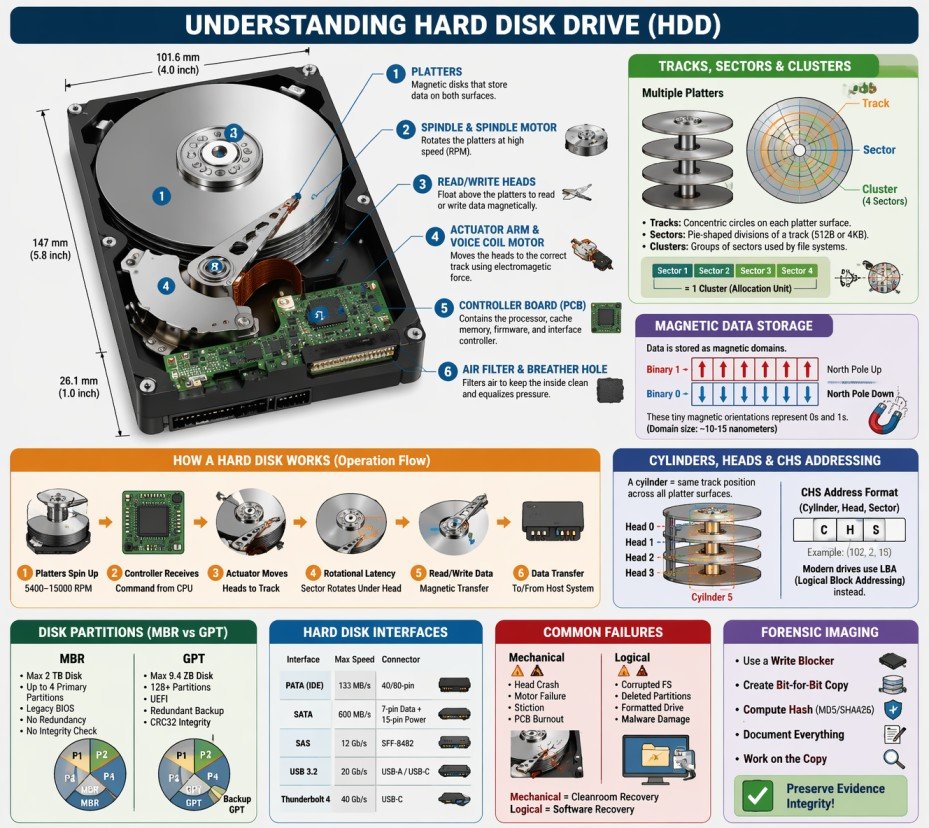
7.1 Hard Disk Architecture
💽 What is a Hard Disk Drive (HDD)?
A Hard Disk Drive (HDD) is a non-volatile storage device that uses magnetic storage to store and retrieve digital data. It consists of one or more rigid rotating platters coated with magnetic material, along with read/write heads that float above the platters to access data.
🔬 Physical Components of a Hard Disk
🔄 Platters
Platters are circular, rigid disks made of aluminum, glass, or ceramic substrate, coated with a thin magnetic layer. Data is stored magnetically on both surfaces of each platter.
- Typical materials: Aluminum alloy, glass, or ceramic
- Magnetic coating: Cobalt-based alloy or iron-platinum
- Number of platters: 1 to 5 (consumer drives), up to 10 (enterprise)
- Diameter: 3.5" (desktop), 2.5" (laptop), 1.8" (small devices), 1" (microdrives)
- Rotation speed: 5400 RPM, 7200 RPM, 10000 RPM, 15000 RPM (enterprise)
🌀 Spindle & Spindle Motor
The spindle is the central axle that holds the platters in place. The spindle motor rotates the platters at high, constant speeds.
- Spindle holds platters with precise spacing
- Motor types: Ball bearing, fluid dynamic bearing (FDB)
- Higher RPM = faster data access = more heat/noise
- FDB motors are quieter and more reliable
🖊️ Read/Write Heads
Read/Write heads are electromagnetic transducers that read data from and write data to the magnetic platters. They float nanometers above the platter surface.
- One head per platter surface (top and bottom)
- Head types: Inductive (write), MR/GMR/TMR (read)
- Flying height: 2-5 nanometers (1/1000th of a human hair!)
- Technology evolution: Ferrite → Thin-film → MR → GMR → TMR
🦾 Actuator Arm & Voice Coil Motor
The actuator arm positions the read/write heads over the correct track. The voice coil motor (VCM) moves the arm using electromagnetic force.
- Actuator arm moves heads radially across platters
- VCM: Similar to speaker coil operation
- Seek time: Average 8-12 ms for consumer drives
- Track-to-track seek: 0.2-0.5 ms
🔌 Controller Board (PCB)
The Printed Circuit Board (PCB) contains the drive's electronics, including the processor, cache memory, and interface controller.
- Processor: Manages drive operations and error correction
- Cache memory: 64MB to 512MB for buffering data
- ROM/Firmware: Stores drive operating code
- Interface controller: SATA, SAS, USB, etc.
🛡️ Air Filter & Breather Hole
The drive enclosure includes an air filter to maintain clean internal atmosphere and a breather hole to equalize pressure.
- Recirculation filter: Captures particles from internal air
- Breather filter: Prevents external contaminants from entering
- Helium-filled drives: Sealed completely (no breather hole)
📊 Hard Disk vs SSD Comparison
| Feature | Hard Disk Drive (HDD) | Solid State Drive (SSD) |
|---|---|---|
| Storage Technology | Magnetic platters | NAND flash memory |
| Moving Parts | Yes (platters, heads, motor) | No (fully electronic) |
| Read Speed | 80-160 MB/s | 500-7000 MB/s |
| Write Speed | 80-160 MB/s | 300-5000 MB/s |
| Access Time | 8-15 milliseconds | 0.02-0.1 milliseconds |
| Power Consumption | 6-9 Watts | 2-4 Watts |
| Noise Level | Audible (spinning, clicking) | Silent |
| Vibration Resistance | Low (sensitive to movement) | High (no moving parts) |
| Forensic Recovery | Easier (data remains after deletion) | Harder (TRIM, wear leveling) |
7.2 How Hard Disk Works
⚙️ The Complete Hard Disk Operation Process
A hard disk drive operates through a precise sequence of mechanical and electronic processes to read and write data with nanometer precision.
🔄 Step-by-Step Operation Flow
Platters Spin Up
5400-15000 RPMController Receives
Command from CPUActuator Moves
Positions headsRotational Latency
Sector rotates under headRead/Write Data
Magnetic transferData Transfer
To/from host system📝 Writing Data (Recording Process)
🔬 Magnetic Recording Steps
- The write head generates a magnetic field using an electromagnetic coil
- The magnetic field changes polarity based on the data bit (0 or 1)
- As the platter rotates under the head, the magnetic field magnetizes tiny regions called magnetic domains
- One magnetic orientation represents binary 1, the opposite represents binary 0
- Data is written in tracks and sectors sequentially
- The controller verifies the write operation by reading back the data
💡 Recording Technologies
- LMR (Longitudinal Magnetic Recording): Older technology, bits stored horizontally (limited density)
- PMR (Perpendicular Magnetic Recording): Bits stored vertically, higher density, used in modern drives
- SMR (Shingled Magnetic Recording): Overlapping tracks like roof shingles, maximum density
- HAMR (Heat-Assisted Magnetic Recording): Uses laser to heat tiny spots for writing
- MAMR (Microwave-Assisted Magnetic Recording): Uses microwave energy for writing
📖 Reading Data
- The read head (separate from write head) passes over the magnetized regions
- Magnetic fields induce a small electrical current in the read head (MR/GMR/TMR effect)
- The current strength varies based on the magnetic orientation
- Electronics interpret the current as binary 0 or 1
- Data is assembled into sectors and sent to the controller
- Error correction codes (ECC) verify data integrity
MR (1990s) → GMR (2000s) → TMR (2010s+)
Each generation provides
5-10x sensitivity increase
⏱️ Access Time Components
| Component | Description | Typical Time |
|---|---|---|
| Seek Time | Time to move heads to correct track | 8-12 ms (average) |
| Rotational Latency | Time for platter to rotate sector under head | 4-6 ms (7200 RPM average) |
| Controller Overhead | Processing time for commands | 0.5-1 ms |
| Data Transfer Time | Time to actually read/write data | 0.1-0.5 ms per sector |
| Total Access Time | Sum of all components | 12-20 ms average |
7.3 Tracks, Sectors & Clusters
📊 Understanding Disk Geometry
Hard disks organize data using a hierarchical structure: Tracks → Sectors → Clusters. Understanding this hierarchy is essential for data recovery and forensic analysis.
🌀 Tracks
A track is a concentric circular path on a platter where data is recorded magnetically. Each platter surface contains thousands of tracks, numbered from the outer edge (track 0) inward.
- Track density: 200,000 to 500,000 tracks per inch (TPI)
- Total tracks: 100,000 to 500,000 per platter surface
- Track 0: Located at the outermost edge, contains partition table and boot sector
- Zone Bit Recording (ZBR): Outer tracks have more sectors than inner tracks
A 1TB HDD has approximately
2,000,000+ tracks
across all platter surfaces
📦 Sectors
A sector is the smallest physical storage unit on a disk. Each sector has a unique address and stores a fixed amount of data.
| Sector Type | Size | Usage | Forensic Impact |
|---|---|---|---|
| Traditional (512e) | 512 bytes | Older drives, legacy compatibility | More overhead, slower access |
| Advanced Format (4Kn) | 4096 bytes (4KB) | Modern drives (2011+) | Efficient, better error correction | Mixed (512e emulation) | Physical 4KB, Logical 512B | Transitional drives | May cause alignment issues |
🧩 Clusters (Allocation Units)
A cluster (also called allocation unit) is a group of consecutive sectors and represents the smallest logical storage unit used by file systems.
📌 Cluster Sizes by File System
| Volume Size | NTFS Cluster | FAT32 Cluster |
|---|---|---|
| 1 GB | 4 KB | 4 KB |
| 8 GB | 4 KB | 8 KB |
| 32 GB | 4 KB | 16 KB |
| 64 GB | 8 KB | 32 KB |
| 256 GB | 8 KB | N/A |
| 1 TB | 8 KB | N/A |
⚠️ Forensic Importance of Clusters
- Slack Space: Unused space between file end and cluster end
- Even a 1-byte file occupies at least one full cluster (typically 4KB)
- Cluster size affects: Storage efficiency, performance, recovery
- Smaller clusters: Less slack space, more metadata overhead
- Larger clusters: More slack space, less metadata overhead
🔬 Slack Space Analysis
📊 Types of Slack Space
- RAM Slack: Space between logical file end and sector end. May contain RAM data.
- File Slack: Space between sector end and cluster end.
- Disk Slack: Unused space at the end of the last sector.
🔍 Forensic Value of Slack Space
- Contains fragments of previously stored files
- May contain passwords, documents, or images
- Can reveal data from deleted files
- Often overlooked by casual users
- Requires specialized forensic tools to access
7.4 Cylinders, Heads & CHS Addressing
🔄 What is a Cylinder?
A cylinder is the set of all tracks at the same radial position across all platter surfaces. For example, Track 5 on all platters forms Cylinder 5.
┌─────────────────────────────────────────────────────────────────┐
│                    CYLINDER CONCEPT                             │
├─────────────────────────────────────────────────────────────────┤
│                                                                 │
│    Platter 1 (Top)          Platter 1 (Bottom)                 │
│    ┌─────────────┐          ┌─────────────┐                    │
│    │   Track 5   │ ←─────── │   Track 5   │                    │
│    │   Track 4   │          │   Track 4   │                    │
│    │   Track 3   │          │   Track 3   │                    │
│    │   Track 2   │          │   Track 2   │                    │
│    │   Track 1   │          │   Track 1   │                    │
│    │   Track 0   │          │   Track 0   │                    │
│    └─────────────┘          └─────────────┘                    │
│                                                                 │
│    Platter 2 (Top)          Platter 2 (Bottom)                 │
│    ┌─────────────┐          ┌─────────────┐                    │
│    │   Track 5   │ ←─────── │   Track 5   │  ← Same track      │
│    │   Track 4   │          │   Track 4   │     position =     │
│    │   Track 3   │          │   Track 3   │     CYLINDER 5     │
│    │   Track 2   │          │   Track 2   │                    │
│    │   Track 1   │          │   Track 1   │                    │
│    │   Track 0   │          │   Track 0   │                    │
│    └─────────────┘          └─────────────┘                    │
│                                                                 │
│    CYLINDER = All tracks at the same position across ALL heads │
└─────────────────────────────────────────────────────────────────┘
📊 CHS (Cylinder-Head-Sector) Addressing
CHS addressing was the original method for locating data on a hard disk using three coordinates:
- C (Cylinder): Which cylinder (track position)
- H (Head): Which head (platter surface)
- S (Sector): Which sector within the track
| Addressing Method | Description | Limitation |
|---|---|---|
| CHS (Original) | Cylinder, Head, Sector | Max 8.4 GB (504 MB for BIOS) |
| LBA (Logical Block Addressing) | Single linear address (0,1,2...) | Virtually unlimited |
| LBA-48 | 48-bit addressing | Max 144 petabytes |
7.5 Disk Partitions
📂 What is a Disk Partition?
A disk partition is a logical division of a hard disk that allows multiple file systems or operating systems to exist on the same physical drive.
🗂️ Types of Partitions
📌 Primary Partition
Can host an OS and is bootable. MBR supports up to 4 primary partitions.
📦 Extended Partition
Container that holds multiple logical partitions. Cannot store data directly.
🔹 Logical Partition
Subdivisions inside extended partition. Function like primary partitions for data.
📜 MBR vs GPT Comparison
| Feature | MBR | GPT |
|---|---|---|
| Maximum Disk Size | 2 TB | 9.4 ZB |
| Maximum Partitions | 4 primary | 128 (Windows) / Unlimited |
| Boot Mode | Legacy BIOS | UEFI |
| Redundancy | No backup | Backup GPT at end of disk |
| Integrity Check | None | CRC32 checksum |
🔍 Forensic Importance of Partitions
- Deleted Partitions: Partition table entries may be recoverable
- Hidden Partitions: May contain evidence not visible to OS
- Partition Metadata: Reveals disk history and previous configurations
- Resized Partitions: Indicates data was moved or copied
- Encrypted Partitions: BitLocker, FileVault, LUKS - require keys
7.6 Data Storage & Magnetic Domains
🧲 How Data is Magnetically Stored
Data on a hard disk is stored as microscopic magnetized regions called magnetic domains.
┌─────────────────────────────────────────────────────────────────┐
│              MAGNETIC DOMAIN REPRESENTATION                     │
├─────────────────────────────────────────────────────────────────┤
│                                                                 │
│    Binary 1:  ████████████████████████████████████████████████ │
│               ↑                                                │
│               North Pole facing up (magnetized one direction)  │
│                                                                 │
│    Binary 0:  ░░░░░░░░░░░░░░░░░░░░░░░░░░░░░░░░░░░░░░░░░░░░░░░ │
│               ↑                                                │
│               North Pole facing down (opposite direction)      │
│                                                                 │
│    Data Example: "Hello" in binary:                            │
│                                                                 │
│    01001000 01100101 01101100 01101100 01101111                │
│    ░█░░█░░░ ░██░░█░█ ░███░░██ ░███░░██ ░███░░███              │
│    █ = Magnetized (1)  ░ = Not magnetized (0)                  │
│                                                                 │
│    Each magnetic domain is approximately 10-15 nanometers!     │
└─────────────────────────────────────────────────────────────────┘
📊 Recording Density Evolution
| Year | Technology | Density (bits/inch²) | Drive Capacity |
|---|---|---|---|
| 1956 | IBM 350 RAMAC | 2,000 | 5 MB |
| 1990s | MR (Magnetoresistive) | 1 billion | 1-10 GB |
| 2000s | GMR (Giant MR) | 100 billion | 40-500 GB |
| 2010s | PMR (Perpendicular) | 500 billion | 1-10 TB |
| 2020s | HAMR / MAMR | 2 trillion+ | 20-40 TB |
7.7 Hard Disk Interfaces
| Interface | Max Speed | Cable Length | Connector | Forensic Consideration |
|---|---|---|---|---|
| PATA (IDE) | 133 MB/s | 18 inches | 40/80-pin ribbon | Obsolete, found in older systems |
| SATA | 600 MB/s (SATA III) | 1 meter | 7-pin data, 15-pin power | Most common, easy to image |
| SAS | 12 Gb/s (SAS-3) | 10 meters | SFF-8482 | Enterprise drives, require SAS controller |
| USB | 20 Gb/s (USB 3.2) | 3 meters | USB-A, USB-C, Micro-USB | External drives, hot-swappable |
| Thunderbolt | 40 Gb/s (Thunderbolt 3/4) | 2 meters (copper) | USB-C | High-speed external, Mac compatibility |
7.8 Common Hard Disk Failures & Recovery
- Head Crash: Head touches platter surface
- Spindle Motor Failure: Platters won't spin
- Stiction: Heads stuck to platters
- Burned PCB: Electronics damaged
- Corrupted File System: Damaged MFT/FAT
- Deleted Partitions: Partition table erased
- Formatted Drive: File system overwritten
- Virus/Malware Damage: Data encrypted/deleted
- Always image the drive first (dd, FTK Imager)
- Work on forensic copies, never original
- Document hash values before and after
- Use write blockers to prevent modification
- Chain of custody must be maintained
7.9 Forensic Imaging of Hard Disks
📸 What is Forensic Imaging?
Forensic imaging creates a bit-for-bit exact copy of a hard disk, including allocated data, deleted files, slack space, and unallocated space.
🛠️ Common Forensic Imaging Tools
| Tool | Platform | Output Formats | Features |
|---|---|---|---|
| FTK Imager | Windows | E01, RAW, AFF | Free, GUI, memory capture |
| dd / dc3dd | Linux | RAW | CLI, built-in hashing |
| Guymager | Linux | E01, RAW, AFF | GUI, multi-threaded |
| EnCase Imager | Windows | E01 | Commercial, court-accepted |
📋 Forensic Imaging Best Practices
- Always use a hardware write blocker when connecting suspect drives
- Calculate and record hash values (MD5/SHA256) before and after imaging
- Create two forensic images (one for analysis, one for backup)
- Document every action in chain of custody logs
- Store original evidence in secure, controlled environment
- Never work on the original evidence - always use the forensic copy
# Create forensic image with hash verification
dc3dd if=/dev/sda of=evidence.dd hash=sha256 log=acquisition.log

# Verify image integrity
sha256sum evidence.dd
7.10 Hard Disk Terminology & Glossary
- Actuator: Mechanism that moves the read/write heads
- Bad Sector: Sector that cannot reliably store data
- Cache (Buffer): Fast memory for temporary data storage
- CHS: Cylinder-Head-Sector addressing method
- Cluster: Group of sectors (allocation unit)
- Cylinder: Same track position across all platters
- Firmware: Software stored on drive's PCB
- Flying Height: Distance between head and platter
- GMR: Giant Magnetoresistive (read head technology)
- Head: Reads/writes data to platters
- LBA: Logical Block Addressing (modern addressing)
- Platter: Magnetic disk that stores data
- RPM: Revolutions Per Minute (spindle speed)
- Sector: Smallest physical storage unit (512B/4KB)
- Seek Time: Time to move heads to correct track
- Slack Space: Unused space in allocated clusters
- Spindle: Axle that holds platters
- Track: Circular path on platter surface
- VCM: Voice Coil Motor (moves actuator)
- Write Blocker: Device preventing evidence modification
File Systems Analysis (Windows / Linux / macOS)
This module provides an in-depth understanding of file systems used by major operating systems — Windows, Linux, and macOS. File systems define how data is stored, indexed, accessed, modified, and deleted. For forensic investigators, file system analysis is critical for recovering deleted data, identifying hidden artifacts, reconstructing timelines, and detecting malicious activity.
Most digital evidence is found not in files themselves, but in file system metadata.
8.0 File System in Operating System
A file system is one of the most critical components of any operating system. It serves as the bridge between the physical storage hardware and the logical data structures that users and applications interact with daily.
📌 Historical Context
The concept of file systems dates back to the 1960s with early operating systems like Multics and UNIX. Before structured file systems, data storage was chaotic—programs had to know exact physical locations on disks. The invention of hierarchical file systems revolutionized data management, introducing directories, subdirectories, and systematic file naming conventions that we still use today.
🎯 Modern Relevance
Today, file systems handle petabytes of data across millions of files. They must balance speed, reliability, security, and efficiency. Modern challenges include SSD optimization, cloud storage integration, encryption requirements, and forensic readiness—making file system knowledge more critical than ever for IT professionals and forensic investigators.
8.0.1 What is a File System?
📁 Definition of File System
A File System is a method and data structure that an operating system uses to control how data is stored, organized, retrieved, and managed on a storage device (hard drive, SSD, USB drive, etc.).
🔬 Deep Dive: File System Components
A file system is not a single entity but a collection of interconnected components working together:
1. Naming and Directory Structure
The file system provides rules for naming files (length, allowed characters, case sensitivity) and organizes them into hierarchical directories. This creates a logical structure that users understand and can navigate. Different operating systems have different conventions—Windows uses backslashes (\) and drive letters (C:\), while Unix-like systems use forward slashes (/) and a unified root directory.
2. Metadata Management
Every file has associated metadata—information about the file, not the file content itself. This includes timestamps (creation, modification, access), ownership, permissions, size, and physical location on disk. Metadata is often more valuable forensically than the actual file content.
3. Space Allocation
The file system tracks which blocks of the storage device are in use, which are free, and where each file's data resides. Allocation methods include contiguous, linked, and indexed allocation, each with different performance and fragmentation characteristics.
4. Access Control
File systems implement security through permissions and access control lists (ACLs). This determines who can read, write, execute, or delete files. Understanding access control is crucial for forensic investigations involving unauthorized access.
📊 The Digital Filing Cabinet Analogy
| Physical Office | Digital File System | Forensic Equivalent |
|---|---|---|
| Filing Cabinet | Storage Device (HDD/SSD) | Physical evidence container |
| Drawer | Directory/Folder | Logical organization unit |
| Folder/Label | File Name | User-visible identifier |
| Index Card | Metadata/Inode | Critical forensic evidence |
| Document | File Content | Primary data of interest |
| Master Index | File Allocation Table | Location tracking system |
| Shredded Document | Deleted File | Recoverable evidence |
8.0.2 Why File Systems are Important?
File systems are fundamental to modern computing, and their importance extends far beyond simple file storage.
Data Organization
Structures data in a hierarchical manner for easy access
Without organization, finding specific data among billions of bytes would be impossible. File systems create logical structures that mirror human understanding of categorization and hierarchy.
Data Protection
Implements permissions, encryption, and access controls
Modern file systems provide granular security controls, preventing unauthorized access. NTFS supports encryption (EFS), while APFS offers native full-disk encryption, protecting data even if the device is stolen.
Data Integrity
Prevents data corruption through journaling and error checking
Journaling file systems (NTFS, EXT3/4, APFS) log changes before committing them, allowing recovery after crashes. This prevents data loss and corruption, which is critical for forensic integrity.
Performance
Optimizes read/write operations for speed
File systems implement caching, prefetching, and optimized allocation algorithms. EXT4 uses delayed allocation to improve performance, while NTFS uses master file table (MFT) for rapid file lookups.
Space Management
Efficiently allocates and tracks storage space
File systems prevent fragmentation, manage free space efficiently, and support features like compression and deduplication to maximize storage utilization. This is crucial for large-scale enterprise storage.
Forensic Value
Stores metadata critical for investigations
For forensic investigators, file systems are gold mines. Every file operation leaves traces—timestamps, logs, and metadata that reconstruct user activity. Deleted files, hidden data, and system artifacts are all preserved in the file system structure.
🏢 Business and Legal Importance
Regulatory Compliance
Organizations must comply with regulations like GDPR, HIPAA, and SOX that mandate proper data handling, retention, and audit trails. File systems provide the foundation for compliance through access logs, audit features, and secure deletion capabilities.
Legal Discovery (eDiscovery)
In litigation, parties must produce relevant digital evidence. File system metadata helps establish timelines, prove file authenticity, and identify document custodians. Understanding file systems is essential for legal professionals and forensic experts.
✅ Key Takeaway
File systems are not just technical components—they are the foundation of data management, security, and forensic investigation. Every file operation, every access attempt, and every deletion leaves evidence within the file system structure. Understanding file systems is essential for anyone working with digital data.
8.0.3 Types of File Systems
Different operating systems and use cases require different file system types. Each has unique characteristics, advantages, and forensic implications.
🪟 Windows File Systems
| File System | Introduced | Max Volume Size | Max File Size | Key Features |
|---|---|---|---|---|
| FAT32 | Windows 95 OSR2 | 2 TB | 4 GB | Compatible, simple, no journaling |
| exFAT | Windows Embedded CE 6.0 | 128 PB | 16 EB | Large files, cross-platform, USB drives |
| NTFS | Windows NT 3.1 | 256 TB | 16 EB | Journaling, permissions, encryption, compression |
| ReFS | Windows Server 2012 | 35 PB | 16 EB | Resilience, integrity streams, large volumes |
🐧 Linux File Systems
| File System | Introduced | Max Volume Size | Max File Size | Key Features |
|---|---|---|---|---|
| EXT2 | 1993 | 32 TB | 2 TB | No journaling, simple, legacy systems |
| EXT3 | 2001 | 32 TB | 2 TB | Journaling, backward compatible |
| EXT4 | 2008 | 1 EB | 16 TB | Extents, delayed allocation, faster |
| XFS | 1994 | 8 EB | 8 EB | Scalable, high performance, large files |
| Btrfs | 2009 | 16 EB | 16 EB | Copy-on-write, snapshots, checksums |
🍎 macOS File Systems
| File System | Introduced | Max Volume Size | Max File Size | Key Features |
|---|---|---|---|---|
| HFS+ | 1998 | 8 EB | 8 EB | Journaling, metadata, legacy macOS |
| APFS | 2017 | 16 EB | 16 EB | Snapshots, encryption, clones, space sharing |
🌍 Cross-Platform File Systems
FAT32
Most compatible file system, supported by Windows, macOS, Linux, game consoles, cameras, and more. The 4 GB file size limit is its biggest drawback for modern use.
exFAT
Microsoft's solution to FAT32's limitations. Supports large files and volumes while maintaining cross-platform compatibility. Ideal for USB drives and SD cards used across different devices.
🔬 Specialized File Systems
UDF
Optical discs (DVD, Blu-ray)ISO 9660
CD-ROMs, installation mediaZFS
Enterprise storage, Solaris, FreeBSDFUSE
Userspace file systems- NTFS: Highest forensic value - MFT, ADS, journaling, rich metadata
- EXT4: High forensic value - inodes, journal, extended attributes
- APFS: Very high forensic value - snapshots, clones, encryption
- FAT32/exFAT: Low forensic value - minimal metadata, no journaling
8.0.4 File System Architecture (Components)
Every file system consists of several logical components that work together to manage storage efficiently.
🔹 Boot Sector
Located at the very beginning of a storage device (Sector 0). Contains bootloader code and basic file system parameters. Crucial for system startup and forensic identification of file system type.
🔹 Superblock
Stores critical file system metadata: total size, block size, number of inodes, free space, file system state, and timestamps. Corrupted superblock can make the entire file system unmountable.
🔹 File Allocation Table
A map tracking which blocks belong to which files. Different implementations: FAT (simple table), MFT (NTFS - database), inodes (Unix-like - indexed structure).
🔹 Inodes / File Records
Data structures storing file metadata (timestamps, permissions, ownership, size, block pointers). Each file has a unique inode number. Deleted files may leave inode remnants.
🔹 Data Blocks
The actual storage units containing file content. Blocks are typically 4KB in size. Large files span multiple blocks, tracked by the file allocation structure.
🔹 Journal / Log
A transaction log recording pending file operations. Enables recovery after crashes. Critical forensic source for reconstructing deleted file activity.
🔹 MFT (NTFS)
Master File Table - a relational database containing a record for every file on an NTFS volume. Each record is typically 1KB and stores all metadata. Even deleted files leave MFT records until overwritten.
🔹 Inode Table (EXT)
A contiguous array storing all inodes on an EXT file system. The inode table size is fixed at creation time. Forensic tools can recover inodes even after file deletion.
🔹 Journal ($LogFile - NTFS)
NTFS journal records every metadata operation before execution. Can reveal file names and operations even when MFT records are overwritten.
🔹 Unallocated Space
Storage blocks marked as free but not yet overwritten. Contains deleted file data. Primary target for file carving and data recovery.
🔹 Slack Space
The unused space between the end of a file and the end of its last allocated cluster. May contain fragments of previously stored files, passwords, or sensitive data.
🔹 Alternate Data Streams (ADS - NTFS)
Hidden data attached to files without changing visible size. Commonly abused by malware for hiding payloads. Detected using forensic tools.
📊 Detailed File System Architecture Diagram
┌─────────────────────────────────────────────────────────────────────────────────────┐
│                              STORAGE DEVICE LAYOUT                                  │
├─────────────────────────────────────────────────────────────────────────────────────┤
│                                                                                     │
│  ┌─────────────────────────────────────────────────────────────────────────────┐    │
│  │                         PARTITION TABLE (MBR/GPT)                           │    │
│  │  ┌─────────┐ ┌─────────┐ ┌─────────┐ ┌─────────┐ ┌─────────────────────┐    │    │
│  │  │Partition│ │Partition│ │Partition│ │Partition│ │   Unpartitioned     │    │    │
│  │  │    1    │ │    2    │ │    3    │ │    4    │ │       Space         │    │    │
│  │  └─────────┘ └─────────┘ └─────────┘ └─────────┘ └─────────────────────┘    │    │
│  └─────────────────────────────────────────────────────────────────────────────┘    │
│                                                                                     │
│  ┌─────────────────────────────────────────────────────────────────────────────┐    │
│  │                         PARTITION 1 (Example: C:\)                          │    │
│  ├─────────────────────────────────────────────────────────────────────────────┤    │
│  │  ┌─────────────────────────────────────────────────────────────────────┐    │    │
│  │  │  Boot Sector  │  Superblock  │  File Allocation Table (FAT/MFT)     │    │    │
│  │  │   (Sector 0)  │  (Metadata)  │                                      │    │    │
│  │  └─────────────────────────────────────────────────────────────────────┘    │    │
│  │                                                                             │    │
│  │  ┌─────────────────────────────────────────────────────────────────────┐    │    │
│  │  │                    INODE / FILE TABLE (Metadata)                    │    │    │
│  │  │  ┌─────────┐ ┌─────────┐ ┌─────────┐ ┌─────────┐ ┌─────────┐        │    │    │
│  │  │  │ Inode 1 │ │ Inode 2 │ │ Inode 3 │ │ Inode 4 │ │ Inode 5 │  ...   │    │    │
│  │  │  │ File A  │ │ File B  │ │ File C  │ │ File D  │ │Deleted  │        │    │    │
│  │  │  │Metadata │ │Metadata │ │Metadata │ │Metadata │ │  File   │        │    │    │
│  │  │  └─────────┘ └─────────┘ └─────────┘ └─────────┘ └─────────┘        │    │    │
│  │  └─────────────────────────────────────────────────────────────────────┘    │    │
│  │                                                                             │    │
│  │  ┌─────────────────────────────────────────────────────────────────────┐    │    │
│  │  │                         DATA BLOCKS (4KB each)                      │    │    │
│  │  │  ┌───────┐ ┌───────┐ ┌───────┐ ┌───────┐ ┌───────┐ ┌───────┐        │    │    │
│  │  │  │Block 1│ │Block 2│ │Block 3│ │Block 4│ │Block 5│ │Block 6│  ...   │    │    │
│  │  │  │File A │ │File B │ │File A │ │File C │ │Free   │ │Free   │        │    │    │
│  │  │  │Part 1 │ │Part 1 │ │Part 2 │ │Part 1 │ │       │ │       │        │    │    │
│  │  │  └───────┘ └───────┘ └───────┘ └───────┘ └───────┘ └───────┘        │    │    │
│  │  └─────────────────────────────────────────────────────────────────────┘    │    │
│  │                                                                             │    │
│  │  ┌─────────────────────────────────────────────────────────────────────┐    │    │
│  │  │              UNALLOCATED SPACE + SLACK SPACE                        │    │    │
│  │  │  ┌─────────────────────────────────────────────────────────────┐    │    │    │
│  │  │  │  Remnants of deleted files | Temporary data | File fragments│    │    │    │
│  │  │  └─────────────────────────────────────────────────────────────┘    │    │    │
│  │  └─────────────────────────────────────────────────────────────────────┘    │    │
│  │                                                                             │    │
│  │  ┌─────────────────────────────────────────────────────────────────────┐    │    │
│  │  │                    JOURNAL / LOG FILE ($LogFile)                    │    │    │
│  │  │  ┌─────────────────────────────────────────────────────────────┐    │    │    │
│  │  │  │Transaction 1 │ Transaction 2 │ Transaction 3 │ Transaction N│    │    │    │
│  │  │  └─────────────────────────────────────────────────────────────┘    │    │    │
│  │  └─────────────────────────────────────────────────────────────────────┘    │    │
│  └─────────────────────────────────────────────────────────────────────────────┘    │
└─────────────────────────────────────────────────────────────────────────────────────┘
🔬 Block vs Extent-Based Allocation
Block-Based (FAT32, EXT2/3)
Files are allocated in fixed-size blocks (typically 4KB). Large files require many block pointers, causing overhead. The file allocation table must track each block individually, leading to fragmentation and performance issues with large files.
Extent-Based (NTFS, EXT4, APFS)
Files are allocated in contiguous ranges called extents. Each extent is described by (start_block, length). Large files need only a few extent entries, reducing metadata overhead and improving performance. Extents also reduce fragmentation.
8.0.5 File System Operations
Every interaction with a file triggers a series of file system operations, each leaving forensic traces.
- OS searches directory for existing file with same name (to avoid duplicates)
- Finds free inode/file record in the inode table
- Allocates initial data blocks from free space bitmap
- Updates file allocation table with block mapping
- Writes metadata (creation, modification timestamps, permissions, size=0)
- Updates directory entry with filename and inode reference
- Writes file content to allocated data blocks
- Updates file size and modification timestamp after content written
- If journaling, writes transaction record to journal
- OS parses path to find directory entry
- Retrieves inode/file record number from directory entry
- Checks read permissions against file's security descriptor
- Access denied if permissions insufficient
- If permitted, locates data blocks via allocation table
- Reads content from data blocks into memory buffer
- Updates access timestamp (atime) - if enabled
- May update read count in extended attributes
- Returns data to requesting application
- OS locates file (same as read operation)
- Checks write permissions
- If file content grows, may allocate additional blocks
- If file content shrinks, may free blocks
- Updates file allocation table with new block mappings
- Writes modified content to data blocks (may overwrite or write new blocks)
- Updates modification timestamp (mtime) and change timestamp (ctime)
- Updates file size in metadata
- Writes journal entry recording the transaction
- If copy-on-write (APFS), writes to new blocks, then updates pointers
- OS locates file in directory structure
- Checks delete permissions
- Marks inode/file record as "deleted" (not erased!)
- Marks all data blocks as "free" in allocation table
- Removes directory entry (filename removed from parent directory)
- If Recycle Bin/Trash enabled, file moved instead of deleted
- Writes deletion record to journal
- Actual data remains in unallocated space until overwritten
- Filename may be preserved in journal or deleted file records
- OS locates source file
- Checks permissions on source and target directories
- For rename: Updates directory entry with new name (inode unchanged)
- For move within same volume: Updates directory entry with new path (inode unchanged)
- For move across volumes: Copies file content to new location, then deletes original
- Updates change timestamp (ctime) - metadata changed
- Writes journal entry for directory changes
- Original data blocks remain unchanged (only pointers change)
- OS locates target file or directory
- Checks user has administrative or ownership rights
- Updates permission bits in inode/file record
- For NTFS: Updates Security Descriptor and ACL
- For EXT: Updates mode bits (read/write/execute for owner/group/other)
- For APFS: Updates permissions in inode
- Updates change timestamp (ctime) - metadata changed
- Writes journal entry recording permission change
- Logs security event in audit log (if auditing enabled)
📊 File System Operations Summary Table
| Operation | Metadata Changed | Forensic Artifacts | Recovery Potential |
|---|---|---|---|
| Create | Mtime, Ctime, Atime | Directory entry, inode, journal | Full recovery possible |
| Read | Atime (if enabled) | Access timestamp, audit logs | N/A (no data loss) |
| Modify | Mtime, Ctime, size | Journal, block changes, previous versions | Previous versions from snapshots |
| Delete | None (inode marked deleted) | Deleted inode, free blocks, journal | High - until overwritten |
| Rename/Move | Ctime | Directory changes, journal | αρίουFilename history in journal|
| Permission Change | Ctime | Security descriptor, journal, audit log | Full recovery |
🔍 Forensic Summary: Why File Systems Matter
- Deleted Files: File systems mark data as free but don't erase it → Recoverable until overwritten!
- Metadata: Timestamps (MACB - Modified, Accessed, Changed, Birth) reveal complete file activity history
- Slack Space: Unused space in clusters may contain fragments of previous files (passwords, documents, images)
- Journals/Logs: Record file operations even if files were deleted, providing operation history
- Hidden Data: Alternate Data Streams (NTFS) can hide malware or exfiltrated data
- Snapshots: APFS and some Linux file systems preserve previous file states, capturing deleted/modified content
- Unallocated Space: Primary source for file carving and recovering deleted content
- File System Journals: Can reveal file names and operations after metadata is gone
🧠 Key Takeaway
File systems are the foundation of digital forensics. Understanding how they work allows investigators to recover evidence that criminals thought was deleted forever. Every file operation leaves traces—timestamps change, journals record, and metadata persists. The key is knowing where to look and how to interpret what you find.
8.1 Windows File Systems (NTFS / FAT)
Microsoft Windows supports multiple file systems, with NTFS (New Technology File System) being the modern standard and FAT32/exFAT used for compatibility and removable media.
📂 NTFS (New Technology File System)
Introduced: Windows NT 3.1 (1993) | Current version: NTFS 3.1 (Windows XP onwards)
NTFS is a journaled, metadata-rich file system designed for reliability, security, and large volumes.
🔹 Key Features of NTFS
Journaling ($LogFile)
Records all metadata changes before execution. Enables recovery after crashes and provides forensic audit trail.
Master File Table (MFT)
Relational database with one record per file. Each record stores all metadata including timestamps, size, and data locations.
Security & Permissions
Supports file-level permissions, encryption (EFS), and auditing. Security descriptors stored in $Secure file.
Alternate Data Streams (ADS)
Multiple data streams per file. Primary stream visible; others hidden. Frequently abused by malware.
Compression & Encryption
Native file compression and Encrypting File System (EFS) for data protection.
Hard Links & Junctions
Multiple directory entries pointing to same file data. Used for system compatibility and backups.
🔹 NTFS Structure - Deep Dive
| System File | Purpose | Forensic Value |
|---|---|---|
| $MFT (Master File Table) | Central database of all files and folders | Extremely High - Contains metadata for every file, even deleted ones |
| $MFTMirr | Backup of first 4 MFT records | High - Recovery if primary MFT corrupted |
| $LogFile | Transaction journal | Very High - Records file operations, reveals deleted file names |
| $Bitmap | Tracks used/free clusters | Medium - Shows which clusters contain data |
| $Boot | Boot sector and bootstrap code | High - Identifies file system parameters |
| $Secure | Security descriptors and ACLs | High - Reveals file permissions and ownership |
| $Extend | Extended metadata (quotas, object IDs, reparse points) | Medium - Contains additional forensic artifacts |
🔹 MFT Record Structure
┌─────────────────────────────────────────────────────────────────┐
│                    MFT RECORD (1024 bytes)                      │
├─────────────────────────────────────────────────────────────────┤
│  Offset  │ Size │ Field              │ Description              │
├──────────┼──────┼────────────────────┼──────────────────────────┤
│  0x00    │ 4    │ Signature          │ "FILE" magic number      │
│  0x04    │ 2    │ Update Sequence    │ For consistency check    │
│  0x06    │ 2    │ Update Seq Size    │ Size of sequence array   │
│  0x08    │ 8    │ LSN                │ Log file sequence number │
│  0x10    │ 2    │ Sequence Number    │ Increments when reused   │
│  0x12    │ 2    │ Hard Links         │ Number of hard links     │
│  0x14    │ 2    │ Attribute Offset   │ Offset to first attribute│
│  0x16    │ 2    │ Flags              │ In use, directory, etc.  │
│  0x18    │ 4    │ Real Size          │ Actual record size       │
│  0x1C    │ 4    │ Allocated Size     │ Allocated record size    │
│  0x20    │ 8    │ Base Record Ref    │ For extended records     │
│  0x28    │ 2    │ Next Attribute ID  │ ID for next attribute    │
│  0x2A    │ 2    │ Reserved           │ Padding                  │
│  0x2C    │ 4    │ MFT Record Number  │ Record index in MFT      │
│  0x30    │      │ Attributes...      │ Variable length          │
└─────────────────────────────────────────────────────────────────┘

                    ATTRIBUTE TYPES:
┌─────────────────────────────────────────────────────────────────┐
│  Type │ Name                    │ Forensic Value               │
├──────┼─────────────────────────┼───────────────────────────────┤
│  0x10 │ $STANDARD_INFORMATION   │ MACB timestamps (critical!)   │
│  0x20 │ $ATTRIBUTE_LIST         │ For multi-record files        │
│  0x30 │ $FILE_NAME              │ Filename + parent directory   │
│  0x40 │ $OBJECT_ID              │ Unique object identifier      │
│  0x50 │ $SECURITY_DESCRIPTOR    │ Permissions and ownership     │
│  0x60 │ $VOLUME_NAME            │ Volume name                   │
│  0x70 │ $VOLUME_INFORMATION     │ Volume flags                  │
│  0x80 │ $DATA                   │ Actual file content           │
│  0x90 │ $INDEX_ROOT             │ Directory index root          │
│  0xA0 │ $INDEX_ALLOCATION       │ Directory index allocation    │
│  0xB0 │ $BITMAP                 │ Index bitmap                  │
│  0xC0 │ $REPARSE_POINT          │ Symbolic link / junction      │
│  0xD0 │ $EA_INFORMATION         │ Extended attribute info       │
│  0xE0 │ $EA                     │ Extended attributes           │
└─────────────────────────────────────────────────────────────────┘
🔹 NTFS Timestamps (MACB)
| Attribute | Timestamp Type | Forensic Significance |
|---|---|---|
| $STANDARD_INFORMATION | Modified (M), Accessed (A), Created (C), Changed (B) | Most reliable, but can be modified by attackers |
| $FILE_NAME | Modified, Created, Changed | Secondary timestamps - often reveal timestamp tampering |
| $OBJECT_ID | Created | Unique file identifier - tracks file across moves |
🔹 FAT32 & exFAT
FAT32
- Max Volume: 2 TB
- Max File: 4 GB
- Journaling: No
- Permissions: No
- Forensic Value: Low - limited metadata
- Common Use: USB drives, older systems, boot partitions
exFAT
- Max Volume: 128 PB
- Max File: 16 EB
- Journaling: No (limited)
- Permissions: Limited
- Forensic Value: Low to Medium
- Common Use: SDXC cards, large USB drives
8.2 Linux File Systems (EXT Family)
The EXT (Extended File System) family is the most common file system on Linux systems, evolving from EXT2 (no journaling) to EXT3 (journaling) to EXT4 (extents, delayed allocation).
🐧 EXT2, EXT3, EXT4 Comparison
| Feature | EXT2 | EXT3 | EXT4 |
|---|---|---|---|
| Journaling | No | Yes | Yes (with checksums) |
| Extents | No | No | Yes |
| Max Volume | 32 TB | 32 TB | 1 EB |
| Max File | 2 TB | 2 TB | 16 TB |
| Timestamps | Seconds | Seconds | Nanoseconds |
| Ext. Attributes | No | No | Yes |
🔹 EXT4 Inode Structure
┌─────────────────────────────────────────────────────────────────┐
│                    EXT4 INODE STRUCTURE (256 bytes)             │
├─────────────────────────────────────────────────────────────────┤
│  Offset  │ Size │ Field              │ Description              │
├──────────┼──────┼────────────────────┼──────────────────────────┤
│  0x00    │ 2    │ Mode               │ File type + permissions  │
│  0x02    │ 2    │ UID                │ Owner user ID            │
│  0x04    │ 4    │ Size               │ File size in bytes       │
│  0x08    │ 4    │ Atime              │ Access timestamp         │
│  0x0C    │ 4    │ Ctime              │ Change timestamp         │
│  0x10    │ 4    │ Mtime              │ Modify timestamp         │
│  0x14    │ 4    │ Dtime              │ Delete timestamp         │
│  0x18    │ 2    │ GID                │ Group ID                 │
│  0x1A    │ 2    │ Links Count        │ Hard link count          │
│  0x1C    │ 4    │ Blocks             │ Block count              │
│  0x20    │ 4    │ Flags              │ Inode flags              │
│  0x24    │ 4    │ OS Specific        │ OS-dependent value       │
│  0x28    │ 60   │ Block Pointers     │ Direct, indirect blocks  │
│  0x64    │ 4    │ Generation         │ Inode generation number  │
│  0x68    │ 4    │ EA Block           │ Extended attribute block │
│  0x6C    │ 4    │ i_size_high        │ Upper 32 bits of size    │
│  0x70    │ 4    │ i_frag             │ Fragment number          │
│  0x78    │ 12   │ i_osd2             │ OS-dependent data        │
│  0x84    │ 16   │ i_extra_isize      │ Extended inode space     │
│  0x94    │ 4    │ i_crtime           │ Creation timestamp       │
│  0x98    │ 4    │ i_crtime_extra     │ Creation timestamp nano  │
└─────────────────────────────────────────────────────────────────┘

                    BLOCK POINTERS (60 bytes):
┌─────────────────────────────────────────────────────────────────┐
│  12 Direct Block Pointers    (12 × 4 = 48 bytes)               │
│  1 Singly Indirect Pointer    (4 bytes)                        │
│  1 Doubly Indirect Pointer    (4 bytes)                        │
│  1 Triply Indirect Pointer    (4 bytes)                        │
└─────────────────────────────────────────────────────────────────┘
🔹 EXT4 Features - Forensic Importance
📋 Journaling (EXT3/4)
The journal records metadata changes before committing them to disk. Forensic value includes:
- Recovery of recently deleted file names
- Timeline of file system operations
- Evidence of anti-forensic activity (journal clearing)
- Reconstruction of attacker actions
📦 Extents
EXT4 uses extent-based allocation for large files. Forensic benefits:
- Reduced fragmentation - easier file carving
- Faster file location during analysis
- Efficient handling of large files
- Less metadata to parse
⏱️ Nanosecond Timestamps
EXT4 supports nanosecond precision timestamps. Forensic value:
- More accurate timeline reconstruction
- Detection of timestamp manipulation
- Fine-grained activity correlation
- Distinguishing between rapid operations
🗑️ Deletion Timestamp (Dtime)
EXT4 records when a file was deleted. Unique forensic artifact:
- Exact deletion time of files
- Correlates with user activity logs
- Establishes timeline of data destruction
- Not present in NTFS or FAT
8.3 macOS File Systems (APFS)
APFS (Apple File System) is the modern file system for macOS, iOS, watchOS, and tvOS, replacing HFS+. It features copy-on-write, snapshots, strong encryption, and space sharing.
Introduced: macOS High Sierra (2017) | Current version: APFS 2.0
APFS is optimized for SSDs and flash storage, with a focus on encryption, performance, and reliability.
🍎 Key Features of APFS
Snapshots
Point-in-time read-only instances of the file system. Forensic gold - captures deleted files!
Copy-on-Write (CoW)
Data not overwritten; writes go to new blocks. Preserves previous versions for forensic recovery.
Native Encryption
Full-disk encryption, per-file keys, hardware security integration.
Space Sharing
Multiple volumes share free space dynamically. No fixed partition sizes.
Clones
Instant file/directory copies without duplicating data. Space-efficient backups.
Fusion Support
Optimizes data placement between SSD and HDD for performance.
🔬 APFS Container Architecture
┌─────────────────────────────────────────────────────────────────┐
│                      APFS CONTAINER                             │
├─────────────────────────────────────────────────────────────────┤
│  ┌─────────────────────────────────────────────────────────┐   │
│  │                    Container Superblock                  │   │
│  │              (File system metadata, block maps)          │   │
│  └─────────────────────────────────────────────────────────┘   │
│                                                                 │
│  ┌──────────────┐  ┌──────────────┐  ┌──────────────┐         │
│  │   Volume 1   │  │   Volume 2   │  │   Volume 3   │         │
│  │   (macOS)    │  │   (Data)     │  │  (Backup)    │         │
│  │              │  │              │  │              │         │
│  │ ┌──────────┐ │  │ ┌──────────┐ │  │ ┌──────────┐ │         │
│  │ │Snapshots │ │  │ │Snapshots │ │  │ │Snapshots │ │         │
│  │ └──────────┘ │  │ └──────────┘ │  │ └──────────┘ │         │
│  └──────────────┘  └──────────────┘  └──────────────┘         │
│                                                                 │
│  ┌─────────────────────────────────────────────────────────┐   │
│  │                   Free Space (Shared)                    │   │
│  │         (Dynamically allocated to any volume)            │   │
│  └─────────────────────────────────────────────────────────┘   │
└─────────────────────────────────────────────────────────────────┘
🔹 APFS Snapshots - Forensic Gold
APFS snapshots are read-only point-in-time copies of the file system. They are created automatically by Time Machine and system updates, and can be created manually.
Forensic Value of Snapshots:
- Recover deleted files - Files deleted after snapshot are still accessible in snapshot
- Access previous versions - View file contents before modification
- Timeline reconstruction - Multiple snapshots provide granular timeline
- Evidence of tampering - Snapshots cannot be easily altered by attackers
- Malware detection - Compare current system with clean snapshot
- Ransomware recovery - Restore encrypted files from before attack
🔐 APFS Encryption
Encryption Models
- No Encryption: Standard APFS (rare)
- Single-key Encryption: One key for entire container
- Multi-key Encryption: Per-file keys + metadata key
- Hardware-based: Secure Enclave integration (T2/M1/M2/M3 chips)
Forensic Challenges
- Encrypted volumes require password or recovery key
- Hardware-based encryption may require logic board analysis
- FileVault2 full-disk encryption is standard on modern macOS
- Memory forensics may capture decryption keys
- Legal process required for password acquisition
📊 File System Comparison Summary
| Feature | NTFS | EXT4 | APFS |
|---|---|---|---|
| Journaling | ✅ Yes | ✅ Yes | ✅ Yes |
| Snapshots | ❌ No | ❌ No (limited Btrfs) | ✅ Yes (native) |
| Encryption | EFS (file-level) | dm-crypt (optional) | Native multi-key |
| Extents | ✅ Yes | ✅ Yes | ✅ Yes |
| Copy-on-Write | ❌ No | ❌ No | ✅ Yes |
| Forensic Value | Very High | High | Very High |
Windows File Systems Forensics (NTFS Deep Dive)
This module delivers a deep forensic-level understanding of NTFS (New Technology File System), the default file system used by modern Windows operating systems. NTFS is rich in metadata and logs, making it one of the most important sources of digital evidence in incident response, cybercrime investigations, insider threat cases, and malware analysis.
Even if a file is deleted, NTFS often retains its metadata long after removal.
9.1 NTFS Architecture & Internal Structure
🧱 What Makes NTFS Forensically Powerful?
NTFS is a metadata-driven file system. Every file, directory, and even system object is stored as a record inside a central database called the Master File Table (MFT).
📂 Core NTFS Components
- $MFT – Master File Table (heart of NTFS)
- $MFTMirr – Backup of critical MFT entries
- $LogFile – NTFS transaction journal
- $Bitmap – Tracks used/free clusters
- $Boot – Boot sector metadata
- $Volume – Volume information
🧠 MFT Record Structure
Each file or folder has at least one MFT record (usually 1024 bytes). The record contains multiple attributes describing the file.
📑 Common NTFS Attributes
- $STANDARD_INFORMATION – MACB timestamps
- $FILE_NAME – File name & parent directory
- $DATA – File content
- $SECURITY_DESCRIPTOR – Permissions
- $OBJECT_ID – Object tracking
9.2 NTFS Timestamps, MACB & Timeline Analysis
⏱️ Understanding MACB Timestamps
NTFS tracks file activity using four timestamps, commonly referred to as MACB. These timestamps are critical for timeline reconstruction.
| Timestamp | Description | Forensic Use |
|---|---|---|
| Modified (M) | File content changed | Detect data manipulation |
| Accessed (A) | File opened/read | User activity tracking |
| Created (C) | File creation time | Establish origin |
| Changed (B) | Metadata modified | Detect renames/moves |
🔍 Dual Timestamp Storage
- $STANDARD_INFORMATION timestamps
- $FILE_NAME timestamps
Attackers may alter one timestamp set while leaving the other intact.
📈 Timeline Reconstruction
By correlating NTFS timestamps with logs, registry entries, and application artifacts, investigators can build a minute-by-minute activity timeline.
9.3 Deleted Files, Slack Space & Unallocated Space
🗑️ What Happens When a File is Deleted?
Deleting a file in NTFS does NOT immediately remove its data. Instead, NTFS marks the file record as deleted and frees its clusters.
🔎 Recoverable Evidence Locations
- Deleted MFT Records
- Slack Space – unused space in allocated clusters
- Unallocated Space – freed clusters
- $Recycle.Bin
📂 File Slack vs Disk Slack
- File Slack – leftover data within last cluster
- Disk Slack – space between file end and sector end
9.4 Alternate Data Streams (ADS) & Hidden Data
🕵️ What are Alternate Data Streams?
NTFS allows files to contain multiple data streams. The primary stream is visible, while others may remain hidden.
📌 Forensic Importance of ADS
- Hidden malware payloads
- Covert data storage
- Insider data exfiltration
🔍 Detection Concepts
- File size mismatch
- Unusual MFT attributes
- Specialized forensic parsing
9.5 NTFS Journaling, Logs & Evidence Correlation
📘 NTFS Journaling ($LogFile)
NTFS uses transactional journaling to maintain file system consistency. The journal records metadata operations before they are committed.
🧠 Forensic Value of NTFS Logs
- Detect file creation/deletion attempts
- Identify failed operations
- Reconstruct partial activity
🧩 Correlation with Other Artifacts
| Artifact | Correlation Purpose |
|---|---|
| Windows Event Logs | User & system actions |
| Registry | Program execution & persistence |
| Prefetch | Executable execution evidence |
| Browser Artifacts | Download origins |
NTFS forensics is about metadata correlation, not just file recovery.
Data Acquisition Tools & Techniques (Live vs Dead Acquisition)
Data acquisition is the foundation of digital forensics. This module explains how investigators legally and technically collect digital evidence without altering or destroying it. You will learn the differences between Live Acquisition and Dead Acquisition, when to use each method, and how forensic tools preserve evidence integrity.
If evidence is collected incorrectly, the entire investigation may fail in court.
10.1 What is Data Acquisition in Digital Forensics?
📥 Definition
Data Acquisition is the process of creating a forensically sound copy of digital data from storage media, memory, or live systems for investigation and legal analysis.
Investigators must acquire data without modifying the original evidence.
🎯 Objectives of Data Acquisition
- Preserve original evidence
- Ensure data integrity
- Enable repeatable analysis
- Maintain legal admissibility
- Prevent contamination or loss
⚖️ Legal Importance
- Evidence must be collected under proper authorization
- Chain of custody must be documented
- Hash values must verify authenticity
10.2 Types of Data Acquisition
📊 Major Acquisition Categories
- Live Acquisition – System is powered ON
- Dead Acquisition – System is powered OFF
- Logical Acquisition – Files & folders
- Physical Acquisition – Entire disk or memory
| Type | System State | Evidence Scope |
|---|---|---|
| Live | Powered ON | RAM, processes, network |
| Dead | Powered OFF | Disk, partitions, deleted data |
| Logical | Any | Selected files |
| Physical | Any | Entire storage |
10.3 Live Data Acquisition (System Powered ON)
⚡ What is Live Acquisition?
Live Acquisition involves collecting data from a system while it is running. This method is essential for capturing volatile data.
🧠 Volatile Data Examples
- RAM contents
- Running processes
- Open network connections
- Logged-in users
- Encryption keys
📈 Advantages of Live Acquisition
- Captures encryption keys
- Detects malware in memory
- Reveals active attacker presence
⚠️ Risks & Limitations
- System state is altered during collection
- Higher chance of evidence contamination
- Defense may challenge integrity
10.4 Dead Data Acquisition (System Powered OFF)
🛑 What is Dead Acquisition?
Dead Acquisition is performed when the system is powered off and storage media is removed or accessed using forensic hardware.
📂 Data Collected
- Entire hard disk
- Deleted files
- Slack & unallocated space
- Hidden partitions
🛡️ Write Blockers
Write blockers prevent any modification to the original storage device during acquisition.
📉 Limitations
- No access to RAM data
- Encrypted disks may be unreadable
- Active malware may disappear
10.5 Hashing, Verification & Evidence Integrity
🔐 What is Hashing?
Hashing generates a unique digital fingerprint for evidence using cryptographic algorithms.
🔢 Common Hash Algorithms
- MD5 (legacy)
- SHA-1 (deprecated)
- SHA-256 / SHA-512 (recommended)
📊 Why Hashing Matters
- Proves evidence was not altered
- Supports courtroom admissibility
- Ensures repeatable analysis
📋 Chain of Custody
- Who collected the evidence
- When and where it was collected
- How it was stored
- Who accessed it
Acquisition is not just technical — it is legal proof.
Disk & Memory Imaging Techniques
Disk and memory imaging are the core pillars of digital forensic investigations. This module explains how forensic investigators create bit-by-bit exact replicas of storage devices and system memory to ensure evidence integrity, repeatability, and legal admissibility. You will learn disk imaging concepts, memory acquisition, image formats, validation, and common forensic challenges.
Never analyze original evidence — always work on verified forensic images.
11.1 What is Forensic Imaging?
📀 Definition
Forensic imaging is the process of creating an exact bit-for-bit copy of digital storage or memory. This copy includes visible data, deleted files, slack space, unallocated space, and hidden metadata.
🎯 Objectives of Forensic Imaging
- Preserve original evidence
- Ensure repeatable analysis
- Maintain legal admissibility
- Protect evidence from modification
- Enable multiple investigations
⚖️ Legal Importance
- Original device remains sealed
- Hash values prove authenticity
- Defense can verify image integrity
11.2 Disk Imaging Techniques
🧱 What is Disk Imaging?
Disk imaging involves capturing the entire storage device, including file systems, partitions, boot records, deleted data, and unused space.
📂 What Disk Imaging Captures
- Operating system files
- User documents
- Deleted files
- Slack & unallocated space
- Hidden partitions
- Boot records (MBR/GPT)
🛡️ Role of Write Blockers
Write blockers ensure the original disk cannot be altered during acquisition.
- Hardware write blockers (preferred)
- Software write blockers (secondary)
11.3 Memory Imaging (RAM Acquisition)
🧠 What is Memory Imaging?
Memory imaging is the process of capturing volatile data stored in system RAM while the system is powered on.
⚡ Why Memory Imaging is Critical
- RAM holds running malware
- Encryption keys exist only in memory
- Active network connections
- Logged-in user credentials
📊 Evidence Found in Memory
- Process lists
- Command history
- Injected code
- File-less malware
- Passwords & tokens
11.4 Forensic Image Formats
📦 Common Disk Image Formats
| Format | Description | Forensic Use |
|---|---|---|
| RAW (DD) | Exact bit-for-bit copy | Most widely accepted |
| E01 (EnCase) | Compressed + metadata | Court-preferred |
| AFF | Open forensic format | Academic & research |
🧠 Memory Image Formats
- RAW memory dumps
- Compressed memory images
- Tool-specific formats
11.5 Image Validation, Hashing & Documentation
🔐 Image Validation
Validation ensures that the forensic image is identical to the original source.
🔢 Hashing Process
- Hash original media before imaging
- Hash image after acquisition
- Compare hash values
📌 Common Hash Algorithms
- MD5 (legacy)
- SHA-1 (deprecated)
- SHA-256 / SHA-512 (recommended)
📋 Documentation Requirements
- Imaging date & time
- Investigator name
- Tool & version used
- Hash values
- Storage location
Imaging is a legal process as much as it is a technical one.
Recovery of Deleted Files & Folders
File deletion is one of the most misunderstood concepts in computing. This module explains how deleted data can still exist on storage media, how forensic investigators recover it, and how courts evaluate recovered evidence. You will learn the technical deletion process, recovery locations, limitations, and anti-forensic challenges.
Deleting a file does not immediately destroy the data.
12.1 What Happens When a File is Deleted?
🗑️ Logical vs Physical Deletion
When a file is deleted, the operating system does not erase the data immediately. Instead, it removes references to the file and marks the storage space as available.
| Deletion Type | Description |
|---|---|
| Logical Deletion | File system metadata is removed |
| Physical Deletion | Data blocks are overwritten |
📂 File System Behavior
- File entry marked as deleted
- Clusters marked as free
- Data remains until overwritten
⚖️ Forensic Importance
Investigators rely on this delay between deletion and overwrite to recover evidence in criminal and civil cases.
12.2 Locations Where Deleted Data Exists
🔍 Primary Evidence Locations
- Recycle Bin
- Deleted MFT Records
- Unallocated Space
- File Slack Space
- Volume Shadow Copies
📦 Slack Space
Slack space contains leftover data from previously stored files. This data can include fragments of documents, images, or emails.
🧠 Volume Shadow Copies
Windows creates shadow copies for backup and restore purposes. Deleted files may still exist inside older snapshots.
12.3 File Recovery Techniques
🛠️ Metadata-Based Recovery
This method uses file system metadata (such as MFT entries) to reconstruct deleted files.
🔬 Signature-Based (Carving) Recovery
File carving recovers files based on known file headers and footers, even if metadata is missing.
| Technique | Strength | Limitation |
|---|---|---|
| Metadata Recovery | Preserves filename & timestamps | Fails if metadata overwritten |
| File Carving | Recovers raw content | No filenames or paths |
12.4 Limitations & Anti-Forensics
🚫 Why Recovery Sometimes Fails
- Data overwritten
- Disk encryption enabled
- SSD TRIM command executed
- Secure wiping tools used
🕵️ Anti-Forensic Techniques
- File wiping utilities
- Disk defragmentation
- Repeated overwriting
- Encryption & obfuscation
12.5 Legal Considerations & Evidence Validation
⚖️ Court Acceptance of Recovered Files
- Forensic image must be validated
- Recovery process documented
- Hash values generated
- Chain of custody maintained
📋 Reporting Requirements
- Original file state
- Recovery method used
- File integrity status
- Limitations explained
Recovered data is evidence — not proof — until validated and correlated.
Deleted Partition Recovery Techniques
Partition deletion is often used to hide or destroy large volumes of data. This module explains how disk partitions are structured, what happens when partitions are deleted, and how forensic investigators recover deleted or hidden partitions without compromising evidence integrity. You will also learn about MBR, GPT, partition tables, and common anti-forensic tactics.
Deleting a partition usually removes metadata, not the data itself.
13.1 Disk Partitions & Partition Tables
📂 What is a Partition?
A partition is a logical division of a physical disk that allows operating systems to organize and manage data. Each partition typically contains its own file system.
🧱 Partition Tables
Partition tables store metadata describing where partitions start and end on a disk.
| Partition Table | Description | Forensic Notes |
|---|---|---|
| MBR (Master Boot Record) | Legacy partition scheme | Easy to overwrite |
| GPT (GUID Partition Table) | Modern partition scheme | Includes backup headers |
🔍 Forensic Value
- Partition tables reveal disk history
- Deleted partitions may still be identifiable
- Hidden partitions often contain sensitive data
13.2 What Happens When a Partition is Deleted?
🗑️ Logical Partition Deletion
When a partition is deleted, the operating system removes its entry from the partition table. The actual data blocks remain intact until overwritten.
📉 Effects of Partition Deletion
- File system becomes inaccessible
- Partition entry marked as unused
- Data remains physically present
🧠 Why Investigators Can Recover Partitions
- Partition boundaries still exist
- Boot sectors may remain intact
- File system signatures still present
13.3 Partition Recovery Techniques
🔬 Metadata-Based Recovery
This technique reconstructs partitions by analyzing remaining partition table data and backup headers.
🔍 Signature-Based Scanning
Investigators scan the disk for known file system signatures (NTFS, EXT, FAT) to identify deleted partitions.
| Technique | Strength | Limitation |
|---|---|---|
| Partition Table Recovery | Restores structure | Fails if overwritten |
| Signature Scanning | Finds unknown partitions | Cannot recover names |
13.4 Hidden Partitions & Anti-Forensics
🕵️ Hidden Partitions
Hidden partitions are intentionally concealed to prevent detection by the operating system.
🚫 Anti-Forensic Techniques
- Overwriting partition tables
- Creating fake partition entries
- Using encryption on partitions
- Altering disk geometry
🔍 Forensic Indicators
- Mismatch between disk size and partitions
- Unallocated space with file system signatures
- Broken or inconsistent headers
13.5 Legal Considerations & Court Presentation
⚖️ Legal Validity of Recovered Partitions
- Acquisition must be forensic
- Partition recovery steps documented
- Hash verification required
- Chain of custody maintained
📋 Reporting Requirements
- Original disk state
- Partition table analysis
- Recovery method used
- Limitations clearly stated
Partition recovery often exposes the most deliberate attempts to hide or destroy digital evidence.
🎓 Module 13 : Deleted Partition Recovery Techniques Successfully Completed
You have successfully completed this module of Cyber Forensics Investigation.
Keep building your expertise step by step — Learn Next Module →
Forensics Investigations Using FTK (Forensic Toolkit)
FTK (Forensic Toolkit) is a comprehensive digital forensics platform developed by AccessData (now Exterro). It is widely used by law enforcement, corporate investigators, government agencies, and forensic labs worldwide for evidence acquisition, processing, analysis, and reporting. This module provides an in-depth exploration of FTK's architecture, features, workflows, and best practices.
FTK is designed to process massive amounts of data efficiently while maintaining forensic integrity and legal admissibility.
14.1 FTK Overview & Architecture
🔍 What is FTK (Forensic Toolkit)?
Forensic Toolkit (FTK) is an enterprise-grade digital forensics platform that enables investigators to process, analyze, and report on digital evidence from computers, mobile devices, and cloud sources. It is known for its speed, scalability, and comprehensive artifact parsing.
🏗️ FTK Architecture Overview
FTK follows a modular, client-server architecture designed for enterprise-scale investigations. The architecture consists of several key components that work together to process and analyze evidence efficiently.
📊 FTK Architecture Diagram
┌─────────────────────────────────────────────────────────────────────────────────────────────┐
│                              FTK ARCHITECTURE OVERVIEW                                       │
├─────────────────────────────────────────────────────────────────────────────────────────────┤
│                                                                                             │
│  ┌─────────────────────────────────────────────────────────────────────────────────────┐   │
│  │                           FTK PROCESSING ENGINE                                       │   │
│  │  ┌─────────────┐  ┌─────────────┐  ┌─────────────┐  ┌─────────────┐                │   │
│  │  │   Evidence  │  │   File      │  │   Registry  │  │   Email     │                │   │
│  │  │   Processor │  │   Parser    │  │   Parser    │  │   Parser    │                │   │
│  │  └─────────────┘  └─────────────┘  └─────────────┘  └─────────────┘                │   │
│  │  ┌─────────────┐  ┌─────────────┐  ┌─────────────┐  ┌─────────────┐                │   │
│  │  │   Carving   │  │   Hash      │  │   Indexing  │  │   Timeline  │                │   │
│  │  │   Engine    │  │   Analysis  │  │   Engine    │  │   Generator │                │   │
│  │  └─────────────┘  └─────────────┘  └─────────────┘  └─────────────┘                │   │
│  └─────────────────────────────────────────────────────────────────────────────────────┘   │
│                                              │                                              │
│                                              ▼                                              │
│  ┌─────────────────────────────────────────────────────────────────────────────────────┐   │
│  │                           FTK DATABASE (SQL Server)                                  │   │
│  │  ┌─────────────┐  ┌─────────────┐  ┌─────────────┐  ┌─────────────┐                │   │
│  │  │   Case      │  │   File      │  │   Index     │  │   Bookmark  │                │   │
│  │  │   Metadata  │  │   Metadata  │  │   Data      │  │   Data      │                │   │
│  │  └─────────────┘  └─────────────┘  └─────────────┘  └─────────────┘                │   │
│  └─────────────────────────────────────────────────────────────────────────────────────┘   │
│                                              │                                              │
│                                              ▼                                              │
│  ┌─────────────────────────────────────────────────────────────────────────────────────┐   │
│  │                           FTK EXAMINER (GUI)                                         │   │
│  │  ┌─────────────┐  ┌─────────────┐  ┌─────────────┐  ┌─────────────┐                │   │
│  │  │   File      │  │   Search    │  │   Filter    │  │   Report    │                │   │
│  │  │   Explorer  │  │   Engine    │  │   Manager   │  │   Generator │                │   │
│  │  └─────────────┘  └─────────────┘  └─────────────┘  └─────────────┘                │   │
│  └─────────────────────────────────────────────────────────────────────────────────────┘   │
│                                                                                             │
└─────────────────────────────────────────────────────────────────────────────────────────────┘
🧩 FTK Core Components
1. FTK Processing Engine
The backend processing service that handles evidence ingestion, parsing, indexing, and carving. It runs as a Windows service and can process multiple evidence sources simultaneously.
- Multi-threaded processing for speed
- Supports distributed processing across multiple machines
- Automatic artifact extraction and categorization
2. FTK Database (SQL Server)
Central repository for all case data, including file metadata, indexes, bookmarks, and analysis results. Uses Microsoft SQL Server (Express or Enterprise).
- Scalable to millions of files
- Full-text indexing for fast searches
- Supports network-based shared cases
3. FTK Examiner (GUI)
The user interface for investigators to review evidence, conduct searches, bookmark findings, and generate reports.
- Intuitive file explorer interface
- Advanced filtering and sorting
- Built-in viewers for hundreds of file types
4. FTK Connect
Distributed processing module that allows multiple FTK Processing Engines to work on the same case simultaneously.
- Load balancing across servers
- Reduced processing time for large cases
- Enterprise-scale investigations
- FTK (Standard): Single-user desktop version for individual examiners
- FTK Enterprise: Multi-user, distributed processing for large teams
- FTK Lab: High-volume processing for forensic laboratories
- FTK Central: Web-based review and collaboration platform
14.1.1 FTK Components & Modules
📦 FTK Processing Modules
| Module | Function | Forensic Value |
|---|---|---|
| File System Parser | Parses NTFS, FAT, exFAT, EXT, HFS+, APFS | Recovers deleted files, slack space, alternate data streams |
| Registry Parser | Extracts and analyzes Windows Registry hives | USB history, program execution, user accounts, network settings |
| Email Parser | Parses PST, OST, MSG, EML, MBOX files | Email headers, attachments, deleted emails, calendar items |
| Internet Artifact Parser | Extracts browser history, cache, cookies, downloads | User web activity, search queries, downloaded files |
| Carving Engine | Recovers files based on file signatures | Recovers deleted files when metadata is missing |
| Hash Analysis Module | Compares file hashes against known databases (NSRL) | Identifies known good (OS files) and known bad (malware) files |
| Indexing Engine | Creates full-text searchable index of all files | Enables fast keyword searching across terabytes of data |
| Timeline Generator | Creates chronological event timelines | Visualizes user and system activity over time |
🛠️ FTK Examiner Interface Components
File Explorer
Tree-view navigation of evidenceGallery View
Thumbnail preview of imagesSearch Panel
Advanced search interfaceFilter Manager
Custom filtering and taggingReport Viewer
Built-in report generationTimeline View
Event timeline visualizationEmail View
Email threading and analysisRegistry View
Registry hive browser14.1.2 FTK System Requirements & Installation
💻 Minimum System Requirements
| Component | Minimum | Recommended |
|---|---|---|
| Operating System | Windows 10 Pro/Enterprise (64-bit) | Windows Server 2019/2022 or Windows 11 Pro |
| Processor | Intel Core i5 (4 cores) | Intel Core i7/i9 or Xeon (8+ cores) |
| RAM | 16 GB | 32-64 GB (or more for large cases) |
| Storage | 500 GB free space | 1-2 TB SSD (or separate RAID for evidence) |
| Database | SQL Server Express (10 GB limit) | SQL Server Standard/Enterprise |
| Graphics | DirectX 10 compatible | Dedicated GPU for 3D visualization |
📥 FTK Installation Steps
- Download FTK Installer from Exterro customer portal
- Install SQL Server (Express, Standard, or Enterprise)
- Run FTK Installer as Administrator
- Select Components to install:
- FTK Processing Engine
- FTK Examiner (GUI)
- FTK Database (creates FTK database)
- FTK Connect (optional, for distributed processing)
- Configure Database Connection (server name, authentication)
- Configure Processing Engine (worker threads, temp folders)
- Complete Installation and reboot if required
- Activate License using license key or dongle
- Apply Latest Updates and service packs
14.2 Creating a Forensic Case in FTK
📂 Case Creation Workflow
A forensic case in FTK is a container that holds all evidence, processing results, bookmarks, and reports for a specific investigation. Proper case management ensures organization and legal defensibility.
📋 Step-by-Step Case Creation
- Launch FTK Examiner
- Click File → New → Case or press Ctrl+N
- Enter Case Information:
- Case Name: Unique identifier for the case
- Case Number: Internal or external case reference
- Examiner Name: Lead forensic examiner
- Description: Brief summary of the investigation
- Case Folder: Location where case data will be stored
- Click Next to configure processing options
- Select Processing Profile (Default, Quick, Deep, Custom)
- Click Finish to create the case
⚙️ Processing Profiles
| Profile | Description | Best For |
|---|---|---|
| Quick Processing | Minimal processing – file system only | Initial triage, small cases |
| Default Processing | Standard processing – files, registry, email, indexing | Most investigations (balanced) |
| Deep Processing | Full processing including carving and deep parsing | Complex cases, data recovery, thorough analysis |
| Custom Profile | User-defined processing options | Specialized investigations |
14.2.1 Evidence Sources & Acquisition
📥 Supported Evidence Sources
💾 Disk Images
- E01 (EnCase Evidence File)
- RAW/DD (bit-for-bit images)
- AFF (Advanced Forensic Format)
- VMDK, VHD, VHDX
- E01 split files (.E01, .E02, etc.)
💻 Physical Devices
- Local physical drives (with write blocker)
- USB drives and removable media
- Memory cards (SD, MicroSD)
- SSD and NVMe drives
📁 Logical Evidence
- Folders and files
- Email containers (PST, OST, MSG)
- Cloud exports (Google Takeout, etc.)
- Mobile device backups
📤 Adding Evidence to a Case
- Open your case in FTK Examiner
- Click File → Add Evidence or the Add Evidence toolbar button
- Select evidence type:
- Image File: For forensic images (E01, RAW, AFF)
- Physical Drive: For live drives (requires write blocker)
- Logical Drive/Folder: For files and folders
- Email Container: For PST/OST files
- Browse to the evidence location
- Enter Evidence Information (Evidence ID, description)
- Click Add to add to processing queue
- Repeat for additional evidence sources
- Click Process to start evidence processing
14.2.2 Evidence Processing & Indexing
⚙️ FTK Processing Workflow
File System
ParsingHash
AnalysisRegistry
ParsingIndexing
Full-TextCarving
Recovery📊 Processing Options Explained
| Option | Description | Impact on Time |
|---|---|---|
| File System Parsing | Extracts file metadata, directory structure, deleted files | Low to Medium |
| Hash Analysis | Calculates MD5/SHA1/SHA256, compares to KFF | Low (depends on file count) |
| Registry Parsing | Extracts Windows Registry artifacts | Low |
| Email Parsing | Processes PST, OST, MSG files | Medium to High |
| Full-Text Indexing | Creates searchable index of file contents | High (significant time and storage) |
| Data Carving | Recovers files based on signatures | Very High (can double processing time) |
14.2.3 Hash Analysis & Known File Filtering (KFF)
🔐 What is KFF?
Known File Filtering (KFF) is a feature in FTK that identifies files based on their cryptographic hash values. It allows investigators to:
- Flag known good files (OS files, common applications) to exclude from review
- Flag known bad files (malware, contraband) for priority review
- Identify duplicate files across evidence sources
- Verify evidence integrity by comparing hash values
📊 Hash Databases Supported by FTK
| Database | Description | Use Case |
|---|---|---|
| NSRL (National Software Reference Library) | Over 200 million known software file hashes | Exclude known OS and application files |
| HashKeeper | FBI's hash database for contraband | Flag known illegal content |
| Custom Hash Sets | User-created hash lists | Case-specific known files or evidence |
| Case KFF | Automatically created from case files | Identify duplicate files within case |
⚙️ Configuring KFF in FTK
- Open Tools → Options → KFF
- Click Add Database to load NSRL or custom hash sets
- Select hash algorithms to use (MD5, SHA-1, SHA-256)
- Configure Hash Set Types:
- Known Good: Files to exclude from review
- Known Bad: Files to flag for priority review
- Alert: Files requiring immediate attention
- Apply KFF during processing or re-process evidence
14.3 File System Analysis in FTK
📁 Navigating the File Explorer
FTK's File Explorer provides a familiar tree-view interface for browsing evidence, similar to Windows Explorer but with forensic capabilities. Key features include:
📂 Directory Tree
Hierarchical view of file system showing all directories and files, including deleted items (strikethrough).
📋 File List View
Detailed file listing with sortable columns: Name, Path, Size, Modified Date, Accessed Date, Created Date, Hash Values.
🖼️ Gallery View
Thumbnail preview of image files for rapid visual scanning.
🔍 Viewing Deleted Files
FTK displays deleted files with a red strikethrough in the file list. Deleted files can be:
- Recovered - If the content hasn't been overwritten
- Partially Recovered - If only fragments remain
- Unrecoverable - If content has been overwritten
📊 File Category Filters
FTK automatically categorizes files for easier filtering and review:
| Category | Examples | Forensic Relevance |
|---|---|---|
| Documents | PDF, DOCX, XLSX, PPTX, TXT | User-generated content, evidence |
| Images | JPEG, PNG, GIF, BMP, TIFF | Photos, screenshots, contraband |
| Audio/Video | MP3, MP4, WAV, AVI, MKV | Recordings, evidence files |
| Archives | ZIP, RAR, 7z, TAR, GZ | Compressed evidence, hidden data |
| Executables | EXE, DLL, MSI, SYS, COM | Malware, software, tools |
| Databases | SQLite, MDB, ACCDB | Structured data, application data |
14.3.1 Deleted File Recovery & Carving
🗑️ How FTK Recovers Deleted Files
FTK uses two primary methods to recover deleted files:
1. Metadata-Based Recovery
Uses file system metadata (MFT entries, inodes) to locate and recover deleted files.
- Preserves original filename
- Preserves timestamps (MACB)
- Preserves directory structure
- Requires metadata not overwritten
2. Signature-Based Carving
Scans raw disk sectors for known file headers and footers.
- Recovers files without metadata
- Works when metadata is overwritten
- May produce false positives
- No original filename or timestamps
⚙️ Configuring File Carving in FTK
- Open Case → Processing Options
- Navigate to Carving tab
- Select Enable File Carving
- Choose carving method:
- Intelligent Carving: Analyzes file system fragmentation
- Simple Carving: Signature-based only (faster)
- Select file types to carve (images, documents, archives, etc.)
- Set Minimum File Size to avoid carving tiny fragments
- Click OK and reprocess evidence
📊 Carving Success Rates by File Type
| File Type | Carving Success Rate | Notes |
|---|---|---|
| JPEG/JPEG | High (95%+) | Distinct headers/footers (FF D8 / FF D9) |
| PNG | High (90%+) | Distinct header (‰PNG) and chunk structure |
| Medium (70-80%) | Can be fragmented, footer may be missing | |
| ZIP | Medium (60-75%) | Central directory required for extraction |
| MP4/Video | Low (40-60%) | Complex structure, high fragmentation |
14.3.2 Registry Analysis in FTK
🔑 FTK Registry Viewer
FTK includes a powerful Registry Viewer that parses Windows Registry hives and presents artifacts in an organized, forensically meaningful way.
📋 Key Registry Artifacts Extracted by FTK
| Artifact | Registry Location | Forensic Value |
|---|---|---|
| USB Device History | HKLM\SYSTEM\CurrentControlSet\Enum\USBSTOR |
Shows all USB devices connected to the system |
| Program Execution (UserAssist) | NTUSER.DAT\Software\Microsoft\Windows\CurrentVersion\Explorer\UserAssist |
Tracks program execution count and last run time |
| Recent Documents | NTUSER.DAT\Software\Microsoft\Windows\CurrentVersion\Explorer\RecentDocs |
Recently accessed files |
| Network Shares (MRU) | NTUSER.DAT\Software\Microsoft\Windows\CurrentVersion\Explorer\Map Network Drive MRU |
Mapped network drives |
| Auto-start Programs | HKLM\SOFTWARE\Microsoft\Windows\CurrentVersion\Run |
Programs that run at startup (persistence) |
| Windows Installation Time | HKLM\SOFTWARE\Microsoft\Windows NT\CurrentVersion |
InstallDate - establishes system timeline |
| Last Logged-in User | HKLM\SOFTWARE\Microsoft\Windows\CurrentVersion\Authentication\LogonUI |
Last interactive user |
⚙️ Using FTK Registry Viewer
- In FTK Examiner, expand Registry in the navigation pane
- Select the registry hive to analyze (SYSTEM, SOFTWARE, SAM, NTUSER.DAT)
- Browse organized categories:
- USB History - All connected USB devices
- Program Execution - UserAssist data
- Network - Network settings and shares
- System Information - OS version, install date
- User Accounts - SAM database information
- Double-click any artifact to view details
- Right-click to bookmark or export registry data
14.3.3 Email & Internet Artifact Analysis
📧 Email Analysis in FTK
FTK's Email Parser extracts and organizes email data from multiple sources, providing a threaded view of conversations and extracting attachments.
| Email Source | Supported Formats | Extracted Data |
|---|---|---|
| Outlook | PST, OST | Emails, attachments, calendar, contacts, tasks, notes |
| Exchange/Outlook | MSG, EML | Individual email messages with headers |
| Webmail Exports | MBOX | Email archives from Thunderbird, Gmail Takeout |
🌐 Internet Artifact Analysis
FTK extracts and analyzes browser artifacts from major browsers:
🌐 Chrome/Chromium
- History (URLs, timestamps, visit count)
- Downloads (filenames, URLs, timestamps)
- Cookies (domains, values, expiration)
- Cache (cached files and resources)
- Bookmarks (saved URLs)
- Search queries (Google, etc.)
🦊 Firefox
- Places.sqlite (history, bookmarks)
- Downloads.sqlite (download history)
- Cookies.sqlite (cookie database)
- Cache (disk and memory cache)
- Form history (saved form data)
🔷 Internet Explorer/Edge
- History (index.dat / ESE database)
- Downloads (downloaded files list)
- Cookies (plain text cookie files)
- Cache (temporary internet files)
- Favorites (bookmarked URLs)
14.3.4 Timeline Analysis & Visualization
🕒 FTK Timeline View
FTK's Timeline View creates a visual, chronological representation of system and user activity, allowing investigators to:
- Identify sequences of events leading to an incident
- Correlate activities across different evidence sources
- Spot gaps or anomalies in activity patterns
- Present a clear narrative of events in court
📊 Timeline Visualization Features
📈 Granularity Controls
Zoom in/out from years to minutes to focus on relevant time periods.
🎨 Color-Coded Events
Different event types (file access, email, web browsing) are color-coded for easy identification.
🔍 Filtering
Filter by event type, file path, user account, or date range.
📋 Exportable
Export timeline data to CSV for further analysis or import into specialized tools like Plaso.
⚙️ Creating a Timeline in FTK
- In FTK Examiner, click View → Timeline
- Select Timeline Type:
- File System Timeline: MACB timestamps from files
- Event Timeline: Events from logs and artifacts
- Combined Timeline: Both file system and events
- Set Date Range (or use default range)
- Select Event Types to include (File Access, Email, Web, Registry, etc.)
- Click Generate Timeline
- Use mouse wheel to zoom, click and drag to pan
- Click on any event to view details in the bottom panel
- Right-click events to bookmark or export
14.4 Keyword Searching & Indexing
🔍 FTK Search Engine
FTK includes a powerful full-text search engine that indexes all text-based content (documents, emails, web pages, etc.) for rapid keyword searching across terabytes of data.
📋 Types of Searches in FTK
| Search Type | Description | Use Case |
|---|---|---|
| Index Search | Searches the full-text index | Fastest search, requires indexing during processing |
| Live Search | Searches files in real-time without index | Small cases or when indexing not performed |
| Regular Expression | Pattern-based searching | Finding patterns (SSN, credit cards, email addresses) |
| Case-Sensitive Search | Exact case matching | Finding specific terms with case sensitivity |
| Fuzzy Search | Finds similar words (typos, variations) | OCR text with errors, misspelled terms |
⚙️ Running an Index Search
- Click Search → Index Search or press Ctrl+F
- Enter search terms (supports AND, OR, NOT, parentheses)
- Select search options:
- Match case
- Match whole word
- Use regular expressions
- Search within: File names, File content, Both
- Select file categories to search (optional)
- Click Search
- Review results in the Search Results panel
- Double-click any result to view the file in context
- Bookmark relevant hits
("credit card" OR "creditcard") AND NOT "test"
14.4.1 Filtering & Bookmarking
🎯 Filter Manager
FTK's Filter Manager allows investigators to quickly narrow down the evidence set based on various criteria:
File Category
Images, Documents, Archives, etc.File Size
Range-based filteringDate Range
Modified, Accessed, CreatedHash Status
Known Good, Known Bad, AlertDeleted Status
Deleted, Active, BothOwner
File owner / user accountExtension
File extension filterName
Filename pattern matching🏷️ Bookmarking Evidence
Bookmarks allow investigators to tag and organize relevant evidence for later reference and inclusion in reports.
- Select files, emails, or registry entries in the evidence view
- Right-click and select Bookmark → Add to Bookmark
- Select an existing bookmark folder or create a new one
- Enter a description (e.g., "Suspicious image found in user's Downloads folder")
- Set Tag Color for visual identification
- Click OK to save the bookmark
- Evidence/ - Key evidence items
- Timeline/ - Important timeline events
- Suspect/ - Items attributed to suspect
- To Review/ - Items needing further analysis
- Report/ - Items to include in final report
14.4.2 Evidence Correlation & Link Analysis
🔗 Correlating Evidence Across Sources
FTK allows investigators to correlate evidence across multiple sources to build a complete picture of events:
📧 Email Threading
FTK automatically groups email conversations, showing the complete thread across multiple messages and mailboxes.
🌐 Web + Download Correlation
Correlates web browsing history with downloaded files, showing which URLs led to which files.
📁 File Relationships
Identifies relationships between files (e.g., email attachments, zip contents, embedded objects).
👤 User Attribution
Links file ownership and activity to specific user accounts via SID, ownership metadata, and registry artifacts.
🔍 Using FTK's Entity Extraction
FTK can automatically extract entities (names, email addresses, phone numbers, credit cards, SSNs) from text content for rapid identification of personally identifiable information (PII).
- Click Analysis → Entity Extraction
- Select entity types to extract:
- Email addresses
- Phone numbers
- Credit card numbers
- Social Security Numbers (US)
- Names
- Dates
- Click Extract
- View results in the Entity Extraction panel
- Click any entity to see all occurrences across the case
- Bookmark entities as evidence
attacker@malicious.com contains an attachment.
FTK can correlate the email, the attachment, and any subsequent file system activity related to that attachment.
14.5 Report Generation in FTK
📄 FTK Reporting Overview
FTK's reporting engine generates professional, court-ready reports that document the entire investigation process, findings, and conclusions. Reports can be customized to include case information, evidence inventory, bookmarks, search results, and timelines.
📋 Types of Reports in FTK
| Report Type | Description | Best For |
|---|---|---|
| Executive Summary Report | High-level overview with key findings | Management, legal teams, non-technical stakeholders |
| Technical Report | Detailed forensic findings with technical specifics | IT staff, forensic peer review, opposing experts |
| Legal/Court Report | Formal evidentiary report for legal proceedings | Courts, attorneys, expert testimony |
| Custom Report | User-defined content and format | Specialized reporting requirements |
⚙️ Generating a Report
- Click Report → Generate Report
- Select Report Template (Executive, Technical, Legal, or Custom)
- Select Bookmarks to include in the report
- Select Sections to include:
- Case Information
- Evidence Inventory
- Processing Summary
- Bookmarked Items
- Search Results
- Timeline
- Hash Analysis Results
- Examiner Notes
- Select Output Format:
- PDF (recommended for court)
- RTF (editable in Word)
- HTML (web viewable)
- CSV (data export)
- Click Generate
- Review and save the report
14.5.1 Custom Report Templates
📝 Creating Custom Report Templates
FTK allows investigators to create custom report templates for consistent, repeatable reporting across cases.
- Click Report → Report Templates → New
- Enter Template Name
- Select Base Template (start from existing)
- Configure Header/Footer (agency logo, case number, page numbers)
- Select Default Sections to include
- Configure Styling (fonts, colors, margins)
- Set Default Output Format
- Click Save
- Criminal_Investigation.ftkr - For law enforcement cases
- Internal_HR.ftkr - For employee investigations
- Data_Breach.ftkr - For incident response reports
- eDiscovery.ftkr - For litigation support
14.5.2 Exporting Evidence & Exhibits
📤 Exporting Files from FTK
FTK allows investigators to export files and artifacts as exhibits for inclusion in reports or for sharing with other parties.
| Export Type | Description | Format Options |
|---|---|---|
| Single File Export | Export individual files | Original format, RAW, PDF |
| Batch Export | Export multiple selected files | Original format, ZIP archive |
| Bookmark Export | Export all bookmarked items | Original format, PDF report | Registry Export | Export registry keys/values | REG, CSV, TXT |
| Timeline Export | Export timeline events | CSV, XLSX |
- Select files or bookmarks to export
- Right-click and select Export → Export Files
- Select Export Location
- Choose Export Options:
- Preserve folder structure
- Export as ZIP archive
- Generate hash manifest
- Include metadata file
- Click Export
- Document export in case notes (chain of custody)
14.6 FTK Connect & Distributed Processing
🌐 What is FTK Connect?
FTK Connect is a distributed processing module that allows multiple FTK Processing Engines to work on the same case simultaneously, dramatically reducing processing time for large cases.
📊 FTK Connect Architecture
┌─────────────────────────────────────────────────────────────────────────────┐
│                        FTK CONNECT ARCHITECTURE                              │
├─────────────────────────────────────────────────────────────────────────────┤
│                                                                             │
│  ┌─────────────────────────────────────────────────────────────────────┐   │
│  │                        FTK CASE DATABASE                             │   │
│  │                     (SQL Server - Central)                           │   │
│  └─────────────────────────────────────────────────────────────────────┘   │
│                                    │                                        │
│          ┌─────────────┬───────────┼───────────┬─────────────┐             │
│          ▼             ▼           ▼           ▼             ▼             │
│  ┌───────────┐  ┌───────────┐  ┌───────────┐  ┌───────────┐  ┌───────────┐ │
│  │ Processing│  │ Processing│  │ Processing│  │ Processing│  │ Processing│ │
│  │  Engine 1 │  │  Engine 2 │  │  Engine 3 │  │  Engine 4 │  │  Engine N │ │
│  │ (Worker)  │  │ (Worker)  │  │ (Worker)  │  │ (Worker)  │  │ (Worker)  │ │
│  └───────────┘  └───────────┘  └───────────┘  └───────────┘  └───────────┘ │
│                                                                             │
│  Benefits:                                                                  │
│  • Linear scaling - add workers to reduce processing time                   │
│  • Load balancing - automatic distribution of tasks                         │
│  • Fault tolerance - failed workers can be restarted                        │
│  • Centralized management - all workers managed from FTK Examiner           │
│                                                                             │
└─────────────────────────────────────────────────────────────────────────────┘
14.6.1 FTK Intella Integration
🔗 FTK + Intella = Complete Investigation
FTK integrates with Intella (Vound's email and document review platform) to provide enhanced eDiscovery and document review capabilities for large-scale investigations.
📧 Advanced Email Review
Intella provides superior email threading, deduplication, and review workflows for large email collections.
🤖 AI-Powered Categorization
Intella uses machine learning to automatically categorize documents as relevant/not relevant.
👥 Multi-User Review
Multiple reviewers can work on the same case simultaneously with Intella's web-based interface.
📊 Production-Ready Exports
Export reviewed documents in load-file format for litigation support.
14.6.2 Scripting & Automation with FTK
⚡ Automating Forensic Workflows
FTK supports scripting and automation through its API and command-line interface, allowing investigators to automate repetitive tasks and integrate FTK with other tools.
📋 Common Automation Use Cases
- Batch Processing: Process multiple cases automatically
- Custom Artifact Extraction: Extract specific artifacts across cases
- Automated Reporting: Generate standardized reports for multiple cases
- Integration: Connect FTK with SIEM, case management, or ticketing systems
- Data Export: Export specific data types on a schedule
💻 Command-Line Interface (CLI) Examples
# Process a case from command line
FTKProcess.exe /case:"C:\Cases\Case001" /evidence:"D:\Evidence\drive.E01"

# Export bookmarks to CSV
FTKExport.exe /case:"C:\Cases\Case001" /bookmarks:all /format:csv /output:"C:\Export"

# Generate report
FTKReport.exe /case:"C:\Cases\Case001" /template:"Legal" /output:"C:\Reports\Case001.pdf"

# Hash analysis on a file
FTKHash.exe /file:"C:\Evidence\suspicious.exe" /algorithm:SHA25614.7 FTK Best Practices
✅ FTK Best Practices Checklist
📋 Pre-Processing
- Verify evidence integrity with hash values before processing
- Use hardware write blockers for live evidence
- Document all case information before starting
- Allocate sufficient disk space for database and temp files
- Configure KFF before processing to save time
⚙️ During Processing
- Monitor processing logs for errors
- Document processing parameters and settings
- Use appropriate processing profile for case type
- Consider using FTK Connect for large cases
- Save processing state periodically
🔍 Analysis
- Start with timeline analysis to understand event sequence
- Use filtering to focus on relevant evidence
- Bookmark all relevant findings immediately
- Correlate evidence across multiple sources
- Document your analysis methodology
📄 Reporting
- Generate reports as you go (not just at the end)
- Include hash values for all exported evidence
- Document tool versions and settings
- Have another examiner peer-review your report
- Export evidence exhibits with hash manifests
14.7.1 Court Admissibility & Tool Validation
⚖️ FTK in the Courtroom
FTK is widely accepted in courts worldwide. However, examiners must be prepared to testify about:
- Their training and certification on FTK
- The version of FTK used and its validation status
- The processing parameters and settings applied
- How evidence integrity was maintained
- The chain of custody for all evidence
📋 Tool Validation Best Practices
| Validation Activity | Frequency | Documentation Required |
|---|---|---|
| Verify hash algorithm accuracy | Before each case or quarterly | Test results with known file hashes |
| Test carving functionality | Quarterly | Carve known files and verify recovery |
| Validate registry parsing | Quarterly | Compare FTK output with manual registry analysis |
| Test email parsing | Quarterly | Parse known PST and verify results |
| Validate FTK version after updates | After each update | Regression testing on previous cases |
- FTK's methodology has been tested and peer-reviewed
- The known error rate of FTK features (very low)
- FTK is generally accepted in the forensic community
- Your specific training and experience with FTK
14.7.2 Common FTK Mistakes to Avoid
❌ Mistake 1: Insufficient Disk Space
FTK requires significant disk space for the database and temporary files. Running out of space mid-processing corrupts the case.
Solution: Allocate 2-3x the size of evidence for the case folder.
❌ Mistake 2: Not Using KFF
Processing without KFF wastes time reviewing known good files (OS, applications).
Solution: Always load NSRL and configure KFF before processing.
❌ Mistake 3: Over-Processing
Enabling every processing option (including carving) on large cases can take weeks.
Solution: Start with Default or Quick profile, add carving only if needed.
❌ Mistake 4: Ignoring Processing Logs
Processing logs contain errors and warnings that may indicate evidence issues.
Solution: Review logs after each processing job and document findings.
❌ Mistake 5: Not Bookmarking as You Go
Waiting until the end to bookmark findings leads to missed evidence.
Solution: Bookmark immediately when you find relevant evidence.
❌ Mistake 6: Poor Documentation
Failing to document processing settings and methodology weakens court admissibility.
Solution: Save processing logs, document all settings, use case notes.
🎓 Module 14 : Forensics Investigations Using FTK Successfully Completed
You have successfully completed this module of Cyber Forensics Investigation.
Keep building your expertise step by step — Learn Next Module →
Forensics Investigations Using Oxygen (Oxygen Forensic® Detective)
Oxygen Forensic® Detective is a leading mobile and cloud forensic investigation platform used by law enforcement, corporate investigators, and digital forensic laboratories worldwide. This module explains how Oxygen acquires, processes, analyzes, and reports evidence from mobile devices, applications, cloud services, and backups while maintaining strict forensic and legal standards.
Smartphones often contain more evidence than computers.
15.1 Overview of Oxygen & Forensic Architecture
📱 What is Oxygen Forensic Detective?
Oxygen Forensic® Detective is a specialized digital forensics suite designed primarily for the extraction and analysis of mobile device data, application artifacts, and cloud backups.
🏗️ Oxygen Architecture
- Data Acquisition Layer – Device & cloud extraction
- Decoder Engine – App & database parsing
- Analytics Module – Timeline, social graphs
- Reporting Engine – Court-ready documentation
🔍 Evidence Sources Supported
- Android devices
- iOS devices
- Cloud backups (iCloud, Google)
- Application databases
- IoT & wearable data (supported cases)
15.2 Mobile Data Acquisition Methods
📥 Types of Mobile Acquisition
- Logical Extraction – User-accessible data
- File System Extraction – App databases & files
- Physical Extraction – Full memory (supported devices)
📊 Data Acquired
- Contacts & call logs
- SMS, MMS & chats
- Photos, videos & audio
- Installed applications
- Location & GPS data
⚖️ Forensic Integrity
- Read-only acquisition
- Hash verification
- Device metadata preservation
- Chain of custody documentation
15.3 Application & Messaging App Analysis
💬 App-Level Forensics
Oxygen excels at decoding and analyzing data from popular messaging, social media, and communication applications.
📱 Common App Artifacts
- Chat messages
- Attachments & media
- Deleted messages (where available)
- Account identifiers
- Timestamps & metadata
🔍 Deleted & Hidden Data
- SQLite database remnants
- Cache & temp files
- Backup copies
15.4 Timeline, Geolocation & Social Graph Analysis
🕒 Timeline Analysis
Oxygen automatically correlates events from multiple apps to generate a unified activity timeline.
📍 Geolocation Evidence
- GPS coordinates
- Wi-Fi & cell tower data
- Photo EXIF location data
🧠 Social Graphs
Social graph analysis visually represents relationships between users, contacts, and communication patterns.
15.5 Reporting, Validation & Court Presentation
📄 Oxygen Reports
Oxygen generates structured forensic reports that are widely accepted in courts and internal investigations.
📋 Report Components
- Case overview
- Device & acquisition details
- Hash values
- Decoded artifacts
- Timelines & visualizations
- Examiner notes
⚖️ Legal Defensibility
- Repeatable extraction
- Tool credibility
- Evidence integrity validation
- Clear methodology
Oxygen transforms raw mobile data into clear, defensible digital evidence.
Forensics Investigations Using EnCase
EnCase is one of the most trusted and widely accepted digital forensic investigation platforms in the world. It is used extensively by law enforcement, government agencies, corporate investigators, and courts. This module explains how EnCase handles evidence acquisition, deep file system analysis, artifact examination, automation, and court-ready reporting.
Many courts explicitly recognize EnCase-based forensic analysis.
16.1 Overview of EnCase & Forensic Architecture
🧰 What is EnCase?
EnCase is a comprehensive digital forensics suite designed to acquire, analyze, and report on digital evidence while preserving strict forensic integrity. It supports disk forensics, memory analysis, file system examination, and artifact correlation.
🏗️ EnCase Architecture
- Evidence Processor – Parses data & metadata
- Case Database – Stores findings & indexes
- Viewer Modules – File, hex, registry, email
- EnScript Engine – Automation & customization
- Reporting Engine – Legal documentation
🔍 Supported Evidence Types
- Disk images (E01, RAW, AFF)
- Logical files & folders
- Memory images
- Mobile & removable media
- Network & external storage artifacts
16.2 Case Creation, Evidence Acquisition & Validation
📂 Case Creation in EnCase
Each EnCase case represents a complete investigation. It includes evidence sources, examiner notes, processing details, and reporting data.
📥 Evidence Acquisition
- Disk imaging using write blockers
- Logical evidence acquisition
- Memory acquisition (supported scenarios)
🔐 Evidence Validation
- Pre-acquisition hashing
- Post-acquisition hashing
- Automatic integrity verification
16.3 File System, Registry & Artifact Analysis
📁 File System Analysis
EnCase allows investigators to examine file systems at both logical and physical levels, including allocated, deleted, and hidden data.
🔍 Key Artifacts Examined
- Deleted files & folders
- Slack & unallocated space
- Recycle Bin contents
- Alternate Data Streams (ADS)
🧠 Windows Registry Forensics
- User login & profile history
- USB device connections
- Installed & executed programs
- Persistence mechanisms
16.4 EnScript Automation & Advanced Analysis
🧩 What is EnScript?
EnScript is EnCase’s scripting language that allows investigators to automate tasks, customize workflows, and perform repeatable analysis.
⚙️ EnScript Use Cases
- Automated artifact extraction
- Custom timeline generation
- Bulk file classification
- Advanced data parsing
🔍 Evidence Correlation
EnCase allows investigators to correlate file system activity, registry changes, logs, and user artifacts to establish intent and behavior.
16.5 Reporting, Courtroom Use & Legal Defensibility
📄 EnCase Reports
EnCase generates structured forensic reports that meet legal and corporate investigation standards.
📋 Report Components
- Case overview & scope
- Evidence sources & hash values
- Methodology & tools used
- Findings & exhibits
- Examiner conclusions
⚖️ Court Acceptance
- Repeatable forensic process
- Verified evidence integrity
- Industry-recognized tool credibility
- Clear documentation
EnCase transforms technical findings into legally defensible digital evidence.
Steganography & Image File Forensics
Steganography is the practice of hiding secret information within ordinary, non-secret files or messages to avoid detection. This module provides a comprehensive deep dive into steganography techniques, image file forensics, steganalysis, detection tools, and real-world applications. Understanding these concepts is essential for forensic investigators to identify hidden evidence, detect covert communications, and uncover malicious activities.
Steganography hides the existence of communication, while encryption only hides the content.
17.1 What is Steganography?
🔍 Definition of Steganography
Steganography (from Greek: στεγανός - steganos meaning "covered" or "concealed" + γράφω - graphia meaning "writing") is the practice of hiding secret information within a non-secret file or message in a way that avoids detection.
📌 Key Terminology
- Carrier / Cover File: The innocent-looking file (image, audio, video) used to hide secret data
- Payload: The secret data being hidden (text, image, file, etc.)
- Stego Key: An optional password or key used to encrypt the payload before embedding
- Stego File: The carrier file after the secret data has been embedded
- Channel: The medium used to transmit the stego file
- Embedding Algorithm: The mathematical method used to hide data
🎯 Primary Objectives
- Concealment: Hide the very existence of communication
- Covert Communication: Exchange secret messages without detection
- Data Exfiltration: Extract sensitive data from secure environments
- Anti-Forensics: Evade security controls and forensic tools
- Watermarking: Embed copyright or ownership information
- Anonymity: Protect the identity of communicating parties
🔬 How Steganography Works - The Basic Process
Secret Message
PayloadCover File
CarrierStego Key
(Optional)Stego File
Hidden Message17.2 History of Steganography
- Histiaeus (500 BC): Tattooed secret messages on a slave's shaved head. After hair grew back, the slave was sent with the message.
- Wax Tablets: Ancient Greeks and Romans wrote messages on wood, then covered with wax. The hidden message was revealed by removing the wax.
- Invisible Ink: Romans used milk, urine, and fruit juices as invisible ink that appeared when heated.
- Steganography in China: Messages hidden inside silk balls, wax seals, and even inside eggs.
- WWI - Microdots: German spies used microdots - photographs the size of a period that contained pages of text.
- WWII - Null Ciphers: Messages hidden within innocent-looking letters (e.g., "The dog is not eating today" might hide "The attack is at dawn").
- WWII - Invisible Ink: Both Allies and Axis powers used invisible ink for espionage communications.
- Prisoner's Dilemma: Prisoners used hidden messages in letters to communicate.
- 1992: First documented digital image steganography using LSB (Least Significant Bit).
- 1996: "Hide & Seek" - First publicly available steganography tool.
- 1999: Steganography detection (steganalysis) becomes an academic field.
- 2000: JSteg and JPHide - Popular JPEG steganography tools.
- 2001: 9/11 attacks - Reports suggested terrorists used steganography to communicate.
- 2010: Stuxnet worm - Used steganography to hide its payload and evade detection.
- 2015: ISIS and terrorist groups reportedly use steganography on social media.
- 2020s: AI-based steganography and deepfake detection.
17.3 Steganography vs Cryptography vs Digital Watermarking
| Feature | Steganography | Cryptography | Digital Watermarking |
|---|---|---|---|
| Primary Goal | Hide existence of message | Hide content of message | Protect ownership/copyright |
| Visibility | No one knows message exists | Encrypted data is visible (ciphertext) | Watermark is invisible but detectable |
| Detection | Difficult to detect without analysis | Easy to detect (ciphertext is obvious) | Requires specific reader/software |
| Attack Vulnerability | Image manipulation, compression, cropping | Brute force, cryptanalysis, side-channel | Cropping, scaling, compression, removal attacks |
| After Successful Attack | Secret message may be lost or corrupted | Message becomes readable (decryption) | Watermark may be removed or damaged |
| Key Requirement | Optional stego key | Required encryption key | May require secret key for extraction |
| Legal Status | Legally grey - often considered suspicious | Legal - widely used for privacy | Legal - used for DRM and copyright |
Cryptography First
Encrypt the secret message to protect its content, then hide it using steganography.
Steganography Second
Hide the encrypted payload inside a carrier file to conceal its existence.
Maximum Security
Even if steganography is detected, the payload remains encrypted and unreadable.
17.4 Types of Steganography
Image Steganography
Hide data in images using LSB, DCT, palette modification, or transform domain techniques.
Capacity: High (up to 30% of image size)
Detection: Moderate to difficult
Audio Steganography
Hide data in audio files using LSB, echo hiding, phase coding, or spread spectrum.
Capacity: Medium
Detection: Difficult to detect by ear
Video Steganography
Hide data in video frames or compression algorithms (I-frames, P-frames, B-frames).
Capacity: Very High
Detection: Very difficult
Text Steganography
Hide data using whitespace, line shifting, character encoding, or formatting.
Capacity: Low
Detection: Easy if visible
Network Steganography
Hide data in network protocols (TCP/IP headers, timing, sequence numbers).
Capacity: Low per packet
Detection: Very difficult
File System Steganography
Hide data in slack space, Alternate Data Streams (ADS), or bad blocks.
Capacity: Low to Medium
Detection: Moderate with forensic tools
17.5 Least Significant Bit (LSB) Steganography
🔬 What is LSB Steganography?
LSB steganography is the most common and simplest technique where the least significant bits of each pixel's color values are replaced with bits of the secret message. The change is imperceptible to the human eye.
🎨 How LSB Works in Images
In an RGB image, each pixel has three 8-bit values (Red, Green, Blue). The least significant bits have minimal impact on the visible color. Changing the LSB from 0 to 1 or 1 to 0 changes the color value by only 1/255, which is invisible to human perception.
┌─────────────────────────────────────────────────────────────────────────────────┐
│                    LSB STEGANOGRAPHY EXAMPLE                                    │
├─────────────────────────────────────────────────────────────────────────────────┤
│                                                                                 │
│  Original Pixel (Red channel):    10110100  (180 decimal)                      │
│  Secret Bit to hide:              1                                            │
│  Modified Pixel:                   10110101  (181 decimal)  ← Only 1 LSB changed!│
│                                                                                 │
│  Original Pixel (Green channel):  01101011  (107 decimal)                      │
│  Secret Bit to hide:              0                                            │
│  Modified Pixel:                   01101010  (106 decimal)  ← Only 1 LSB changed!│
│                                                                                 │
│  Original Pixel (Blue channel):   11001101  (205 decimal)                      │
│  Secret Bit to hide:              1                                            │
│  Modified Pixel:                   11001101  (205 decimal)  ← No change!       │
│                                                                                 │
│  VISUAL DIFFERENCE: The human eye CANNOT distinguish between 180 and 181!      │
└─────────────────────────────────────────────────────────────────────────────────┘
📊 LSB Capacity Calculation
| Image Resolution | Total Pixels | LSB Capacity (1 bit/pixel/channel) | Hidden Text Equivalent |
|---|---|---|---|
| 800 × 600 | 480,000 pixels | 480,000 bytes (468 KB) | ~480 pages of text |
| 1920 × 1080 (Full HD) | 2,073,600 pixels | 2,073,600 bytes (2 MB) | ~2,000 pages of text |
| 3840 × 2160 (4K) | 8,294,400 pixels | 8,294,400 bytes (8.3 MB) | ~8,300 pages of text |
| 7680 × 4320 (8K) | 33,177,600 pixels | 33,177,600 bytes (33 MB) | ~33,000 pages of text |
⚡ LSB Steganography Process
Convert secret message to binary bits
Read pixel color values (RGB)
Replace LSB of each channel with secret bits
Save modified image (appears unchanged)
🔍 Variations of LSB Steganography
1-bit LSB
Uses only the last bit of each color channel. Capacity = pixels × 3 bits. Most common.
2-bit LSB
Uses the last 2 bits of each channel. Capacity doubled but more visible.
Randomized LSB
Uses a stego key to randomly select which pixels to modify. Harder to detect.
Sequential LSB
Modifies pixels in order from top-left to bottom-right. Easy to implement.
LSB in Specific Channels
Only modifies specific color channels (e.g., only blue channel).
LSB Matching
Adds or subtracts 1 from the pixel value based on secret bit. Harder to detect.
- Creates statistical anomalies detectable using chi-square analysis
- Changes the color distribution of the image
- Can be detected by histogram analysis
- Tools like StegDetect and StegExpose can identify LSB steganography
# Python example using stegano library
from stegano import lsb

# Hide a secret message
secret = "The treasure is buried under the old oak tree"
lsb.hide("cover_image.png", secret).save("stego_image.png")

# Extract the hidden message
revealed = lsb.reveal("stego_image.png")
print(revealed)  # Output: The treasure is buried under the old oak tree
17.6 Image Steganography Techniques
Replace LSB bits with secret data bits. Simple, high capacity, but statistically detectable.
Cons: Detectable via steganalysis, vulnerable to compression
Used in JPEG compression. Hide data in frequency coefficients. More robust than LSB.
Cons: Lower capacity, more complex
For indexed color images (GIF, 8-bit PNG). Hide data by modifying or sorting color palette entries.
Cons: Limited capacity, visible palette changes
Hide data in visible parts of the image (watermark-style). Similar to digital watermarking.
Cons: Lower capacity, visible under close inspection
Hide data across the entire image using a pseudo-random noise pattern. Resistant to cropping.
Cons: Complex, lower capacity
Modify quantization indices in compressed images. Used in JPEG steganography.
Cons: Complex implementation
📊 Technique Comparison
| Technique | Capacity | Robustness | Detectability | Complexity |
|---|---|---|---|---|
| LSB Substitution | High | Low | High | Low |
| DCT-based | Medium | High | Medium | Medium |
| Spread Spectrum | Low | Very High | Low | High |
| Palette Modification | Low | Medium | Medium | Medium |
17.7 Audio Steganography
Audio steganography hides secret data within audio files. The human ear is less sensitive to small changes in audio than the eye is to changes in images, making audio a good carrier for hidden data.
🎵 Audio Steganography Techniques
Replace LSB of each audio sample with secret data bits. Similar to image LSB steganography.
Detection: Statistical analysis can detect anomalies
Hide data by adding tiny echoes to the audio signal. The echo amplitude and offset encode secret bits.
Detection: Difficult to detect by ear, cepstrum analysis can reveal
Modify the phase of audio signal components. Phase changes are imperceptible to human ear.
Detection: Very difficult, requires spectral analysis
Hide data across the entire frequency spectrum using pseudo-random noise.
Detection: Very difficult, requires knowledge of spreading sequence
📊 Audio Format Suitability
| Format | Suitability | Reason |
|---|---|---|
| WAV (Uncompressed) | Excellent | High quality, no compression artifacts, large capacity |
| FLAC (Lossless) | Good | Lossless compression preserves hidden data |
| MP3 (Lossy) | Moderate | Compression may destroy hidden data; special techniques required |
| AAC (Lossy) | Poor | High compression, aggressive psychoacoustic modeling |
# DeepSound features:
- Hide any file type inside audio
- Encrypt data before hiding
- Supports carrier audio files (WAV, FLAC)
- Password protection
- Can hide data in multiple audio files
17.8 Video Steganography
Video steganography combines image and audio steganography techniques. Video files have very high capacity because they consist of thousands of frames (images) plus audio tracks.
🎬 Video Steganography Approaches
Frame-based
Apply image steganography to each video frame independently. Highest capacity.
Audio-based
Hide data in the audio track of the video file.
Compression-based
Hide data in video compression parameters (I-frames, P-frames, B-frames, motion vectors).
📊 Video Steganography Capacity
| Video Quality | Resolution | Frames per Second | Duration (1 min) | Approx. Capacity |
|---|---|---|---|---|
| Standard | 640×480 | 30 | 1,800 frames | ~27 MB |
| HD | 1280×720 | 30 | 1,800 frames | ~86 MB |
| Full HD | 1920×1080 | 30 | 1,800 frames | ~195 MB |
| 4K | 3840×2160 | 30 | 1,800 frames | ~780 MB |
17.9 Text Steganography
Text steganography hides secret information within plain text documents, emails, web pages, or source code. It has the lowest capacity but is also the least suspicious.
📝 Text Steganography Techniques
Use spaces, tabs, and newlines to encode secret bits. Invisible to human readers.
Example: "Hello world" vs "Hello  world" (two spaces)
- Single space = 0
- Double space = 1Shift text lines up or down slightly to encode bits. Requires exact formatting.
Use homoglyphs (visually identical characters with different Unicode code points) to hide data.
Example: 'a' (U+0061) vs 'а' (U+0430 - Cyrillic)
Visually identical but different bytes!Modify the shape of letters (e.g., extending the top of 't') to encode data in printed documents.
📋 HTML/XML Steganography
| Technique | Example |
|---|---|
| Attribute Ordering | <img src="a.jpg" alt="text"> vs <img alt="text" src="a.jpg"> |
| Case Sensitivity | <DIV> vs <div> (HTML is case-insensitive) |
| Comment Hiding | <!-- Hidden message --> (visible in source code) |
17.10 Network/Protocol Steganography
Network steganography hides secret data within network protocols, making it extremely difficult to detect because the traffic appears normal to firewalls and IDS/IPS systems.
🌐 Network Steganography Techniques
Hide data in unused or rarely used header fields:
- IP Identification field (16 bits) - Can encode 2 bytes per packet
- TCP Sequence number (32 bits) - Can encode 4 bytes per packet
- TCP Acknowledgment number (32 bits) - Can encode 4 bytes per packet
- IP Options field - Up to 40 bytes per packet
Encode data in the timing of network packets:
- Inter-packet delays: Vary delays to encode bits
- Packet ordering: Reorder packets to encode data
- Packet loss patterns: Simulate loss to hide data
Hide data in DNS queries and responses:
- Subdomain labels: Encode data in subdomain names
- TXT records: Store arbitrary text in DNS TXT records
- DNS over HTTPS (DoH): Encrypts DNS traffic, hiding content
Example: secretdata.malicious.com
- "secretdata" is the encoded payload
- "malicious.com" is the C2 serverHide data in HTTP protocol elements:
- Cookie values: Encode data in session cookies
- User-Agent string: Modify browser string to encode bits
- URL parameters: Use meaningless parameters to hide data
- Header ordering: Change header order to encode data
- Traffic appears normal to standard security tools
- Encrypted protocols (HTTPS, DoH) hide content
- Covert channels can bypass firewalls
- Requires deep packet inspection and behavioral analysis
17.11 Image File Formats & Structure
Understanding image file structures is essential for forensic analysis. Different formats store data differently, affecting where and how hidden data can be placed.
- Structure: Header (SOI) → Segments (APP0, APP1, etc.) → SOS → Compressed image data → EOI
- Compression: Lossy (DCT + quantization)
- Forensic Value: High - can hide data in comment segments (COM), APP segments, or quantization tables
- Steganography: JSteg, JPHide, OutGuess, F5
- Structure: Signature → IHDR → IDAT chunks → IEND
- Compression: Lossless (DEFLATE)
- Forensic Value: Very High - supports custom ancillary chunks for hidden data
- Steganography: LSB in IDAT, hidden chunks, palette manipulation
- Structure: BITMAPFILEHEADER → BITMAPINFOHEADER → Color table → Pixel data
- Compression: None or RLE
- Forensic Value: Excellent - no compression, large capacity for LSB
- Steganography: LSB in pixel data, header manipulation
- Structure: Header → Logical Screen Descriptor → Global Color Table → Image Data
- Compression: LZW (lossless)
- Forensic Value: Medium - limited to 256 colors
- Steganography: Palette sorting, LSB in color table
📊 Image File Format Comparison
| Format | Compression | Color Depth | Steganography Capacity | Detection Difficulty |
|---|---|---|---|---|
| JPEG | Lossy | 24-bit | Medium | High |
| PNG | Lossless | 24/32-bit | High | Medium |
| BMP | None | 十章24-bitVery High | Low | |
| GIF | Lossless | 8-bit (256 colors) | Low | Medium |
- File size anomalies (too large for visible content)
- Unusual metadata or comment fields
- Appended data beyond the end-of-file marker
- Corrupted or non-standard headers
- Multiple IDAT chunks in PNG files
17.12 Image Metadata (EXIF, IPTC, XMP)
📸 What is Image Metadata?
Image metadata is "data about data" - additional information embedded within image files that describes how, when, and where the image was created, edited, and stored.
📸 EXIF (Exchangeable Image File Format)
Camera Information
- Make, Model, Serial Number
- Firmware Version
- Lens Information (make, model, focal length)
- Sensor type and size
Photo Settings
- Aperture (f-stop), Shutter Speed, ISO
- Focal Length, White Balance
- Flash Status, Exposure Mode
- Metering Mode, Focus Mode
GPS/Geolocation
- Latitude, Longitude (decimal degrees)
- Altitude (meters)
- Direction (bearing)
- GPS Timestamp (UTC)
- GPS Satellites used
Timestamps
- Date/Time Original (when photo was taken)
- Date/Time Digitized (when file was created)
- Date/Time Modified (last modification)
- Offset Time (timezone information)
🏷️ IPTC (International Press Telecommunications Council)
Standard metadata for news and media organizations, embedded in images:
- Creator/Byline: Photographer name
- Copyright Notice: Legal ownership statement
- Caption/Description: Image description
- Keywords: Searchable tags
- Headline: Brief title
- Credit Line: Attribution information
- Source: Original source of image
- Rights Usage Terms: Usage restrictions
🔖 XMP (Extensible Metadata Platform)
Adobe's metadata standard that extends beyond traditional EXIF/IPTC:
- Editing history (Photoshop/Lightroom changes)
- Rating and labels
- Creator contact information
- Rights management
- Custom metadata fields
- Hierarchical keywords
🛠️ Metadata Analysis Tools
| Tool | Platform | Features |
|---|---|---|
| ExifTool | Cross-platform (CLI) | Most comprehensive, read/write all metadata types |
| Metadata2Go | Web-based | Quick online analysis, supports multiple file types |
| Pic2Map | Web-based | GPS extraction and map visualization | Adobe Lightroom | Windows/Mac | View and edit XMP metadata |
17.13 Online Metadata Analysis Tools (Metadata2Go, Pic2Map)
Metadata2Go is a free online tool that extracts and displays metadata from various file types, including images, documents, audio files, and videos. It supports EXIF, IPTC, XMP, and other metadata standards.
🔧 Supported File Types
- JPEG / JPG
- PNG
- GIF
- BMP
- PDF documents
- Microsoft Office (DOCX, XLSX, PPTX)
- OpenDocument formats
- Audio files (MP3, WAV, FLAC)
- Video files (MP4, AVI)
- EPUB ebooks
⚡ How to Use
- Visit metadata2go.com
- Click "Choose File" or drag and drop your image
- Click "View Metadata" to analyze
- Review extracted metadata in organized tables
- Download metadata report (JSON, CSV, or HTML)
Pic2Map is a specialized online tool that extracts GPS coordinates from image metadata and displays them on an interactive map. It is particularly valuable for geolocation forensics.
🗺️ Key Features
- GPS coordinate extraction from EXIF data
- Interactive map display (Google Maps/OpenStreetMap)
- Address reverse lookup (coordinates → street address)
- Multiple format support (JPEG, PNG, TIFF, HEIC)
- Batch processing for multiple photos
- Export to KML/KMZ for Google Earth
⚡ How to Use
- Visit pic2map.com
- Upload image file (drag and drop or file picker)
- Tool automatically extracts GPS coordinates
- View exact location on interactive map
- Export location data for case documentation
- Verify alibis by checking photo locations
- Track suspect movements through geotagged photos
- Identify the camera/device used to take photos
- Detect metadata tampering or removal
- Establish timelines using timestamps
17.14 Image Tampering Detection
Error Level Analysis (ELA)
Detects JPEG compression inconsistencies caused by editing. Edited areas show different error levels.
Noise Analysis
Identifies different noise patterns from image splicing. Authentic images have consistent noise.
Lighting Analysis
Checks for inconsistent shadows, light sources, and reflections across the image.
Clone Detection
Identifies copy-move forgeries using feature matching (SIFT, SURF).
JPEG Ghost Detection
Reveals multiple compression histories indicating editing and resaving.
Deep Learning Detection
AI-based detection of sophisticated forgeries and deepfakes.
🛠️ Popular Tampering Detection Tools
| Tool | Purpose | Platform | Price |
|---|---|---|---|
| Forensically | ELA, Clone Detection, Noise Analysis | Web-based | Free |
| Amped Authenticate | Professional image authentication | Windows | Commercial |
| FotoForensics | ELA and metadata analysis | Web-based | Free |
| Ghiro | Automated image forensics | Linux/Web | Open Source |
| Izitru | Image authentication verification | Web-based | Free |
17.15 Image Forgery Analysis (Copy-Move, Splicing)
A region of the image is copied and pasted elsewhere to duplicate or hide objects.
Detection Methods:
- Block matching algorithms (lexicographical sorting)
- Scale-Invariant Feature Transform (SIFT)
- Speeded-Up Robust Features (SURF)
- Principal Component Analysis (PCA)
- DCT coefficient comparison
Multiple images are combined to create a composite forgery.
Detection Methods:
- Edge detection inconsistencies
- Noise pattern analysis
- Color filter array (CFA) artifacts
- Double JPEG compression detection
- Photo Response Non-Uniformity (PRNU)
🔬 Advanced Forgery Detection Techniques
| Technique | Description | Forensic Value |
|---|---|---|
| PRNU (Photo Response Non-Uniformity) | Camera sensor noise fingerprint unique to each device | Camera identification, forgery detection, device linking |
| DCT Coefficient Analysis | Examines JPEG compression artifacts | Detects double compression and tampering |
| Benford's Law | Statistical analysis of DCT coefficients | Detects digital manipulation and tampering |
| Metadata Correlation | Cross-references EXIF with image content | Identifies inconsistencies between metadata and content |
| Perspective Analysis | Checks vanishing points and perspective consistency | Detects spliced objects with wrong perspective |
📋 Forensic Workflow for Image Forgery Analysis
Preserve Original
Hash verificationExtract Metadata
EXIF/IPTC/XMPVisual Inspection
Different zoom levelsRun ELA
Error Level AnalysisNoise Analysis
Detect splicingClone Detection
SIFT/SURF analysisDocument
Report findings17.16 What is Steganalysis?
🕵️ Definition of Steganalysis
Steganalysis is the art and science of detecting hidden messages in digital media and determining whether a file contains steganographic content.
📊 Types of Steganalysis
Visual Steganalysis
Manual inspection of images for visual anomalies, artifacts, or suspicious patterns.
Cons: Time-consuming, misses subtle changes
Statistical Steganalysis
Uses statistical tests to detect deviations from expected distributions.
Cons: Requires statistical knowledge
Machine Learning Steganalysis
Uses AI/ML models trained on known stego and cover images.
Cons: Requires training data, computationally intensive
📋 Steganalysis Methodology
Collect
Suspicious filesExtract
FeaturesAnalyze
StatisticsDetect
AnomaliesExtract
Hidden dataReport
Findings17.17 Statistical Steganalysis
📊 What is Statistical Steganalysis?
Statistical steganalysis uses mathematical and statistical methods to detect anomalies in file properties that indicate the presence of hidden data. It is the most common and effective form of steganalysis.
🔬 Key Statistical Tests
1. Chi-Square (χ²) Test
Compares the expected frequency distribution of pixel values against the observed distribution. LSB steganography creates pairs of values (PoVs) that have nearly equal frequencies, detectable by chi-square.
Formula: χ² = Σ (Observed - Expected)² / Expected
If χ² is high → Likely contains hidden data
2. Histogram Analysis
Examines the distribution of pixel values or DCT coefficients. Steganography creates unnatural patterns in the histogram (step-like patterns for LSB, altered peaks for DCT-based).
3. RS (Regular/Singular) Analysis
Applies flipping functions to pixel groups. The ratio of regular to singular groups changes significantly when LSB steganography is present.
4. Sample Pair Analysis
Analyzes pairs of adjacent pixels. LSB embedding creates statistical relationships that can be measured and detected.
5. DCT Coefficient Analysis
For JPEG images, analyzes the distribution of DCT coefficients. Steganography alters the frequency of coefficients, creating detectable anomalies.
6. Wavelet Analysis
Uses wavelet transforms to analyze images at multiple scales. Hidden data creates statistical anomalies in wavelet coefficients.
🛠️ Statistical Steganalysis Tools
| Tool | Tests Performed | Target Format |
|---|---|---|
| StegDetect | Chi-square, RS analysis, Sample pairs | JPEG |
| StegSpy | Signature-based detection | Multiple formats |
| StegExpose | Multiple statistical tests | JPEG, PNG, BMP |
| Hiderman | Advanced statistical analysis | JPEG |
17.18 Visual Steganalysis
👁️ What is Visual Steganalysis?
Visual steganalysis is the manual inspection of images and files for visual anomalies that may indicate hidden data. While less reliable than statistical methods, it can be effective for certain types of steganography and requires no specialized tools.
🔍 What to Look For
⚠️ Visual Anomalies
- Unusual Color Patterns: Random-looking colors or artificial patterns in natural images
- Visible Noise: Grainy or noisy areas that seem out of place
- Block Artifacts: Visible block boundaries in JPEG images (indicates multiple compressions)
- Sharp Edges: Abrupt color changes that don't match natural image content
- Discolored Areas: Patches of image that have different color characteristics
✅ Inspection Techniques
- Zoom In: Examine images at 200-400% magnification
- Bit Plane Slicing: View individual bit planes (LSB plane often reveals patterns)
- Color Channel Separation: Examine Red, Green, Blue channels separately
- Histogram Equalization: Stretch contrast to reveal hidden patterns
- Edge Detection: Apply filters to highlight boundaries
🖼️ Bit Plane Slicing
┌─────────────────────────────────────────────────────────────────┐
│                    BIT PLANE SLICING                            │
├─────────────────────────────────────────────────────────────────┤
│                                                                 │
│  Pixel Value: 1 0 1 1 0 1 0 0 (Binary: 180 decimal)           │
│               │ │ │ │ │ │ │ │                                  │
│               │ │ │ │ │ │ │ └─ Bit 0 (LSB) - Least significant │
│               │ │ │ │ │ │ └─── Bit 1                           │
│               │ │ │ │ │ └───── Bit 2                           │
│               │ │ │ │ └─────── Bit 3                           │
│               │ │ │ └───────── Bit 4                           │
│               │ │ └─────────── Bit 5                           │
│               │ └───────────── Bit 6                           │
│               └─────────────── Bit 7 (MSB) - Most significant  │
│                                                                 │
│  FORENSIC USE:                                                  │
│  - LSB Plane (Bit 0): Should look random in natural images      │
│  - Patterns in LSB plane → Possible steganography              │
│  - Other planes should show image structure                     │
└─────────────────────────────────────────────────────────────────┘
17.19 Structural Steganalysis
🏗️ What is Structural Steganalysis?
Structural steganalysis examines the internal structure of file formats to detect anomalies, inconsistencies, or embedded data in non-standard locations (e.g., comment fields, metadata, appended data).
🔍 Structural Anomalies to Check
📁 File Structure Analysis
- Appended Data: Data beyond the End of File (EOF) marker
- Extra Chunks/Headers: Unknown or unusual chunks in PNG, extra segments in JPEG
- Corrupted Headers: Headers that don't match expected values
- Size Discrepancies: File size doesn't match expected size based on image dimensions
- Multiple EOF Markers: Multiple JPEG EOI markers indicating appended data
📦 Container Analysis
- Steganography in ZIP/RAR: Hidden files within archive comments
- PDF Steganography: Hidden objects, compressed streams, or metadata
- Office Documents: Hidden sheets, macros, or OLE objects
- Alternate Data Streams (ADS): NTFS hidden streams
- Slack Space: Unused space in disk clusters
🛠️ Structural Analysis Tools
| Tool | Purpose | Command Example |
|---|---|---|
| Binwalk | Find embedded files and data | binwalk suspicious.jpg |
| Hexdump / xxd | View raw file structure | xxd suspicious.jpg | head -100 |
| Strings | Extract readable text | strings suspicious.jpg |
| ExifTool | Analyze metadata structure | exiftool -v suspicious.jpg |
17.20 Steganography Tools (Steghide, OpenStego, DeepSound)
Steghide is a popular command-line steganography tool that hides data in JPEG, BMP, WAV, and AU files with optional encryption.
📌 Key Features:
- Supports JPEG, BMP, WAV, AU files
- AES-256 encryption of hidden data
- Compression of hidden data
- Password protection
- Cross-platform (Linux, Windows, Mac)
⚡ Basic Commands:
# Hide data
steghide embed -cf cover.jpg -ef secret.txt -p password123

# Extract data
steghide extract -sf stego.jpg -p password123

# Get info about file
steghide info stego.jpg

# List supported algorithms
steghide encinfo
OpenStego is a free, open-source steganography tool with a GUI interface, written in Java.
📌 Key Features:
- GUI and command-line interfaces
- Supports PNG, BMP, and other formats
- Digital watermarking support
- MD5 hash verification
- Randomized embedding (harder to detect)
⚡ Basic Commands:
# Hide data (CLI)
openstego -embed -mf secret.txt -cf cover.png -sf stego.png

# Extract data
openstego -extract -sf stego.png -xf extracted.txt
DeepSound is a Windows-based steganography tool that hides data in audio files (WAV, FLAC, APE).
📌 Key Features:
- Hide any file type in audio
- Encrypt data with AES-256
- Multi-file carrier support
- Password protection
- Audio format conversion
⚡ Usage:
- Load carrier audio file(s)
- Add secret files
- Set encryption password
- Save stego audio file
📌 Additional Steganography Tools:
- OutGuess: JPEG steganography (Linux)
- F5: JPEG steganography resistant to statistical detection
- StegHide (JPHide): Old but still used JPEG steganography
- Snow: Hides data in whitespace of text files
- Hide4PGP: Hides data in PGP-encrypted messages
- Cloakify: Converts data into list of words
- StegCracker: Steghide password cracking tool
17.21 Steganalysis Tools (StegDetect, StegExpose, StegSpy)
StegDetect is a popular steganalysis tool that detects hidden data in JPEG images using statistical methods.
📌 Detection Methods:
- Chi-square test (jsteg detection)
- OutGuess detection
- JPHide detection
- Invisible Secrets detection
- F5 detection
⚡ Basic Commands:
# Detect steganography in JPEG
stegdetect -t jopi suspicious.jpg

# Enable all tests
stegdetect -t all image.jpg

# Output results to file
stegdetect -t jopi -s results.txt image.jpg

# Verbose output
stegdetect -t jopi -v image.jpg
StegExpose is a modern steganalysis tool that runs multiple statistical tests simultaneously.
📌 Tests Performed:
- Chi-square test (Primary)
- Sample pairs analysis
- RS analysis (Regular/Singular)
- Primary Sets (SPA)
- Structural steganalysis
⚡ Basic Commands:
# Run all tests on image
python StegExpose.py image.jpg

# Run on directory
python StegExpose.py /path/to/images/

# Output JSON results
python StegExpose.py image.jpg --json
StegSpy is a signature-based steganography detection tool that identifies known steganography tools by their signatures.
📌 Detected Tools:
- JSteg, JPHide, OutGuess
- Hide & Seek, StegHide
- Invisible Secrets
- JPX, Masker
- Steg (JPEG)
⚡ Basic Usage:
# Analyze image
stegspy image.jpg

# Analyze all images in folder
stegspy /path/to/images/*.jpg📌 Additional Tools:
- Hiderman: Advanced statistical steganalysis
- Virtual Steganographic Laboratory (VSL): Modular steganalysis platform
- StegBrute: Brute-force password cracker for stego files
- StegCracker: Python-based steganalysis
- Aleph: Machine learning-based steganalysis
- StegoSuite: Commercial steganalysis software
- WetStone's StegoWatch: Enterprise steganalysis
17.22 Command Line Tools (ExifTool, Binwalk, Strings)
ExifTool is the most comprehensive metadata reader/writer, supporting hundreds of file formats.
📌 Basic Commands:
# Read all metadata
exiftool image.jpg

# Read GPS data only
exiftool -GPS* image.jpg

# Read specific tags
exiftool -Make -Model -DateTimeOriginal image.jpg

# Extract thumbnail
exiftool -b -ThumbnailImage image.jpg > thumb.jpg

# Remove all metadata
exiftool -all= image.jpg

# Export to JSON
exiftool -j image.jpg > metadata.json
🔍 Forensic Commands:
# Find files with GPS data
exiftool -GPS* -r /path/to/photos/

# Find suspicious metadata
exiftool -Comment -Copyright -Artist image.jpg

# Compare two images
exiftool -j image1.jpg image2.jpg

# Extract all metadata for analysis
exiftool -a -u -g1 image.jpg

# Verify file type
exiftool -FileType image.jpg
Binwalk analyzes binary files to find embedded files and executable code.
📌 Basic Commands:
# Scan for embedded files
binwalk suspicious.jpg

# Extract embedded files
binwalk -e suspicious.jpg

# Recursive extraction
binwalk -Me suspicious.jpg

# Show file signatures
binwalk -I suspicious.jpg
🔍 Forensic Commands:
# Deep scan with entropy analysis
binwalk -E suspicious.jpg

# Scan and generate hex dump
binwalk -W suspicious.jpg

# Compare two files
binwalk -W image1.jpg image2.jpg

# Scan all files in directory
binwalk /path/to/files/*
Strings extracts ASCII and Unicode text from binary files, revealing hidden messages or suspicious strings.
📌 Basic Commands:
# Extract ASCII strings
strings suspicious.jpg

# Extract Unicode strings
strings -e l suspicious.jpg

# Extract both ASCII and Unicode
strings -e l -n 8 suspicious.jpg

# Output to file
strings suspicious.jpg > strings.txt
🔍 Forensic Commands:
# Extract minimum 10 character strings
strings -n 10 suspicious.jpg

# Show offset positions
strings -t d suspicious.jpg

# Scan entire directory
strings /path/to/files/*.jpg

# Combine with grep for specific words
strings suspicious.jpg | grep -i "secret\|password\|http"
🛠️ Additional Command Line Tools
| Tool | Purpose | Example Command |
|---|---|---|
| Hexdump (xxd) | View raw hex bytes | xxd image.jpg | head -50 |
| File | Identify file type | file suspicious.jpg |
| Md5sum / Sha256sum | Calculate file hashes | sha256sum suspicious.jpg |
| Diff | Compare two files | diff image1.jpg image2.jpg |
| Grep | Search for patterns | strings image.jpg | grep -i "hidden" |
17.23 Digital Watermarking & Fingerprinting
🏷️ What is Digital Watermarking?
Digital watermarking is the process of embedding information into a digital signal (image, audio, video) that can be detected or extracted to verify authenticity, ownership, or integrity.
🔹 Types of Digital Watermarks
- Visible Watermarks: Logos, text (e.g., "© Getty Images") - Deters unauthorized use
- Invisible Watermarks: Embedded in LSB/DCT - Verifies ownership without visual distraction
- Robust Watermarks: Resistant to compression, cropping, scaling - For copyright protection
- Fragile Watermarks: Destroyed by any modification - For tamper detection
- Fingerprinting: Unique identifier for each copy - For tracking distribution
🔹 Applications
- Copyright Protection: Prove ownership of digital content
- Content Authentication: Detect tampering and forgery
- Broadcast Monitoring: Track when content is aired
- Digital Rights Management (DRM): Control content usage
- Forensic Tracking: Identify leaked content source
📊 Watermarking vs Steganography
| Feature | Digital Watermarking | Steganography |
|---|---|---|
| Primary Goal | Copyright protection & content authentication | Hidden / covert communication |
| Robustness | High - Must survive compression, scaling, cropping | Low - Often fragile, easily destroyed |
| Payload Capacity | Low (few bytes to KB) | High (KB to MB depending on carrier) |
| Detection | Specific reader/software required | Secret key or algorithm knowledge required |
| Visibility | Can be visible (logos) or invisible | Always invisible to human eye |
| Attack Resistance | Designed to resist removal | Not designed to resist active attacks |
17.24 Deepfakes & AI-Generated Images
🤖 What are Deepfakes?
Deepfakes are synthetic media created using artificial intelligence and deep learning that replace a person's likeness with someone else's, or generate entirely fake but realistic-looking content.
🔹 Types of Deepfakes
- Face Swapping: Replace one person's face with another's in video
- Lip Syncing: Modify mouth movements to match different audio
- Face Reenactment: Transfer facial expressions from one person to another
- Voice Cloning: Generate synthetic speech mimicking a person's voice
- Full Body Motion Transfer: Transfer body movements between individuals
- AI-Generated Images: Create realistic faces/scenes from text prompts (GANs, Diffusion Models)
🔹 Detection Methods
- Visual Artifacts: Inconsistent lighting, blurring, unnatural eye movements
- Blinking Analysis: Deepfakes often have abnormal blinking patterns
- Facial Landmark Inconsistencies: Misaligned facial features
- Temporal Inconsistencies: Frame-to-frame artifacts in video
- AI Detection Models: CNN, RNN, and transformer-based detectors
- Digital Forensic Analysis: PRNU, compression artifacts, metadata
🛠️ Deepfake Detection Tools
| Tool | Type | Description |
|---|---|---|
| Deepware Scanner | Web/App | Free deepfake detection for videos |
| Microsoft Video Authenticator | Tool | Analyzes video for manipulation |
| Sensity AI | Commercial | Enterprise deepfake detection platform |
| FakeSpot | Browser Extension | Detects fake reviews and content |
17.25 Steganography in Malware & Ransomware
🦠 How Malware Uses Steganography
Cybercriminals increasingly use steganography to hide malicious payloads, evade detection, and establish covert command-and-control (C2) communication channels.
🔹 Malware Steganography Techniques
- Payload Hiding: Malware code hidden inside images, audio, or video files
- Configuration Data: C2 server addresses, encryption keys hidden in innocent files
- Data Exfiltration: Stolen data hidden in images uploaded to social media
- Covert C2 Communication: Hidden commands in image files downloaded from legitimate sites
- Persistence: Malware hidden in Alternate Data Streams (ADS) or slack space
🔹 Known Malware Examples
- Zeus/Zbot: HID configuration data in images
- Stuxnet: Used steganography to hide code and evade detection
- Duqu: Hidden payloads in JPEG images
- Stegoloader: Malware downloaded from images on legitimate websites
- RedDoor: C2 communication via social media images
- Ursnif: Banking Trojan using image steganography
🔬 Ransomware & Steganography
Ransomware groups use steganography to:
- Hide Encryption Keys: Public keys hidden in images to avoid detection
- Conceal Payment Instructions: Bitcoin wallet addresses embedded in ransom notes
- Covert Communication: C2 servers communicating via image downloads/uploads
- Evade Network Detection: Steganographic traffic bypasses DPI and IDS/IPS
- Analyze all images for embedded data using steganalysis tools
- Monitor network traffic for suspicious image transfers
- Check for files with high entropy (randomness)
- Examine Alternate Data Streams (ADS) on NTFS systems
- Analyze memory dumps for in-memory hidden payloads
17.26 Steganography in Counter-Terrorism & Espionage
🕵️ Steganography in National Security
State actors, terrorist organizations, and intelligence agencies have long used steganography for covert communications, intelligence gathering, and operational planning.
🔹 Known Cases
- 9/11 Attacks: Reports suggest hijackers used steganography to communicate via public websites
- Russian Intelligence: Alleged use of steganography in cyber espionage campaigns
- ISIS/Terrorist Groups: Used steganography to hide propaganda and operational plans in images on social media
- WikiLeaks: Alleged steganographic communication with sources
- Chinese Cyber Espionage: Use of steganography to exfiltrate stolen data
🔹 Government Countermeasures
- Deep packet inspection (DPI) for network steganography
- Automated steganalysis of public websites and social media
- AI/ML-based detection of steganographic content
- International cooperation for tracking steganographic communications
- Entropy-based anomaly detection
📊 Modern Threat Landscape
| Threat Actor | Steganography Use | Detection Difficulty |
|---|---|---|
| Nation-State APTs | C2 communication, data exfiltration, malware delivery | Very High |
| Terrorist Organizations | Operational planning, propaganda distribution | High |
| Cybercriminals | Malware hiding, credential theft, ransomware | Medium-High |
| Insider Threats | Data exfiltration via image files | Medium |
17.27 Legal Implications of Steganography
⚖️ Legal Status by Jurisdiction
| Country | Legal Status | Relevant Laws |
|---|---|---|
| United States | Generally legal (with exceptions) | CFAA, DMCA, Export Controls |
| United Kingdom | Legal (but can be used as evidence) | Computer Misuse Act, RIPA |
| China | Heavily restricted | Cybersecurity Law, State Secrets Law |
| Russia | Restricted for classified information | State Secrets Law |
| European Union | Generally legal | GDPR (privacy implications) |
🔍 Criminal vs Legitimate Use
- Child exploitation material distribution
- Terrorism communication
- Espionage and state secrets theft
- Malware distribution (botnets, ransomware)
- Data exfiltration from secure systems
- Copyright infringement
- Digital watermarking for copyright protection
- Secure communication (journalists, whistleblowers)
- Medical records protection in telemedicine
- Secure voting systems
- Digital forensics training
- Anti-counterfeiting measures
- Explain steganography in simple terms for judge/jury
- Document the complete methodology used
- Show chain of custody for all evidence
- Demonstrate repeatable results
- Be prepared to defend the detection method
17.28 Ethical Use in Digital Forensics
🛡️ Ethical Guidelines for Forensic Investigators
Forensic investigators must balance the need to uncover evidence with ethical obligations and legal constraints.
- Obtain proper legal authorization before analysis
- Work only on forensic copies, never originals
- Document all actions and findings
- Use validated and court-accepted tools
- Maintain chain of custody
- Respect privacy rights and data protection laws
- Report findings truthfully and objectively
- Stay within scope of authorization
- Don't exceed legal authorization
- Don't work on original evidence
- Don't use unvalidated tools without verification
- Don't speculate beyond evidence
- Don't destroy or modify evidence
- Don't violate attorney-client privilege
- Don't disclose confidential information without authorization
- Don't overstate conclusions
📋 Professional Certifications & Ethics
| Certification | Ethics Code | Key Principles |
|---|---|---|
| CHFI (EC-Council) | Code of Ethics | Integrity, Confidentiality, Professionalism |
| GCFE/GCFA (SANS) | GIAC Code of Ethics | Objectivity, Competence, Integrity |
| EnCE (OpenText) | Certification Agreement | Professional conduct, Ethical behavior |
| CCFP (ISC)² | (ISC)² Code of Ethics | Protect society, Honest, Competent, Diligent |
17.29 Reporting Steganography Findings in Court
📄 Forensic Report Structure
- Executive Summary: High-level findings for non-technical readers
- Case Information: Case number, investigator, authorization, dates
- Evidence Inventory: List of examined files with hash values
- Methodology: Tools and techniques used (with version numbers)
- Findings: Detailed results with evidence references
- Statistical Analysis: Test results and significance levels
- Extracted Data: Hidden content (if extracted successfully)
- Limitations: What couldn't be determined
- Conclusion: Fact-based conclusions
- Appendices: Raw data, logs, screenshots
🎤 Expert Witness Testimony Tips
- Review your report thoroughly
- Prepare simple explanations of technical concepts
- Create visual aids (diagrams, screenshots)
- Anticipate cross-examination questions
- Review opposing expert's potential arguments
- Practice testimony with colleagues
- Stay calm and professional
- Answer only what you're asked
- Say "I don't know" when uncertain
- Stick to the evidence, not speculation
- Explain technical terms in plain language
- Don't argue with opposing counsel
📋 Sample Court-Ready Explanation
"Your Honor, steganography is like writing a secret message with invisible ink. The image you see appears normal, but hidden within the digital data is another message. Using specialized forensic tools, I was able to detect that this image contained hidden data, and after applying the correct decryption key, I extracted the following information..."
17.30 Famous Steganography Cases
Summary: Russian intelligence officers used steganography to communicate with Moscow Center.
Technique: Hidden messages within images posted on public websites.
Outcome: Ten agents arrested, swapped in prisoner exchange.
Forensic Value: Demonstrated state-sponsored use of steganography.
Summary: Sophisticated malware targeting Iranian nuclear facilities.
Technique: Steganography used to hide code within images and avoid detection.
Outcome: Damaged centrifuges, set back nuclear program.
Forensic Value: First known use of steganography in nation-state malware.
Summary: FBI investigation of Playpen dark web child exploitation site.
Technique: Network investigative technique (NIT) deployed via steganography.
Outcome: Hundreds of arrests worldwide.
Forensic Value: Legal challenges regarding NIT deployment.
Summary: Dark web marketplace takedown.
Technique: Hidden messages and keys within images on the site.
Outcome: Ross Ulbricht convicted, life sentence.
Forensic Value: Demonstrated steganography in dark web investigations.
17.31 Practical Lab Exercises
Objective: Hide and extract text using LSB steganography.
Tools: Python, OpenCV, stegano library
# Install required library
pip install stegano

# Hide message
from stegano import lsb
lsb.hide("cover.png", "Secret message").save("stego.png")

# Extract message
message = lsb.reveal("stego.png")
print(message)
Task: Hide your name in an image and extract it.
Objective: Use Steghide to hide and extract files.
Tools: Steghide (command line)
# Hide a text file in an image
steghide embed -cf cover.jpg -ef secret.txt -p password123

# Extract hidden file
steghide extract -sf stego.jpg -p password123

# Get information about a stego file
steghide info stego.jpg
Task: Hide a file and then extract it.
Objective: Extract and analyze metadata from images.
Tools: ExifTool, Metadata2Go, Pic2Map
# Extract all metadata
exiftool image.jpg

# Extract GPS coordinates
exiftool -GPS* image.jpg

# Export to JSON
exiftool -j image.jpg > metadata.json
Task: Find GPS coordinates in a photo and map them.
Objective: Detect hidden data using steganalysis tools.
Tools: StegDetect, StegExpose
# Detect hidden data in JPEG
stegdetect -t jopi suspicious.jpg

# Run multiple tests
stegdetect -t all image.jpg

# Use StegExpose
python StegExpose.py suspicious.jpg
Task: Analyze a suspected stego image for hidden content.
Objective: Hide data in audio files using DeepSound.
Tools: DeepSound (Windows), Python
# Using Python's stegano for audio
# Note: DeepSound is GUI-based

# Alternative: LSB in WAV using Python
import wave

# Read WAV file
wav = wave.open("cover.wav", 'rb')
frames = bytearray(wav.readframes(wav.getnframes()))

# Modify LSBs (simplified)
# ... hide secret bits ...

# Save modified WAV
wav.close()
Task: Hide a text file in an audio file and extract it.
Objective: Detect image tampering using forensic tools.
Tools: Forensically (web), FotoForensics
- Visit Forensically
- Upload a tampered image
- Run Error Level Analysis (ELA)
- Analyze Clone Detection results
- Examine Noise Analysis
Task: Identify edited areas in a manipulated image.
📋 Lab Submission Requirements
- Screenshots of each step
- Original and stego files (with hash values)
- Extracted hidden messages
- Analysis of detection results
- Reflection on challenges faced
- Legal/ethical considerations noted
Application Password Crackers (Forensic Perspective)
Passwords are one of the most critical pieces of digital evidence in modern investigations. From compromised applications and insider threats to malware infections and data breaches, investigators frequently encounter password hashes, credential stores, and authentication artifacts. This module explains how password cracking is approached strictly from a forensic and legal standpoint, focusing on analysis, validation, reporting, and courtroom defensibility.
Forensic password analysis aims to understand incidents, not to break into systems.
18.1 Password Storage Mechanisms & Credential Artifacts
🔐 How Applications Store Passwords
Modern applications rarely store passwords in plaintext. Instead, they rely on hashing, salting, and key derivation algorithms to protect credentials. Understanding storage mechanisms is essential for forensic interpretation.
📦 Common Password Storage Locations
- Application databases
- Configuration files
- Registry entries
- Credential managers
- Memory (volatile artifacts)
🧠 Password Representations
- Plaintext (rare, insecure systems)
- Hashed values
- Salted hashes
- Encrypted credentials
- Token-based authentication
18.2 Hashing Algorithms & Forensic Interpretation
🧮 What is a Hash?
A hash is a fixed-length representation of data produced by a mathematical function. In forensics, hashes are used to identify, compare, and validate credential artifacts.
📊 Common Password Hash Algorithms
| Algorithm | Security Level | Forensic Notes |
|---|---|---|
| MD5 | Weak | Fast, commonly cracked, legacy systems |
| SHA-1 | Weak | Deprecated, collision-prone |
| SHA-256 | Moderate | Used with salts |
| bcrypt | Strong | Slow, resistant to brute force |
| PBKDF2 | Strong | Key stretching enabled |
18.3 Password Cracking Techniques (Forensic Context)
🔍 Why Cracking is Used in Forensics
Investigators may attempt password recovery to validate breach scope, identify weak credentials, or attribute user activity. This is always performed under legal authorization.
🧪 Common Forensic Cracking Approaches
- Dictionary-based analysis
- Rule-based mutation analysis
- Password reuse detection
- Credential correlation across systems
🚫 What Forensics Does NOT Do
- Unauthorized brute-force attacks
- Online password guessing
- Live system exploitation
18.4 Memory-Based Credentials & Volatile Artifacts
🧠 Passwords in Memory
Some applications temporarily store credentials in system memory. Memory forensics can reveal authentication tokens, cached passwords, or decrypted credentials.
📌 Common Memory Credential Artifacts
- Cleartext passwords (temporary)
- Session cookies
- Authentication tokens
- Kerberos tickets
🔍 Forensic Value
- Proves active user sessions
- Supports timeline reconstruction
- Helps identify compromised accounts
18.5 Legal Boundaries, Reporting & Courtroom Relevance
⚖️ Legal Considerations
Password analysis must always comply with privacy laws, warrants, corporate policies, and scope limitations.
📄 Reporting Password Findings
- Source of credential artifacts
- Hash types identified
- Analysis methodology
- Recovered passwords (if any)
- Security impact assessment
🧠 Courtroom Perspective
- Explain hashing in simple terms
- Show repeatable methodology
- Demonstrate chain of custody
- Avoid speculative conclusions
Password forensics is about evidence interpretation, not unauthorized access.
Log Computing & Event Correlation
Logs are the digital footprints of system activity. Almost every action performed on a computer, server, application, or network device leaves traces in log files. This module explains how forensic investigators collect, analyze, correlate, and interpret logs to reconstruct incidents, detect intrusions, attribute user actions, and present timelines that stand up in court.
If data was accessed, modified, or deleted — logs usually know.
19.1 Understanding Logs & Log Sources
📜 What Are Logs?
Logs are structured or semi-structured records automatically generated by operating systems, applications, databases, and network devices to record events and actions.
🗂️ Major Log Categories
- Operating System Logs
- Application Logs
- Security & Authentication Logs
- Network & Firewall Logs
- Cloud & SaaS Logs
🖥️ Common Log Sources
| Source | Log Type | Forensic Value |
|---|---|---|
| Windows OS | Event Logs | User activity, logins, policy changes |
| Linux | Syslog | Processes, auth, services |
| Web Servers | Access/Error Logs | Web attacks, data access |
| Firewalls | Traffic Logs | Ingress/egress evidence |
| Cloud | Audit Logs | API & admin activity |
19.2 Log Integrity, Preservation & Anti-Forensics
🔐 Importance of Log Integrity
Logs are only valuable if their integrity can be proven. Attackers often attempt to delete, modify, or poison logs to hide activity.
🛡️ Preservation Best Practices
- Immediate log collection
- Write-once storage
- Hash verification
- Secure time synchronization
🧨 Log Anti-Forensics Techniques
- Log deletion or truncation
- Timestamp manipulation
- Log flooding (noise injection)
- Service restarts to clear buffers
19.3 Event Correlation & Timeline Reconstruction
🔗 What is Event Correlation?
Event correlation is the process of linking related events across multiple log sources to understand the full sequence of an incident.
🧭 Correlation Dimensions
- Time (timestamps)
- User accounts
- IP addresses
- Hostnames
- Process identifiers
📊 Example Correlation Flow
| Time | Log Source | Event |
|---|---|---|
| 10:21 | Firewall | Inbound connection allowed |
| 10:22 | Windows | Successful login |
| 10:23 | Application | Admin privilege used |
| 10:25 | Database | Bulk data export |
19.4 Log Analysis Tools & SIEM (Forensic View)
🧰 Log Analysis Tools
Investigators use both manual and automated tools to process large volumes of log data.
📌 Tool Categories
- Native OS log viewers
- Search & parsing tools
- Timeline generation tools
- SIEM platforms (post-incident analysis)
🧠 SIEM in Forensics
Security Information and Event Management (SIEM) systems aggregate logs from multiple sources and apply correlation rules.
19.5 Reporting, Attribution & Courtroom Presentation
📄 Reporting Log Findings
- Log sources & collection methods
- Time normalization & offsets
- Correlated event chains
- Supporting artifacts
- Limitations & assumptions
👤 Attribution Challenges
- Shared accounts
- NAT & proxy usage
- VPN masking
- Clock drift
Logs do not lie — but they must be interpreted carefully, correlated correctly, and explained clearly.
Network Forensics Tools (Cellebrite)
Network forensics focuses on the collection, analysis, and interpretation of network-based evidence. Unlike disk forensics, network forensics examines data in motion rather than data at rest. This module explains how investigators use Cellebrite network-capable tools to analyze communications, reconstruct activity, correlate network artifacts, and present findings that withstand legal scrutiny.
Every digital action communicates over a network — and networks remember.
20.1 Fundamentals of Network Forensics
🌐 What is Network Forensics?
Network forensics is the branch of digital forensics that deals with the monitoring, capture, and analysis of network traffic to detect intrusions, investigate incidents, and attribute malicious activity.
📡 Types of Network Evidence
- Packet captures (PCAP)
- Firewall & router logs
- IDS/IPS alerts
- DNS, DHCP & proxy logs
- Mobile & ISP communication records
🧠 Why Network Forensics Matters
- Detects lateral movement
- Identifies command-and-control traffic
- Reconstructs attack timelines
- Links devices, users, and locations
20.2 Overview of Cellebrite Network Forensic Capabilities
🧰 What is Cellebrite?
Cellebrite is a globally trusted digital intelligence platform used by law enforcement, military, and enterprises. While widely known for mobile forensics, Cellebrite also plays a critical role in network and communication analysis.
📦 Relevant Cellebrite Components
- UFED – Device data extraction
- Inspector – Artifact & communication analysis
- Analytics – Cross-data correlation
- Cloud Analyzer – Cloud-based communications
🔍 Network-Centric Use Cases
- Call & message routing analysis
- IP address & session correlation
- Cloud account access tracing
- Communication pattern reconstruction
20.3 Network Evidence Sources & Traffic Reconstruction
📥 Network Data Sources
- ISP & telecom records
- Enterprise network devices
- Mobile carrier metadata
- Cloud service access logs
- Application communication artifacts
🧭 Traffic Reconstruction
Network reconstruction involves rebuilding communication sessions to determine who communicated with whom, when, and how.
📊 Example Reconstruction Flow
| Source | Artifact | Forensic Value |
|---|---|---|
| Mobile Device | App logs | Session timestamps |
| ISP | IP records | Location attribution |
| Cloud Service | Audit logs | Account access proof |
20.4 Correlation, Attribution & Anti-Forensics
🔗 Network Event Correlation
Cellebrite enables investigators to correlate network evidence with device data, user behavior, and application artifacts.
👤 Attribution Challenges
- NAT & shared IP addresses
- VPN & anonymization services
- Carrier-grade NAT
- Dynamic IP allocation
🧨 Network Anti-Forensics
- Encrypted tunnels
- Traffic obfuscation
- Proxy chaining
- Ephemeral messaging
20.5 Reporting, Legal Considerations & Courtroom Use
📄 Network Forensic Reporting
- Evidence sources & acquisition methods
- Correlation methodology
- Timeline reconstruction
- Attribution confidence levels
- Limitations & assumptions
⚖️ Legal & Privacy Boundaries
- Lawful authority & warrants
- Data minimization principles
- Cross-border data considerations
Network forensics transforms invisible communications into legally defensible digital narratives.
Investigating Tools (Open-Source vs Commercial)
Digital forensic investigations rely heavily on specialized tools to collect, analyze, validate, and report evidence. Investigators must carefully select tools that are technically reliable, legally defensible, and fit for purpose. This module provides a deep comparison between open-source forensic tools and commercial forensic suites, explaining when, why, and how each category is used in professional investigations.
In court, investigators must defend not only evidence — but also the tools used to obtain it.
21.1 Role of Tools in Digital Forensic Investigations
🧰 Why Tools Matter
Digital forensic tools assist investigators in performing complex technical tasks in a repeatable, verifiable, and documented manner. Without proper tools, forensic analysis becomes error-prone and legally vulnerable.
🎯 Core Functions of Forensic Tools
- Evidence acquisition (disk, memory, mobile)
- Data parsing & decoding
- Artifact extraction
- Timeline reconstruction
- Correlation & reporting
21.2 Open-Source Forensic Tools
🌐 What Are Open-Source Tools?
Open-source forensic tools are publicly available and allow investigators to inspect, modify, and validate the underlying code. These tools are widely used in academia, research, and professional investigations.
📌 Advantages of Open-Source Tools
- Transparent algorithms & logic
- Community peer review
- No licensing cost
- Highly customizable
⚠️ Limitations
- Limited official support
- Steeper learning curve
- Manual validation often required
🧪 Common Use Cases
- Research & education
- Supplementary analysis
- Validation of commercial tool results
21.3 Commercial Forensic Tools
🏢 What Are Commercial Tools?
Commercial forensic tools are proprietary platforms developed by vendors to provide end-to-end forensic workflows. They are widely used by law enforcement, enterprises, and courts.
📌 Advantages of Commercial Tools
- Vendor support & training
- Standardized workflows
- Court acceptance history
- Integrated reporting
⚠️ Limitations
- High licensing costs
- Limited transparency of algorithms
- Vendor dependency
21.4 Comparative Analysis & Tool Selection Criteria
📊 Open-Source vs Commercial (Forensic View)
| Criteria | Open-Source | Commercial |
|---|---|---|
| Cost | Free | Expensive licenses |
| Transparency | High | Low (black-box) |
| Support | Community-based | Vendor-provided |
| Court Acceptance | Context-dependent | Widely accepted |
| Customization | High | Limited |
🎯 Tool Selection Factors
- Case type & jurisdiction
- Legal requirements
- Budget & resources
- Examiner expertise
- Need for validation
21.5 Reporting, Validation & Courtroom Defense
📄 Reporting Tool Usage
- Tool name & version
- Configuration & settings
- Methodology followed
- Validation steps
- Known limitations
⚖️ Courtroom Considerations
- Repeatability of results
- Peer acceptance
- Error rates
- Examiner competence
Courts trust investigators — not tools. Tools must support expert testimony, not replace it.
Investigating Network Traffic (Wireshark)
Network traffic analysis is a cornerstone of modern digital forensics. Wireshark is the most widely used network protocol analyzer for capturing and examining packets in detail. This module explains how forensic investigators use Wireshark to analyze packet captures (PCAPs), reconstruct sessions, identify malicious behavior, correlate network events, and present findings in a legally defensible manner.
Disk forensics shows what existed — network forensics shows what happened.
22.1 Fundamentals of Network Traffic & Packet Analysis
📦 What is Network Traffic?
Network traffic consists of data packets exchanged between devices over a network. Each packet contains headers and payloads that reveal communication behavior.
📡 Key Packet Components
- Source & destination IP addresses
- Source & destination ports
- Protocols (TCP, UDP, ICMP, etc.)
- Timestamps
- Payload data (when unencrypted)
🧠 Forensic Value of Packets
- Identify communicating hosts
- Detect scanning & exploitation
- Reconstruct sessions
- Prove data exfiltration
22.2 Wireshark Overview & Capture Methodology
🧰 What is Wireshark?
Wireshark is an open-source packet analyzer used to capture, decode, and inspect network traffic at a very granular level.
📥 Packet Capture Sources
- Live network interfaces
- Saved PCAP files
- SPAN / mirror ports
- Network taps
- Cloud traffic exports
⚖️ Legal Considerations
- Authorization before capture
- Privacy & data minimization
- Scope definition
22.3 Protocol Analysis & Traffic Filtering
🔍 Protocol Dissection
Wireshark automatically decodes hundreds of protocols, allowing investigators to analyze communication behavior at each OSI layer.
📌 Common Protocols Examined
- HTTP / HTTPS
- DNS
- SMTP / POP / IMAP
- FTP / SMB
- ICMP
🧭 Filtering Concepts
- Capture filters (pre-capture)
- Display filters (post-capture)
- Protocol-based filters
- IP, port & time-based filters
22.4 Session Reconstruction & Attack Detection
🔗 Session Reconstruction
Session reconstruction allows investigators to follow complete conversations between hosts, revealing intent and actions.
🧪 Indicators of Malicious Traffic
- Port scanning patterns
- Repeated failed connections
- Unusual DNS requests
- Suspicious file transfers
- Command-and-control traffic
📊 Example Forensic Flow
| Evidence | Observation | Inference |
|---|---|---|
| DNS logs | Random domain queries | Possible malware beaconing |
| TCP sessions | Large outbound transfers | Data exfiltration |
22.5 Correlation, Reporting & Courtroom Use
🔗 Correlating Network Traffic
- Match packets with system logs
- Link IPs to user accounts
- Correlate with firewall & IDS alerts
- Align with timeline analysis
📄 Reporting Wireshark Findings
- PCAP source & hash values
- Capture methodology
- Relevant packet streams
- Decoded protocol evidence
- Limitations (encryption, missing packets)
⚖️ Courtroom Explanation
- Explain packets in simple language
- Use visual stream diagrams
- Avoid speculative conclusions
Wireshark turns raw packets into a clear, evidence-backed narrative of network activity.
Investigating Wireless Attacks
Wireless networks extend connectivity beyond physical boundaries, making them attractive targets for attackers. This module explains how forensic investigators analyze wireless attacks by examining radio communications, access point logs, client artifacts, and network traffic. The focus is on evidence identification, correlation, attribution, and legal defensibility.
Wireless attacks often leave evidence on multiple devices — not just the attacker.
23.1 Wireless Networking Fundamentals (Forensics View)
📡 What is Wireless Communication?
Wireless communication uses radio frequencies (RF) to transmit data between devices without physical cables. In investigations, RF-based attacks require analysis beyond traditional network logs.
📶 Common Wireless Technologies
- Wi-Fi (IEEE 802.11)
- Bluetooth & BLE
- RFID / NFC
- Cellular (indirect wireless evidence)
🧠 Forensic Challenges
- Limited capture window
- Transient attacker presence
- Shared airspace
- Encrypted communications
23.2 Types of Wireless Attacks & Indicators
🚨 Common Wireless Attack Categories
- Unauthorized access (rogue clients)
- Rogue access points
- Evil twin attacks
- Deauthentication attacks
- Man-in-the-Middle (MITM)
- Bluetooth-based attacks
🔍 Indicators of Wireless Attacks
- Repeated disconnections
- Multiple failed authentication attempts
- Unknown BSSIDs or SSIDs
- Signal strength anomalies
- Unexpected encryption downgrades
23.3 Wireless Evidence Sources & Data Collection
📥 Key Evidence Sources
- Wireless access points (AP logs)
- Wireless LAN controllers
- Client device logs
- Authentication servers (RADIUS)
- RF captures (monitor mode)
🧭 Evidence Types
- Association & authentication logs
- MAC address mappings
- Signal strength records
- Channel usage data
23.4 Traffic Analysis, Correlation & Attribution
🔗 Wireless Traffic Analysis
Wireless traffic analysis involves examining management frames, control frames, and data frames to reconstruct events.
🧠 Correlation Techniques
- Align RF captures with AP logs
- Match MAC addresses to devices
- Correlate timestamps across systems
- Link wireless events to wired traffic
👤 Attribution Challenges
- MAC address spoofing
- Shared devices
- Physical proximity ambiguity
- Public wireless environments
23.5 Reporting, Legal Boundaries & Courtroom Presentation
📄 Reporting Wireless Forensic Findings
- Network architecture description
- Wireless standards & configurations
- Evidence sources & collection methods
- Correlated timelines
- Confidence levels & limitations
⚖️ Legal Considerations
- Authorization for RF monitoring
- Privacy & interception laws
- Public vs private wireless spaces
Wireless forensics turns invisible radio activity into structured, defensible digital evidence.
Investigating Web Application Attacks
Web applications are among the most frequently targeted systems due to their public exposure and direct access to sensitive data. This module explains how forensic investigators analyze web application attacks by examining server logs, application logs, databases, traffic captures, and user activity. Emphasis is placed on attack reconstruction, evidence correlation, root cause analysis, and legal defensibility.
Most web attacks leave traces across multiple layers — browser, web server, application logic, and database.
24.1 Web Application Architecture (Forensic Perspective)
🌐 Understanding Web Application Layers
To investigate a web attack, an examiner must understand how a web application processes requests. Each layer may contain valuable evidence.
🏗️ Common Web Architecture Layers
- Client (Browser / Mobile App)
- Web Server (Apache, Nginx, IIS)
- Application Layer (PHP, Java, Python, Node.js)
- Database (MySQL, PostgreSQL, MSSQL)
- Authentication & Authorization Services
🧠 Why Architecture Matters
- Helps identify where evidence is stored
- Explains how attacker input flows
- Supports root cause analysis
24.2 Common Web Application Attacks & Indicators
🚨 Major Categories of Web Attacks
- SQL Injection (SQLi)
- Cross-Site Scripting (XSS)
- Authentication bypass
- File inclusion (LFI / RFI)
- Command injection
- Session hijacking
- Business logic abuse
🔍 Indicators of Web Attacks
- Unusual URL parameters
- Repeated failed login attempts
- Unexpected HTTP status codes
- Sudden privilege escalation
- Abnormal database queries
24.3 Web Logs & Application Log Analysis
📜 Primary Evidence Sources
- Web server access logs
- Web server error logs
- Application-specific logs
- Authentication logs
- Database query logs
📊 Key Log Fields to Analyze
- IP address
- Timestamp
- HTTP method (GET, POST, PUT)
- Requested URL
- User-Agent
- Response code
24.4 Attack Reconstruction & Timeline Analysis
🧭 What is Attack Reconstruction?
Attack reconstruction is the process of rebuilding the attacker’s actions step-by-step using collected evidence.
🔗 Correlation Techniques
- Align access logs with application events
- Map database changes to HTTP requests
- Link user sessions to authentication records
- Compare attacker IPs across systems
🕒 Timeline Construction
- Initial access
- Exploration attempts
- Exploitation phase
- Data access or modification
- Persistence or cleanup
24.5 Attribution, Reporting & Legal Considerations
👤 Attribution Challenges
- Proxy and VPN usage
- Shared hosting environments
- Compromised intermediary systems
- False flag indicators
📄 Reporting Web Application Attacks
- Application overview
- Attack vectors identified
- Evidence sources & integrity
- Reconstructed timeline
- Impact assessment
- Remediation recommendations
⚖️ Legal & Compliance Aspects
- Data protection regulations
- Log retention policies
- Chain of custody
- Court-admissible documentation
Web application forensics transforms raw logs into legally defensible evidence narratives.
Tracking & Investigating Cyber Crimes Using Logs and Email Evidence
Logs and email records are among the most critical sources of digital evidence in cybercrime investigations. This module explains how forensic investigators collect, preserve, analyze, correlate, and present system logs and email-related evidence to trace attacker activity, reconstruct timelines, and support legal proceedings. The focus is on forensic methodology, attribution challenges, evidence integrity, and courtroom readiness.
Logs and emails rarely lie — attackers usually forget to erase all traces.
25.1 Understanding Logs as Digital Evidence
📜 What Are Logs?
Logs are automatically generated records that document system events, user actions, errors, and communications. In forensic investigations, logs act as a digital diary of activity.
🗂️ Common Log Sources
- Operating system logs (Windows / Linux)
- Authentication & access logs
- Web server logs
- Firewall and IDS/IPS logs
- Database logs
- Cloud service logs
🔍 Why Logs Matter in Investigations
- Provide timestamps of events
- Identify user accounts and IP addresses
- Reveal failed and successful access attempts
- Support timeline reconstruction
25.2 Log Collection, Preservation & Integrity
🧊 Importance of Log Preservation
Improper handling of logs can result in evidence contamination or legal inadmissibility.
🛡️ Best Practices for Log Preservation
- Collect logs in read-only mode
- Preserve original timestamps
- Maintain chain of custody
- Use hashing for integrity verification
⚠️ Common Log Pitfalls
- Log rotation overwriting evidence
- Time synchronization issues
- Partial or missing logs
- Manual edits by administrators
25.3 Email Crimes: Types & Investigation Scope
📧 What Are Email Crimes?
Email crimes involve the misuse of email systems to conduct fraud, phishing, harassment, extortion, identity theft, or malware delivery.
🚨 Common Email-Based Crimes
- Phishing and spear-phishing
- Email spoofing
- Business Email Compromise (BEC)
- Malware attachments
- Email harassment and threats
🔍 Scope of Email Forensic Analysis
- Sender attribution
- Email routing analysis
- Header examination
- Attachment and link analysis
25.4 Email Header Analysis & Traceability
🧾 What Is an Email Header?
An email header contains routing information showing how the email traveled from sender to recipient.
📊 Key Header Fields
- From / To / Subject
- Received (mail server hops)
- Message-ID
- Date and time stamps
- Authentication results (SPF, DKIM)
🧠 Forensic Value of Headers
- Identify sending mail servers
- Detect spoofed sender addresses
- Correlate IP addresses with logs
- Establish geographic indicators
25.5 Correlation, Attribution & Reporting
🔗 Correlating Logs and Email Evidence
- Match IP addresses between logs and email headers
- Align timestamps across systems
- Link user accounts to actions
- Validate activity through multiple sources
👤 Attribution Challenges
- Use of VPNs and anonymization services
- Compromised email accounts
- Third-party mail servers
- Shared systems
📄 Investigative Reporting Structure
- Incident overview
- Evidence sources
- Timeline reconstruction
- Technical findings
- Impact assessment
- Legal considerations
Combining logs and email evidence creates a powerful, court-admissible investigation narrative.
Detailed Investigative Report – Court-Ready Digital Forensics
A forensic investigation is only as strong as its final report. This module focuses on creating legally admissible, technically accurate, and professionally structured forensic reports. The report is the primary document presented to management, regulators, law enforcement, and courts. This module teaches how to transform technical findings into a clear, defensible evidence narrative.
Investigations fail in court not due to lack of evidence, but due to poor reporting.
26.1 Purpose & Legal Importance of Forensic Reports
⚖️ Why the Report Matters
A forensic report is the official record of an investigation. It must explain what happened, how it happened, when it happened, who was involved, and how conclusions were reached.
📌 Who Uses the Report?
- Judges and courts
- Law enforcement agencies
- Corporate legal teams
- Auditors and regulators
- Executive leadership
🧠 Legal Expectations
- Objectivity and neutrality
- Repeatable methodology
- Clear chain of custody
- Evidence integrity
26.2 Structure of a Court-Ready Forensic Report
📄 Standard Report Sections
| Section | Description |
|---|---|
| Executive Summary | High-level overview for non-technical readers |
| Scope & Authorization | Legal permission and investigation boundaries |
| Evidence Inventory | List of collected digital items |
| Methodology | Step-by-step forensic process |
| Findings | Technical results with evidence references |
| Timeline | Chronological reconstruction of events |
| Conclusion | Fact-based conclusions |
| Appendices | Hashes, logs, screenshots, raw data |
26.3 Evidence Documentation & Chain of Custody
🧾 Evidence Documentation
Every piece of evidence must be clearly documented from the moment it is identified.
📦 Evidence Records Must Include
- Evidence description
- Source system
- Date and time of acquisition
- Collector’s identity
- Hash values
🔗 Chain of Custody
- Who collected the evidence
- Who handled it
- When and where it was stored
- Any transfers or access
26.4 Writing Findings, Conclusions & Expert Opinions
🧠 Writing Forensic Findings
- State only what evidence proves
- Avoid assumptions and speculation
- Reference evidence clearly
- Use neutral language
📌 Difference Between Facts & Opinions
| Facts | Opinions |
|---|---|
| Supported by evidence | Based on expertise |
| Repeatable | Explain reasoning |
| Objective | Clearly labeled |
⚖️ Expert Testimony Preparation
- Understand your own report fully
- Be ready to explain technical terms simply
- Defend methodology, not opinions
26.5 Compliance, Ethics & Professional Standards
📜 Standards & Frameworks
- ISO/IEC 27037 (Digital Evidence Handling)
- NIST Digital Forensics Guidelines
- ACPO principles
🛡️ Ethical Responsibilities
- Maintain neutrality
- Protect sensitive data
- Disclose limitations
- Avoid conflicts of interest
🎯 Final Investigator Checklist
- Authorization verified
- Evidence integrity confirmed
- Timeline validated
- Findings peer-reviewed
- Report legally defensible
A court-ready forensic report is not just technical — it is structured, ethical, repeatable, and legally sound.
Legal Framework & Cyber Laws
Cyber laws are the legal frameworks that govern digital activities, cybercrimes, electronic commerce, and data protection. This module provides a comprehensive understanding of the Information Technology Act, 2000 (IT Act), cyber crime categories, legal procedures, evidence admissibility, and the role of forensic investigators in the legal system.
Understanding cyber laws is essential for forensic investigators to ensure evidence is collected legally and remains admissible in court.
27.1 Introduction to Cyber Law
⚖️ What is Cyber Law?
Cyber Law (also known as Internet Law or Digital Law) is the area of law that deals with the internet, cyberspace, computers, and digital devices. It governs legal issues related to:
- Cyber crimes and digital offenses
- Electronic commerce and digital signatures
- Data protection and privacy
- Intellectual property in digital space
- Digital evidence and forensic procedures
🎯 Need for Cyber Laws
- To regulate digital activities and transactions
- To protect individuals and organizations from cyber crimes
- To provide legal recognition to electronic documents and signatures
- To establish punishment for cyber offenders
- To facilitate e-commerce and digital governance
- USA: Computer Fraud and Abuse Act (CFAA), ECPA, GDPR compliance
- India: Information Technology Act, 2000 (IT Act)
- EU: General Data Protection Regulation (GDPR)
- UK: Computer Misuse Act 1990
- Australia: Cybercrime Act 2001
27.2 What is Computer Forensics?
🔍 Definition of Computer Forensics
Computer Forensics is a branch of digital forensic science pertaining to evidence found in computers and digital storage media. The goal of computer forensics is to examine digital media in a forensically sound manner with the aim of identifying, maintaining, recovering, analyzing, and presenting facts and opinions about the digital information.
📌 Key Aspects of Computer Forensics
Identify
Recognizing potential digital evidence sourcesMaintain
Preserving evidence integrityRecover
Extracting data from storage mediaAnalyze
Interpreting digital evidencePresent
Presenting facts and opinions in court27.3 Objectives of Computer Forensics
Track and Prosecute Perpetrators
To track and prosecute perpetrators (Apradhi) of a cyber crime by gathering admissible evidence.
Gather Evidence Forensically
To gather evidence of cyber crimes in a forensically sound manner that maintains integrity.
Estimate Potential Impact
To estimate the potential impact of a malicious activity on the victim organization.
Minimize Losses
To minimize the tangible and intangible losses to the organization.
Protect from Future Incidents
To protect the organization from similar incidents in the future by identifying vulnerabilities and recommending security improvements.
27.4 What is Cyber Crime?
⚠️ Definition of Cyber Crime
Cyber Crime is defined as any illegal act involving a computing device, network, its systems, or its applications.
OR
Any type of hacking performed using the internet or electronic devices...
🔍 Key Characteristics of Cyber Crime
Uses Computing Device
Computer, mobile, tablet, etc.Uses Network
Internet, intranet, or private networkTargets Systems
Computers, servers, databasesUses Applications
Software, apps, services27.5 Cyber Crime Categories & Types
1. Computer Fraud
Unauthorized access, manipulation, or destruction of computer data for personal gain.
2. Privacy Violation
Exposing personal or confidential data over the internet without consent.
3. Identity Theft
Stealing personal information from systems/networks to impersonate someone.
4. Sharing Copyrighted Files
Leaking confidential files or sharing copyrighted content illegally.
5. Electronic Money Transfer Fraud
Unauthorized net banking transactions and payment frauds.
6. Electronic Money Laundering
Converting black money to white through digital transactions.
7. ATM Fraud
Cloning of ATM cards to withdraw money illegally.
8. DOS Attack
Denial of Service Attack targeting routers or servers to disrupt services.
9. MITM Attack
Man in the Middle Attack - Capturing packets between transmission channels.
10. Spam
Fake mailing system for phishing and malware distribution.
27.6 Internal vs External Attacks
Cyber crimes can be categorized into two types based on the line of attack:
Definition: Breach of trust by disgruntled or unsatisfied employees within the organization.
📌 Examples:
- Spying (Jasoosi): Corporate espionage by employees
- Theft of Intellectual Property: Stealing trade secrets, source code, patents
- Manipulation of Records: Altering financial or customer data
- Trojan Horse Attack: Installing backdoors from inside
Definition: Attackers hired either by internal or external entities to destroy the organization's reputation.
📌 Examples:
- SQL Attack: SQL Injection to extract database information
- Brute Force: Password guessing attacks
- Identity Theft: Stealing and misusing credentials
- Phishing/Spoofing: Fake emails and websites to trick users
- Denial of Service Attack: Overwhelming servers with traffic
- Cyber Defamation (Badnaamee): Damaging reputation online
27.7 Cyber Terrorism
💣 What is Cyber Terrorism?
Cyber terrorism means to damage information, computer systems, and data that result in harm against non-combatant targets.
Cyberterrorism is the use of the Internet to conduct violent acts that result in, or threaten, loss of life or significant bodily harm, in order to achieve political or ideological gains through threat or intimidation.
📡 Communication Channels Used by Terrorists
- Email conversation - Encrypted communications
- Telephonic conversation - VoIP and encrypted calls
- Gaming platform - Hidden communication through multiplayer games
🇮🇳 Case Study: 26/11 Mumbai Attacks
The 26/11 Mumbai attacks highlighted the need for cyber surveillance. Following this, NATGrid (National Intelligence Grid) was formed to integrate and analyze intelligence data from various sources.
27.8 Cyber Bullying & Online Harassment
😔 What is Cyber Bullying?
Cyber bullying is the use of electronic communication to bully, harass, or intimidate a person, typically by sending messages of an intimidating or threatening nature.
⚠️ Types of Cyber Bullying
- Harassment - Repeatedly sending offensive messages
- Impersonation - Pretending to be someone else online
- Outing - Sharing private information publicly
- Cyberstalking - Monitoring someone's online activity
- Fraping - Logging into someone's account to post inappropriate content
⚖️ Legal Protection
Under Section 66A of the IT Act (before it was struck down) and other relevant sections, cyber bullying is punishable. Victims can also file complaints under the Indian Penal Code for:
- Section 354D - Stalking
- Section 507 - Criminal intimidation by anonymous communication
- Section 509 - Word, gesture or act intended to insult modesty of a woman
27.9 Types of Information & Protection
📊 Data vs Information
Data
Raw Facts
Example: "25", "John", "01/01/1990"Information
Processed data or collection of data
Example: "John Doe, age 25, born on 01/01/1990"🔐 Types of Information
Confidential Information
Aadhar Cards, Passwords, Birth Certificates, PAN CardsFinancial Information
Financial Statements, Bank Details, Banking CredentialsHealth Information
Policies, Diseases information, Medical RecordsPersonal Information
Address, Phone Numbers, Date of Birth- Use strong encryption for sensitive data
- Implement access controls and authentication
- Regular security audits and monitoring
- Employee training on data handling
- Comply with data protection regulations (GDPR, IT Act, etc.)
27.10 Computer Forensics Process & Artifacts
📋 The Complete Forensic Process
Legal Document
AuthorizationList Artifacts
Evidence InventoryImaging
Bit-by-bit CopyPreserve
Air-tight ContainerAnalysis
With PaperworkDocument
Real EvidenceConclusion
Court Submission📦 What are Artifacts?
Artifacts are pieces of digital evidence that are collected during a forensic investigation. They include:
- Legal document authorizing the investigation
- List of artifacts collected
- Bit-by-bit forensic images
- Original artifacts in sealed containers
- Analysis documentation with proper paperwork
- Documented real evidence from artifacts
- Final conclusion for court submission
27.11 Information Technology Act, 2000 (IT Act Sections 43-74)
🇮🇳 Overview of IT Act, 2000
The Information Technology Act, 2000 (ITA-2000) is the primary law in India dealing with cybercrime and electronic commerce. It was notified on 17 October 2000 and has been amended in 2008 to address emerging cyber threats.
📜 Objectives of IT Act, 2000
- To provide legal recognition for transactions carried out by means of electronic data interchange
- To facilitate electronic filing of documents with government agencies
- To amend the Indian Penal Code, Indian Evidence Act, and Bankers' Books Evidence Act
- To define cyber crimes and prescribe punishments
- To establish the Cyber Appellate Tribunal
⚖️ Key Sections of IT Act, 2000 with Punishments
| Section | Offense Description | Punishment |
|---|---|---|
| Section 43 | Damage to computer, computer system, or computer network | Imprisonment up to 2 years OR/AND fine up to ₹1,00,000 |
| Section 65 | Tampering with computer source documents | Imprisonment up to 3 years OR/AND fine up to ₹2,00,000 |
| Section 66 | Hacking with computer system | Imprisonment up to 3 years OR/AND fine up to ₹5,00,000 |
| Section 66A | Sending offensive messages through communication service | Imprisonment up to 3 years OR/AND fine up to ₹1,00,000 |
| Section 66B | Receiving stolen computer or communication device | Imprisonment up to 3 years OR/AND fine up to ₹1,00,000 |
| Section 66C | Identity Theft / Using password of another person | Imprisonment up to 3 years OR/AND fine up to ₹1,00,000 |
| Section 66D | Cheating using computer resource (Phreakers) | Imprisonment up to 3 years OR/AND fine up to ₹1,00,000 |
| Section 66E | Violation of Privacy / Publishing private images of others | Imprisonment up to 3 years OR/AND fine up to ₹2,00,000 |
| Section 66F | Acts of cyberterrorism | Imprisonment up to life / Sentence to death |
| Section 67 | Publishing information which is obscene in electronic form | Imprisonment up to 5 years OR/AND fine up to ₹10,00,000 |
| Section 67A | Publishing images containing sexual acts | Imprisonment up to 7 years OR/AND fine up to ₹10,00,000 |
| Section 67B | Publishing child porn or predating children online | First conviction: 5 years + ₹10,00,000 fine Second conviction: 7 years + ₹10,00,000 fine |
| Section 67C | Failure to maintain records | Imprisonment up to 3 years OR/AND fine |
| Section 68 | Failure/refusal to comply with orders | Imprisonment up to 2 years OR/AND fine up to ₹1,00,000 |
| Section 69 | Failure/refusal to decrypt data | Imprisonment up to 7 years and possible fine |
| Section 70 | Securing access to a protected system | Imprisonment up to 10 years OR/AND fine |
| Section 71 | Misrepresentation | Imprisonment up to 2 years OR/AND fine up to ₹1,00,000 |
| Section 72 | Breach of confidentiality and privacy | Imprisonment up to 2 years OR/AND fine up to ₹1,00,000 |
| Section 72A | Disclosure of information in breach of lawful contract | Imprisonment up to 3 years OR/AND fine up to ₹5,00,000 |
| Section 73 | Publishing false electronic signature certificate (Signature Forgery) | Imprisonment up to 2 years OR/AND fine up to ₹1,00,000 |
| Section 74 | Publication for fraudulent purpose | Imprisonment up to 2 years OR/AND fine up to ₹1,00,000 |
27.12 Evidence Admissibility Standards (Daubert, Frye)
⚖️ Daubert Standard
The Daubert Standard is a rule of evidence regarding the admissibility of expert witness testimony. Under this standard, the judge acts as a gatekeeper and considers:
- Whether the methodology has been tested
- Whether it has been peer-reviewed
- The known or potential error rate
- Whether it is generally accepted in the scientific community
⚖️ Frye Standard
The Frye Standard (older standard) requires that scientific evidence must be "generally accepted" in the relevant scientific community to be admissible.
- Frye: General acceptance only
- Daubert: General acceptance + testing + peer review + error rate
27.13 International Cooperation & Privacy Laws
🌐 International Cooperation
- MLAT (Mutual Legal Assistance Treaty): Agreements between countries for cross-border evidence sharing
- INTERPOL: International police cooperation for cybercrime investigations
- Budapest Convention: First international treaty on cybercrime
🔒 Major Privacy Laws
| Regulation | Jurisdiction | Key Requirement |
|---|---|---|
| GDPR (General Data Protection Regulation) | European Union | Data protection, breach notification within 72 hours |
| HIPAA (Health Insurance Portability and Accountability Act) | United States | Protection of health information |
| PCI-DSS (Payment Card Industry Data Security Standard) | Global | Security standards for credit card data |
| IT Act, 2000 | India | Cyber crimes, e-commerce, data protection |
Cyber laws form the legal backbone of digital forensics. Investigators must understand these laws to:
- Ensure evidence is collected legally
- Maintain chain of custody for court admissibility
- Protect themselves from legal liability
- Support prosecution of cyber criminals
🛠️ Cyber Forensics Core Tools & Practical Usage
This module provides a comprehensive overview of essential digital forensics tools used by forensic investigators, incident responders, and law enforcement agencies worldwide. These tools are critical for evidence acquisition, analysis, recovery, and reporting in cybercrime investigations. Each tool is explained with practical use cases, forensic workflows, and legal considerations.
Using proper forensic tools ensures evidence integrity and court admissibility.
💾 Disk & Data Acquisition Tools
Tool 1: FTK Imager – Disk Imaging & Preview
FTK Imager is a free, widely-used forensic imaging tool that creates bit-for-bit copies of disks, drives, and memory. It allows preview of evidence without modifying original data.
- Free and easy to use
- Supports multiple forensic formats (E01, RAW, AFF)
- Built-in hash verification (MD5, SHA-1, SHA-256)
- Can preview disk contents without mounting
- Memory capture capability for live systems
📌 FTK Imager Forensic Workflow
- Select source (physical drive, logical drive, or image file)
- Choose destination format (E01 format recommended for court admissibility)
- Enable verification (hash calculation for integrity)
- Add case information (case number, evidence number, examiner name)
- Start acquisition and wait for completion
- Verify hash values match between source and image
📌 FTK Imager Installation (Windows)
1️⃣ Download from Exterro Website
https://www.exterro.com/digital-forensics-software/ftk-imager2️⃣ Run the Installer
Double-click FTK_Imager_Setup.exe
Follow the installation wizard
Accept the license agreement
Choose installation directory
Click Install
3️⃣ Launch FTK Imager
Start Menu → AccessData → FTK Imager📌 Basic FTK Imager Commands & Usage
FTK Imager is GUI-based, but here are the common workflows:
# Create a forensic image:
File → Create Disk Image → Select Source → Choose Destination → Add Image Information → Start

# Mount an image for read-only access:
File → Image Mounting → Select Image → Mount as read-only

# Capture memory (RAM):
File → Capture Memory → Select Destination → Capture

# Generate hash of a file:
Tools → Compute Hash Value → Select File → Get Hash
Create a forensic image of any storage device (Pendrive, Hard Disk, SSD, Memory Card, etc.) for analysis.
- Launch FTK Imager as Administrator
- Click File → Create Disk Image
- Select source type:
- Physical Drive - For entire physical disk (HDD, SSD, Pendrive, USB Drive)
- Logical Drive - For specific partition (C:, D:, etc.)
- Image File - To convert an existing image to another format
- Contents of a Folder - To image a specific folder
- Select your source device from the list of available drives:
- Physical Drive 0 - Usually the main system HDD/SSD
- Physical Drive 1 - Secondary drive or Pendrive
- Physical Drive 2 - External USB drive, Memory Card, etc.
- Click Finish
- Click the Add button to select destination
- Select image type:
- E01 (EnCase Evidence File) - Recommended for court, includes compression & metadata
- RAW (DD) - Bit-for-bit raw image, universal compatibility
- AFF (Advanced Forensic Format) - Open source forensic format
- SMART () -
- Click Next
- Enter case information:
- Case Number: Unique identifier for the case
- Evidence Number: Unique identifier for this evidence
- Examiner Name: Name of the forensic examiner
- Description: Optional description of the evidence
- Notes: Any additional case notes
- Click Next
- Recommended: Tick all three options:
- ✓ Use folder name as evidence number
- ✓ Use distinct case number per evidence
- ✓ Include hash values in report
- Select destination path and filename for the forensic image
- Configure the destination settings:
- Image Destination Folder: Select where to save the forensic image
- Image Filename: Enter a name for the image file
- Fragment Size: Set fragment size (explained in detail below)
- Compression: Set compression level (0=None to 9=Maximum)
- Use AD Encryption: Optional encryption for evidence
- Click Start to begin imaging
- Monitor the progress bar and wait for completion
- Verify hash values match between source and image:
- MD5 hash
- SHA-1 hash
- SHA-256 hash
- Save the verification report for chain of custody documentation
MD5: a1b2c3d4e5f678901234567890abcdefSHA-1: 1234567890abcdef1234567890abcdef12345678SHA-256: a1b2c3d4e5f678901234567890abcdef1234567890abcdef1234567890abcdef
Understanding Fragment Size (Image Segmentation)
What is Fragment Size? Fragment size determines how large each segment of the forensic image file will be. Instead of creating one massive file, FTK Imager can split the image into smaller, manageable pieces called fragments or segments.
- 0 (Zero) - No fragmentation, creates a single continuous file (default for RAW)
- 1500 MB - Creates 1.5 GB fragments (CD-ROM size)
- 700 MB - Creates 700 MB fragments (CD size)
- 4480 MB - Creates 4.48 GB fragments (DVD size)
- 4096 MB - Creates 4 GB fragments (FAT32 file size limit)
- 1024 MB - Creates 1 GB fragments
- When saving to FAT32 drives (max file size 4GB)
- For easier transfer across multiple storage devices
- To fit evidence on DVDs or other removable media
- For large drives (over 2TB) to avoid file system limitations
- To enable parallel processing of image segments
| Fragment Size | Use Case | Pros | Cons |
|---|---|---|---|
| 0 (No split) | Large drives, modern file systems | Single file, easier to manage | May exceed file system limits |
| 1500 MB | CD-ROM backup, evidence distribution | Standard size, widely compatible | Many fragments for large drives |
| 4096 MB (4GB) | FAT32 drives, USB pendrives | Respects FAT32 4GB limit | Legacy file system limitation |
| 4480 MB | DVD backup | Fits on single-layer DVD | DVDs are becoming obsolete |
                                                     pen32.E01     ← Fragment 1 (contains first 1500 MB)

                                                     pen32.E02     ← Fragment 2 (contains next 1500 MB)

                                                     pen32.E03     ← Fragment 3 (contains remaining data)

                                                     pen32.txt     ← Metadata and hash information
- Image Destination Folder:
C:\Users\shekh\OneDrive\Desktop\Cyber Forensics- Where the image will be saved - Image Filename:
pen32- Base name for the forensic image file - Fragment Size:
1500MB - Splits image into 1.5GB segments
- Compression (0-9):
0=Noneto9=Smallest- Balance between speed and size - Use AD Encryption: Optional encryption for sensitive evidence
- Format: Raw/dd (indicated by the folder path)
| Format | Compression | Metadata | Hash Verification | Court Acceptance |
|---|---|---|---|---|
| E01 (EnCase) | ✓ Yes | ✓ Yes | ✓ Embedded | ⭐⭐⭐⭐⭐ Highest |
| RAW (DD) (Raw) | ✗ No | ✗ No | ✓ External | ⭐⭐⭐⭐ High |
| AFF (Advanced) | ✓ Yes | ✓ Yes | ✓ Embedded | ⭐⭐⭐ Moderate |
Mount a forensic image as a read-only drive to explore contents without altering evidence.
- In FTK Imager, click File → Image Mounting
- Click Add and browse to select your E01 file (created from disk imaging)
- Select a Drive Letter for the new virtual drive (e.g., C, D, E, etc.)
- Choose mount type: Mount as read-only (ensures evidence integrity)
- Select Mount as removable media (optional)
- Click Mount
- Open File Explorer to access the mounted drive
Capture volatile memory (RAM) for analysis of running processes, network connections, encryption keys, and malware. RAM is the most volatile evidence and must be captured before system shutdown.
- Running processes (including malware)
- Active network connections
- Decrypted passwords and keys
- Command history (PowerShell, CMD)
- Fileless malware (exists only in RAM)
- Chat messages (Signal, WhatsApp Web)
- Clipboard contents
- Encryption keys (BitLocker, ransomware)
- Launch FTK Imager as Administrator (required for memory access)
- Click File → Capture Memory
- Select Destination Path where the memory dump will be saved
- Use an external forensic drive (not the suspect system's drive)
- Ensure sufficient free space (RAM size + 2-4 GB for pagefile)
- Enter a filename (e.g.,
case001_memory_dump_YYYYMMDD.mem) - Optional - Include Pagefile:
- ✓ Include pagefile (adds more data but increases file size)
- The pagefile contains memory pages written to disk
- Can contain additional forensic artifacts
- Click Capture Memory
- Monitor the progress bar - do NOT interrupt the capture
- Wait for the capture to complete
- Note the hash values generated for integrity verification:
- MD5 hash
- SHA-1 hash
- SHA-256 hash
- Save the hash values and capture log for chain of custody
- Store the memory dump file in a secure, evidence-grade location
MD5: 7f8e9a1b2c3d4e5f67890123456789abSHA-1: abcdef1234567890abcdef1234567890abcdef12SHA-256: 7f8e9a1b2c3d4e5f67890123456789abcdef1234567890abcdef1234567890ab
| Practice | Why It Matters |
|---|---|
| Capture RAM before disk imaging | RAM is more volatile than disk - data lost on power-off |
| Use external drive for destination | Avoid overwriting evidence on suspect system |
| Document system time before capture | Essential for timeline reconstruction |
| Don't close running applications | Closing apps may clear volatile evidence from RAM |
| Capture twice (before and after analysis) | Compare for changes in running processes |
# Identify OS profile
volatility -f memory.dump imageinfo

# List running processes
volatility -f memory.dump --profile=Win10x64 pslist

# List network connections
volatility -f memory.dump --profile=Win10x64 netscan

# Extract command history
volatility -f memory.dump --profile=Win10x64 cmdscan

# Detect injected code/malware
volatility -f memory.dump --profile=Win10x64 malfind

# Extract password hashes
volatility -f memory.dump --profile=Win10x64 hashdump- RAM is volatile – capture memory BEFORE powering off the system!
- Memory dumps can be very large (8GB to 64GB+), ensure sufficient storage space
- Document the capture time and system state for chain of custody
                                                 Evidence ID: MEM-2024-001

                                                 Description: RAM memory dump from suspect workstation

                                                 Source System: DESKTOP-XYZ123 (192.168.1.100)

                                                 Capture Date: 2024-01-15

                                                 Capture Time: 14:32:17 UTC

                                                 Capture Tool: FTK Imager v4.5.0

                                                 Destination File: case001_memory_dump_20240115.mem

                                                 File Size: 16,384,512,000 bytes (16 GB)

                                                 MD5 Hash: 7f8e9a1b2c3d4e5f67890123456789ab

                                                 SHA-256: 7f8e9a1b2c3d4e5f67890123456789abcdef...

                                                 Captured By: Examiner J. Doe

                                                 Chain of Custody: Sealed and stored in evidence locker #B12
Extract SYSTEM and SOFTWARE registry hives to analyze USB history, installed programs, user activity, and system configuration.
📌 Method 1: From Mounted Image
- Ensure your forensic image is mounted (see Lab 2)
- In FTK Imager, navigate to the mounted drive
- Browse to:
Windows\System32\config\ - Locate the following files:
- SYSTEM - Contains USB history, system settings
- SOFTWARE - Contains installed programs, user settings
- SAM - Contains user account passwords (optional)
- SECURITY - Contains security policies (optional)
- Right-click on each file → Export Files
- Select a destination folder for the exported registry hives
- Click OK to export
📌 Method 2: Using "Add All Attached Devices" (Live System)
- In FTK Imager, click File → Add All Attached Devices
- Expand the C: drive (system drive)
- Navigate to: Windows → System32 → config
- Search for SOFTWARE and SYSTEM files
- Right-click each file → Export Files
- Save to a forensic destination folder (external drive or network share)
- Document hash values for chain of custody
- SYSTEM: USB device history (
USBSTOR), mounted devices, system startup - SOFTWARE: Installed programs, user activity, Windows version
- Use tools like Registry Explorer (Zimmerman Tools) for analysis
| Lab | Purpose | Menu Path | Output |
|---|---|---|---|
| Lab 1 | Create Forensic Image | File → Create Disk Image | E01/RAW/AFF forensic image file |
| Lab 2 | Mount Forensic Image | File → Image Mounting | Read-only virtual drive |
| Lab 3 | RAM Imaging | File → Capture Memory | .mem memory dump file |
| Lab 4 | Export Registry Hives | Navigate to Windows\System32\config | SYSTEM, SOFTWARE files |
FTK Imager should only be used on devices you own or have explicit legal authorization to examine. Unauthorized access to digital evidence is illegal and violates chain of custody.
Tool 2: DD (Data Dump) – Linux Disk Imaging
DD (Data Dump) is a powerful command-line disk imaging tool available on Linux/Unix systems. It creates raw bit-for-bit copies of storage media, making it a staple in forensic investigations.
- Built into every Linux/Unix system (no installation required)
- Creates exact bit-for-bit copies including deleted data
- Can copy to/from devices, files, or network streams
- Highly configurable with block size and error handling options
- Can create compressed or split images using pipes
📌 DD Forensic Workflow
- Identify source device (e.g., /dev/sda, /dev/sdb1)
- Mount source device with write blocker
- Calculate hash of source device for verification
- Execute DD command with appropriate parameters
- Calculate hash of output image
- Compare hash values to verify integrity
📌 DD Installation
DD comes pre-installed on all Linux, macOS, and BSD systems. No installation is required.
1️⃣ Verify DD is installed
which dddd --version📌 Basic DD Commands
Basic DD command structure:
dd if=<source> of=<destination> bs=<block_size> conv=<conversion_options>Example 1: Create raw disk image
dd if=/dev/sda of=/path/to/image.dd bs=4096 conv=noerror,sync- if → Input file (source disk)
- of → Output file (destination image)
- bs → Block size (4096 bytes recommended)
- conv=noerror,sync → Continue on read errors, pad with zeros
Example 2: Create image with progress display
dd if=/dev/sda of=/path/to/image.dd bs=4096 conv=noerror,sync status=progressExample 3: Create compressed image
dd if=/dev/sda bs=4096 conv=noerror,sync | gzip -c > image.dd.gzExample 4: Create split image (2GB parts)
dd if=/dev/sda bs=4096 conv=noerror,sync | split -b 2G - image.dd.partExample 5: Calculate hash of image
dd if=/dev/sda bs=4096 conv=noerror,sync | sha256sum > image.hashDD should only be used on storage devices you own or have explicit legal authorization to image. Unauthorized imaging of evidence may violate chain of custody rules.
Tool 3: Guymager – GUI Forensic Imager
Guymager is a Linux GUI-based forensic imaging tool with parallel acquisition capabilities and support for multiple formats (E01, RAW, AFF). It is widely used in forensic laboratories.
- User-friendly graphical interface
- Multi-threaded imaging for faster acquisition
- Built-in hash verification (MD5, SHA-1, SHA-256)
- Supports network imaging
- Case metadata integration
- Can pause and resume imaging operations
📌 Guymager Forensic Workflow
- Launch Guymager and detect connected drives
- Select source drive to image
- Configure image format (E01 recommended for court)
- Enter case information (case number, evidence number, examiner)
- Select destination path
- Start acquisition (supports multiple simultaneous acquisitions)
- Verify hash values after completion
📌 Guymager Installation (Kali Linux / Ubuntu)
1️⃣ Update System
sudo apt update && sudo apt upgrade -y2️⃣ Install Guymager
sudo apt install guymager -y3️⃣ Launch Guymager
sudo guymager📌 Guymager Basic Usage
Guymager is GUI-based, but here are the common workflows:
# Detect all connected drives
sudo guymager

# Right-click on drive → Acquire image
# Select format: E01 (EnCase), RAW (DD), or AFF
# Enter case details
# Choose destination folder
# Click StartGuymager should only be used on devices you own or have explicit legal authorization to examine.
Tool 4: dc3dd – Enhanced DD Tool
dc3dd is an enhanced version of DD developed by the DoD Cyber Crime Center (DC3). It features progress reporting, hash verification, and improved error handling.
- Built-in hash verification (MD5, SHA-1, SHA-256, SHA-512)
- Real-time progress reporting
- Multiple output files support
- Split image creation
- Pattern writing for drive wiping
- Error handling and logging
📌 dc3dd Forensic Workflow
- Connect source drive using write blocker
- Identify source device (/dev/sda, /dev/sdb)
- Execute dc3dd with hash verification
- Monitor progress in real-time
- Verify hash values match
- Document the process in case notes
📌 dc3dd Installation
1️⃣ Install on Kali Linux / Ubuntu
sudo apt install dc3dd -y2️⃣ Verify Installation
dc3dd --help📌 Basic dc3dd Commands
Example 1: Create image with hash verification
dc3dd if=/dev/sda of=image.dd hash=sha256 log=acquisition.logExample 2: Create image with progress display
dc3dd if=/dev/sda of=image.dd hash=sha256 verbose=onExample 3: Create split image (2GB parts)
dc3dd if=/dev/sda of=image.dd.000 of=image.dd.001 of=image.dd.002 hash=sha256Example 4: Multiple hash algorithms
dc3dd if=/dev/sda of=image.dd hash=md5 hash=sha256 hash=sha512 log=acquisition.logdc3dd should only be used on devices you own or have explicit legal authorization to image.
🔒 Write Blockers (Evidence Integrity)
Tool 1: Hardware & Software Write Blockers
Write Blockers are essential forensic devices that prevent any modification to original evidence during acquisition and analysis. They ensure the integrity of digital evidence for court admissibility.
- Prevent accidental modification of evidence
- Maintain chain of custody integrity
- Court-admissible evidence handling
- OS-independent protection
- Forensically sound acquisitions
📌 Types of Write Blockers
| Type | Examples | Advantages | Limitations |
|---|---|---|---|
| Hardware Write Blockers | Tableau, WiebeTech, Logicube, Atola | Court-accepted, OS-independent, hardware-level protection | Costly ($500-$2000), requires physical connection |
| Software Write Blockers | FTK Imager read-only mode, Linux mount -r, macOS Disk Utility | Free, convenient, no additional hardware | Less trusted in court, can be bypassed |
📌 Hardware Write Blocker Setup
- Connect write blocker to forensic workstation via USB/Thunderbolt
- Connect suspect drive to write blocker's input port
- Connect write blocker to power source
- Verify write protection LED is active
- Connect to forensic software (FTK Imager, Autopsy, etc.)
- Proceed with forensic imaging
📌 Software Write Blocker Usage
Linux Software Write Blocker
# Mount drive as read-only
sudo mount -o ro /dev/sdb1 /mnt/evidence

# Verify read-only status
mount | grep /mnt/evidence
Windows Software Write Blocker (FTK Imager)
# FTK Imager automatically opens drives in read-only mode
# No additional commands needed
# Verify by attempting to write - operation will fail📁 File System & Analysis Tools
Tool 1: Autopsy / The Sleuth Kit – Open Source Forensics
Autopsy (GUI) and The Sleuth Kit (TSK) (CLI) are open-source forensic platforms for file system analysis, deleted file recovery, and timeline generation. They are widely used in law enforcement and corporate investigations.
- Free and open-source
- Modular architecture with plugins
- Supports all major file systems (NTFS, FAT, EXT, HFS+, APFS)
- Automated analysis and reporting
- Keyword search and indexing
- Registry and event log parsing
📌 Autopsy Forensic Workflow
- Create a new case in Autopsy
- Add evidence (disk image, local drive, or folder)
- Select analysis modules to run
- Ingest data (file system parsing, hash calculation, keyword indexing)
- Review results in organized views
- Bookmark relevant artifacts
- Generate forensic report
📥 Complete Step-by-Step Installation Guide
🪟 Windows Installation (Detailed)
- Download the installer from
https://www.autopsy.com/download/ - Run the .exe installer as Administrator
- Accept the license agreement and click Next
- Choose installation directory (default:
C:\Program Files\Autopsy) - Select components:
- ✓ Autopsy Core
- ✓ The Sleuth Kit (bundled)
- ✓ Java Runtime (if not installed)
- ✓ Sample cases (optional)
- Complete installation and launch Autopsy from Start Menu
🐧 Linux (Kali / Ubuntu) Installation - Complete
# Step 1: Update system packages
sudo apt update && sudo apt upgrade -y

# Step 2: Install Autopsy and TSK
sudo apt install autopsy sleuthkit -y

# Step 3: Verify installation
autopsy --version
tsk_loadver

# Step 4: Start Autopsy web service
sudo autopsy

# Step 5: Access Autopsy web interface
# Open browser to: http://localhost:9999/autopsy
🍎 macOS Installation
# Using Homebrew
brew install sleuthkit
brew install autopsy

# Or download DMG from official website
# https://www.autopsy.com/download/mac/
📂 Step-by-Step: Creating Your First Forensic Case
1️⃣ Launch Autopsy and Create New Case
- Open Autopsy (Windows: Start Menu; Linux:
http://localhost:9999/autopsy) - Click "Create New Case"
- Enter Case Name (e.g., "Corporate_Investigation_2024")
- Enter Case Directory (e.g.,
C:\Cases\Corporate_Investigation_2024) - Add Case Number (e.g., "INV-2024-001")
- Add Examiner Name (e.g., "Forensic Analyst Smith")
- Click "Next"
2️⃣ Add Evidence Source
- Click "Add Evidence Source"
- Select Data Source Type:
- Disk Image or VM File - For forensic images (E01, DD, RAW, AFF)
- Local Drive - For direct disk access (use with caution)
- Logical File - For single files or folders
- Browse and select your evidence file
- Configure time zone for accurate timestamp analysis
- Click "Next" to start ingestion
3️⃣ Select Ingest Modules
Ingest modules process the evidence automatically. Select the following modules:
| Module | Purpose | Recommended |
|---|---|---|
| File System Parser | Parses file system structure (NTFS, FAT, EXT) | ✓ Always |
| Hash Database Lookup | Identifies known good/bad files (NSRL) | ✓ Always |
| Keyword Search | Searches for custom keywords in files | ✓ Recommended |
| Recent Activity | Analyzes recent documents and web activity | ✓ Recommended |
| Email Parser | Parses Outlook PST, MBOX files | Optional |
| Registry Analyzer | Parses Windows Registry (Windows only) | ✓ Recommended |
| Web Artifacts | Extracts browser history and downloads | ✓ Recommended |
4️⃣ Configure Ingest Options
# For each module, configure:
- Hash lookup database path (NSRL or custom)
- Keyword list file (text file with one keyword per line)
- File type filters (images, documents, executables)
- Timeline granularity (seconds, minutes, hours)
🧭 Navigating the Autopsy Interface - Complete Guide
📊 Main Dashboard Views
- Summary - Case statistics, ingestion status, and overview
- Directory Tree - File system hierarchy (including deleted files)
- File Types - Files grouped by extension and MIME type
- Deleted Files - All recoverable deleted files
- Results - Findings from ingest modules (keyword hits, hash matches)
- Tags - User-created bookmarks and annotations
- Timeline - Chronological visualization of file activity
🔍 How to Analyze Different Artifacts
📁 Finding Deleted Files
- Navigate to "Deleted Files" in the left sidebar
- Review the list of recoverable files (marked with red X icon)
- Filter by file type, size, or date modified
- Right-click and select "Extract File" to recover
- Choose extraction location (external drive recommended)
🔎 Running Keyword Searches
- Go to "Keyword Search" under Views
- Enter search terms (e.g., "password", "confidential", "SSN")
- Select search scope:
- All files
- Unallocated space
- Specific directory
- Choose encoding (UTF-8, UTF-16, ASCII)
- Click "Search" and review results
- Double-click results to view context
📅 Creating a Forensic Timeline
- Navigate to "Timeline" in the left sidebar
- Select time range (e.g., incident period)
- Choose event types:
- File creation (MACB timestamps)
- File modification
- File access
- File attribute changes
- View timeline in list view or chart view
- Click on any event to see details
- Export timeline as CSV for external analysis
🏷️ Tagging and Bookmarking Evidence
- Right-click on any file or artifact
- Select "Tag" → Choose tag type:
- Suspicious - Potentially malicious files
- Notable - Important evidence
- Bookmark - For later review
- Add comment explaining why tagged
- View all tags in the "Tags" section
- Generate report including all tagged items
⌨️ The Sleuth Kit (TSK) - Complete Command Reference
📂 File System Layer Commands
# mmls - Display partition layout
mmls image.dd

# fsstat - Display file system details
fsstat -o 2048 image.dd

# fls - List files and directories (including deleted)
fls -r -o 2048 image.dd
fls -d -o 2048 image.dd          # Show only deleted files

# icat - Extract file by inode number
icat -o 2048 image.dd 12345 > recovered_file.pdf

# ils - List inode information
ils -o 2048 image.dd

# ifind - Find inode by file name or path
ifind -n "secret.txt" image.dd

# istat - Display inode details
istat -o 2048 image.dd 12345

# dcat - Display raw data from a disk sector
dcat -o 2048 image.dd 1000 50

# dls - Extract unallocated space
dls -o 2048 image.dd > unallocated.dd
📅 Timeline Creation Commands
# fls -m - Create body file for timeline
fls -r -m C: -o 2048 image.dd > bodyfile.txt

# mac-robber - Extract MAC times from directory
mac-robber /mnt/evidence > bodyfile.txt

# mactime - Generate timeline from body file
mactime -b bodyfile.txt -d > timeline.csv
mactime -b bodyfile.txt -h 2024-01-01..2024-01-31 > timeline_range.csv

# Analyze timeline with grep
cat timeline.csv | grep ".docx" > word_documents.txt
cat timeline.csv | grep "deleted" > deleted_files.txt
🔐 Hash Database Commands
# md5sum - Generate file hash
md5sum evidence_file.exe

# sha256sum - Generate SHA-256 hash
sha256sum evidence_file.exe

# hfind - Lookup hash in database
hfind -i nsrl hash_database.db -f hash_list.txt

# sorter - Sort files by type and hash
sorter -d output_dir -h hash_db image.dd
🧩 File Carving Commands
# foremost - Carve files by headers/footers
foremost -i image.dd -o carved_output

# scalpel - Fast file carving
scalpel -c scalpel.conf -o output_dir image.dd

# photorec - Recover photos and documents
photorec /d recovery_folder image.dd
🎯 Practical Analysis Examples
Example 1: Recovering Deleted Files
# Step 1: List all files including deleted
fls -r -o 2048 suspect_image.dd > all_files.txt

# Step 2: Find deleted files (marked with '*' or '++')
grep "++" all_files.txt > deleted_files.txt

# Step 3: Get inode number of target file
fls -o 2048 suspect_image.dd | grep "secret.xlsx"

# Step 4: Extract using icat (assuming inode 54321)
icat -o 2048 suspect_image.dd 54321 > recovered_secret.xlsx

# Step 5: Verify recovery
file recovered_secret.xlsx
md5sum recovered_secret.xlsx
Example 2: Timeline Analysis for Incident Response
# Step 1: Create body file for entire image
fls -r -m / -o 2048 suspect_image.dd > bodyfile.txt

# Step 2: Generate timeline for incident period (Jan 15-20, 2024)
mactime -b bodyfile.txt -d -h 2024-01-15..2024-01-20 > incident_timeline.csv

# Step 3: Filter for executable files
grep ".exe" incident_timeline.csv > exe_activity.csv

# Step 4: Filter for file creations
grep "m...c" incident_timeline.csv > creations.csv

# Step 5: Sort by time
sort -k2 incident_timeline.csv > sorted_timeline.csv
Example 3: Malware Artifact Hunting
# Step 1: Search for suspicious file names
fls -r image.dd | grep -i -E "(virus|malware|backdoor|trojan|keylog)"

# Step 2: Extract files modified during attack window
mactime -b bodyfile.txt -d | grep "2024-01-15 14:00:00..2024-01-15 16:00:00" > attack_window.txt

# Step 3: Find recently executed programs
find /mnt/evidence -name "*.exe" -mtime -7

# Step 4: Check Windows prefetch files (Windows systems)
fls -r image.dd | grep ".pf"

# Step 5: Extract and analyze suspicious executables
icat image.dd 98765 > suspect.exe
strings suspect.exe | grep -i "http"
📄 Report Generation Guide
Using Autopsy GUI Report
- Click "Generate Report" button in toolbar
- Select Report Type:
- HTML Report - Web-based, shareable
- Excel Report - Spreadsheet for data analysis
- PDF Report - Formal documentation
- Body File - For further TSK processing
- Select content to include:
- ✓ Case information
- ✓ File system listing
- ✓ Deleted files
- ✓ Tagged items
- ✓ Keyword search results
- ✓ Timeline data
- Click "Generate Report"
- Save report to external media (not on same drive as evidence)
Generating Reports from Command Line
# Generate file listing report
fls -r image.dd > file_listing_report.txt

# Generate hash report for all files
find /mnt/evidence -type f -exec md5sum {} \; > hash_report.txt

# Generate timeline report
mactime -b bodyfile.txt -d > timeline_report.csv

# Generate metadata report for specific files
istat image.dd 12345 >> metadata_report.txt

# Combine reports into a single document
cat file_listing_report.txt timeline_report.csv > final_report.txt
⚠️ Troubleshooting Common Issues
| Issue | Possible Cause | Solution |
|---|---|---|
| Autopsy won't start | Java not installed or port conflict | Install Java JDK 11+; change port with autopsy --port 9998 |
| Cannot find deleted files | File system overwritten or TRIM enabled | Use fls -d specifically; check unallocated space with dls |
| Timeline empty | Wrong partition offset or no body file | Run mmls to find correct offset; regenerate body file |
| Keyword search slow | Large evidence file | Enable indexing; search specific file types only; use external Elasticsearch |
| Hash database not found | NSRL not downloaded | Download NSRL from https://www.nsrl.nist.gov or use custom hash set |
🚀 Advanced Autopsy Features
🔌 Installing and Using Plugins
- Download plugins from
https://github.com/sleuthkit/autopsy-addon-modules - Copy
.nbmfiles toC:\Program Files\Autopsy\plugins\ - Restart Autopsy
- Enable plugins in Tools → Plugins
- Popular plugins:
- STIX Exporter - Export findings in STIX format
- VirusTotal Lookup - Check files against VirusTotal
- PhotoDNA - Image hash matching
- YARA Scanner - Malware signature scanning
🤖 Automating with Python (PyTSK)
# Install PyTSK
pip install pytsk3

# Python script to automate analysis
import pytsk3

# Open image
img = pytsk3.Img_Info("evidence.dd")
fs = pytsk3.FS_Info(img)

# Iterate through root directory
for entry in fs.open_dir(path="/"):
    print(f"Name: {entry.info.name.name}")
    print(f"Type: {'File' if entry.info.meta.type == pytsk3.TSK_FS_META_TYPE_REG else 'Directory'}")
    print(f"Size: {entry.info.meta.size}")
    print(f"Deleted: {entry.info.meta.flags & pytsk3.TSK_FS_META_FLAG_UNALLOC}")
    print("---")

# Search for specific files
def find_files(fs, dir, filename):
    for entry in fs.open_dir(path=dir):
        if entry.info.name.name.decode() == filename:
            print(f"Found: {dir}/{filename}")
            return entry
    return None
🔗 Integrating with Other Tools
- Volatility - Memory analysis integration
- Wireshark - Network capture analysis
- Plaso - Advanced timeline creation
- Elasticsearch - Centralized log and artifact storage
📋 Forensic Best Practices
- Always work on copies - Never analyze original evidence directly
- Document every step - Maintain detailed case notes
- Hash verification - Verify MD5/SHA256 before and after analysis
- Use write-blockers - Prevent accidental modification
- Maintain chain of custody - Document every transfer and access
- Validate findings - Cross-reference with multiple tools
- Time synchronization - Ensure accurate timestamp interpretation
Autopsy should only be used on evidence you have legal authority to examine. Unauthorized forensic analysis may violate privacy laws and evidence handling regulations. Always obtain proper authorization and maintain chain of custody documentation.
Tool 2: OSForensics – Comprehensive Forensic Analysis
OSForensics is a commercial forensic tool for rapid file system analysis, memory forensics, and artifact extraction. It is designed for speed and ease of use.
- Fast file indexing and searching
- Memory forensics integration
- Email and registry analysis
- Thumbnail database viewer
- Built-in password cracking
- Live system analysis
📥 Complete Step-by-Step Installation Guide (Windows)
1️⃣ System Requirements Check
- OS: Windows 10/11, Windows Server 2016/2019/2022
- Processor: Intel Core i5 or better (i7 recommended)
- RAM: 8GB minimum (16GB+ recommended for large cases)
- Storage: 500MB for application + space for evidence
- .NET Framework: Version 4.8 or later
2️⃣ Download OSForensics
# Official download URL
https://www.osforensics.com/download.html

# Choose version:
- Free Trial (30 days, full features)
- Commercial License (perpetual or subscription)
- Lab License (multiple workstations)
3️⃣ Installation Steps
- Run the installer as Administrator (
OSForensicsSetup.exe) - Click "Next" on welcome screen
- Accept the license agreement and click Next
- Select installation directory (default:
C:\Program Files\OSForensics) - Select components:
- ✓ OSForensics Core Application
- ✓ OSForensics Live CD Builder (optional)
- ✓ Command-line tools
- ✓ Sample cases (optional)
- Choose Start Menu folder (default: OSForensics)
- Click "Install" and wait for completion
- Click "Finish" to launch OSForensics
4️⃣ License Activation
- Upon first launch, click "Activate License"
- Enter License Key (provided after purchase)
- For trial, click "Start Trial" (30 days)
- Click "Activate" to complete
5️⃣ Verify Installation
# Check version
Help → About OSForensics → Version should display

# Verify required tools
Tools → Options → Check that all paths are valid
📂 Step-by-Step: Creating a New Forensic Case
1️⃣ Create New Case
- Launch OSForensics
- Click "File" → "New Case" or press Ctrl+N
- Enter Case Name (e.g., "Corporate_Data_Breach_2024")
- Enter Case Number (e.g., "CASE-2024-001")
- Select Case Directory (external drive recommended)
- Enter Examiner Name and Organization
- Add Case Notes (optional but recommended)
- Click "Create Case"
2️⃣ Add Evidence Sources
- Click "Add Evidence" or "File" → "Add Evidence"
- Select Evidence Type:
- Physical Drive - Entire hard disk (requires write-blocker)
- Logical Drive - Specific partition or volume
- Image File - Forensic images (E01, DD, RAW, AFF, VMDK, VHD)
- Folder - Directory on mounted drive
- Memory Dump - RAM capture files
- Browse and select the evidence source
- Configure time zone for accurate timestamp display
- Click "Add" to import evidence
3️⃣ Indexing and Processing
- Select "Index Evidence" from the toolbar
- Choose Indexing Options:
- Quick Index - Fast, basic file listing
- Full Index - Complete content indexing (slower but thorough)
- Custom Index - Select specific file types or folders
- Select Hash Database (NSRL or custom)
- Click "Start Indexing"
- Monitor progress in status bar
🧭 Navigating the OSForensics Interface
Main Dashboard Components
- Case Explorer (Left Panel) - Evidence tree, file system navigation
- Content Viewer (Center Panel) - File preview, hex view, text view
- Results Panel (Bottom) - Search results, bookmarks, tags
- Toolbar (Top) - Quick access to analysis tools
- Status Bar (Bottom) - Indexing progress, case information
📊 Key Analysis Views
| View | Description | Access Method |
|---|---|---|
| File Browser | Navigate file system hierarchy | Case Explorer → Evidence → File System |
| File Types | Group files by extension and type | View → File Types |
| Deleted Files | List recoverable deleted files | View → Deleted Files |
| Timeline | Chronological event view | View → Timeline |
| Hash Set Manager | Manage known file hashes | Tools → Hash Set Manager |
🔧 Detailed Feature Guide
🔍 1. File Search and Indexing
- Click "Search" tab in the toolbar
- Enter search terms (supports Boolean, wildcards, regular expressions)
- Select search scope:
- File names only
- File contents
- Both name and content
- Apply filters:
- File size range
- Date modified/created/accessed
- File extension
- Hash match status
- Click "Search" to execute
- Review results in Results Panel
- Double-click any result to preview content
🗑️ 2. Recovering Deleted Files
- Navigate to "View" → "Deleted Files"
- Review list of recoverable files (marked with red X)
- Sort by deletion date, size, or path
- Select files to recover (check boxes)
- Click "Recover Selected"
- Choose destination folder (external drive recommended)
- Verify recovered files with hash verification
📅 3. Timeline Analysis
- Click "Timeline" tab or "View" → "Timeline"
- Select time range:
- Last hour/day/week/month
- Custom date range (e.g., incident period)
- All time
- Choose event types to display:
- File creation (C)
- File modification (M)
- File access (A)
- Metadata changes (B)
- Registry changes
- Event logs
- View timeline in list view or chart view
- Filter by file path, extension, or size
- Click any event to view details and preview file
- Export timeline as CSV, HTML, or PDF
🔐 4. Password Cracking
- Navigate to "Tools" → "Password Cracking"
- Select hash type:
- NTLM (Windows passwords)
- LM (Legacy Windows)
- MD5
- SHA1/SHA256/SHA512
- ZIP/RAR archives
- Microsoft Office documents
- PDF files
- Load hash file or password-protected file
- Select attack mode:
- Dictionary Attack - Wordlist-based
- Brute Force Attack - All character combinations
- Mask Attack - Pattern-based (e.g., 8 letters + 2 numbers)
- Hybrid Attack - Dictionary with mutations
- Load or create wordlist (e.g., rockyou.txt)
- Configure rules (case transformations, substitutions)
- Click "Start Attack"
- View cracked passwords in results panel
- Export cracked hashes for documentation
📧 5. Email Analysis
- Navigate to "Tools" → "Email Analysis"
- Select email source:
- PST/OST files (Outlook)
- MBOX files (Thunderbird, Apple Mail)
- EML/MSG individual messages
- Live Exchange server (with credentials)
- Click "Load" and select file
- Review email list with:
- Sender and recipients
- Subject line
- Date and time
- Attachments
- Search emails by keyword, sender, date range
- View email content in preview pane
- Extract attachments for further analysis
- Export emails as PDF, HTML, or EML
🖼️ 6. Thumbnail Database Viewer
- Navigate to "Tools" → "Thumbnail Viewer"
- Select thumbnail database location:
- Windows:
C:\Users\[User]\AppData\Local\Microsoft\Windows\Explorer - From evidence image (browse to path)
- Windows:
- Load thumbcache_*.db files
- View extracted thumbnails in gallery view
- Filter by size, date, or hash
- Export thumbnails as individual images or report
- Use thumbnails as evidence of viewed files
💾 7. Memory Forensics
- Navigate to "Tools" → "Memory Forensics"
- Load memory dump file (RAW, ELF, Mach-O)
- Select analysis profile (Windows version, Linux kernel)
- Run analysis modules:
- Process list
- Network connections
- Loaded DLLs
- Open files and handles
- Registry in memory
- Command history
- Malware detection
- Review results in organized views
- Extract suspicious processes for analysis
- Generate memory forensics report
🖥️ 8. Live System Analysis
- Navigate to "Tools" → "Live System Analysis"
- Select target system (local or remote with credentials)
- Choose data to collect:
- Running processes
- Network connections
- Logged-in users
- Recent files
- USB device history
- Browser history
- Event logs
- Registry
- Click "Collect" to gather data
- Review collected artifacts in real-time
- Save collection as case evidence
- Create live response report
🎯 Practical Analysis Examples
Example 1: Finding Suspicious Documents
# Step 1: Search for document files containing "confidential"
Search → Content contains "confidential" AND extension in (.docx,.pdf,.xlsx)

# Step 2: Filter by recent modification date
Date modified: Last 7 days

# Step 3: Review results in Results Panel
Right-click suspicious files → Add to Bookmark

# Step 4: Extract files for offline analysis
Select files → Export → Choose destination
Example 2: Timeline Reconstruction for Incident
# Step 1: Open Timeline view
View → Timeline

# Step 2: Set incident time window
Custom range: Jan 15, 2024 14:00:00 to Jan 15, 2024 18:00:00

# Step 3: Filter for relevant events
Event types: File creation, File modification, Registry changes

# Step 4: Sort by time
Click "Timestamp" column to sort chronologically

# Step 5: Identify suspicious activity
Look for files created/modified during incident window

# Step 6: Export timeline
File → Export → CSV format → Save
Example 3: Cracking Windows Password Hash
# Step 1: Extract SAM and SYSTEM files from evidence
Navigate to C:\Windows\System32\config\
Select SAM and SYSTEM files → Export

# Step 2: Load into Password Cracking tool
Tools → Password Cracking → Load hash file → Select SAM

# Step 3: Select dictionary attack
Attack Mode: Dictionary Attack
Wordlist: rockyou.txt (or custom wordlist)

# Step 4: Apply rules
Enable rules: Append numbers, common substitutions

# Step 5: Start attack
Click "Start Attack" → Monitor progress

# Step 6: View results
Cracked passwords appear in results panel
📄 Report Generation Guide
Creating a Forensic Report
- Click "File" → "Generate Report"
- Select Report Template:
- Standard Forensic Report - Complete case documentation
- Executive Summary - High-level findings
- Technical Report - Detailed technical analysis
- Custom Template - Create your own
- Select sections to include:
- ✓ Case information and chain of custody
- ✓ Evidence description and hashes
- ✓ File system analysis results
- ✓ Deleted files recovered
- ✓ Keyword search hits
- ✓ Timeline events
- ✓ Hash matches (known bad files)
- ✓ Registry artifacts
- ✓ Email analysis
- ✓ Thumbnail gallery
- ✓ Memory forensics findings
- Choose output format:
- PDF (recommended for court submission)
- HTML (web-based, shareable)
- DOCX (editable in Microsoft Word)
- CSV (for data analysis)
- Add examiner notes and conclusions
- Click "Generate" to create report
- Review and save report to external media
⌨️ OSForensics Command Line Tools
# osfindex.exe - Command line indexing
osfindex.exe -case "C:\Cases\Case001" -evidence "E:\evidence.dd" -index full

# osfsearch.exe - Command line search
osfsearch.exe -case "C:\Cases\Case001" -query "password" -output results.txt

# osfhash.exe - Generate hash sets
osfhash.exe -dir "C:\Files" -output hashset.txt -algorithm md5

# osfrecover.exe - Recover deleted files
osfrecover.exe -evidence "E:\evidence.dd" -output "C:\Recovered" -types .docx,.pdf

# osftimeline.exe - Generate timeline
osftimeline.exe -case "C:\Cases\Case001" -start "2024-01-15" -end "2024-01-20" -output timeline.csv

# osfpassword.exe - Password cracking
osfpassword.exe -hashfile sam.txt -wordlist rockyou.txt -attack dictionary
⚠️ Troubleshooting Common Issues
| Issue | Possible Cause | Solution |
|---|---|---|
| OSForensics won't launch | .NET Framework missing or corrupt | Install .NET Framework 4.8 or later; repair installation |
| Cannot open evidence image | Unsupported format or corrupted image | Verify image hash; convert to RAW using FTK Imager |
| Indexing very slow | Large evidence, insufficient RAM | Index overnight; add more RAM; use SSD for case directory |
| Password cracking fails | Weak wordlist or strong password | Use larger wordlist (rockyou.txt); try brute force or mask attack |
| Memory forensics no output | Wrong profile or corrupted dump | Verify memory dump; select correct Windows/Linux profile |
| Cannot find deleted files | File system overwritten or TRIM enabled | Check unallocated space; use file carving feature |
🚀 Advanced Features
🔌 OSForensics Scripting (PowerShell Integration)
# PowerShell script to automate OSForensics tasks
# Requires OSForensics command-line tools in PATH

$casePath = "C:\Cases\Incident_2024"
$evidenceFile = "E:\suspect_drive.dd"

# Create new case
& osfindex.exe -case $casePath -evidence $evidenceFile -index quick

# Search for keywords
$keywords = @("password", "confidential", "secret", "SSN")
foreach ($keyword in $keywords) {
    & osfsearch.exe -case $casePath -query $keyword -output "$casePath\results_$keyword.txt"
}

# Generate timeline
& osftimeline.exe -case $casePath -start "2024-01-01" -end "2024-01-31" -output "$casePath\timeline.csv"

Write-Host "Analysis complete. Results saved to $casePath"
🔗 Integration with Other Tools
- FTK Imager - Create forensic images for OSForensics
- Volatility - Enhanced memory analysis (export results to OSForensics)
- Wireshark - Network capture correlation with timeline
- Plaso - Super timeline import/export
- Elasticsearch - Centralized case data storage
📊 Performance Optimization Tips
- Store case files on SSD for faster indexing and searches
- Use 64-bit OSForensics for large evidence (>4GB)
- Increase RAM allocation in Tools → Options → Performance
- Use hash databases to exclude known good files (Windows, Office files)
- Run indexing overnight for large cases (1TB+)
- Use file type filters to reduce indexing scope
📋 Forensic Best Practices with OSForensics
- Always use write-blocker when accessing live drives
- Verify hash values before and after analysis (MD5/SHA256)
- Document all actions in case notes for chain of custody
- Export evidence to external media, not case directory
- Validate findings with a second forensic tool
- Update OSForensics regularly for new features and bug fixes
- Back up case files to secure, encrypted storage
- Use strong passwords for case encryption (Tools → Case Encryption)
OSForensics should only be used on evidence you have legal authority to examine. Unauthorized forensic analysis may violate privacy laws and evidence handling regulations. Always maintain proper chain of custody documentation and obtain written authorization.
Tool 3: X-Ways Forensics – Professional Analysis
X-Ways Forensics is a commercial forensic platform known for its speed, low resource usage, and advanced analysis capabilities. It is widely used by government agencies and corporate investigators.
- Extremely fast processing
- Low memory and CPU usage
- Disk cloning and imaging
- File carving and signature analysis
- Registry viewer and analysis
- Timeline reconstruction
- Data recovery
📌 X-Ways Forensics Installation (Windows)
1️⃣ Download from Official Website
https://www.x-ways.net/forensics/2️⃣ Extract ZIP Archive
Extract to C:\X-Ways Forensics\3️⃣ Launch X-Ways Forensics
Double-click xwforensics.exeX-Ways Forensics should only be used on evidence you have legal authority to examine.
Tool 4: Registry Analyzer (Zimmerman Tools)
Registry Analyzer (Zimmerman Tools) extracts forensic artifacts from Windows Registry, including user activity, USB history, program execution, and system configuration.
- Free and lightweight
- Extracts hidden artifacts
- Supports offline registry hives
- Timeline analysis
- CSV export for further analysis
📥 Complete Installation Guide
1️⃣ Download Zimmerman Tools Suite
# Official download URLs
https://ericzimmerman.github.io/
https://github.com/EricZimmerman/RegistryExplorer/releases

# Download the following tools (all free):
- RegistryExplorer (main registry analysis)
- Timeline Explorer (view CSV timelines)
- RECmd (command-line registry analysis)
- JLECmd (Jumplist analysis)
- LECmd (LNK file analysis)
2️⃣ Extract and Organize Tools
# Recommended folder structure:
C:\ZimmermanTools\
├── RegistryExplorer\
│   └── RegistryExplorer.exe
├── RECmd\
│   └── RECmd.exe
├── TimelineExplorer\
│   └── TimelineExplorer.exe
├── JLECmd\
│   └── JLECmd.exe
└── LECmd\
    └── LECmd.exe
3️⃣ Launch Registry Explorer
# No installation required - portable application
Double-click RegistryExplorer.exe

# First run setup:
- Accept license agreement
- Check for updates (Tools → Check for Updates)📚 Understanding Windows Registry for Forensics
What is the Windows Registry?
The Windows Registry is a hierarchical database that stores configuration settings, user preferences, system information, and application data. It is a goldmine of forensic evidence.
Main Registry Hives and Their Locations
| Hive File | Location in Windows | Forensic Value |
|---|---|---|
| SYSTEM | C:\Windows\System32\config\SYSTEM |
System configuration, USB history, services, network settings |
| SOFTWARE | C:\Windows\System32\config\SOFTWARE |
Installed programs, Windows settings, file associations |
| SAM | C:\Windows\System32\config\SAM |
User account information, password hashes |
| SECURITY | C:\Windows\System32\config\SECURITY |
Security policies, audit settings |
| DEFAULT | C:\Windows\System32\config\DEFAULT |
Default user profile settings |
| NTUSER.DAT | C:\Users\[Username]\NTUSER.DAT |
User-specific settings, activity, MRU lists |
| USRCLASS.DAT | C:\Users\[Username]\AppData\Local\Microsoft\Windows\USRCLASS.DAT |
Shell artifacts, recent files, search history |
How to Extract Registry Hives from Evidence
# Using FTK Imager (free)
File → Add Evidence Item → Image File
Navigate to C:\Windows\System32\config\
Right-click each hive → Export Files → Save to case folder

# From live system (Admin PowerShell)
reg save HKLM\SYSTEM C:\Case\SYSTEM.hiv
reg save HKLM\SOFTWARE C:\Case\SOFTWARE.hiv
reg save HKLM\SAM C:\Case\SAM.hiv
reg save HKLM\SECURITY C:\Case\SECURITY.hiv
reg save HKU\Default C:\Case\DEFAULT.hiv

# For each user profile
reg save HKCU C:\Case\NTUSER_[Username].hiv
📂 Step-by-Step: Loading and Analyzing Registry Hives
1️⃣ Open Registry Explorer
- Launch
RegistryExplorer.exe - Click "File" → "Load Hive" or press Ctrl+L
- Browse to the registry hive file (e.g., SYSTEM, NTUSER.DAT)
- Click "Open" to load
2️⃣ Navigate Registry Structure
- Use left panel to browse registry keys (similar to regedit)
- Click any key to view values in right panel
- Double-click any value to see detailed information
- Use search (Ctrl+F) to find specific keys or values
3️⃣ Analyze Timestamps
Registry Explorer shows Last Write Time for each key - this is critical forensic evidence indicating when a key was last modified.
- Green timestamp - Recent activity (last 30 days)
- Yellow timestamp - Moderate age (30-90 days)
- Gray timestamp - Old activity (90+ days)
🔍 Key Forensic Artifacts to Extract
1️⃣ USB Device History
# Registry path for USB storage devices
HKLM\SYSTEM\CurrentControlSet\Enum\USBSTOR

# What you'll find:
- Device serial number (unique identifier)
- First install date (Last Write Time of key)
- Last connected date (Last Write Time of parent key)
- Device description and manufacturer

# Export USB history:
Navigate to USBSTOR → Right-click → Export Key → Save as CSV
2️⃣ Program Execution History (UserAssist)
# Registry path for UserAssist (per user)
NTUSER.DAT\Software\Microsoft\Windows\CurrentVersion\Explorer\UserAssist

# What you'll find:
- Programs executed by user
- Execution count (encrypted, but Registry Explorer decrypts)
- Last execution time (Last Write Time)
- Full file path of executed programs

# Note: UserAssist data is ROT-13 encoded; Registry Explorer auto-decodes
3️⃣ Recent Documents
# Registry paths for recent documents
NTUSER.DAT\Software\Microsoft\Windows\CurrentVersion\Explorer\RecentDocs
NTUSER.DAT\Software\Microsoft\Windows\CurrentVersion\Explorer\RecentDocs\.docx
NTUSER.DAT\Software\Microsoft\Windows\CurrentVersion\Explorer\RecentDocs\.pdf

# What you'll find:
- Recently opened files (by extension)
- Maximum 150 entries (Windows default)
- File names (not full paths)
4️⃣ Auto-start Programs (Persistence)
# Registry paths for auto-start programs
HKLM\SOFTWARE\Microsoft\Windows\CurrentVersion\Run
HKLM\SOFTWARE\Microsoft\Windows\CurrentVersion\RunOnce
HKCU\SOFTWARE\Microsoft\Windows\CurrentVersion\Run
HKCU\SOFTWARE\Microsoft\Windows\CurrentVersion\RunOnce

# What you'll find:
- Malware persistence mechanisms
- Legitimate startup programs
- Command line arguments
- File paths of auto-starting executables
5️⃣ Network History (Map Network Drive MRU)
# Registry path for mapped drives
NTUSER.DAT\Software\Microsoft\Windows\CurrentVersion\Explorer\Map Network Drive MRU

# What you'll find:
- Network share paths accessed
- Drive letters mapped
- Last connection time
6️⃣ Windows Installation and System Information
# Registry path for system info
HKLM\SOFTWARE\Microsoft\Windows NT\CurrentVersion

# What you'll find:
- Windows version and build number
- Installation date (InstallDate - Unix timestamp)
- Registered owner and organization
- Product ID
7️⃣ Browser Artifacts (Typed URLs)
# Registry path for typed URLs (Internet Explorer/Edge)
NTUSER.DAT\Software\Microsoft\Internet Explorer\TypedURLs

# What you'll find:
- URLs typed directly into address bar
- Up to 50 entries (url1, url2, etc.)
- Sequential access order
8️⃣ Wireless Network History
# Registry path for wireless networks (Windows 10/11)
HKLM\SOFTWARE\Microsoft\Windows NT\CurrentVersion\NetworkList\Signatures\Unmanaged

# What you'll find:
- SSID of connected wireless networks
- First connection time (DateLastConnected)
- Last connection time
- Network adapter used
9️⃣ User Account Information (SAM)
# Registry path for user accounts (requires SYSTEM hive also)
HKLM\SAM\SAM\Domains\Account\Users\Names

# What you'll find:
- List of local user accounts
- Last login time (in user key)
- Password hash location
- Account disabled/enabled status

# To view password hashes:
- Need both SAM and SYSTEM hives
- Tools → Analyze → Password Hashes
🔟 ShellBags (Folder View Preferences)
# Registry paths for ShellBags
NTUSER.DAT\Software\Microsoft\Windows\Shell\BagMRU
NTUSER.DAT\Software\Microsoft\Windows\Shell\Bags

# What you'll find:
- Folders accessed (even if files were deleted)
- Folder navigation history
- Last access time for folders
- Evidence of accessed external drives
⌨️ RECmd - Command Line Registry Analysis
Installing and Using RECmd
# RECmd is part of Zimmerman Tools
# Location: C:\ZimmermanTools\RECmd\RECmd.exe

# Basic usage
RECmd.exe -f "C:\Case\SYSTEM" --csv "C:\Case\Output"

# Batch process multiple hives
RECmd.exe -d "C:\Case\RegistryHives" --csv "C:\Case\Output"

# Use pre-built batch files (in BatchFiles folder)
RECmd.exe -f "C:\Case\NTUSER.DAT" --bn "C:\ZimmermanTools\RECmd\BatchFiles\Batch.reb"

# RECmd batch files available:
- Batch.reb (comprehensive analysis)
- Timeline.reb (timeline-focused)
- USB.reb (USB device history only)
- UserActivity.reb (user activity focus)
RECmd Batch Analysis Example
# Comprehensive analysis of all hives
# Create folder: C:\Case\RegistryHives
# Copy all .hiv files to this folder

# Run RECmd on entire folder
RECmd.exe -d "C:\Case\RegistryHives" --bn "Batch.reb" --csv "C:\Case\RECmdOutput"

# Output files:
- RegistryExplorer.csv (all parsed data)
- Timeline.csv (timeline-ready format)
- NTUSER_UserAssist.csv (UserAssist specific)
- SYSTEM_USB.csv (USB history specific)
- SOFRWARE_InstalledApps.csv (installed programs)
📅 Creating Timelines with Registry Data
Using Timeline Explorer
# Launch Timeline Explorer
TimelineExplorer.exe

# Open CSV output from RECmd
File → Open → Select Timeline.csv

# Features:
- Sort by timestamp column
- Filter by event type
- Group by user or registry path
- Export filtered results
- Color-code events by type
Manual Timeline Creation
# Export registry keys with timestamps
# In Registry Explorer:
Navigate to key → Right-click → Export Key → CSV format

# Combine multiple exports into single timeline
# Use Timeline Explorer to merge CSV files
Tools → Merge Timelines → Select all CSV files → OK
🎯 Practical Analysis Examples
Example 1: Identify USB Device Used for Data Theft
# Step 1: Load SYSTEM hive
Registry Explorer → File → Load Hive → SYSTEM

# Step 2: Navigate to USBSTOR
SYSTEM\CurrentControlSet\Enum\USBSTOR

# Step 3: Review each USB device
For each device, check:
- Last Write Time (last connection)
- Serial number (unique identifier)
- Device description (e.g., "SanDisk Ultra USB Device")

# Step 4: Cross-reference with other artifacts
# Check SetupAPI logs for exact connection times
# Check ShellBags for accessed files on USB drive
Example 2: Find When Malware Was Executed
# Step 1: Load user's NTUSER.DAT hive
Registry Explorer → File → Load Hive → NTUSER.DAT

# Step 2: Navigate to UserAssist
NTUSER.DAT\Software\Microsoft\Windows\CurrentVersion\Explorer\UserAssist

# Step 3: Review program execution history
Look for:
- Malicious executable names (virus.exe, payload.exe)
- Execution count (how many times)
- Last execution time (Last Write Time)

# Step 4: Check Run keys for persistence
HKLM\SOFTWARE\Microsoft\Windows\CurrentVersion\Run
HKCU\SOFTWARE\Microsoft\Windows\CurrentVersion\Run
Example 3: Determine System Installation Date
# Step 1: Load SOFTWARE hive
Registry Explorer → File → Load Hive → SOFTWARE

# Step 2: Navigate to Windows NT CurrentVersion
SOFTWARE\Microsoft\Windows NT\CurrentVersion

# Step 3: Check InstallDate value
Value: InstallDate
Type: REG_DWORD
Data: Unix timestamp (seconds since 1970-01-01)

# Convert timestamp:
- Use online converter or Timeline Explorer
- Or use PowerShell: [DateTime]::FromFileTimeUtc($timestamp)
Example 4: Recover Deleted UserAssist Data
# Note: Registry Explorer can see deleted registry keys
# Registry keys are never truly deleted - marked for deletion

# Step 1: Enable showing deleted keys
View → Show Deleted Keys (check)

# Step 2: Navigate to UserAssist
Deleted keys appear with [Deleted] prefix

# Step 3: Review deleted UserAssist entries
These may contain execution history that was cleared
📄 Generating Forensic Reports
Exporting Registry Evidence
# Export specific keys as CSV
Right-click key → Export Key → CSV → Save

# Export entire hive with timestamps
File → Export → All Keys with Timestamps → CSV

# Generate HTML report
File → Generate Report → HTML → Select sections → Generate
What to Include in Registry Report
- Case information and examiner details
- Registry hives examined and their source locations
- USB device history (all connected devices with timestamps)
- Program execution history (UserAssist)
- Auto-start programs (persistence mechanisms)
- Recent documents and typed URLs
- Wireless network connections
- User account information
- System information and installation date
- ShellBags (folder access history)
⚠️ Troubleshooting Common Issues
| Issue | Possible Cause | Solution |
|---|---|---|
| "Cannot load hive" error | Corrupted hive or incorrect file | Use hive recovery tool; verify file hash |
| UserAssist shows encoded data | Not decoded automatically | Registry Explorer auto-decodes; check settings |
| No USB devices in USBSTOR | No USB devices ever connected or hive from fresh install | Check SetupAPI logs for USB events |
| Timestamps not displaying correctly | Time zone mismatch | Set correct time zone in Tools → Options |
| Cannot view SAM password hashes | Need SYSTEM hive also | Load both SAM and SYSTEM, then Tools → Analyze → Password Hashes |
| Registry Explorer very slow | Very large hive (multiple GB) | Use RECmd command line instead; filter results |
🚀 Advanced Features
Registry Differential Analysis
# Compare two registry hives (e.g., before and after incident)
# Load first hive (baseline)
File → Load Hive → Baseline hive

# Load second hive (compare)
File → Load Hive → Compare hive

# View differences:
- Keys added (green)
- Keys removed (red)
- Keys modified (yellow)
- Value changes (highlighted)
Registry Key Bookmarking
# Bookmark frequently analyzed keys
Navigate to key → Right-click → Add to Bookmarks

# View bookmarks
View → Bookmarks

# Export bookmarked keys
Bookmarks window → Export All → CSV
YARA Rule Scanning
# Scan registry for malware indicators
Tools → YARA Scan

# Load YARA rules
Click "Load Rules" → Select .yar file

# Select registry keys to scan
All keys or specific key

# Review matches
Results show matching keys and values
📋 Forensic Best Practices for Registry Analysis
- Always work on copies - Never analyze original registry hives
- Document Last Write Times - These are critical forensic evidence
- Verify timestamps - Convert Unix timestamps correctly
- Cross-reference artifacts - USBSTOR + SetupAPI + ShellBags = complete USB timeline
- Use multiple tools - Validate findings with RegRipper or Registry Explorer
- Export raw data - Keep original CSV exports for court evidence
- Understand time zones - Registry uses UTC, display in local time
- Update tools regularly - New artifacts are discovered frequently
Quick Reference: Most Important Registry Keys
# SYSTEM HIVE
HKLM\SYSTEM\CurrentControlSet\Enum\USBSTOR          - USB devices
HKLM\SYSTEM\CurrentControlSet\Control\TimeZoneInformation - Timezone
HKLM\SYSTEM\Select                                   - Last Known Good

# SOFTWARE HIVE
HKLM\SOFTWARE\Microsoft\Windows NT\CurrentVersion   - OS info
HKLM\SOFTWARE\Microsoft\Windows\CurrentVersion\Run - Auto-start

# SAM HIVE
HKLM\SAM\SAM\Domains\Account\Users\Names            - User accounts

# NTUSER.DAT (per user)
NTUSER.DAT\Software\Microsoft\Windows\CurrentVersion\Explorer\UserAssist - Program execution
NTUSER.DAT\Software\Microsoft\Windows\CurrentVersion\Explorer\RecentDocs - Recent files
NTUSER.DAT\Software\Microsoft\Internet Explorer\TypedURLs - Typed URLs
NTUSER.DAT\Software\Microsoft\Windows\Shell\BagMRU - Accessed foldersRegistry analysis should only be performed on evidence you have legal authority to examine. The Windows Registry contains sensitive user information including passwords, browsing history, and personal data. Handle all evidence with appropriate confidentiality and chain of custody.
Tool 5: Event Log Analyzer (EvtxeCmd)
Event Log Analyzer (EvtxeCmd) is a powerful Windows Event Log analysis tool that parses EVTX files to extract security events, login attempts, process creation, and system changes.
- Fast EVTX parsing
- Export to CSV, JSON, XML, SQLite
- Filter by event ID, time, or source
- Batch processing support
- Memory-efficient for large files
📌 Critical Event IDs
| Event ID | Description | Forensic Significance |
|---|---|---|
| 4624 | ,:Successful logon,:Authentication evidence, user activity tracking||
| 4625 | ,:Failed logon,:Brute-force attempts, password spraying||
| 4634 | ,:Logon session terminated,:Session duration calculation||
| 4648 | ,:Logon with explicit credentials,:Service account usage, potential abuse||
| 4688 | ,:Process creation,:Malware execution, suspicious process detection||
| 4689 | ,:Process termination,:Process lifetime tracking||
| 4720 | ,:User account created,:Persistence, new user detection||
| 4722 | ,:User account enabled,:Access restoration, persistence||
| 4726 | ,:User account deleted,:Cover-up attempts||
| 4732 | ,:User added to group,:Privilege escalation||
| 4740 | ,:Account locked out,:Password spraying detection||
| 4799 | ,:Security group enumeration,:Reconnaissance activity||
| 5140 | ,:Network share accessed,:Data access evidence||
| 7045 | ,:Service installed,:Persistence, malware installation||
| 1102 | ,:Audit log cleared,:Red flag - evidence tampering!
📌 EvtxeCmd Installation
1️⃣ Download from GitHub
https://github.com/EricZimmerman/evtx2️⃣ Extract Archive
Extract to C:\ZimmermanTools\📌 Basic EvtxeCmd Commands
# Convert EVTX to CSV
EvtxeCmd.exe -f C:\Windows\System32\winevt\Logs\Security.evtx --csv C:\output

# Filter by event ID
EvtxeCmd.exe -f Security.evtx --csv C:\output -fd "EventID=4624"

# Filter by date range
EvtxeCmd.exe -f Security.evtx --csv C:\output -fd "TimeCreated>2024-01-01"

# Process all EVTX files in directory
EvtxeCmd.exe -d C:\Windows\System32\winevt\Logs\ --csv C:\output

# Export to SQLite
EvtxeCmd.exe -f Security.evtx --sqlite C:\output\events.dbEvent log analysis should only be performed on evidence you have legal authority to examine.
🧠 Memory Forensics Tools
Tool 1: Volatility Framework – RAM Analysis
Volatility Framework is the world's most advanced open-source memory forensics framework. It analyzes RAM dumps to detect rootkits, fileless malware, hidden processes, and in-memory artifacts.
- Cross-platform (Windows, Linux, Mac memory dumps)
- Hundreds of analysis plugins
- Detects fileless malware and rootkits
- Extracts decrypted passwords and keys
- Command history reconstruction
- Network connection analysis
📌 Volatility Forensic Workflow
- Acquire memory dump (using FTK Imager, LiME, DumpIt)
- Identify OS profile using imageinfo plugin
- List running processes (pslist, psscan)
- Check for hidden processes (psscan, psxview)
- Analyze network connections (netscan)
- Extract command history (cmdscan, consoles)
- Scan for injected code (malfind, apihooks)
- Extract malware binaries (procdump, moddump)
📌 Volatility Installation (Kali Linux)
1️⃣ Install via APT
sudo apt update && sudo apt install volatility -y2️⃣ Install via Pip (Latest Version)
pip3 install volatility33️⃣ Verify Installation
volatility --help📌 Basic Volatility Commands
Volatility 2 (Legacy)
# Identify OS profile
volatility -f memory.dump imageinfo

# List processes
volatility -f memory.dump --profile=Win10x64 pslist

# List processes (scanning for hidden)
volatility -f memory.dump --profile=Win10x64 psscan

# Network connections
volatility -f memory.dump --profile=Win10x64 netscan

# Command history
volatility -f memory.dump --profile=Win10x64 cmdscan

# Extract malicious process
volatility -f memory.dump --profile=Win10x64 procdump -p PID -D output/

# Detect injected code
volatility -f memory.dump --profile=Win10x64 malfind

# Extract registry hives
volatility -f memory.dump --profile=Win10x64 hivelist
volatility -f memory.dump --profile=Win10x64 dumpregistry
Volatility 3 (Modern)
# Identify OS profile (automatic in Volatility 3)
vol3 -f memory.dump windows.info

# List processes
vol3 -f memory.dump windows.pslist

# Network connections
vol3 -f memory.dump windows.netscan

# Command history
vol3 -f memory.dump windows.cmdline

# Extract process DLLs
vol3 -f memory.dump windows.dlllist

# Scan for malware
vol3 -f memory.dump windows.malfind
Memory analysis should only be performed on evidence you have legal authority to examine.
Tool 2: Volatility Workbench – GUI for Volatility
Volatility Workbench provides a graphical user interface for the Volatility Framework, making memory forensics more accessible for beginners and professionals who prefer GUI environments.
- Point-and-click interface for Volatility commands
- Plugin management and execution
- Visualization of process trees
- Export results to CSV/HTML
- Profile detection helper
📌 Volatility Workbench Installation
1️⃣ Download from GitHub
https://github.com/volatilityfoundation/volatility-workbench2️⃣ Extract and Run
Extract archive
Double-click Volatility Workbench.exe
📌 Basic Usage
# Load memory dump
File → Open → Select memory.dump

# Auto-detect profile
Click "Detect Profile"

# Select plugin from dropdown
Choose plugin (e.g., pslist, netscan, cmdscan)

# Click "Run Plugin"

# View results in table format

# Export results
File → Export → Select format (CSV, HTML)Memory analysis should only be performed on evidence you have legal authority to examine.
Tool 3: LiME – Linux Memory Extractor
LiME (Linux Memory Extractor) is a Loadable Kernel Module (LKM) that captures volatile memory from Linux systems. It is the preferred tool for Linux memory acquisition in forensic investigations.
- Captures full RAM content
- Minimally invasive to the target system
- Supports local and remote acquisition
- Compresses output to save space
- Compatible with Volatility analysis
📌 LiME Forensic Workflow
- Compile LiME kernel module for target system
- Copy LiME module to target system
- Load module with acquisition parameters
- Capture memory to file or network
- Unload module
- Hash and preserve memory dump
📌 LiME Installation and Compilation
1️⃣ Clone Repository
git clone https://github.com/504ensicsLabs/LiME.git2️⃣ Install Build Dependencies
sudo apt install build-essential linux-headers-$(uname -r) -y3️⃣ Compile LiME
cd LiME/src
make
📌 Basic LiME Commands
Capture memory to local file
sudo insmod lime.ko "path=/tmp/memory.dump format=lime"Capture memory to remote host
sudo insmod lime.ko "path=tcp:4444 format=lime"Capture memory with compression
sudo insmod lime.ko "path=/tmp/memory.dump format=lime compress=1"Unload LiME module
sudo rmmod limeMemory acquisition should only be performed on systems you own or have explicit legal authorization.
🌐 Network Forensics Tools
Tool 1: Wireshark – Packet Analysis
Wireshark is the world's most popular network protocol analyzer. It captures and examines network packets in real-time or from saved PCAP files.
- Supports hundreds of protocols
- Live capture and offline analysis
- Powerful display filters
- Follow TCP/UDP/HTTP streams
- Extract files from network traffic
- Statistical analysis and graphs
📌 Wireshark Forensic Workflow
- Capture traffic from network interface
- Save PCAP file for later analysis
- Apply display filters to focus on suspicious traffic
- Follow streams to reconstruct conversations
- Extract files and artifacts
- Export filtered results for reporting
📌 Wireshark Installation
1️⃣ Install on Kali Linux
sudo apt install wireshark -y2️⃣ Install on Windows
https://www.wireshark.org/download.html📌 Basic Wireshark Display Filters
# Capture filters (before capture)
tcp port 80                         # HTTP traffic only
host 192.168.1.100                  # Specific IP
not arp                             # Exclude ARP traffic

# Display filters (during analysis)
http.request.method == "POST"       # POST requests
dns.qry.name contains "malware"     # Suspicious DNS
ip.src == 192.168.1.100             # Source IP
tcp.port == 443                     # HTTPS traffic
tcp.flags.syn == 1 and tcp.flags.ack == 0  # SYN scans
frame.time >= "2024-01-01"          # Time filter
http.response.code == 404           # Not found responses
dns.flags.response == 0             # DNS queries only
ssl.handshake.type == 1             # SSL/TLS Client Hello
arp.duplicate-address-detected # ARP spoofing detectionNetwork traffic capture should only be performed on networks you own or have explicit legal authorization.
Tool 2: tcpdump – CLI Packet Capture
tcpdump is a powerful command-line packet capture tool available on most Unix-like systems. It is ideal for headless servers and remote captures.
- Lightweight and efficient
- Runs on any Linux/Unix system
- Can capture and save PCAP files
- Filtering similar to Wireshark
- Ideal for remote capture via SSH
📌 tcpdump Installation
sudo apt install tcpdump -y📌 Basic tcpdump Commands
# Capture all traffic on interface
tcpdump -i eth0

# Capture to file
tcpdump -i eth0 -w capture.pcap

# Capture and read file
tcpdump -r capture.pcap

# Capture specific host traffic
tcpdump host 192.168.1.100 -w host.pcap

# Capture HTTP traffic only
tcpdump port 80 -w http.pcap

# Capture with size limit (100MB)
tcpdump -C 100 -G 3600 -w capture-%Y%m%d_%H%M%S.pcap

# Capture with count limit (1000 packets)
tcpdump -c 1000 -w sample.pcap

# Capture and display in ASCII
tcpdump -A -i eth0

# Verbose output
tcpdump -v -i eth0

# Capture without DNS resolution (faster)
tcpdump -n -i eth0Network traffic capture should only be performed on networks you own or have explicit legal authorization.
Tool 3: NetworkMiner – PCAP Analysis
NetworkMiner is a Network Forensic Analysis Tool (NFAT) that extracts files, images, emails, and credentials from PCAP files without requiring deep packet analysis knowledge.
- Extracts files and images from PCAP
- Reconstructs emails and attachments
- Identifies host operating systems
- Extracts credentials and sessions
- Visual network mapping
- No packet decoding expertise required
📌 NetworkMiner Installation
1️⃣ Download from Official Website
https://www.netresec.com/?page=NetworkMiner2️⃣ Extract and Run
Extract archive
Run NetworkMiner.exe (Windows) or
mono NetworkMiner.exe (Linux/Mac)
📌 Basic NetworkMiner Usage
# Load PCAP file
File → Open → Select capture.pcap

# View extracted files
Files tab → View and export extracted files

# View reconstructed images
Images tab → View all extracted images

# View credentials
Credentials tab → Extracted usernames/passwords

# View host information
Hosts tab → OS detection and open ports

# Export all extracted data
File → Export → Select export optionsPCAP analysis should only be performed on evidence you have legal authority to examine.
📱 Mobile Forensics Tools
Tool 1: Cellebrite UFED – Mobile Extraction
Cellebrite UFED (Universal Forensic Extraction Device) is the industry standard for mobile device forensics. It is used by law enforcement agencies worldwide for physical extraction, locked device bypass, and app decoding.
- Physical extraction from thousands of devices
- Locked device bypass capabilities
- Decodes over 15,000 app versions
- Cloud extraction (iCloud, Google, Samsung)
- Advanced reporting features
- Court-admissible evidence format
📌 Cellebrite UFED Workflow
- Isolate device from network (Faraday bag)
- Document device condition (photographs, status)
- Connect device to UFED hardware/software
- Select extraction method (logical, file system, physical)
- Bypass lock screen if needed
- Extract data and generate report
- Hash verification and chain of custody
📌 Extraction Methods
| Method | Description | Data Retrieved |
|---|---|---|
| Logical Extraction | Backup-based extraction via iTunes/ADB | Contacts, messages, call logs, photos, settings |
| File System Extraction | Full file system access (requires root/jailbreak) | All logical data + databases, app data, deleted records |
| Physical Extraction | Chip-off, JTAG, ISP (advanced forensic methods) | Complete memory image including deleted data |
Mobile device extraction should only be performed with proper legal authorization (warrant or consent).
Tool 2: Oxygen Forensic Detective
Oxygen Forensic Detective is a leading mobile and cloud forensic investigation platform. It excels at extracting and analyzing data from mobile devices, applications, cloud services, and backups.
- Supports 120+ app parsers (WhatsApp, Signal, Telegram, etc.)
- Cloud extraction (iCloud, Google, Samsung, Huawei)
- Social graph visualization
- Timeline analysis across multiple apps
- IoT and drone forensics support
- Password bypass tools
📌 Oxygen Forensic Workflow
- Create case and add device
- Select extraction method (logical, file system, physical)
- Extract data from device
- Parse application data (messages, media, calls)
- Build timeline and social graph
- Analyze deleted data where available
- Generate comprehensive report
Mobile device analysis should only be performed with proper legal authorization.
Tool 3: Magnet AXIOM – Unified Digital Investigation Platform
Magnet AXIOM is a comprehensive digital investigation platform that combines computer, mobile, and cloud forensics with advanced artifact categorization and visual timeline reporting.
- Unified computer, mobile, and cloud forensics
- Artifact categorization by user activity
- Visual timeline reconstruction
- Automated artifact extraction
- Cloud evidence collection
- Court-ready reporting
📥 Complete Installation Guide
1️⃣ System Requirements
| Component | Minimum | Recommended |
|---|---|---|
| OS | Windows 10 Pro/Enterprise | Windows 11 Pro/Enterprise |
| Processor | Intel Core i5 (6th gen+) | Intel Core i7/i9 or Xeon (8+ cores) |
| RAM | 16 GB | 32-64 GB |
| Storage | 500 GB SSD | 1-2 TB NVMe SSD + separate evidence drive |
| GPU | Integrated | Dedicated GPU with 4GB+ VRAM |
2️⃣ Download Magnet AXIOM
# Official website
https://www.magnetforensics.com/products/magnet-axiom/

# Download options:
- AXIOM Process (evidence processing)
- AXIOM Examine (review and reporting)
- AXIOM Cyber (enterprise/remote acquisition)

# Free trial available (14 days, full features)
3️⃣ Installation Steps
- Run the installer as Administrator (
Magnet_AXIOM_Setup.exe) - Select components to install:
- ✓ AXIOM Process (required)
- ✓ AXIOM Examine (required)
- ✓ Magnet Agent (for remote acquisitions)
- ✓ AXIOM Cloud (cloud evidence collection)
- Choose installation directory (SSD recommended)
- Select evidence storage location (separate drive recommended)
- Complete installation and restart if prompted
- Activate license (or start trial)
4️⃣ Post-Installation Configuration
# Update artifact definitions
Help → Check for Updates → Download latest artifacts

# Configure processing defaults
Tools → Options → Processing → Set default artifact categories

# Set evidence storage paths
Tools → Options → Storage → Set case and evidence locations

# Configure cloud credentials (if needed)
Tools → Options → Cloud → Add accounts (Google, Microsoft, Apple)📂 Step-by-Step: Creating a New Investigation Case
1️⃣ Launch AXIOM Process
- Open Magnet AXIOM Process from Start Menu
- Click "New Case" or "Create New Case"
- Enter Case Name (e.g., "Corporate_Investigation_2024")
- Enter Case Number (e.g., "INV-2024-001")
- Enter Examiner Name and Agency
- Add Case Description and Notes
- Select Case Folder Location (evidence drive)
- Click "Create Case"
2️⃣ Add Evidence Sources
Click "Add Evidence" and select from these source types:
| Evidence Type | Description | Supported Formats |
|---|---|---|
| Disk Image | Forensic images of hard drives/SDDs | E01, Ex01, DD, RAW, AFF, VMDK, VHD, VHDX, QCOW2 |
| Local Drive | Physical or logical drive access | Physical disk, Volume, Folder |
| Mobile Device | iOS and Android devices | Logical extraction, Full file system, Advanced logical |
| Cloud Evidence | Cloud service accounts | Google, Microsoft 365, Apple iCloud, Dropbox, Box |
| Memory Dump | RAM captures | RAW, ELF, Mach-O, WinPmem |
| PCAP | Network captures | PCAP, PCAPNG |
3️⃣ Select Artifact Categories
AXIOM organizes artifacts by category. Select relevant categories for your investigation:
- File System
- Registry Analysis
- Email (Outlook, Thunderbird)
- Browser History
- Chat Logs
- Download History
- USB Device History
- Recently Used Documents
- Contacts & Call Logs
- SMS/MMS Messages
- WhatsApp / Telegram / Signal
- Photos & Videos
- GPS Locations
- App Usage
- Wi-Fi Connections
- Social Media
- Google Drive Files
- OneDrive Files
- iCloud Data
- Email Messages
- Calendar Events
- Contacts
- Chat History
- Cloud Storage
4️⃣ Configure Processing Options
- De-duplication - Remove duplicate files based on hash
- Hash Analysis - Compare against known good/bad hash sets
- Carving - Recover deleted files (requires more time)
- OCR - Extract text from images (slower but thorough)
- Language Identification - Detect language of text artifacts
- Translation - Auto-translate foreign language artifacts
5️⃣ Run Processing
- Click "Process" to start evidence processing
- Monitor progress in Processing Status window
- Processing time varies based on evidence size (minutes to hours)
- When complete, click "Examine Evidence" to launch AXIOM Examine
🔍 AXIOM Examine - Reviewing Findings
Main Interface Components
- Artifact Explorer (Left Panel) - Categorized findings by artifact type
- Content Viewer (Center Panel) - Detailed artifact information
- Timeline (Bottom Panel) - Chronological visualization
- Relationship View - Connections between artifacts (people, places, devices)
- Tagging Panel - Bookmark and categorize evidence
- Search Bar - Global keyword search across all artifacts
Artifact Categorization Views
| Category | Subcategories | Forensic Value |
|---|---|---|
| People | Contacts, Chat participants, Email senders | Identify persons of interest |
| Conversations | Chats, Emails, SMS | Communication analysis |
| Timeline | All artifacts by date/time | Event reconstruction |
| Locations | GPS coordinates, Wi-Fi locations | Movement tracking |
| Devices | USB drives, connected devices | Data transfer evidence |
| Accounts | User accounts, cloud accounts | Identity attribution |
🔧 Advanced Features in Magnet AXIOM
📊 1. Visual Timeline Analysis
- Click "Timeline" tab at bottom
- Use zoom slider to adjust time granularity (seconds to years)
- Filter by artifact type (Messages, Files, Locations, etc.)
- Filter by source (Computer, Mobile, Cloud)
- Click any event to view details
- Drag to select time range for detailed analysis
- Right-click events to bookmark or tag
🔗 2. Relationship Analysis
- Click "Relationships" tab
- View network graph of connections between artifacts
- Nodes represent: People, Devices, Locations, Accounts, Files
- Click any node to see connected artifacts
- Double-click node to view all related evidence
- Export relationship graph as image for reports
🔍 3. Advanced Search
- Click "Search" in top toolbar
- Enter keywords (supports Boolean: AND, OR, NOT)
- Use filters:
- Artifact type (Email, Chat, File, etc.)
- Date range
- Source device
- User account
- Use regular expressions for pattern matching
- Save searches for reuse across cases
- Export search results as CSV
🏷️ 4. Tagging and Bookmarking
- Select any artifact in Content Viewer
- Click "Tag" button or right-click → Tag
- Choose tag type:
- Suspicious - Potentially relevant
- Important - Key evidence
- Exculpatory - Clears suspect
- Notable - Interesting finding
- Custom - Create your own
- Add comments explaining relevance
- View all tagged items in "Tags" panel
📄 5. Report Generation
- Click "Report" button in toolbar
- Select Report Template:
- Standard Forensic Report - Complete case documentation
- Executive Summary - High-level findings for non-technical
- Timeline Report - Focus on chronological events
- Artifact Report - Specific artifact categories only
- Select sections to include:
- ✓ Case information
- ✓ Evidence sources and processing details
- ✓ Timeline visualization
- ✓ Relationship graph
- ✓ Tagged/bookmarked artifacts
- ✓ Search results
- ✓ Artifact summaries by category
- Choose output format (PDF, DOCX, HTML, CSV)
- Click "Generate Report"
📱 Mobile Device Forensics with AXIOM
Supported Mobile Devices
- iOS Devices - iPhone, iPad, iPod Touch (iOS 7 through latest)
- Android Devices - Most manufacturers (Samsung, Google, OnePlus, LG, Motorola)
- Legacy Devices - BlackBerry, Windows Phone (limited support)
Mobile Acquisition Methods
| Method | Description | Requirements |
|---|---|---|
| Logical Extraction | Extracts user-accessible data (contacts, messages, photos) | USB cable, device unlocked, USB debugging (Android) |
| Full File System (Android) | Extracts entire file system (including app data) | Root access or advanced logical (some devices) |
| Advanced Logical (iOS) | Extracts more data than standard logical (requires backup) | iTunes backup password (optional) |
| Physical Extraction (limited) | Bit-for-bit image of device storage | Chip-off, JTAG, ISP (advanced hardware) |
Step-by-Step Mobile Acquisition
- In AXIOM Process, click "Add Evidence" → "Mobile Device"
- Select device type (iOS or Android)
- Connect device via USB cable (use write-blocker if available)
- Enable Developer Mode (Android) or trust computer (iOS)
- Select acquisition type (Logical recommended for most cases)
- Select artifacts to acquire:
- Contacts, Call Logs, SMS/MMS
- Photos, Videos, Audio
- App data (WhatsApp, Signal, Telegram)
- Browser history, Wi-Fi connections
- GPS locations, App usage
- Click "Acquire" to start extraction
- Review extracted data in AXIOM Examine
☁️ Cloud Forensics with AXIOM
Supported Cloud Services
- Microsoft 365 - Email, OneDrive, Teams, SharePoint
- Google Workspace - Gmail, Drive, Calendar, Chat
- Apple iCloud - Photos, Contacts, Calendar, Notes
- Dropbox - Files, Sharing, Activity
- Box - Files, Collaboration
- Social Media - Facebook, Twitter, Instagram, LinkedIn (limited)
Cloud Acquisition Methods
- In AXIOM Process, click "Add Evidence" → "Cloud"
- Select cloud service (e.g., Google Workspace)
- Enter authentication credentials (requires legal authorization)
- Select date range for collection
- Select artifacts to collect:
- Emails and attachments
- Cloud storage files
- Calendar events
- Contacts
- Chat messages
- Login and audit logs
- Click "Acquire" to collect evidence
- Review collected data in AXIOM Examine
🎯 Practical Analysis Examples
Example 1: Timeline Reconstruction for Incident
# Step 1: Process all evidence (computer, mobile, cloud)
# Step 2: Open Timeline view in AXIOM Examine
# Step 3: Set incident time window
Timeline → Filter → Date Range → Enter incident dates

# Step 4: Filter by artifact type
Select: Messages, Files, Locations, Calls

# Step 5: Identify suspicious activity
Look for:
- Files created/modified during incident window
- Messages sent/received at unusual times
- Location movements correlating with incident
- Deleted artifacts around incident time

# Step 6: Bookmark relevant events
Right-click → Tag → Important → Add comment
Example 2: Communication Analysis
# Step 1: Navigate to Conversations view
Click "Conversations" in Artifact Explorer

# Step 2: Review all communication channels
- SMS/MMS messages
- WhatsApp chats
- Email threads
- Social media messages

# Step 3: Search for keywords
Search → Enter keywords (e.g., "password", "meeting", "confidential")

# Step 4: Identify communication patterns
- Frequent contacts
- Communication times
- Sentiment analysis (available in AXIOM)

# Step 5: Export communication timeline
Right-click conversation → Export → CSV
Example 3: Cross-Device Correlation
# Step 1: Process all evidence sources
Add: Computer image, Mobile extraction, Cloud data

# Step 2: Open Relationships view
Click "Relationships" tab

# Step 3: Identify common entities
Look for:
- Same phone number across devices
- Same email address
- Same GPS coordinates
- Same Wi-Fi networks

# Step 4: Follow connections
Click on a person node → See all communications across devices

# Step 5: Build complete picture
Use relationship graph to understand how devices and people are connected
Example 4: Data Exfiltration Investigation
# Step 1: Identify USB device usage
Artifact Explorer → Devices → USB History
Note: Device serial number, first/last connection

# Step 2: Find accessed files on USB
Artifact Explorer → File System → USB drive
Review file access timestamps

# Step 3: Check cloud uploads
Artifact Explorer → Cloud → Drive activity
Look for file uploads matching USB file timestamps

# Step 4: Review email for sent attachments
Artifact Explorer → Email → Sent items
Search for emails with attachments matching file names

# Step 5: Create timeline of data movement
Timeline view → Filter by file names → Chronological view
🏢 AXIOM Cyber - Enterprise Investigations
Remote Acquisition Capabilities
- Magnet Agent - Lightweight agent deployed to remote endpoints
- Triaging - Collect only relevant artifacts to reduce data volume
- Live Acquisition - Collect evidence from running systems
- Memory Capture - Acquire RAM from remote systems
- Automated Collection - Schedule collections across multiple endpoints
Deploying Magnet Agent
# Step 1: Create collection manifest in AXIOM Process
File → New Collection → Select artifacts to collect

# Step 2: Deploy agent (multiple methods)
- Group Policy (GPO) deployment
- SCCM deployment
- Manual installation
- PowerShell remote deployment

# Step 3: Execute collection
Agent runs silently in background
Collects only selected artifacts
Uploads to network share or AXIOM server

# Step 4: Import collected data
Add Evidence → Magnet Agent Collection → Import .MAGNET file
⚠️ Troubleshooting Common Issues
| Issue | Possible Cause | Solution |
|---|---|---|
| Processing very slow | Insufficient RAM, HDD instead of SSD | Add more RAM; move case to SSD; reduce artifact selection |
| Mobile device not detected | Driver issue, USB cable, device locked | Install device drivers; use OEM cable; unlock device |
| Cloud authentication fails | MFA required, expired token, incorrect credentials | Use app password; refresh token; verify credentials |
| Memory acquisition fails | Insufficient permissions, antivirus blocking | Run as Administrator; disable AV temporarily |
| Cannot open evidence file | Corrupted image, unsupported format | Verify hash; convert using FTK Imager |
| Timeline empty | No artifacts with timestamps processed | Re-process with timeline-relevant artifacts selected |
📋 Forensic Best Practices with Magnet AXIOM
- Always update artifacts before processing new cases (weekly updates)
- Use separate evidence drives for case files (not system drive)
- Verify hash values before and after processing
- Document processing parameters for reproducibility
- Use triage processing for large evidence to reduce time
- Export raw artifacts for backup before tagging
- Cross-validate findings with another forensic tool
- Maintain chain of custody in case notes within AXIOM
- Use relationship view to discover hidden connections
- Generate reports early to identify missing artifacts
AXIOM Workflow Summary
- Create new case in AXIOM Process
- Add evidence sources (disk images, mobile, cloud, memory dumps)
- Select artifact categories to process
- Run processing (automated artifact extraction)
- Review findings in AXIOM Examine
- Build timeline and visualize relationships
- Bookmark relevant artifacts
- Generate forensic report
⌨️ Useful Keyboard Shortcuts
| Shortcut | Action |
|---|---|
| Ctrl+N | New Case |
| Ctrl+O | Open Case |
| Ctrl+S | Save Case |
| Ctrl+F | Search |
| Ctrl+Shift+F | Advanced Search |
| Ctrl+T | Tag Selected Item |
| Ctrl+E | Export Selected |
| Ctrl+R | Generate Report |
Magnet AXIOM should only be used on evidence you have legal authority to examine. Mobile and cloud acquisitions require proper legal authorization (warrant, subpoena, or consent). Always maintain chain of custody and document all actions in case notes.
Tool 4: Exterro – E-Discovery & Forensic Workflow
Exterro is an E-Discovery and digital forensics workflow platform that helps organizations manage legal hold, data preservation, and forensic investigations at scale.
- Legal hold management
- Data preservation and collection
- Forensic workflow automation
- Chain of custody tracking
- Integration with forensic tools
- Compliance reporting
📌 Exterro Use Cases
- Legal Hold: Preserve relevant evidence for litigation
- Data Collection: Collect from custodians and data sources
- Forensic Workflow: Manage forensic examinations
- Early Case Assessment: Quickly identify relevant data
- Compliance: Ensure regulatory compliance (GDPR, HIPAA, etc.)
Exterro should only be used for legitimate legal and compliance purposes with proper authorization.
🔐 Password & Hash Cracking Tools
Tool 1: John the Ripper – Password Cracking
John the Ripper (JtR) is a fast password cracker available for many operating systems. It supports hundreds of hash types and multiple attack modes.
- Supports hundreds of hash types
- Wordlist, incremental, and rule-based attacks
- Highly configurable
- Supports GPU acceleration
- Distributed cracking support
📌 John the Ripper Installation
sudo apt install john -y📌 Basic John the Ripper Commands
# Crack NTLM hash
john --format=nt hash.txt

# Use wordlist attack
john --wordlist=rockyou.txt hashes.txt

# Use rules
john --wordlist=rockyou.txt --rules hashes.txt

# Show cracked passwords
john --show hashes.txt

# Test performance
john --test

# Crack Linux shadow file
unshadow /etc/passwd /etc/shadow > hashes.txt
john hashes.txt

# Crack ZIP file
zip2john file.zip > hash.txt
john hash.txt

# Crack RAR file
rar2john file.rar > hash.txt
john hash.txt
Password cracking without authorization may violate computer fraud laws.
Tool 2: Hashcat – GPU-Accelerated Cracking
Hashcat is the world's fastest password recovery tool, leveraging GPU acceleration for high-speed password cracking. It supports over 300 hash types.
- GPU acceleration (NVIDIA, AMD, Intel)
- Supports 300+ hash types
- Multiple attack modes (mask, wordlist, rules, brute-force)
- Distributed cracking support
- Cross-platform (Windows, Linux, macOS)
📌 Hashcat Installation
sudo apt install hashcat -y📌 Basic Hashcat Commands
# List hash types
hashcat --help | grep -i "ntlm"

# Common hash types:
# -m 1000 : NTLM
# -m 5600 : NetNTLMv2
# -m 0 : MD5
# -m 100 : SHA1
# -m 1400 : SHA256

# Crack NTLM hash
hashcat -m 1000 -a 0 hashes.txt rockyou.txt

# Crack with mask attack (8-character alphanumeric)
hashcat -m 1000 -a 3 ?l?l?l?l?l?l?l?l

# Crack with rules
hashcat -m 1000 -a 0 hashes.txt rockyou.txt -r rules/best64.rule

# Show cracked passwords
hashcat -m 1000 hashes.txt --show

# Benchmark GPU
hashcat -b

# Save output
hashcat -m 1000 hashes.txt rockyou.txt -o cracked.txtPassword cracking should only be performed on hashes from evidence you have legal authority to access.
📂 File Carving & Recovery Tools
Tool 1: Foremost – File Carving
Foremost is a powerful file carving tool that recovers files based on their headers, footers, and internal data structures. It is effective for recovering deleted files from unallocated space.
- Recovers files without file system metadata
- Supports multiple file types (JPEG, PDF, ZIP, etc.)
- Configurable file signatures
- Efficient for large disk images
- Open source and free
📌 Foremost Installation
sudo apt install foremost -y📌 Basic Foremost Commands
# Carve all supported file types
foremost -i image.dd -o output_directory

# Carve specific file types
foremost -t jpg,pdf,zip -i image.dd -o output_directory

# Use custom configuration file
foremost -c foremost.conf -i image.dd -o output_directory

# Verbose output
foremost -v -i image.dd -o output_directory

# Carve from raw disk
foremost -i /dev/sda -o output_directoryTool 2: PhotoRec – Multi-Format Recovery
PhotoRec is a file carving tool designed to recover lost files from digital camera memory, hard disks, and CD-ROMs. It recovers over 480 file extensions.
- Recovers 480+ file types
- Works on unallocated space
- Supports all major file systems
- Free and open source
- Runs on Windows, Linux, macOS
📌 PhotoRec Installation
sudo apt install testdisk -y📌 Basic PhotoRec Commands
# Launch PhotoRec
photorec

# From command line (non-interactive)
photorec /dev/sda1

# Recover to specific directory
photorec /dev/sda1 /path/to/recovery/

# File formats are selected interactivelyTool 3: Scalpel – Configurable Carving
Scalpel is a fast file carving tool that uses highly configurable file signature definitions. It is optimized for speed and can carve large disk images efficiently.
- Extremely fast carving
- Highly configurable signatures
- Optimized for large images
- Multi-threaded support
- Less false positives than Foremost
📌 Scalpel Installation
sudo apt install scalpel -y📌 Basic Scalpel Commands
# Edit configuration file
sudo nano /etc/scalpel/scalpel.conf

# Run scalpel
scalpel -c scalpel.conf -o output image.dd

# Carve with custom config
scalpel -c custom.conf -o output image.dd

# Verbose output
scalpel -c scalpel.conf -o output -v image.dd🕵️ Steganography & Metadata Tools
Tool 1: Steghide – Embed/Extract
Steghide is a steganography tool that hides data in JPEG, BMP, WAV, and AU files with optional AES-256 encryption.
- Supports JPEG, BMP, WAV, AU formats
- AES-256 encryption of hidden data
- Compression of hidden data
- Password protection
- Cross-platform
📌 Steghide Installation
sudo apt install steghide -y📌 Basic Steghide Commands
# Hide data
steghide embed -cf cover.jpg -ef secret.txt -p password123

# Extract data
steghide extract -sf stego.jpg -p password123

# Get file information
steghide info stego.jpg

# List supported algorithms
steghide encinfo

# Embed with compression
steghide embed -cf cover.jpg -ef secret.txt -p password123 -ZSteganography tools should only be used for legitimate purposes with proper authorization.
Tool 2: Zsteg – PNG LSB Detection
Zsteg is a steganography detection tool specifically designed to detect LSB (Least Significant Bit) steganography in PNG and BMP images.
- Detects LSB steganography in PNG files
- Supports multiple bit planes
- Extracts hidden data automatically
- Fast and lightweight
- Ruby-based
📌 Zsteg Installation
sudo gem install zsteg📌 Basic Zsteg Commands
# Detect LSB steganography
zsteg image.png

# Detect all bit planes
zsteg -a image.png

# Extract hidden data
zsteg -E "1,LSB,RGB" image.png > extracted.txt

# Verbose output
zsteg -v image.png

# Check specific channel
zsteg -b 1 -c r image.png
Tool 3: ExifTool – Metadata Analysis
ExifTool is the most comprehensive metadata reader/writer, supporting hundreds of file formats including images, documents, audio, and video files.
- Supports 100+ file formats
- Reads/writes EXIF, IPTC, XMP, GPS, and more
- Command-line and GUI versions
- Can remove or modify metadata
- Extract thumbnails and previews
📌 ExifTool Installation
sudo apt install exiftool -y📌 Basic ExifTool Commands
# Read all metadata
exiftool image.jpg

# Read specific tags
exiftool -Make -Model -DateTimeOriginal image.jpg

# Read GPS data
exiftool -GPS* image.jpg

# Extract thumbnail
exiftool -b -ThumbnailImage image.jpg > thumb.jpg

# Remove all metadata
exiftool -all= image.jpg

# Export to JSON
exiftool -j image.jpg > metadata.json

# Find files with GPS data
exiftool -GPS* -r /path/to/photos/
Tool 4: Metadata2Go – Online Metadata Viewer
Metadata2Go is a free online tool that extracts and displays metadata from various file types including images, documents, audio files, and videos.
- No installation required
- Supports many file types
- Export to JSON, CSV, HTML
- Quick and easy to use
- Free of charge
📌 How to Use Metadata2Go
1. Visit https://www.metadata2go.com/
2. Click "Choose File" or drag and drop your file
3. Click "View Metadata"
4. Review extracted metadata
5. Download metadata report (JSON, CSV, or HTML)Tool 5: Pic2Map – GPS Metadata Mapper
Pic2Map is a specialized online tool that extracts GPS coordinates from image metadata and displays them on an interactive map.
- Extracts GPS coordinates from EXIF data
- Interactive map display (Google Maps/OpenStreetMap)
- Address reverse lookup
- Batch processing support
- Export to KML/KMZ for Google Earth
📌 How to Use Pic2Map
1. Visit https://www.pic2map.com/
2. Upload image file (drag and drop or file picker)
3. Tool automatically extracts GPS coordinates
4. View exact location on interactive map
5. Export location data for case documentation
📄 Reporting & E-Discovery Tools
Tool 1: Forensic Reporting Best Practices
A forensic report is the official record of an investigation. It must be clear, complete, and legally defensible.
📋 Report Structure
- Executive Summary: High-level findings for non-technical readers
- Case Information: Case number, investigator, authorization, dates
- Evidence Inventory: List of examined files with hash values (MD5/SHA256)
- Methodology: Tools and techniques used (with version numbers)
- Chain of Custody: Documentation of evidence handling
- Findings: Detailed results with evidence references
- Timeline: Chronological reconstruction of events
- Limitations: What couldn't be determined
- Conclusion: Fact-based conclusions
- Appendices: Raw data, logs, screenshots, hash values
📋 Report Must Include
- Case information and scope of investigation
- Evidence hash values (MD5/SHA256) for verification
- Complete chain of custody documentation
- Methodology and tools used (with versions)
- Findings with clear evidence references
- Limitations and assumptions clearly stated
- Peer review and legal review documentation
Tool 2: Exterro – Legal Hold & E-Discovery
Exterro streamlines legal hold, data preservation, and discovery workflows for forensic investigations and litigation support.
📌 Key Features
- Legal Hold Management: Preserve relevant evidence for litigation
- Data Collection: Collect from custodians and data sources
- Forensic Workflow: Manage forensic examinations
- Chain of Custody: Track evidence handling
- Compliance Reporting: Ensure regulatory compliance
- Integration: Works with forensic tools like FTK and EnCase
Exterro should only be used for legitimate legal and compliance purposes with proper authorization.
Tool 3: Magnet AXIOM – Reporting & Visualization
Magnet AXIOM provides visual timelines, artifact categorization, and court-ready reporting for forensic investigations.
📌 Key Reporting Features
- Visual Timelines: Graphical timeline of user and system activity
- Artifact Categorization: Artifacts organized by user activity type
- Relationship Mapping: Visual connections between people, devices, and communications
- Customizable Reports: Executive, technical, and legal report templates
- Export Formats: PDF, HTML, CSV, and load files for legal review
- Bookmarking: Tag relevant artifacts for inclusion in reports
📌 Report Generation Workflow
- Complete analysis and bookmark relevant artifacts
- Navigate to Reporting module
- Select report template (Executive, Technical, or Legal)
- Choose artifacts to include
- Add case information and examiner notes
- Generate report in desired format
- Review and finalize for court submission
Resource 1: HexEd.it – Online Hex Editor
HexEd.it is a powerful browser-based hex editor that allows forensic investigators to analyze, edit, and inspect binary files directly in their web browser without any installation. It is an essential tool for examining file headers, footers, and raw binary data.
- No installation required – works entirely in the browser
- Supports files up to 2GB (client-side processing)
- Real-time hex editing with undo/redo functionality
- Built-in file signature detection
- Data inspector for interpreting different data types (integers, floats, timestamps, UTF-8 characters)
- Export options for modified files
- Offline mode available (can be downloaded and used without internet)
🔧 Key Features for Forensic Analysis
Search & Navigation
Search for hex patterns, text strings, or go to specific offsets in large files.
Data Inspector
Interpret bytes as integers (8/16/32/64-bit), floats, timestamps (Unix, Windows FILETIME, Mac HFS), and UTF-8 characters.
File Signature Detection
Automatically detects known file signatures (magic bytes) from the start of the file.
🔍 Forensic Use Cases for HexEd.it
- Verify that a file's magic bytes match its extension (e.g., PDF should start with
%PDF) - Detect file type spoofing (e.g., EXE disguised as JPEG)
- Identify unknown or corrupted files by examining headers
- Examine PE (Portable Executable) headers for suspicious characteristics
- Extract embedded strings and URLs from binaries
- Identify packed or obfuscated code patterns
- Locate file headers and footers for manual carving
- Recover deleted file fragments from unallocated space
- Validate carved file integrity
- Examine embedded metadata not visible in standard viewers
- Detect hidden data or steganography at the byte level
- Analyze file structure anomalies
📌 How to Use HexEd.it for Forensic Analysis
- Visit https://hexed.it/ in your browser
- Click "Open File" or drag and drop your suspicious file
- View the hex dump (left column: hex bytes, right column: ASCII/UTF-8 interpretation)
- Use the Data Inspector panel to interpret values at the cursor position
- Click on any byte to see its decimal, octal, and binary representation
- Press Ctrl+F to search for hex patterns or text strings
- Use the offset bar to navigate to specific positions in the file
- Edit bytes directly by typing new hex values (if authorized)
- Export the modified file using File → Export
[Screenshot: HexEd.it interface showing hex dump of a PDF file with %PDF header highlighted]
25 50 44 46 ( %PDF ) header
📋 Common File Signatures to Look For
| File Type | Hex Signature (Magic Bytes) | ASCII Representation |
|---|---|---|
25 50 44 46 |
%PDF |
|
| JPEG | FF D8 FF |
ÿØÿ |
| PNG | 89 50 4E 47 0D 0A 1A 0A |
‰PNG␍␊␚␊ |
| ZIP (including DOCX, XLSX) | 50 4B 03 04 |
PK␃␄ |
| ELF (Linux Executable) | 7F 45 4C 46 |
␡ELF |
| Windows EXE/DLL | 4D 5A |
MZ |
- Cross-platform (works on Windows, Mac, Linux, ChromeOS)
- No installation or administrative privileges required
- Can be used offline after initial load
- Free and open-source
- Handles large files efficiently
- Online tool – files are processed locally, but verify privacy policy
- Limited advanced analysis features compared to dedicated hex editors
- No built-in scripting or automation
HexEd.it processes files entirely in your browser (client-side). No data is uploaded to any server. However, for highly sensitive evidentiary files, use offline hex editors like HxD (Windows) or Bless (Linux) as a best practice.
- HxD (Windows): Free, fast, portable hex editor – https://mh-nexus.de/en/hxd/
- Bless (Linux): Open-source hex editor for GNOME
- 010 Editor (Windows/Mac/Linux): Commercial with advanced binary templates
- ImHex (Cross-platform): Modern hex editor with pattern language support
Resource 2: File Signatures (Magic Bytes) Database
File signatures (also known as magic numbers, magic bytes, or file headers) are unique byte sequences at the beginning (and sometimes end) of files that identify the file format. The Wikipedia List of File Signatures is an invaluable reference for forensic investigators performing file carving, file type verification, and malware analysis.
- Verify file type integrity (does a .pdf file actually start with %PDF?)
- Detect file type spoofing (malware disguised as images or documents)
- Support file carving when file system metadata is missing or corrupted
- Identify unknown or corrupted files during incident response
- Validate recovered files after data recovery operations
📖 What are File Signatures (Magic Bytes)?
A file signature is a unique sequence of bytes, typically at the very beginning (offset 0) of a file, that identifies the file format. These signatures are also called magic numbers or magic bytes. When a file is viewed as raw binary data, these signatures act as "fingerprints" that tell forensic tools and operating systems how to interpret the file's contents.
⚙️ How File Signatures Work
┌─────────────────────────────────────────────────────────────────────────────┐
│                         FILE SIGNATURE EXAMPLE                              │
├─────────────────────────────────────────────────────────────────────────────┤
│                                                                             │
│  PDF File:                                                                  │
│  ┌────┬────┬────┬────┬────┬────┬────┬────┬─────────────────────────────┐  │
│  │ 25 │ 50 │ 44 │ 46 │ 2D │ 31 │ 2E │ 34 │ ...                         │  │
│  └────┴────┴────┴────┴────┴────┴────┴────┴─────────────────────────────┘  │
│    %    P    D    F    -    1    .    4                                   │
│                                                                             │
│  PNG File:                                                                  │
│  ┌────┬────┬────┬────┬────┬────┬────┬────┬─────────────────────────────┐  │
│  │ 89 │ 50 │ 4E │ 47 │ 0D │ 0A │ 1A │ 0A │ ...                         │  │
│  └────┴────┴────┴────┴────┴────┴────┴────┴─────────────────────────────┘  │
│    ‰    P    N    G    ␍    ␊    ␚    ␊                                   │
│                                                                             │
│  ZIP File (including DOCX, XLSX, PPTX, JAR, APK):                          │
│  ┌────┬────┬────┬────┬─────────────────────────────────────────────────┐  │
│  │ 50 │ 4B │ 03 │ 04 │ ...                                             │  │
│  └────┴────┴────┴────┴─────────────────────────────────────────────────┘  │
│    P    K    ␃    ␄                                                        │
│                                                                             │
│  Windows EXE:                                                               │
│  ┌────┬────┬────────────────────────────────────────────────────────────┐  │
│  │ 4D │ 5A │ ...                                                        │  │
│  └────┴────┴────────────────────────────────────────────────────────────┘  │
│    M    Z                                                                   │
└─────────────────────────────────────────────────────────────────────────────┘
📋 Common File Signatures Reference (Quick Lookup)
| File Extension | Hex Signature (Start of File) | ASCII Representation | Typical Offset |
|---|---|---|---|
| 🖼️ Images | |||
| JPEG/JPG | FF D8 FF | ÿØÿ | 0 |
| PNG | 89 50 4E 47 0D 0A 1A 0A | ‰PNG␍␊␚␊ | 0 |
| GIF87a | 47 49 46 38 37 61 | GIF87a | 0 |
| GIF89a | 47 49 46 38 39 61 | GIF89a | 0 |
| BMP | 42 4D | BM | 0 |
| TIFF (little-endian) | 49 49 2A 00 | II*␀ | 0 |
| TIFF (big-endian) | 4D 4D 00 2A | MM␀* | 0 |
| 📄 Documents | |||
25 50 44 46 | %PDF | 0 | |
| Microsoft Office (DOCX/XLSX/PPTX) | 50 4B 03 04 (ZIP format) | PK␃␄ | 0 |
| Microsoft Office (OLD DOC/XLS/PPT) | D0 CF 11 E0 A1 B1 1A E1 | ÐÏ␑ࡱ␚á | 0 |
| RTF | 7B 5C 72 74 66 31 | {\rtf1 | 0 |
| 🗜️ Archives & Compressed | |||
| ZIP | 50 4B 03 04 | PK␃␄ | 0 |
| RAR (v1.5+) | 52 61 72 21 1A 07 00 | Rar!␚␇␀ | 0 |
| 7z | 37 7A BC AF 27 1C | 7z¼¯'␜ | 0 |
| GZIP | 1F 8B | ␟‹ | 0 |
| XZ | FD 37 7A 58 5A 00 | ý7zXZ␀ | 0 |
| TAR | 75 73 74 61 72 00 30 30 | ustar␀00 | 257 |
| ⚡ Executables | |||
| Windows EXE/DLL | 4D 5A | MZ | 0 |
| ELF (Linux/Unix) | 7F 45 4C 46 | ␡ELF | 0 |
| Mach-O (macOS) | FE ED FA CE (32-bit) / FE ED FA CF (64-bit) | þíúÎ / þíúÏ | 0 |
| Java Class | CA FE BA BE | Êþº¾ | 0 |
| 🎵 Audio / 🎬 Video | |||
| MP3 (with ID3 tag) | 49 44 33 | ID3 | 0 |
| MP3 (no ID3) | FF FB or FF F3 or FF F2 | ÿû / ÿó / ÿò | 0 |
| WAV | 52 49 46 46 + size + 57 41 56 45 | RIFF....WAVE | 0 |
| AVI | 52 49 46 46 + size + 41 56 49 20 | RIFF....AVI␠ | 0 |
| MP4 (ISO Base Media) | 66 74 79 70 69 73 6F 6D | ftypisom | 4 |
| MKV/WebM | 1A 45 DF A3 | ␚Eߣ | 0 |
| 🔧 Other Forensic Artifacts | |||
| Windows Registry (hive) | 72 65 67 66 | regf | 0 |
| Windows Event Log (EVTX) | 45 6C 66 46 69 6C 65 | ElfFile | 0 |
| SQLite Database | 53 51 4C 69 74 65 20 66 6F 72 6D 61 74 20 33 00 | SQLite format 3␀ | 0 |
| PCAP (network capture) | D4 C3 B2 A1 (little-endian) or A1 B2 C3 D4 (big-endian) | Ôò¡ / ¡²ÃÔ | 0 |
| PCAPNG | 0A 0D 0D 0A | ␊␍␍␊ | 0 |
| Forensic Image (E01) | 45 56 46 | EVF | 0 |
| VMware Virtual Disk (VMDK) | 4B 44 4D | KDM | 0 |
🔍 Forensic Applications of File Signatures
📁 File Type Verification
Verify that a file's extension matches its actual content. Example: A file named document.pdf should start with %PDF.
🕵️ Malware Detection
Identify executable files disguised as images or documents (e.g., .exe renamed to .jpg).
📂 File Carving
Recover files from unallocated space by searching for known file signatures (headers and footers).
🔐 File Corruption Analysis
Identify damaged or truncated files by examining missing or incorrect signatures.
🛠️ Forensic Tools That Rely on File Signatures
| Tool | Purpose | Signature Usage |
|---|---|---|
| Binwalk | Firmware & embedded file analysis | Scans for known file signatures to identify embedded files |
| Foremost / Scalpel | File carving | Uses signature configuration files to carve files from raw data |
| file (Linux command) | File type identification | Reads magic bytes and compares against /usr/share/magic database |
| HexEd.it | Hex editing & analysis | Automatically detects and displays detected file signatures |
💻 Command Line: Identifying File Signatures
# Linux 'file' command - identifies file type using magic bytes
$ file suspicious_file
suspicious_file: PNG image data, 800 x 600, 8-bit/color RGB, non-interlaced

# Using xxd to view hex dump (first 16 bytes)
$ xxd -l 16 suspicious_file
00000000: 8950 4e47 0d0a 1a0a 0000 000d 4948 4452  .PNG........IHDR

# Using hexdump
$ hexdump -C -n 16 suspicious_file
00000000  89 50 4e 47 0d 0a 1a 0a  00 00 00 0d 49 48 44 52  |.PNG........IHDR|

# Using dd to extract header
$ dd if=suspicious_file bs=16 count=1 | xxd
1+0 records in
1+0 records out
00000000: 8950 4e47 0d0a 1a0a 0000 000d 4948 4452  .PNG........IHDR
📚 Additional File Signature Resources
Wikipedia List
Comprehensive community-maintained databaseGary Kessler's Table
Detailed file signatures with notesFile Signatures Database (GitHub)
Machine-readable JSON/CSV databases- Malware hiding (e.g., .exe renamed to .pdf)
- File corruption or incomplete recovery
- Deliberate anti-forensic techniques
- Incorrect file type identification by the operating system
❓ Cyber Forensics Interview Questions & Answers
This comprehensive Q&A module covers essential digital forensics concepts for interview preparation, certification exams (CHFI, GCFE, GCFA, CCFE), and practical investigations. Each question includes detailed answers, real-world context, and forensic best practices.
Focus on the forensic process, chain of custody, and legal standards — these are critical in court.
📚 Forensics Fundamentals
Q1 – What is Digital Forensics?
Digital Forensics is the discipline of identifying, preserving, analyzing, and presenting digital evidence in a legally acceptable manner. It applies scientific methods to investigate cybercrimes, data breaches, insider threats, and policy violations.
Q2 – What are the Phases of Digital Forensics Investigation?
- Identification – Detecting incident indicators and scope definition
- Preservation – Securing and isolating evidence (chain of custody)
- Collection – Acquiring forensic images and volatile data
- Examination – Processing and extracting relevant data
- Analysis – Interpreting data to answer investigative questions
- Presentation – Reporting findings for legal proceedings
Q3 – What is Chain of Custody and Why is it Important?
Chain of Custody is the documented chronological record of evidence handling from collection to court presentation. It proves evidence integrity and prevents tampering allegations.
📋 Required Documentation Elements:
- Evidence ID and description
- Date and time of collection
- Collector's name and signature
- Each transfer of custody with signatures
- Storage location and security measures
Q4 – Order of Volatility – What Data to Collect First?
The Order of Volatility (RFC 3227) prioritizes data collection from most to least volatile:
- CPU registers, cache, RAM contents
- Routing tables, ARP cache, process tables
- Live network connections and open ports
- Running system logs and audit trails
- Hard disk and storage media data
- Backups, archives, and offline storage
Q5 – Forensic Image vs Standard Backup – Key Differences
| Aspect | Forensic Image | Standard Backup |
|---|---|---|
| Data Included | All sectors (deleted, slack, unallocated) | Only live files |
| Format | E01, RAW, AFF (with metadata) | ZIP, TAR, proprietary |
| Integrity | Hash-verified (MD5/SHA256) | Not guaranteed |
| Purpose | Legal evidence | Disaster recovery |
📦 Evidence Collection & Preservation
Q6 – What is a Write Blocker? When is it Used?
A Write Blocker is a hardware or software device that prevents any modification to a storage device during forensic acquisition. It is used whenever accessing original evidence to maintain integrity.
Types of Write Blockers:
- Hardware Write Blockers – Tableau, WiebeTech (court-preferred, OS-independent)
- Software Write Blockers – FTK Imager read-only mode, Linux mount -r (free but less trusted)
Q7 – Live Forensics vs Dead Forensics – When to Use Each?
- Live Forensics: System is running — captures RAM, processes, network connections. Used when volatile data is critical or disk encryption is present.
- Dead Forensics: System is powered off — captures disk images. Used when integrity is paramount and volatile data is not needed.
Q8 – What Hash Algorithms are Used in Forensics?
- MD5 – 128-bit, legacy (collision vulnerable but still accepted)
- SHA-1 – 160-bit, deprecated (not recommended for new cases)
- SHA-256 – 256-bit, recommended standard
- SHA-512 – 512-bit, strongest (for high-sensitivity cases)
Q9 – What is a Forensic Image Format (E01)?
E01 (EnCase Evidence File) is the most common forensic image format. It includes:
- Compression to save space
- Metadata (case number, evidence number, examiner)
- Hash values embedded in the file
- Ability to split across multiple files
💽 File System Forensics
Q10 – What is the MFT in NTFS? Why is it Forensically Important?
The Master File Table (MFT) is a database containing a record for every file and folder on an NTFS volume. Each record stores metadata including timestamps, file size, attributes, and data locations.
Forensic Importance: Even deleted files leave MFT records that can be recovered, revealing file names, timestamps, and sometimes partial content.
Q11 – What are MACB Timestamps?
- Modified (M) – File content changed (most reliable)
- Accessed (A) – File opened or read
- Created (C) – File creation time
- Changed (B) – File metadata modified (permissions, attributes)
Q12 – What is Slack Space? What Evidence Can be Found There?
Slack Space is the unused space between the end of a file and the end of its last allocated cluster. It may contain fragments of previously stored files, including sensitive data.
Types of Slack Space:
- RAM Slack – Between file end and sector end (may contain old data from RAM)
- File Slack – Between sector end and cluster end
Q13 – What are Alternate Data Streams (ADS)?
Alternate Data Streams (ADS) are a feature of NTFS that allows additional data to be attached to a file without changing the visible file size. Attackers hide malware in ADS to evade detection.
Detection Methods:
dir /r(Command Prompt)Get-Item -Stream *(PowerShell)- Forensic tools (FTK, EnCase, Autopsy)
Q14 – NTFS vs FAT32 – Forensic Differences
| Feature | NTFS | FAT32 |
|---|---|---|
| Journaling | Yes ($LogFile) | No |
| File Size Limit | 16 EB | 4 GB |
| Alternate Data Streams | Yes | No |
| Forensic Value | Very High | Low |
🪟 Windows Forensics
Q15 – Critical Windows Registry Artifacts
- USB History:
HKLM\SYSTEM\CurrentControlSet\Enum\USBSTOR - Program Execution:
UserAssistsubkeys - Recently Accessed Files:
RecentDocs - Network Shares:
Map Network Drive MRU - Auto-start Programs:
Run,RunOnce
Q16 – Windows Event Logs & Critical Event IDs
- 4624: Successful logon
- 4625: Failed logon (brute-force indicator)
- 4688: Process creation
- 4720: User account created
- 7045: Service installed
- 1102: Audit log cleared (red flag!)
Q17 – Prefetch Files – Program Execution Evidence
Prefetch files (.pf) track program execution on Windows. They record:
- Executable name and path
- Timestamp of last execution
- Number of times executed
- Files and DLLs loaded
Location: C:\Windows\Prefetch\
Q18 – Recycle Bin Forensics ($Recycle.Bin)
The Recycle Bin stores deleted files with original names and paths. Each user has their own subfolder with an INFO2 (Windows XP) or $I/$R (Vista+) file structure.
Q19 – Volume Shadow Copies – Evidence Source
Volume Shadow Copies are automatic backups created by Windows System Restore. They may contain:
- Previous versions of deleted files
- Files before encryption (ransomware cases)
- System state before compromise
Tools: vssadmin, Shadow Explorer, libvshadow
🐧 Linux Forensics
Q20 – Linux File System Structure (EXT4)
EXT4 uses inodes to store metadata about files (permissions, timestamps, ownership, block pointers). The Superblock contains file system metadata and has backups for recovery.
Q21 – Linux Log Files – /var/log/ Analysis
/var/log/auth.log– Authentication attempts (Ubuntu/Debian)/var/log/secure– Authentication (RHEL/CentOS)/var/log/syslog– General system messages/var/log/boot.log– Boot process/var/log/dmesg– Kernel ring buffer
Q22 – Linux Command History – .bash_history
Each user's .bash_history file stores executed commands. Forensic value includes:
- Commands run by attackers
- Files accessed or modified
- Network connections made
- Privilege escalation attempts
history -c or rm ~/.bash_history — but artifacts may remain.🧠 Memory Forensics
Q23 – What is Memory Forensics?
Memory forensics is the analysis of RAM dumps to detect:
- Fileless malware (exists only in RAM)
- Hidden processes (rootkits)
- Network connections
- Decrypted passwords and keys
- Command history
Q24 – Volatility Framework Plugins
- pslist / psscan – List processes (including hidden)
- netscan – Network connections and open ports
- malfind – Detect injected code/DLLs
- cmdscan – Command history from console
- hashdump – Extract password hashes
- timeliner – Create memory timeline
Q25 – Detecting Fileless Malware in RAM
Fileless malware never writes to disk — it exists only in RAM. Detection methods:
- Analyze process memory for anomalies
- Look for PowerShell or WMI suspicious activity
- Detect reflective DLL injection
- Monitor for registry-only persistence
🌐 Network Forensics
Q26 – What is Network Forensics?
Network forensics is the capture, recording, and analysis of network traffic to investigate security incidents, detect intrusions, and reconstruct attacker activities.
Q27 – PCAP Files – What They Contain
PCAP (Packet Capture) files contain raw network packets including:
- Source/destination IP addresses and ports
- Protocol headers (TCP, UDP, ICMP, HTTP, DNS)
- Payload data (if unencrypted)
- Timestamps for each packet
Q28 – Indicators of Compromise (IoCs) in Network Traffic
- Communication with known malicious IPs/domains
- Unusual outbound data transfers (exfiltration)
- DNS queries to suspicious domains (DGA)
- Port scanning patterns
- Unusual protocol usage
📱 Mobile Forensics
Q29 – Mobile Forensics Acquisition Methods
- Manual Extraction: Viewing data on device (photographing)
- Logical Extraction: Backup via iTunes/ADB
- File System Extraction: Full file system (requires root/jailbreak)
- Physical Extraction: Chip-off, JTAG, ISP (advanced)
- Cloud Extraction: iCloud, Google Drive backups
Q30 – iOS vs Android Forensic Challenges
| Challenge | iOS | Android |
|---|---|---|
| Encryption | Default hardware encryption | Varies by manufacturer |
| Bootloader | Locked (jailbreak required) | Unlockable on some devices |
| Backups | iTunes encrypted backups | ADB backups (limited) |
| App Data | Sandboxed, requires backup | File system accessible if rooted |
⚖️ Legal & Compliance
Q31 – Daubert vs Frye Standard
- Frye Standard – Evidence must be "generally accepted" in the scientific community
- Daubert Standard – Judge acts as gatekeeper; factors include testing, peer review, error rate, and general acceptance
Q32 – GDPR & Digital Forensics
GDPR impacts digital forensics by requiring:
- Data minimization – only collect relevant evidence
- Purpose limitation – use data only for investigation
- Right to erasure – delete personal data after case
- Data breach notification – 72-hour window
Q33 – Expert Witness Role in Court
Forensic expert witnesses must:
- Explain technical concepts clearly to non-technical audiences
- Defend methodology and tool selection
- Remain neutral and unbiased
- Present findings based on evidence, not speculation
- Withstand cross-examination
🛠️ Forensic Tools
Q34 – FTK Imager Capabilities
- Create forensic images (E01, RAW, AFF)
- Mount images as read-only drives
- Preview disk contents without modification
- Capture memory (RAM) images
- Generate hash values for verification
- View and export files from images
Q35 – Autopsy/The Sleuth Kit Features
- File system analysis (NTFS, FAT, EXT, HFS+)
- Deleted file recovery
- Registry and event log parsing
- Keyword search and indexing
- Email and web artifact extraction
- Timeline generation
- Hash set filtering (known good/bad files)
Q36 – Wireshark Display Filters
http.request.method == "POST"              # POST requests
dns.qry.name contains "malware"            # Suspicious DNS
ip.src == 192.168.1.100                    # Source IP
tcp.port == 443                            # HTTPS traffic
tcp.flags.syn == 1 and tcp.flags.ack == 0  # SYN scans
frame.time >= "2024-01-01"                 # Time filter
📄 Reporting & Certification
Q37 – Forensic Report Structure
- Executive Summary: High-level findings for management
- Scope & Authorization: Investigation boundaries
- Evidence Inventory: List of collected items with hashes
- Methodology: Tools and procedures used
- Findings: Detailed evidence with references
- Timeline: Chronological reconstruction
- Conclusion: Fact-based conclusions
- Appendices: Logs, screenshots, raw data
Q38 – CHFI vs GCFE vs GCFA Certifications
| Certification | Focus | Best For |
|---|---|---|
| CHFI (EC-Council) | Comprehensive forensics | General forensic roles |
| GCFE (SANS FOR500) | Windows forensics | Enterprise investigations |
| GCFA (SANS FOR508) | Advanced incident response | IR and threat hunting |
Q39 – Common Forensic Mistakes to Avoid
- Working on original evidence (always use images)
- Insufficient documentation of actions
- Missing volatile data collection
- Broken chain of custody
- Tool validation not documented
- Assuming instead of proving
- Exceeding legal authority
Q40 – How to Prepare for Forensic Interview
- Master the forensic process (6 phases)
- Understand chain of custody importance
- Know common tool commands (FTK Imager, Autopsy, Volatility)
- Practice timeline analysis scenarios
- Review Windows registry artifacts
- Study event ID significance
- Prepare to explain concepts to non-technical audiences
- Complete hands-on labs (TryHackMe, CyberDefenders)